
UnionSine FD450-128GB
UnionSine USB C External SSD FD450 128GB Instruction Manual
Model: FD450-128GB | Brand: UnionSine
1. Introduzzjoni
This manual provides instructions for the UnionSine USB C External SSD, model FD450-128GB. This device is a compact, high-speed solid-state drive designed for data storage and transfer across various USB Type-C compatible devices. It features a USB 3.2 interface for fast data transfer and supports 4K 60fps ProRes video recording.
2. Prodott Aktarview
The UnionSine FD450 is a mini USB Type-C external SSD. Its design prioritizes portability and high performance, making it suitable for expanding storage on smartphones, tablets, laptops, and other compatible devices.
Karatteristiċi ewlenin:
- Prestazzjoni Affidabbli: Equipped with a 40 nm high-performance SSD main controller and TLC NAND flash for stable data transmission.
- High Speed Transfer: USB 3.2 interface with read speeds up to 450 MB/s and write speeds up to 400 MB/s.
- Kompatibilità Wiesgħa: Plug-and-play design for Type-C OTG devices including iPhone 15/16/17 Series, Android phones, tablets, TVs, and car audio. Compatible with Windows, Mac OS, Android, and Linux.
- High Definition Video Recording: Supports 4K 60fps ProRes video recording directly to the drive.
- Disinn kompatt: Small, thumb-drive sized form factor for easy portability.
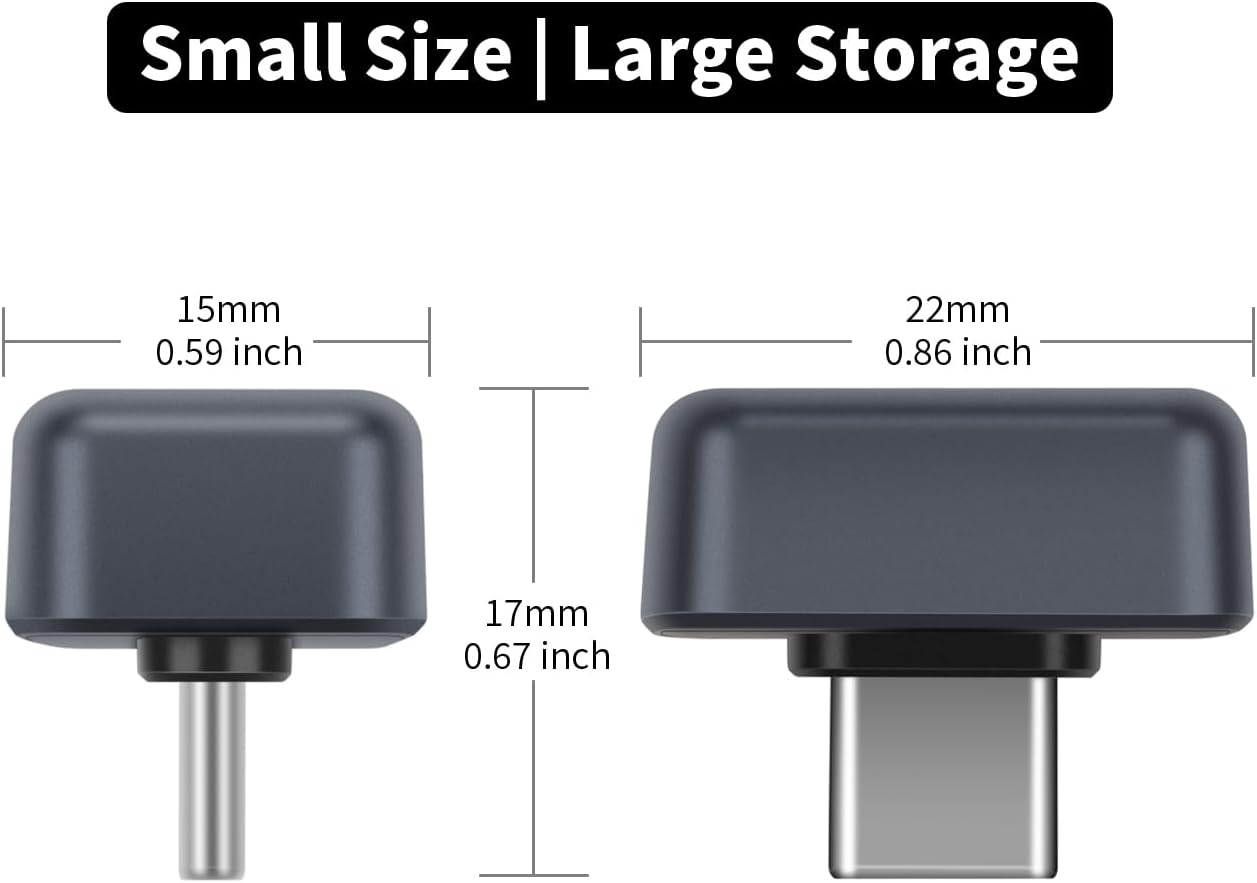
Image: Dimensions of the UnionSine FD450 USB C External SSD, showing its compact size (15mm width, 17mm height, 22mm length).
3. Setup
The UnionSine FD450 SSD is designed for plug-and-play functionality. No drivers or external power are typically required for most compatible devices.
Konnessjoni ma 'Tagħmir:
- Locate the USB Type-C port on your device (smartphone, tablet, laptop, TV, car audio system).
- Insert the UnionSine FD450 SSD directly into the USB Type-C port. Ensure it is fully seated.
- Your device should automatically recognize the SSD as external storage. You may receive a notification or see it appear in your device's file manager or storage settings.
Nota: For smartphones and tablets, ensure your device supports USB On-The-Go (OTG) functionality for external storage recognition.
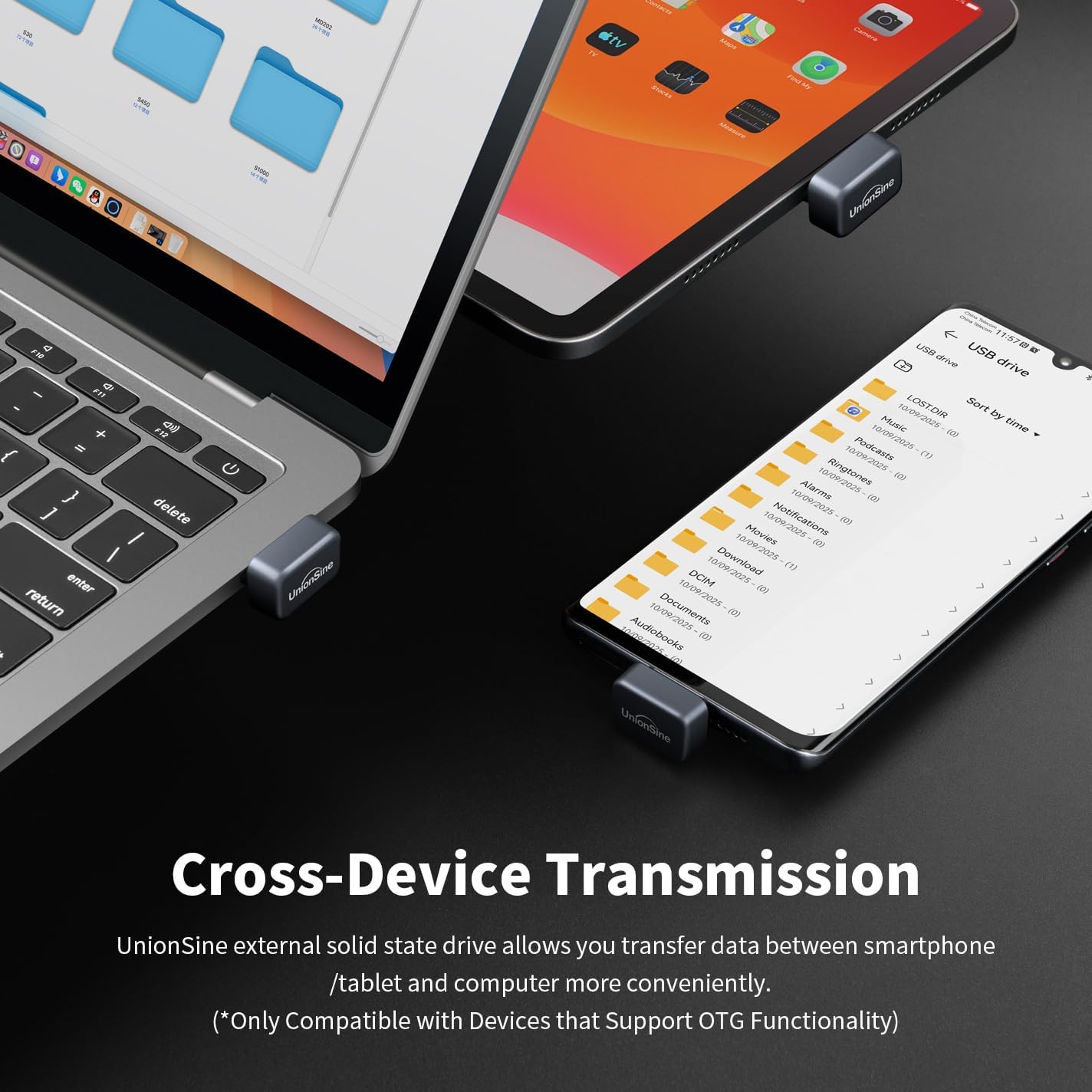
Image: The UnionSine FD450 SSD connected to a laptop, tablet, and smartphone, demonstrating cross-device compatibility.
Video: An official product video demonstrating the UnionSine USB C External SSD, highlighting its compact size and ease of connection to various devices like smartphones and laptops.
4. Istruzzjonijiet Operattivi
Trasferiment tad-Data:
Once connected, the SSD functions like any other external storage device. You can drag and drop files, copy and paste, or use your device's file management system to transfer data.
- Veloċità Għolja: The USB 3.2 interface allows for read speeds up to 450 MB/s and write speeds up to 400 MB/s, enabling quick transfer of large files, ritratti, u vidjows.
- Capacity Note: The advertised capacity (e.g., 128GB) is calculated using the decimal system (1GB = 1,000MB). Operating systems use binary measurement (1GB ≈ 1,024MB), resulting in a slightly lower formatted capacity (e.g., 128GB ≈ 119GB). This is standard for all storage devices.
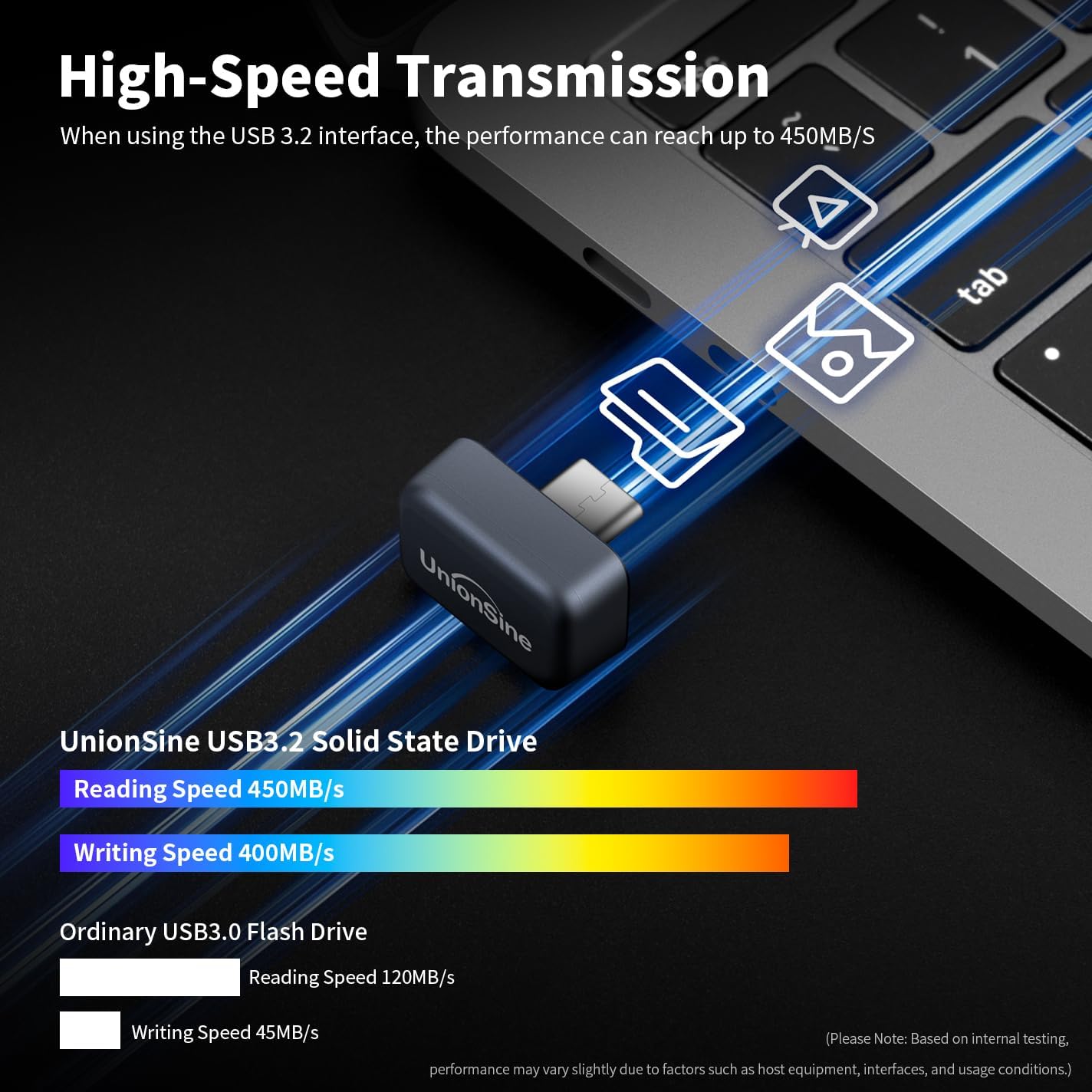
Image: A visual representation of the high-speed data transfer capabilities of the UnionSine USB 3.2 Solid State Drive compared to an ordinary USB 3.0 Flash Drive, showing read speeds of 450MB/s and write speeds of 400MB/s.
4K 60fps ProRes Video Recording:
The FD450 SSD supports direct 4K 60fps ProRes video recording, particularly useful for compatible devices like the iPhone 15 Pro/Pro Max and iPhone 16/17 Pro/Pro Max series.
- Activate ProRes: On compatible iPhones, navigate to System Settings > Camera and enable "Apple ProRes".
- Select ProRes HDR: In the camera app, select "ProRes HDR" for 4K 60fps recording.
- Qabbad l-SSD: Ensure the UnionSine SSD is connected to your iPhone's USB-C port. The phone will automatically save recordings to the external SSD.
Nota: This feature is only available on iPhone 15 Pro/Pro Max and iPhone 16/17 Pro/Pro Max models.

Image: Instructions on how to activate 4K ProRes HDR recording on compatible iPhone models (15/16/17 Pro/Pro Max) to utilize the external SSD for direct storage.
Trasferiment Files from iPhone (15/16/17 Series):
- Connect the UnionSine SSD to your iPhone.
- Open the Photos app, select the desired photos/videos, and click the "Share" icon.
- Choose "Save to Files”.
- Click "Browse" and then select "UnionSine" (or the drive's name).
- Click "Save" to transfer the files.
Nota: This method is applicable for iPhone 15/16/17 Series. Not applicable for iPhone 14/13/12/11/XS/XR/X/SE.

Image: Step-by-step guide for transferring photos and videos from an iPhone 15/16/17 series to the UnionSine external SSD using the "Files" app.
Trasferiment Files from Android Phone:
- Connect the UnionSine SSD to your Android phone.
- Open your phone's "Files" or "My Files" application.
- Innaviga lejn il-post tal- files you wish to transfer (e.g., "Images").
- Agħżel dak mixtieq files and choose "Copy" or "Move".
- Browse to the "UnionSine" drive (or its designated name) and select "Paste" or confirm the move.
Nota: Compatible with devices that support OTG functionality.

Image: Step-by-step guide for transferring files from an Android phone to the UnionSine external SSD using the phone's file maniġer.
5. Manutenzjoni
Ifformattjar:
The default format of this USB drive is EXFAT, which offers broad compatibility across various operating systems. If your device does not recognize the drive or requires a different file system, formatting may be necessary.
Attenzjoni: Formatting the drive will erase all data. Back up any important files qabel ma tipproċedi.

Image: A table detailing the format support for different operating systems (Windows, Mac OS, Linux, Android, TV) with the UnionSine SSD, indicating EXFAT as the default and widely compatible format.
Kura Ġenerali:
- Avoid exposing the SSD to extreme temperatures, direct sunlight, or high humidity.
- Do not drop or subject the SSD to strong impacts.
- Always safely eject the drive from your computer or device before unplugging it to prevent data corruption.
- Keep the USB-C connector clean and free from dust or debris.
6 Issolvi l-problemi
Apparat Mhux Rikonoxxut:
- Iċċekkja l-Konnessjoni: Ensure the SSD is fully and correctly inserted into the USB-C port.
- Kompatibilità: Verify that your device supports USB OTG (On-The-Go) functionality for external storage. Refer to your device's manual.
- Ipprova Port/Apparat Ieħor: Test the SSD with a different USB-C port or another compatible device to rule out a port issue.
- Reformat (Last Resort): If the drive is new and not recognized, or if it was previously used with a different system, it might require formatting to a compatible file system (e.g., EXFAT). Refer to the "Maintenance" section.
Veloċitajiet ta' Trasferiment Baxxi:
- Verżjoni USB: Ensure your device's USB-C port supports USB 3.2 for optimal speeds. Connecting to a USB 2.0 port will result in significantly slower transfer rates.
- File Daqs/Tip: Trasferiment ta' ħafna intrapriżi żgħar files jista' jkun aktar bil-mod milli tittrasferixxi ftit kbar files.
- Prestazzjoni tal-Apparat: The speed of your host device (computer, phone) can affect transfer rates.
Drive Feels Warm During Use:
- It is normal for solid-state drives to generate some heat during active use, especially during large data transfers or continuous recording (like 4K ProRes). If the drive becomes excessively hot or causes performance issues, discontinue use and contact support.
7. Speċifikazzjonijiet
| Karatteristika | Dettall |
|---|---|
| Numru tal-Mudell | FD450-128GB |
| Kapaċità tal-Ħażna Diġitali | 128 GB |
| Interface Hard Disk | USB 3.0 (Backward compatible with USB 3.0 and USB 2.0 ports) |
| Teknoloġija tal-Konnettività | USB Type-C (USB 3.2) |
| Aqra Veloċità | Sa 450 MB/s |
| Ikteb Veloċità | Sa 400 MB/s |
| Apparati Kompatibbli | Desktop, Laptop, Smartphone (Type-C OTG), Tablet (Type-C OTG), TV, Car Audio |
| Sistemi Operattivi | Windows, Mac OS, Android, Linux |
| Kulur | Griż |
| Piż tal-oġġett | 0.352 uqija |
| Dimensjonijiet tal-Pakkett | 5.04 x 3.94 x 0.67 pulzieri |
8. Garanzija u Appoġġ
For warranty information and technical support, please refer to the documentation included with your purchase or visit the official UnionSine website. If you encounter any issues not covered in this manual, please contact UnionSine customer service for assistance.
Dokumenti Relatati - FD450-128GB
 |
Unionsine External Hard Drive User Manual User manual for the Unionsine External Hard Drive, detailing setup, usage, and specifications. Includes information on USB 3.0 and USB 2.0 connectivity. |
 |
Gwida għall-Installazzjoni Rapida tal-Hard Drive Esterna ta' UnionSine Gwida komprensiva u rapida għall-installazzjoni ta' hard drives esterni ta' UnionSine, li tkopri s-setup għas-sistemi Windows, Mac, PS4, u Xbox One, flimkien ma' noti importanti dwar l-ifformattjar u l-użu. |
 |
UnionSine HD2510 Portable External Hard Drive User Manual & Setup Guide Comprehensive guide for the UnionSine HD2510 portable external hard drive, covering setup for Windows, Mac, PS4, and Xbox One, along with limited warranty information and support details. |
Ask a question about this manual
Ask about setup, troubleshooting, compatibility, parts, safety, or missing instructions. Manuals+ will review the question and use this page’s manual context to help answer it.