

1. Introduzzjoni
This manual provides essential information for the safe and efficient use of your URAO 14-inch Android 15 Tablet, model G140L. Please read this manual thoroughly before operating the device to ensure proper setup and functionality. Keep this manual for future reference.
2. Kontenut tal-Pakkett
Ivverifika li l-oġġetti kollha huma preżenti fil-pakkett:
- URAO 14-inch Android 15 Tablet (G140L)
- Tastiera Bluetooth
- Bluetooth Mouse (Note: Batteries not included)
- Pinna tal-istilus
- Kawża Protettiva
- Headphones
- Cable tal-Iċċarġjar tal-USB tat-Tip-Ċ
- Adapter tal-Enerġija (Ċarġer)

Image: A visual representation of the URAO G140L tablet, highlighting its ports and buttons, alongside all standard accessories provided in the retail package.
3. Setup
3.1 Qawwa Inizjali
- Press and hold the Power ON/OFF button located on the side of the tablet until the screen illuminates.
- Segwi l-istruzzjonijiet fuq l-iskrin biex tagħżel il-lingwa tiegħek, tikkonnettja ma' netwerk Wi-Fi, u tissettja l-kont Google tiegħek.
3.2 Iċċarġjar tat-Tablet
Before first use, fully charge the tablet. Use the provided USB Type-C charging cable and power adapter.
- Qabbad il-kejbil USB tat-Tip Ċ mal-port tal-iċċarġjar tat-tablet.
- Ipplaggja l-adapter tal-enerġija f'iżbokk tal-ħajt.
- The battery indicator on the screen will show charging status. A full charge typically takes approximately 2.5 hours with the 30W fast charging capability.
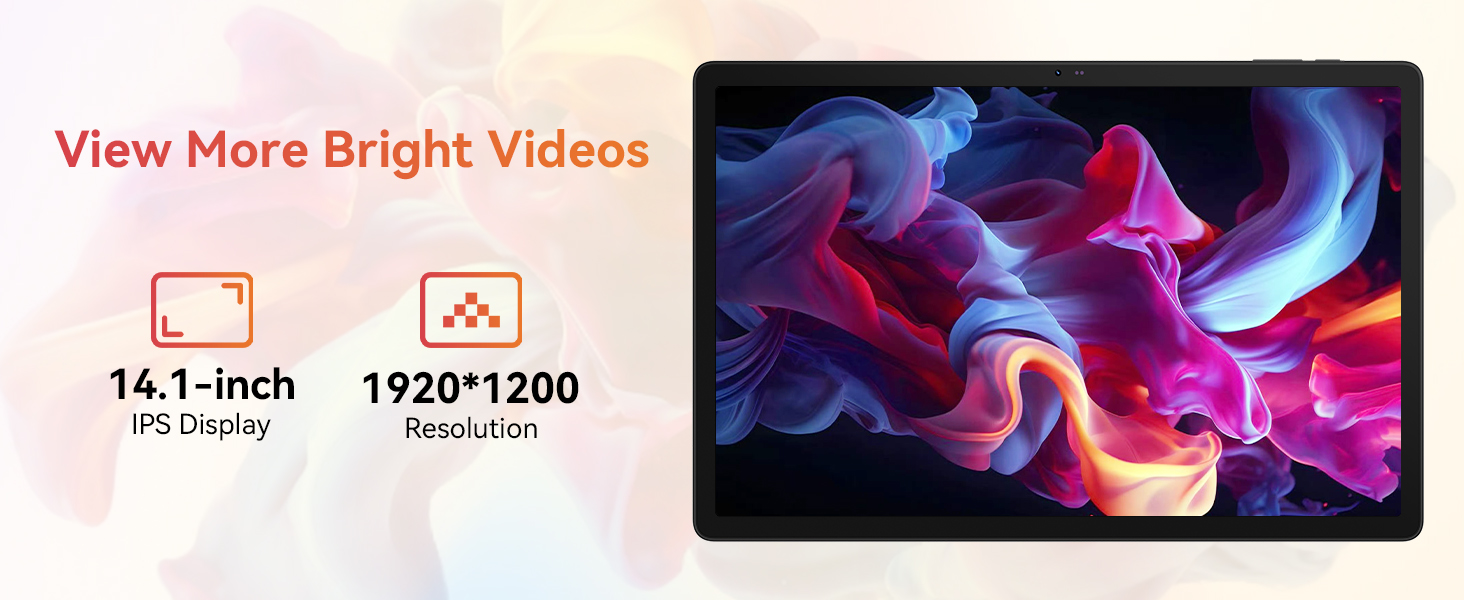
Image: The URAO tablet connected to a charger via its Type-C port, illustrating the 10000mAh battery and 30W fast charging feature.
3.3 Connecting Peripherals (Keyboard, Mouse, Stylus)
The included keyboard, mouse, and stylus connect via Bluetooth.
- Mur fuq Settings > Apparati konnessi > Bluetooth fuq il-pillola tiegħek.
- Kun żgur li l-Bluetooth huwa mixgħul On.
- Put the keyboard, mouse, or stylus into pairing mode (refer to each accessory's individual instructions for specific pairing steps).
- Agħżel l-aċċessorju mil-lista ta' apparati disponibbli fuq it-tablet tiegħek biex tqabbad miegħu.
3.4 Konnessjoni tan-Netwerk (Wi-Fi)
Qabbad ma 'netwerk Wi-Fi għal aċċess għall-internet.
- Mur fuq Settings > Netwerk u internet > Internet.
- Dawwar Wi-Fi fuq.
- Select your desired Wi-Fi network from the list and enter the password if required. The tablet supports Wi-Fi 6 (802.11ax) for faster and more stable connections.
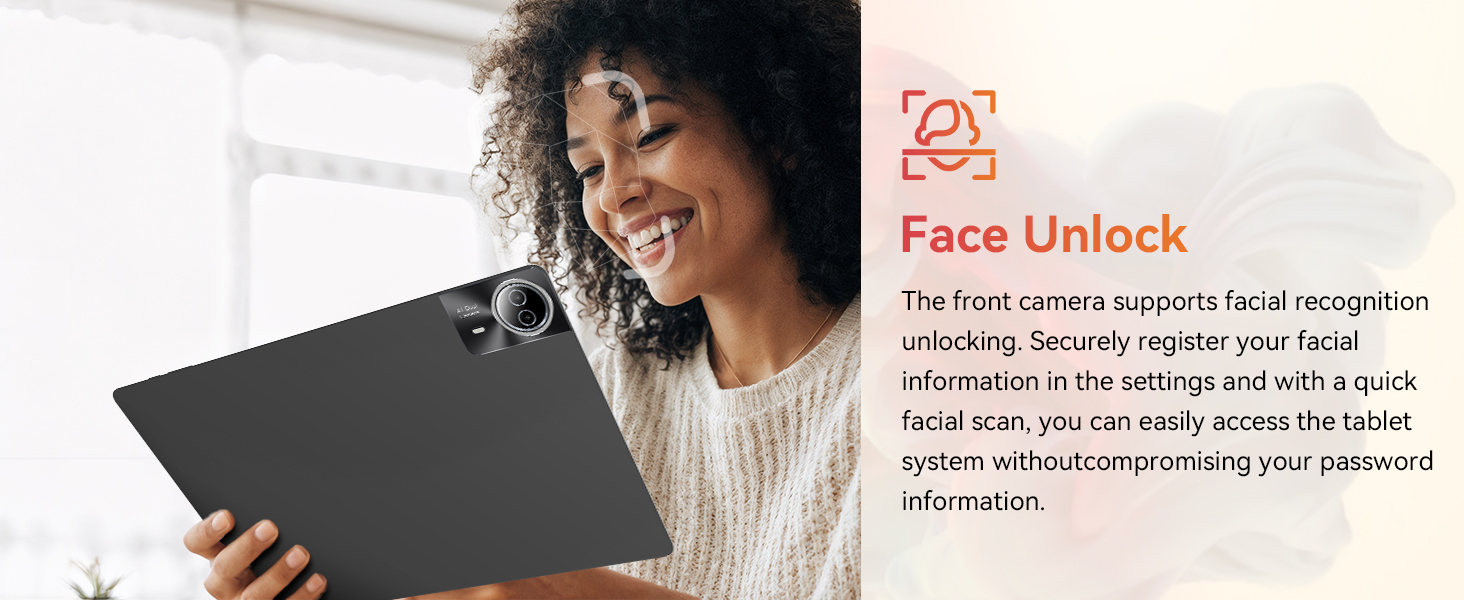
Image: The URAO tablet screen showing icons for dual-band Wi-Fi (2.4G+5G) and Bluetooth 5.4, indicating its connectivity features.
4. Istruzzjonijiet Operattivi
4.1 Navigazzjoni Bażika (Android 15)
Your tablet runs on Android 15, offering an intuitive user interface. Use touch gestures for navigation:
- Tektek: Agħżel oġġett.
- Swipe: Skrollja minn paġni jew listi.
- Oqros: Iżżumja 'l ġewwa jew 'il barra fuq l-immaġnijiet u web paġni.
- Stampa Twila: Aċċessa l-menus kuntestwali jew iċċaqlaq l-ikoni.
4.2 Settings tal-wiri
The 14.1-inch IPS FHD display offers a resolution of 1920x1200 pixels for clear visuals. Adjust display settings via Settings > Wiri.
- Livell ta 'luminożità: Aġġusta l-luminożità tal-iskrin.
- Tema skur: Enable for reduced eye strain in low light.
- Modalità ta' Protezzjoni tal-Għajnejn: Reduces blue light emission.
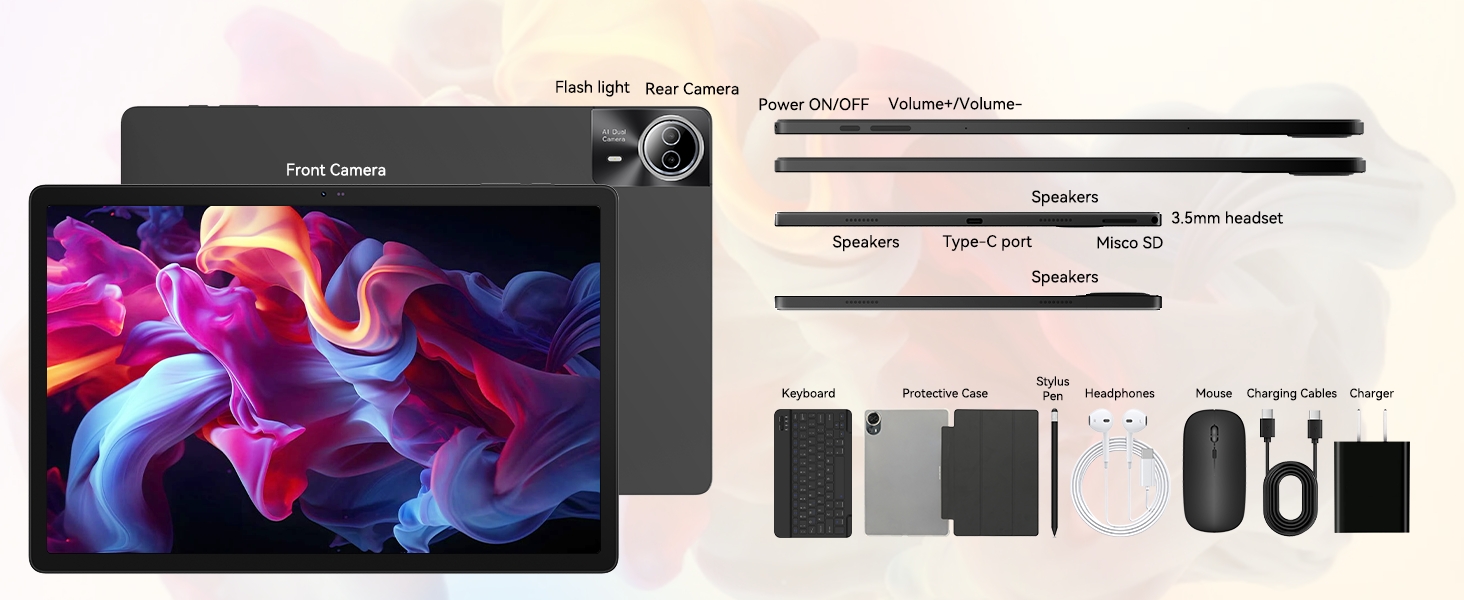
Image: The URAO tablet displaying a high-resolution image, emphasizing its 14.1-inch IPS display and 1920x1200 pixel resolution for bright and clear visuals.
4.3 Użu tal-Kamera
It-tablet għandu kamera ta’ quddiem ta’ 5MP u kamera ta’ wara ta’ 8MP.
- Iftaħ il- Kamera applikazzjoni mill-iskrin tad-dar jew mill-kexxun tal-app.
- Tektek l-ikona tal-kamera biex taqleb bejn il-kameras ta' quddiem u ta' wara.
- Tektek il-buttuna tax-shutter biex tieħu ritratti jew tibda/twaqqaf ir-reġistrazzjoni tal-vidjow.
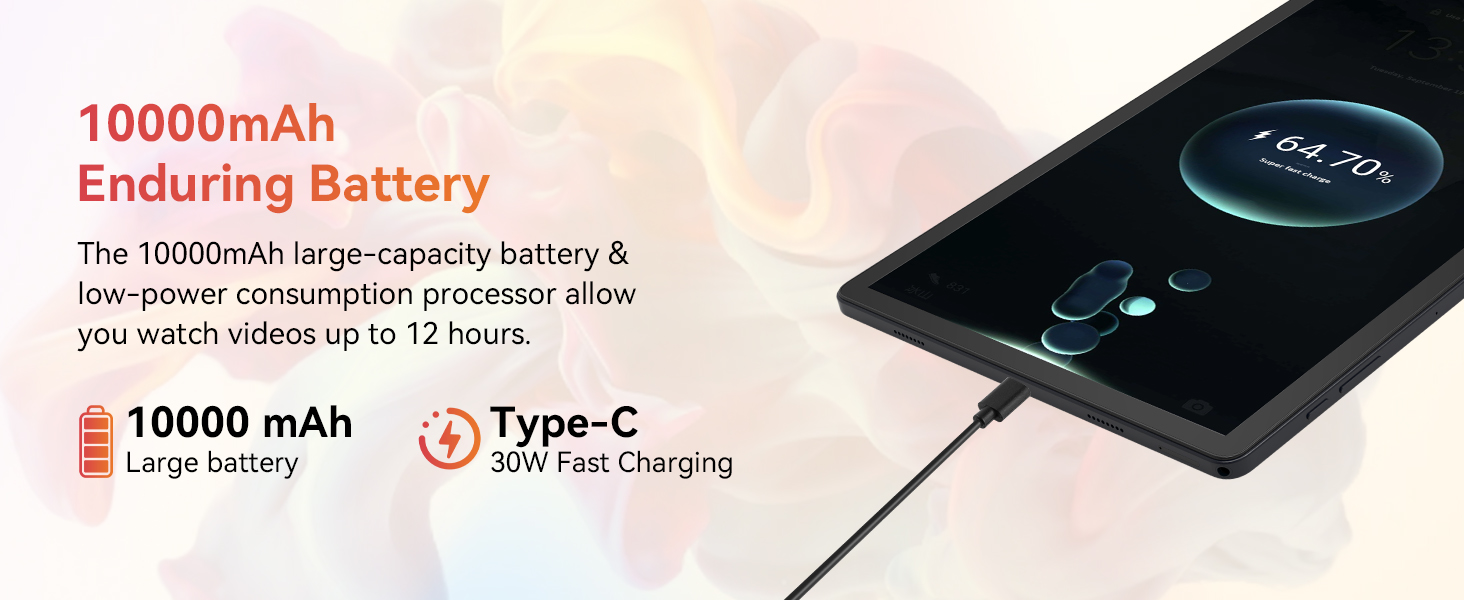
Image: A collage demonstrating the photo capabilities of the URAO tablet, featuring images taken with its 8MP rear camera and 5MP front camera, suitable for video calls and capturing moments.
4.4 Awdjo
The tablet is equipped with Stereo 4 Speakers for an immersive audio experience. Volume can be adjusted using the Volume +/- buttons on the side of the tablet or through the on-screen controls.
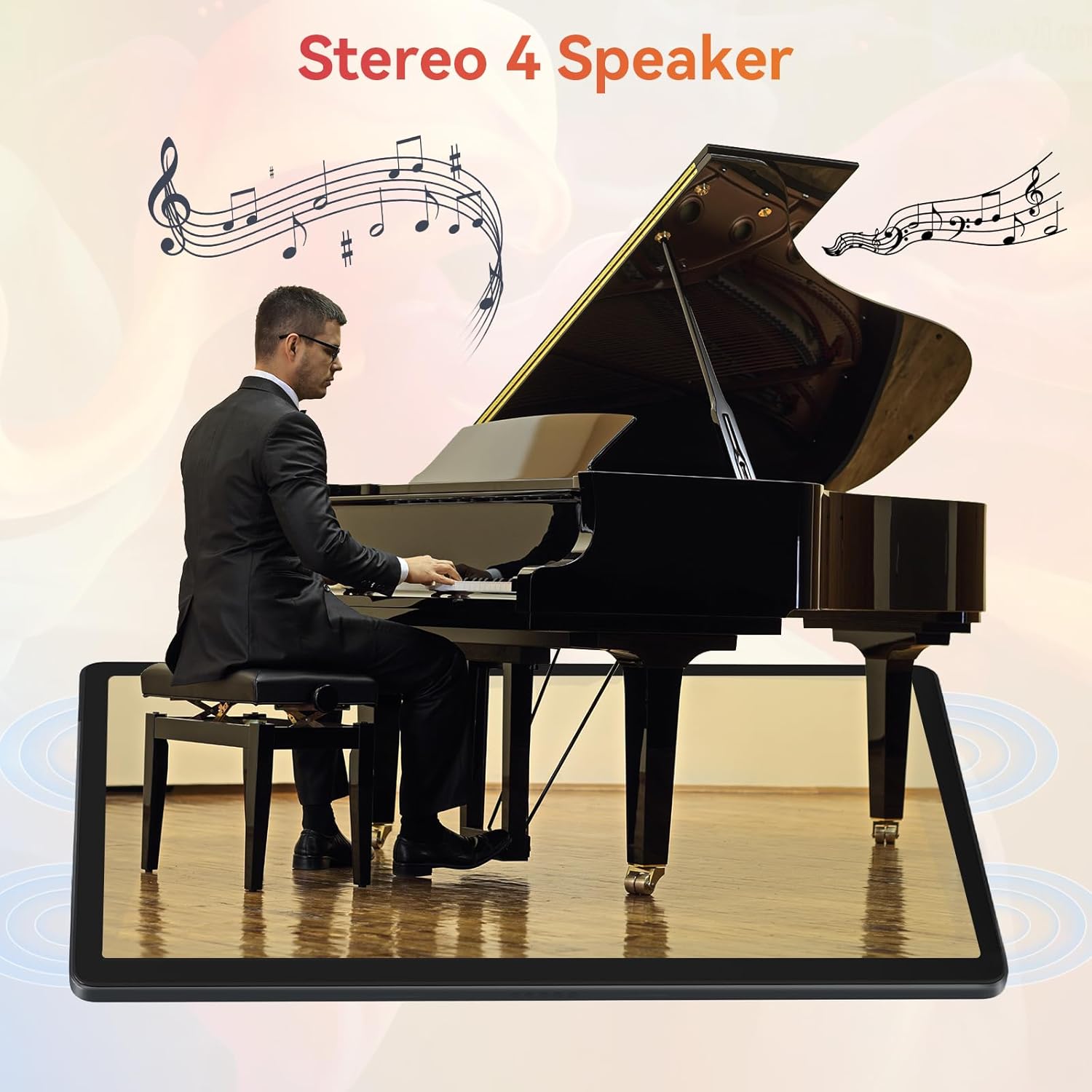
Image: The URAO tablet positioned in front of a piano player, with a graphic overlay indicating the presence of Stereo 4 Speakers for enhanced sound.
4.5 Ġestjoni tal-Ħażna
Your tablet comes with 256GB of internal storage and 30GB of RAM (6GB physical + 24GB virtual expansion). Storage can be expanded up to 1TB using a TF (Micro SD) card (not included).
- To insert a TF card, locate the card slot on the side of the tablet and gently push the card in until it clicks.
- Manage storage via Settings > Ħażna.
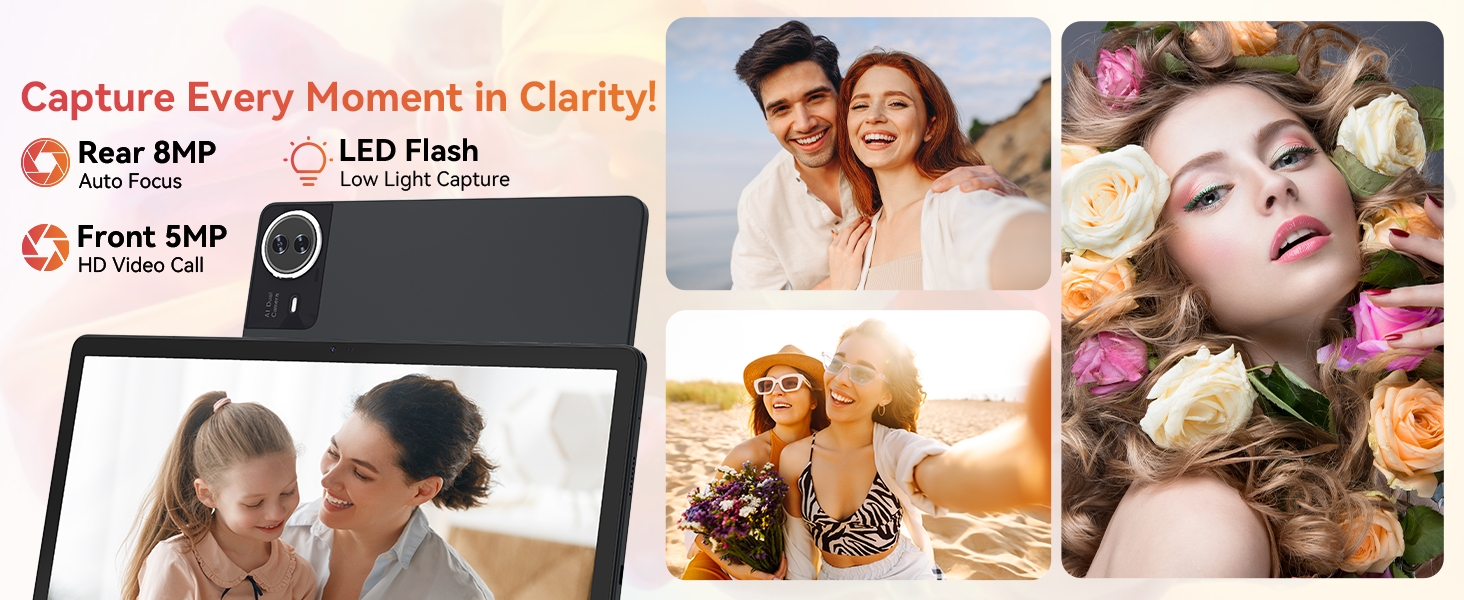
Image: The URAO tablet displaying multiple application icons, with graphics indicating its 30GB RAM (6+24GB), 256GB ROM, and support for up to 1TB external storage.
4.6 2-in-1 Mode
Transform your tablet into a laptop-like experience by connecting the Bluetooth keyboard and mouse. The protective case can also function as a stand.

Image: A multi-panel image showing the URAO tablet in different usage scenarios, including note-taking with a stylus, typing with the keyboard and mouse, and watching videos, demonstrating its versatility.
4.7 Rikonoxximent tal-wiċċ
The front camera supports facial recognition for convenient unlocking.
- Mur fuq Settings > Sigurtà u privatezza > Wiċċ nisfruttaw.
- Follow the on-screen instructions to register your facial data.
- Ladarba tkun issettjata, tista' tiftaħ it-tablet tiegħek billi sempliċement tħares lejn il-kamera ta' quddiem.
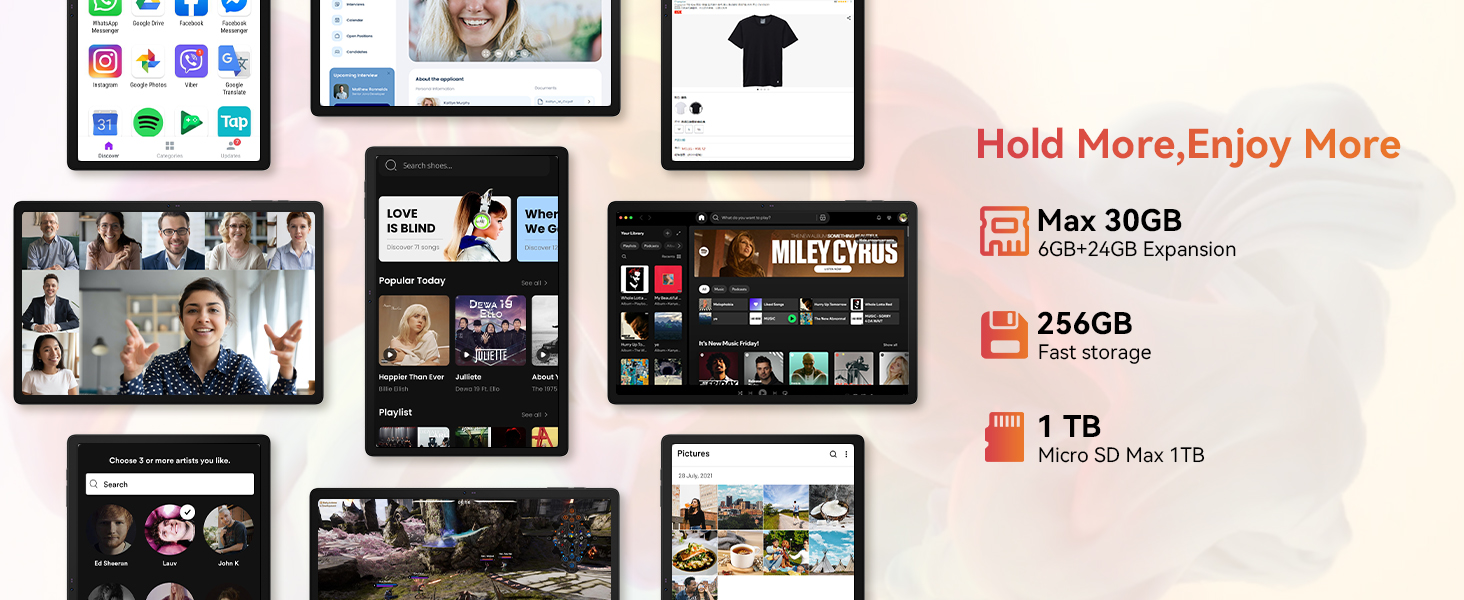
Image: A woman demonstrating the face unlock feature of the URAO tablet, with an icon indicating facial recognition technology.
5. Manutenzjoni
5.1 Tindif tal-Apparat
- Uża drapp artab u mingħajr suf biex tnaddaf l-iskrin u l-korp tat-tablet.
- Evita li tuża kimiċi ħarxa jew materjali li joborxu.
- Tisprejjax prodotti tat-tindif direttament fuq l-iskrin.
5.2 Aġġornamenti tas-Software
Iċċekkja perjodikament għal aġġornamenti tas-sistema biex tiżgura prestazzjoni u sigurtà ottimali.
- Mur fuq Settings > Sistema > Aġġornament tas-sistema.
- Segwi l-istruzzjonijiet fuq l-iskrin biex tniżżel u tinstalla kwalunkwe aġġornament disponibbli.
5.3 Kura tal-Batterija
Biex ittawwal il-ħajja tal-batterija:
- Evita li tesponi l-pillola għal temperaturi estremi.
- Tħallix il-batterija tiċċarġja kompletament ta' spiss.
- Uża biss il-ċarġer u l-kejbil provduti.
6 Issolvi l-problemi
6.1 L-Apparat Mhux Qed Jixgħel
- Kun żgur li t-tablet huwa ċċarġjat biżżejjed. Qabbadha mal-ċarġer għal mill-inqas 30 minuta.
- Press and hold the Power ON/OFF button for 10-15 seconds to perform a forced restart.
6.2 Kwistjonijiet ta' Konnessjoni tal-Wi-Fi
- Erġa' ibda r-router Wi-Fi tiegħek u t-tablet.
- Kun żgur li tinsab fil-firxa tas-sinjal tal-Wi-Fi.
- Iċċekkja li l-password tal-Wi-Fi ddaħħlet b'mod korrett.
6.3 Peripherals Not Connecting (Keyboard/Mouse/Stylus)
- Ensure Bluetooth is enabled on the tablet and the accessory is in pairing mode.
- Check if the accessory has sufficient battery (e.g., replace mouse batteries).
- Unpair and re-pair the accessory from the tablet's Bluetooth settings.
6.4 Touchscreen Unresponsiveness
- Ibda mill-ġdid il-pillola.
- Kun żgur li l-iskrin ikun nadif u ħieles minn debris jew likwidi.
- If the issue persists, a factory reset may be necessary (back up your data first).
7. Speċifikazzjonijiet
Technical Specifications for URAO G140L Tablet:
| Mudell | G140L |
| Sistema Operattiva | Android 15 |
| Daqs tal-Iskrin | 14.1 Pulzier |
| Riżoluzzjoni tal-Iskrin | 1920 x 1200 pixel (FHD IPS) |
| Proċessur | 2.0 GHz Octa-core |
| RAM | 30GB (6GB fiżiku + 24GB virtwali) |
| Ħażna Interna (ROM) | 256GB |
| Ħażna espansibbli | Up to 1TB (TF card, not included) |
| Kapaċità tal-batterija | 10000mAh |
| Iċċarġjar | Iċċarġjar Mgħaġġel ta' 30W, USB Tip-C |
| Ħajja Medja tal-Batterija | Sa 12-il siegħa (użu mħallat) |
| Konnettività bla fili | Wi-Fi 6 (802.11ax), Bluetooth 5.4 |
| Kamera ta' Quddiem | 5MP |
| Kamera ta' wara | 8MP |
| Awdjo | Stereo 4 Speakers |
| Sensuri | Sensor tal-Aċċelerazzjoni tal-Gravità |
| Dimensjonijiet (LxWxH) | 12.8 x 8.39 x 0.39 pulzieri |
| Piż tal-oġġett | 4.29 liri |
8. Garanzija u Appoġġ
8.1 Informazzjoni dwar Garanzija
Your URAO G140L Tablet is covered by a manufacturer's warranty. Please refer to the warranty card included in your package for specific terms and conditions. Keep your proof of purchase for warranty claims.
8.2 Appoġġ għall-Klijent
For technical assistance, troubleshooting, or warranty inquiries, please contact URAO customer support through the retailer where the product was purchased or visit the official URAO websit għal informazzjoni ta' kuntatt.