
FIDECO HCA64
Manwal tal-Utent tal-FIDECO HCA64 Hub Imħaddem b'10 Portijiet u 10Gbps USB 3.2 Gen 2
Mudell: HCA64
1. Introduzzjoni
This manual provides comprehensive instructions for the FIDECO HCA64 10-Port 10Gbps USB 3.2 Gen 2 Powered Hub. It covers setup, operation, maintenance, troubleshooting, and product specifications to ensure optimal performance and longevity of your device. Please read this manual thoroughly before using the product.
2. Kontenut tal-Pakkett
Please verify that all items listed below are included in your package. If any items are missing or damaged, please contact FIDECO support.
- FIDECO HCA64 10-Port USB 3.2 Gen 2 Powered Hub
- Adapter tal-Enerġija 12V 5A
- USB-C to USB-C Cable with USB-A Adapter
- Manwal għall-Utent
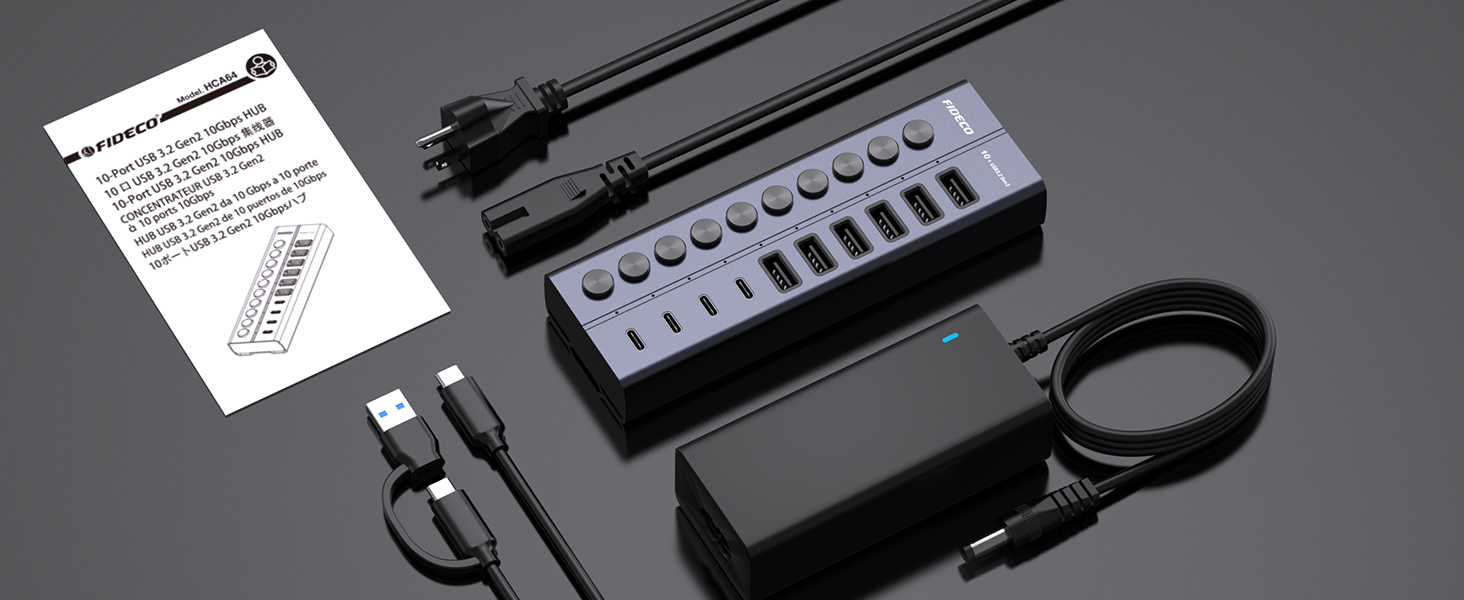
Image: Contents of the FIDECO HCA64 package, including the hub, power adapter, USB cable, and manual.
3. Prodott Aktarview
The FIDECO HCA64 is a high-performance 10-port USB hub designed to expand connectivity for your laptop or PC. It features a robust aluminum alloy casing for efficient heat dissipation and includes individual on/off switches for each port.
Karatteristiċi ewlenin:
- 10Gbps Super Speed: USB 3.2 Gen 2 standard for rapid data transfer.
- 60W Powered Hub: Includes a 12V 5A power adapter for stable operation and charging.
- BC1.2 Charging Support: All 10 ports support BC1.2 charging (5V/1.5A max).
- Independent On/Off Switches: Control power to individual ports.
- Aluminum Design: Durabbli u jgħin fid-dissipazzjoni tas-sħana.
- Portijiet Versatili: 6 USB-A ports and 4 USB-C ports.

Immaġni: Quddiem view of the FIDECO HCA64 USB Hub, illustrating the layout of 6 USB-A (10Gbps) and 4 USB-C (10Gbps) ports, along with individual power buttons.
4. Setup
Follow these steps to set up your FIDECO HCA64 USB Hub:
- Qabbad l-Adapter tal-Enerġija: Plug the 12V 5A power adapter into the DC IN port on the back of the USB hub. Then, plug the power adapter into a wall outlet. The hub requires external power for stable operation and charging capabilities.
- Qabbad mal-Kompjuter Tiegħek: Use the provided USB-C to USB-C cable (with the attached USB-A adapter if needed) to connect the hub to an available USB-C or USB-A port on your laptop or PC.
- Qawwa Mixgħul: The hub is plug-and-play; no drivers are required. Once connected, the hub will be ready for use. Individual port power can be controlled using the dedicated on/off switches.

Immaġni: Close-up view showing the 60W power adapter being connected to the FIDECO USB Hub, ensuring stable power for multiple devices.

Image: Demonstrates the flexibility of the included USB-C cable with an attached USB-A adapter, allowing connection to both USB-C and USB-A host ports on laptops.
5. Istruzzjonijiet Operattivi
5.1 Trasferiment tad-Data
The FIDECO HCA64 hub supports USB 3.2 Gen 2, offering data transfer speeds up to 10Gbps. Connect your USB devices such as external hard drives, USB flash drives, or other peripherals to the available USB-A or USB-C ports on the hub. Ensure the individual port switch is turned on for the connected device.

Image: Illustrates the 10Gbps data transfer capability of both USB-C and USB-A ports on the hub, significantly faster than USB 3.0's 5Gbps.
5.2 Iċċarġjar tal-Apparat
All 10 USB ports on the FIDECO HCA64 support BC1.2 charging, providing a maximum power output of 5V/1.5A per port. This is suitable for charging smartphones, tablets, and other USB-powered devices. The hub can simultaneously transfer data and charge devices.

Image: A smartphone and tablet are shown charging simultaneously through the FIDECO USB Hub, demonstrating its BC1.2 fast charging capability.

Image: A laptop connected to the FIDECO USB Hub, which is simultaneously transferring data from a USB drive and charging a smartphone, highlighting multitasking efficiency.
5.3 Using Individual On/Off Switches
Each port on the hub has an independent on/off switch and an LED indicator. Press the button to toggle the power for the corresponding port. The LED will illuminate when the port is active. This feature allows you to manage connected devices without frequent plugging and unplugging, conserving power and extending device lifespan.
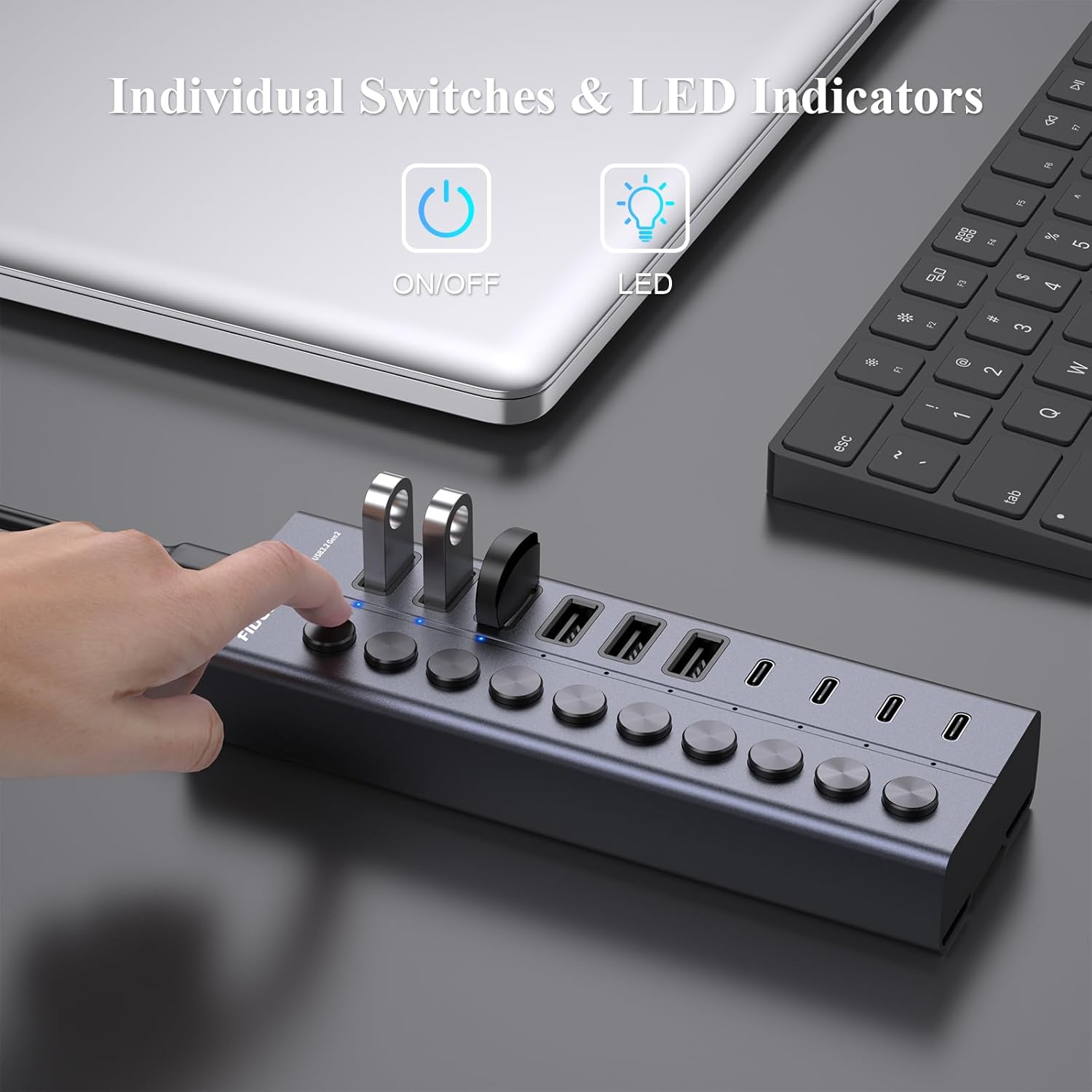
Image: A hand is shown pressing one of the individual on/off switches on the FIDECO USB Hub, with multiple USB drives connected, demonstrating selective power control.

Image: A close-up of the FIDECO USB Hub highlighting the individual on/off switches and their corresponding LED indicators, allowing users to control each device separately.
5.4 Kompatibilità
The FIDECO HCA64 USB Hub is widely compatible with various operating systems, including Windows, Mac OS, and Linux. It supports a broad range of devices such as card readers, dashcams, desktops, gaming consoles, and laptops.
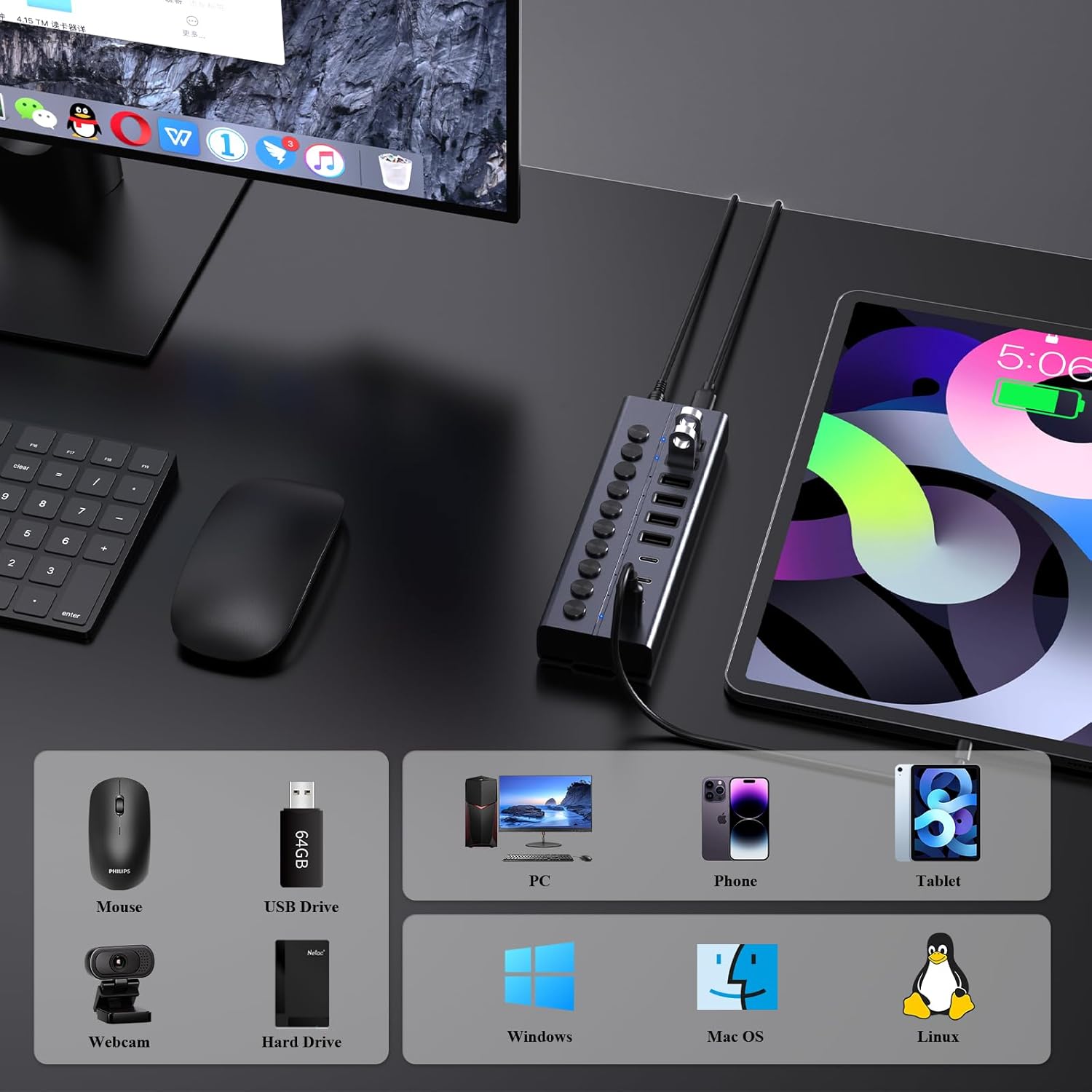
Image: An illustration showing the FIDECO USB Hub connected to a laptop, with icons representing compatible devices like mice, USB drives, webcams, hard drives, phones, tablets, and PCs, as well as operating systems like Windows, Mac OS, and Linux.
5.5 Vidjo ta' Dimostrazzjoni tal-Prodott
Watch this video for a visual guide on setting up and using the FIDECO 10Gbps 60W Powered USB Hub.
Video: A demonstration of the FIDECO 10Gbps 60W Powered USB Hub, showcasing its features, connectivity, and high-speed data transfer capabilities.
6. Manutenzjoni
To ensure the longevity and optimal performance of your FIDECO HCA64 USB Hub, follow these maintenance guidelines:
- Tindif: Use a soft, dry cloth to wipe the surface of the hub. Avoid using liquid cleaners or abrasive materials, as they may damage the finish or internal components.
- Ħażna: Aħżen il-hub f'post frisk u niexef 'il bogħod mix-xemx diretta u minn temperaturi estremi.
- Immaniġġjar: Immaniġġja l-apparat b'attenzjoni. Evita li twaqqgħu jew li tissottomettih għal impatti qawwija.
- Ventilazzjoni: Ensure the hub is placed in an area with adequate ventilation to prevent overheating, especially during prolonged use with multiple devices.
7 Issolvi l-problemi
If you encounter issues with your FIDECO HCA64 USB Hub, please refer to the following common problems and solutions:
- Apparat Mhux Rikonoxxut:
- Ensure the individual on/off switch for the specific port is activated.
- Verify that the hub is properly connected to your computer and the power adapter is securely plugged in.
- Try connecting the device directly to your computer to confirm it functions independently.
- Ibda mill-ġdid il-kompjuter tiegħek.
- Veloċità baxxa tat-Trasferiment tad-Data:
- Ensure both the hub and your connected device support USB 3.2 Gen 2 (10Gbps) for maximum speed. Older USB standards will operate at their respective lower speeds.
- Avoid connecting too many high-bandwidth devices simultaneously.
- Check the quality of the USB cable used to connect your device to the hub.
- Apparati Mhux Qed Jiċċarġjaw jew Qed Jiċċarġjaw Bil-Mod:
- Confirm the power adapter is connected and functioning. The hub requires external power for charging.
- Note that each port provides a maximum of 5V/1.5A (BC1.2). This may not be sufficient for devices requiring higher power input, such as some portable monitors or high-power laptops.
- Ensure the charging cable is functional and properly connected.
- Hub Overheating:
- While the aluminum design aids in heat dissipation, ensure the hub is in a well-ventilated area.
- Reduce the number of high-power devices connected if overheating persists.
8. Speċifikazzjonijiet
| Karatteristika | Dettall |
|---|---|
| Numru tal-Mudell | HCA64 |
| Dimensjonijiet tal-Prodott | 6 x 2 x 1.1 pulzieri |
| Piż tal-oġġett | 1.32 liri |
| Interface tal-Ħardwer | USB Type C (Host Connection) |
| Portijiet USB | 6 x USB-A (10Gbps), 4 x USB-C (10Gbps) |
| Veloċità tat-Trasferiment tad-Data | Sa 10Gbps (USB 3.2 Ġen 2) |
| Input tal-Enerġija | 12V 5A (60W) Power Adapter |
| Ħruġ tal-Iċċarġjar | BC1.2 (5V/1.5A max per port) |
| Karatteristiċi Speċjali | Anti-Slip, Fast Charging, Fast Data Transfer, Plug and Play, Powered, Individual On/Off Switches |
| Apparati Kompatibbli | Card Readers, Dashcams, Desktops, Gaming Consoles, Laptops |
| Sistemi Operattivi | Windows, Mac OS, Linux |
9. Garanzija u Appoġġ
9.1 Informazzjoni dwar Garanzija
FIDECO products are designed for reliability and performance. Specific warranty details may vary by region and retailer. Please retain your proof of purchase for any warranty claims.
9.2 Appoġġ Tekniku
For technical assistance, troubleshooting, or any other inquiries regarding your FIDECO HCA64 USB Hub, please contact our support team:
- Email: support@fideco.cn
When contacting support, please provide your product model (HCA64) and a detailed description of the issue.
Ask a question about this manual
Ask about setup, troubleshooting, compatibility, parts, safety, or missing instructions. Manuals+ will review the question and use this page’s manual context to help answer it.