
1. Introduzzjoni
This manual provides essential information for setting up, operating, maintaining, and troubleshooting your Lenovo Legion Tower 5 (2025) Gaming Desktop Computer. Please read this manual thoroughly before using your new system to ensure proper functionality and longevity.
2. X'hemm fil-Kaxxa
Iċċekkja li l-oġġetti kollha huma preżenti fl-imballaġġ:
- Lenovo Legion Tower 5 Gaming Desktop Computer PC
- Maws Calliope USB (Iswed)
- USB Calliope Keyboard (Black - English US)
- Kejbil tal-Enerġija
- Dokumentazzjoni (Gwida ta' Bidu Mgħaġġel, Informazzjoni dwar il-Garanzija)
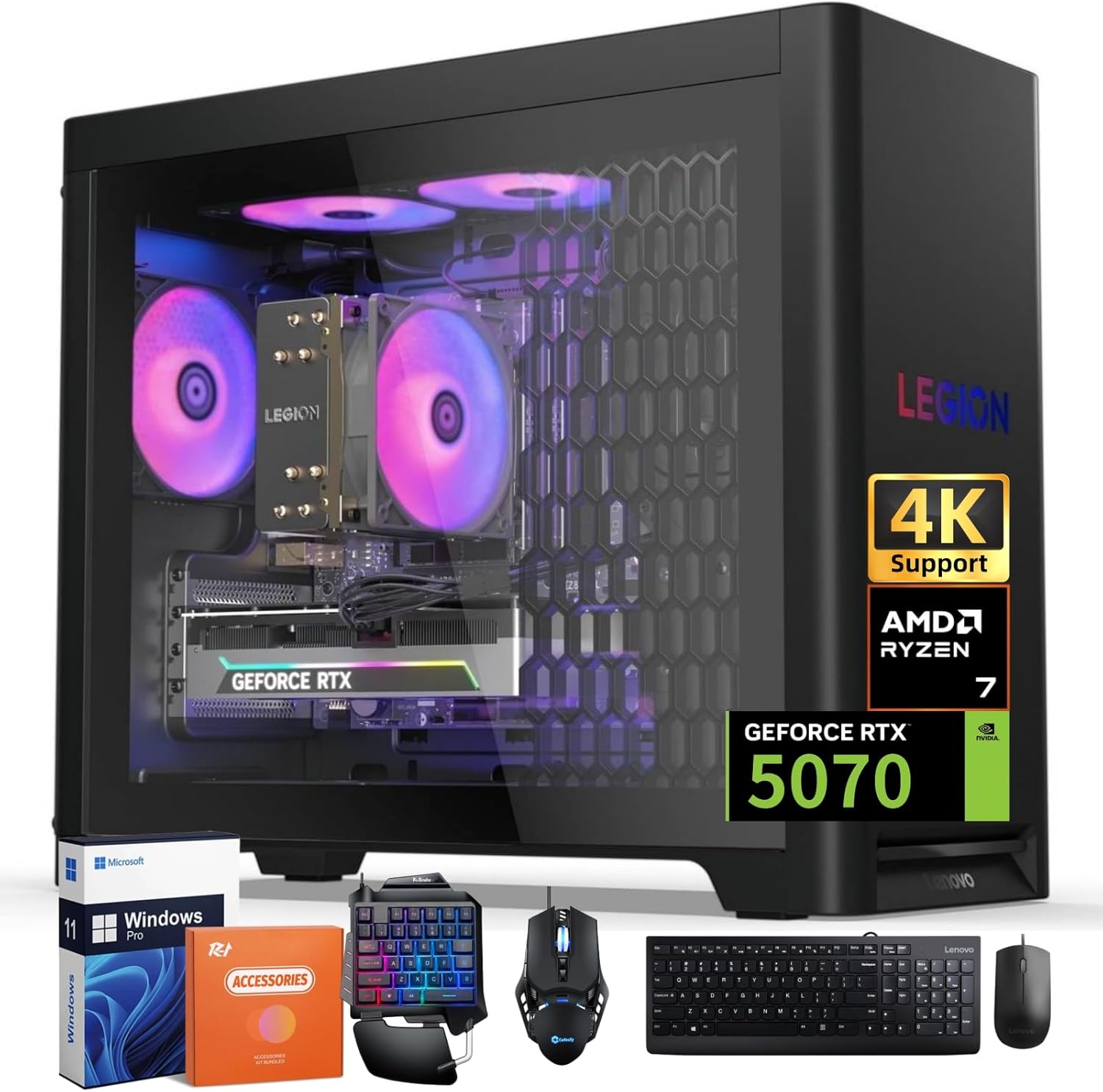
Image: Lenovo Legion Tower 5 desktop computer and included accessories.
3. Istruzzjonijiet ta' Setup
3.1 Konnessjoni tal-Periferali
- Konnessjoni tal-Enerġija: Connect the power cable to the power supply unit (PSU) at the rear of the computer and then to a grounded electrical outlet.
- Konnessjoni tal-monitor: Connect your monitor to the NVIDIA GeForce RTX 5070 graphics card using a DisplayPort or HDMI cable. The graphics card has 3 x DisplayPort and 1 x HDMI output.
- Tastiera u maws: Connect the included USB keyboard and mouse to any available USB-A ports on the rear or top of the computer.
- Konnessjoni tan-Netwerk: For a wired connection, connect an Ethernet cable to the RJ45 port on the rear of the computer. For wireless, ensure your Wi-Fi network is available during initial setup.
- Apparat Awdjo: Connect headphones, speakers, or a microphone to the appropriate audio ports on the top or rear of the computer.
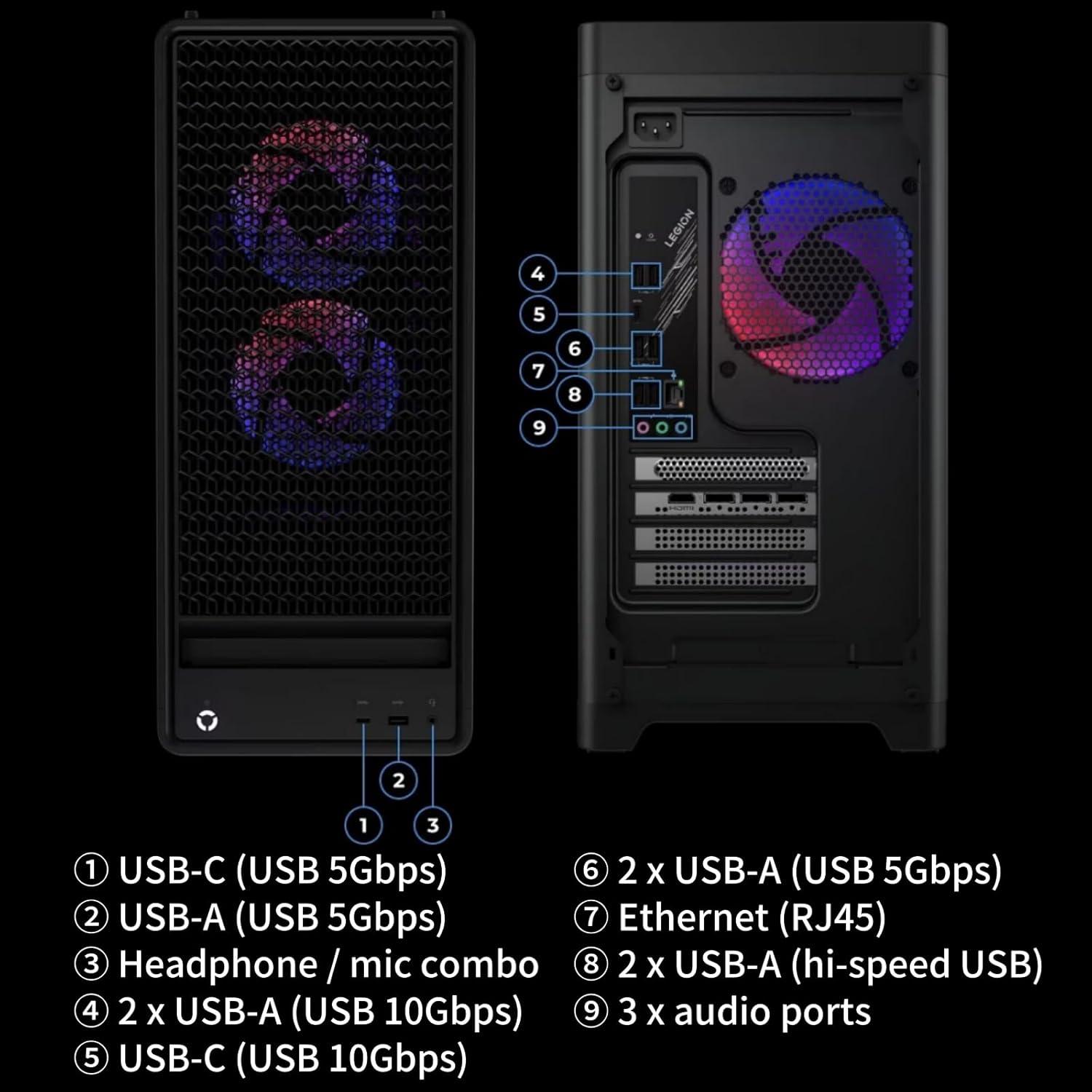
Image: Port layout for the Lenovo Legion Tower 5.
3.2 L-Ewwel Tixgħil u s-Setup tas-Sistema Operattiva
- Press the power button located on the front of the computer.
- Follow the on-screen instructions to complete the Windows 11 Pro setup process. This includes selecting your region, language, creating a user account, and connecting to a network.
- Once Windows is set up, it is recommended to run Windows Update to ensure all drivers and system software are current.
4. It-Tħaddim tal-Kompjuter Tiegħek
4.1 Sistema Overview
The Lenovo Legion Tower 5 is equipped with an AMD Ryzen 7 7700X processor and an NVIDIA GeForce RTX 5070 graphics card, designed for high-performance computing and gaming. It features 32GB DDR5 5600MT/s RAM and a 1TB SSD for fast load times and responsive operation.
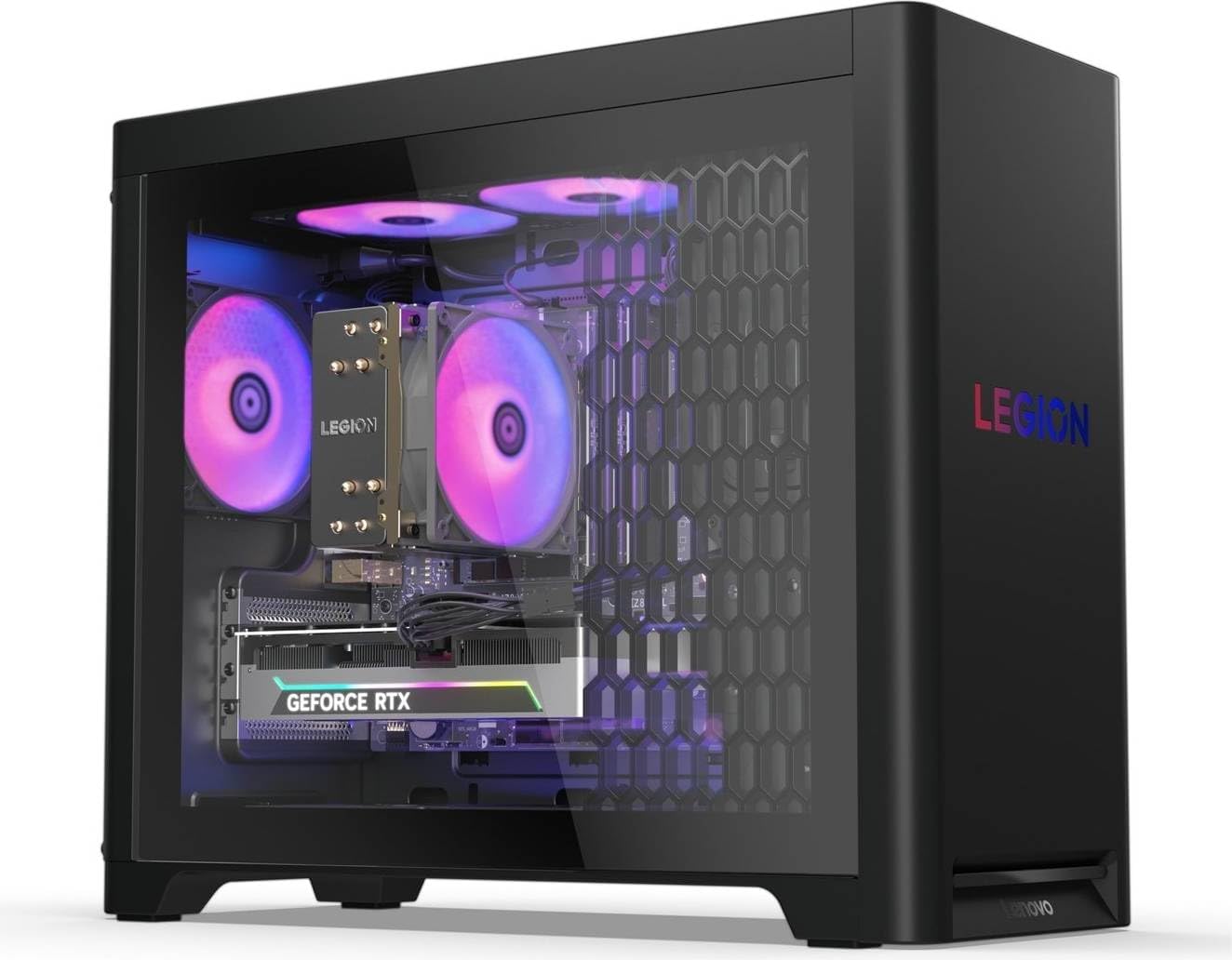
Immaġni: Interna view of the Legion Tower 5 with ARGB fans.
4.2 Sistema tat-tkessiħ
The system utilizes Legion Coldfront Cooling with a 150W air cooling solution and ARGB fans to maintain optimal temperatures during intensive use. Ensure proper airflow around the chassis by keeping vents unobstructed.
4.3 Karatteristiċi tal-awdjo
Experience immersive sound with Nahimic Audio for Gamers, supporting 5.1 Channel Surround Sound. Connect compatible audio devices to utilize these features.
4.4 Preloaded Software
Your system comes with several preloaded applications:
- Lenovo Vantage: For system management, updates, and support.
- Legion Space: A dedicated hub for gaming and system optimization.
- McAfee LiveSafe (Trial): Antivirus software.
- Microsoft 365 (Trial): Productivity suite.
- Xbox PC Game Pass (3-month Trial): Gaming subscription service.
5. Manutenzjoni
5.1 Kura Ġenerali
- Keep the computer in a clean, dust-free environment.
- Ensure adequate ventilation by not blocking air intake or exhaust vents.
- Regularly clean the exterior with a soft, dry cloth. Avoid liquid cleaners directly on components.
5.2 Aġġornamenti tas-Software
Regularly update your operating system, drivers, and applications through Windows Update and Lenovo Vantage to ensure optimal performance and security.
5.3 Aġġornamenti tal-Komponenti
The Legion Tower 5 features a tool-free side panel for convenient access to internal components, facilitating upgrades such as additional RAM or storage. Refer to Lenovo's official documentation or a qualified technician for detailed upgrade procedures.
6 Issolvi l-problemi
If you encounter issues with your Legion Tower 5, consider the following basic troubleshooting steps:
- Ebda Qawwa: Ensure the power cable is securely connected to both the computer and the electrical outlet. Test the outlet with another device.
- Ebda Display: Verify that the monitor is powered on and correctly connected to the graphics card. Try a different display cable or monitor if available. Ensure the correct input source is selected on your monitor.
- Tnaqqis tas-Sistema: Check for background applications consuming resources. Ensure sufficient free space on your primary drive. Run system diagnostics via Lenovo Vantage.
- Periferali Mhux Jaħdem: Try connecting the peripheral to a different USB port. Ensure drivers are installed and updated.
- Kwistjonijiet tas-Software: Restart the application or the computer. If an issue persists, consider reinstalling the problematic software or performing a system restore to a previous point.
For more advanced troubleshooting or persistent issues, refer to the Lenovo support webis-sit jew ikkuntattja l-appoġġ tekniku ta' Lenovo.
7. Speċifikazzjonijiet
| Komponent | Speċifikazzjoni |
|---|---|
| Brand | Lenovo |
| Numru tal-Mudell | 90YJ000CUS |
| Sistema Operattiva | Windows 11 Pro |
| Proċessur | AMD Ryzen 7 7700X (8 Cores, 16 Threads, 4.5 GHz Base, Up to 5.4 GHz Turbo) |
| Grafika | NVIDIA GeForce RTX 5070 12GB GDDR7 |
| Memorja (RAM) | 32GB DDR5 5600MT/s |
| Ħażna | 1TB SSD |
| Konnettività bla fili | Wi-Fi 6E (802.11ax), Bluetooth 5.3 |
| Awdjo | Nahimic Audio for Gamers, 5.1 Channel Surround Sound |
| Unità tal-Provvista tal-Enerġija | 850W (90% energy-efficient) |
| Tkessiħ | Legion Coldfront Cooling (150W Air Cooling with ARGB) |
| Portijiet ta' quddiem | 1x USB-A (USB 5Gbps), 1x USB-C (USB 5Gbps), Headphone / mic combo |
| Portijiet ta' wara | 1x Ethernet (RJ45), 1x USB-C (USB 10Gbps), 2x USB-A (USB 10Gbps), 2x USB-A (USB 5Gbps), 2x USB-A (hi-speed USB), 3x audio ports |
| Dimensjonijiet Fiżiċi (HxWxD) | 458mm x 211mm x 383.8mm (18.03in. x 8.30in. x 15.11in.) |
| Piż | 18kg (39.68lbs) |
| Kulur | Eclipse Iswed |
8. Garanzija u Appoġġ
Your Lenovo Legion Tower 5 (2025) Gaming Desktop Computer is covered by a limited warranty. For detailed warranty terms, conditions, and registration, please refer to the warranty documentation included with your product or visit the official Lenovo support website. Technical support and driver downloads are also available through the Lenovo support portal.
Appoġġ Lenovo Websit: support.lenovo.com