
1. Introduzzjoni
This manual provides essential information for setting up, operating, maintaining, and troubleshooting your Lenovo ThinkCentre Neo 50q Gen 5 Tiny PC. Please read this guide thoroughly before using your device to ensure proper function and safety.
2. Prodott Aktarview
The Lenovo ThinkCentre Neo 50q Gen 5 Tiny PC is a compact and powerful business desktop designed for efficiency and performance. It features an Intel Core 5 210H Processor, 32GB DDR5 memory, and a 1TB SSD, running on Windows 11 Pro.
2.1 Kontenut tal-Pakkett
- Lenovo ThinkCentre Neo 50q Gen 5 Tiny Business PC
- AC Adapter / Power Supply (90W)
- Maws Calliope USB (Iswed)
- USB Calliope Keyboard (Black - English US QWERTY)
- Dokumentazzjoni (Gwida ta' Bidu Mgħaġġel, Informazzjoni dwar is-Sigurtà)
2.2 Front and Rear Ports & Slots
Familiarize yourself with the various ports and connectors on your ThinkCentre Neo 50q Gen 5 Tiny PC.

Immaġni: Detailed diagram illustrating the location and function of all front and rear ports and slots on the ThinkCentre Neo 50q Gen 5 Tiny PC.
- Portijiet ta' quddiem:
- 1x USB-C (USB 10Gbps / USB 3.2 Gen 2), with data transfer and 5V@3A charging
- 1x USB-A (USB 10Gbps / USB 3.2 Gen 2), with Always On and 5V@2.1A charging
- 1x Headphone / mikrofonu combo jack (3.5mm)
- Buttuna tal-qawwa
- Portijiet ta' wara:
- 2x USB-A (Hi-Speed USB / USB 2.0), one supports Smart Power On
- 2x USB-A (USB 10Gbps / USB 3.2 Gen 2)
- 1x HDMI 2.1 TMDS (supports resolution up to 4K@60Hz)
- 1x DisplayPort 1.4b
- 1x Ethernet (GbE RJ-45)
- 1x Konnettur tal-enerġija
- Kensington Sigurtà Slot™
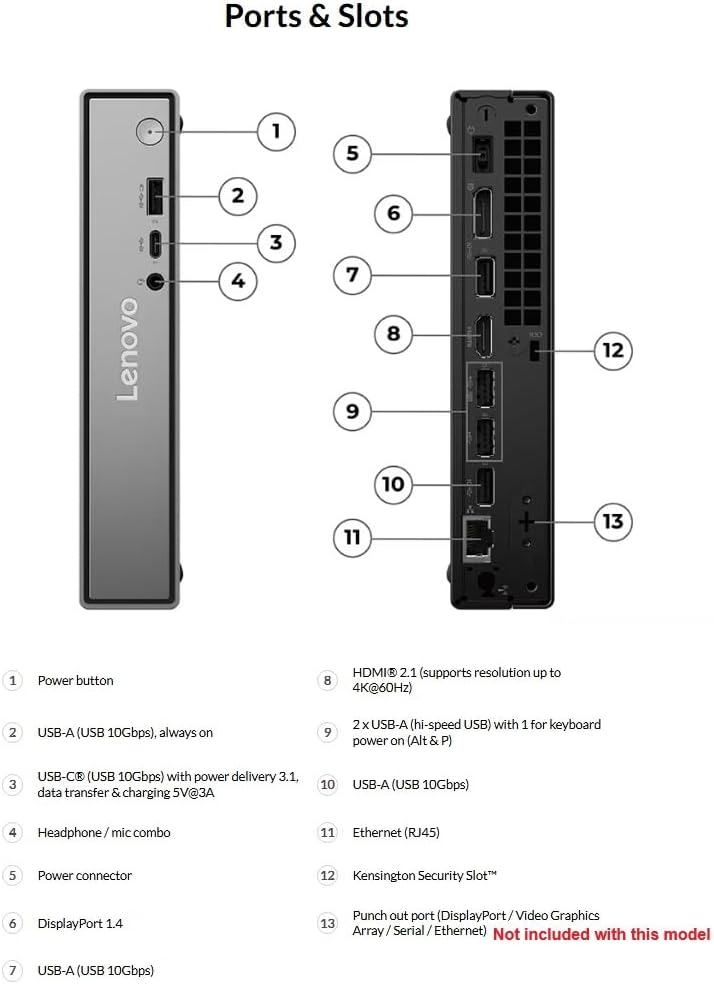
Immaġni: Angolat minn quddiem view of the ThinkCentre Neo 50q Gen 5 Tiny PC, highlighting the power button, USB ports, and headphone jack.

Immaġni: Wara view of the ThinkCentre Neo 50q Gen 5 Tiny PC, showing the various video outputs, USB ports, Ethernet, and power connector.
3. Istruzzjonijiet ta' Setup
Follow these steps to set up your ThinkCentre Neo 50q Gen 5 Tiny PC.
- Iftaħ il-PC mill-pakkett: Oħroġ il-PC u l-aċċessorji kollha mill-imballaġġ bir-reqqa.
- Ikkonnettja l-Periferali:
- Connect the USB keyboard and mouse to the available USB-A ports on the front or rear of the PC.
- Connect your monitor(s) to the HDMI or DisplayPort outputs on the rear of the PC.
- If using a wired network, connect an Ethernet cable to the RJ-45 port on the rear.
- Qabbad l-Enerġija: Connect the power adapter to the power connector on the rear of the PC, then plug the power cord into a wall outlet.
- Qawwa Mixgħul: Press the power button located on the front of the PC. The system will boot up.
- Konfigurazzjoni Inizjali tal-Windows: Segwi l-istruzzjonijiet fuq l-iskrin biex tlesti s-setup tal-Windows 11 Pro, inkluż il-lingwa, ir-reġjun, il-konnessjoni tan-netwerk, u l-ħolqien tal-kont tal-utent.
4. Istruzzjonijiet Operattivi
Your ThinkCentre Neo 50q Gen 5 Tiny PC comes pre-installed with Windows 11 Pro. This section covers basic operation.
4.1 Ġestjoni tal-Enerġija
- Tixgħel: Agħfas il-buttuna tal-qawwa fuq quddiem tal-PC.
- Tfigħ: Ikklikkja l-buttuna Start fil-Windows, imbagħad agħżel Power > Shut down.
- Jibda mill-ġdid: Ikklikkja l-buttuna Start fil-Windows, imbagħad agħżel Power > Restart.
- Modalità Sleep: Ikklikkja l-buttuna Start fil-Windows, imbagħad agħżel Power > Sleep.
4.2 Konnessjoni man-Netwerks
- Konnessjoni bil-fili: If an Ethernet cable is connected, your PC should automatically connect to the network.
- Wireless Connection (Wi-Fi 6):
- Ikklikkja l-ikona tal-Wi-Fi fit-taskbar.
- Agħżel in-netwerk Wi-Fi mixtieq tiegħek mil-lista.
- Daħħal iċ-ċavetta tas-sigurtà tan-netwerk (password) jekk tintalab.
- Ikklikkja Qabbad.
4.3 L-Użu ta' Apparati USB
Connect USB devices such as external hard drives, printers, or webcams to any available USB-A or USB-C ports. Windows will typically install the necessary drivers automatically.
5. Manutenzjoni
Manutenzjoni regolari tgħin biex tiżgura l-lonġevità u l-prestazzjoni ottimali tal-PC tiegħek.
- Żommha Nadif: Regularly clean the exterior of the PC with a soft, dry cloth. Use compressed air to clear dust from ventilation grilles to prevent overheating.
- Aġġornamenti tas-Software: Żomm is-sistema operattiva u d-drivers tal-Windows tiegħek aġġornati. Mur fuq Settings > Aġġornament tal-Windows biex tiċċekkja għal aġġornamenti.
- Protezzjoni Antivirus: Ensure your antivirus software is up-to-date and performing regular scans to protect against malware.
- Backup tad-Data: Agħmel backup tad-dejta importanti regolarment fuq drajv estern jew ħażna fil-cloud biex tevita t-telf tad-dejta.
- Evita l-Ostruzzjonijiet: Ensure the PC's ventilation openings are not blocked to allow for proper airflow.
6 Issolvi l-problemi
Din it-taqsima tipprovdi soluzzjonijiet għal kwistjonijiet komuni li tista’ tiltaqa’ magħhom.
6.1 Ebda Qawwa
- Ensure the power adapter is securely connected to both the PC and a working electrical outlet.
- Ittestja l-iżbokk b'apparat ieħor.
- Iċċekkja li l-buttuna tal-qawwa hija ppressata għalkollox.
6.2 L-ebda Wiri fuq il-Monitor
- Check that the monitor is powered on and its power cable is securely connected.
- Ensure the video cable (HDMI or DisplayPort) is firmly connected to both the PC and the monitor.
- Ipprova kejbil tal-vidjo jew monitor differenti jekk disponibbli.
- Kun żgur li s-sors tad-dħul korrett huwa magħżul fuq il-monitor tiegħek.
6.3 PC is Slow or Unresponsive
- Agħlaq l-applikazzjonijiet bla bżonn li jkunu qed jaħdmu fl-isfond.
- Iċċekkja u installa kwalunkwe aġġornament pendenti tal-Windows.
- Agħmel skenn sħiħ tas-sistema bis-softwer antivirus tiegħek.
- Ibda mill-ġdid il-PC.
- Żgura ventilazzjoni adegwata biex tevita sħana żejda.
6.4 Kwistjonijiet ta' Konnettività tan-Netwerk
- For wired connections, ensure the Ethernet cable is properly connected and the router/modem is working.
- For Wi-Fi, ensure Wi-Fi is enabled, you are connected to the correct network, and the password is correct.
- Erġa' ibda r-router/modem tiegħek u l-PC.
- Mexxi l-Windows Network Troubleshooter (Settings > Netwerk u internet > Settings avvanzati tan-netwerk > Soluzzjoni tal-problemi tan-netwerk).
7. Speċifikazzjonijiet
| Karatteristika | Speċifikazzjoni |
|---|---|
| Proċessur | Intel Core 5 210H (E-cores up to 3.60 GHz, P-cores up to 4.80 GHz) |
| Memorja (RAM) | 32 GB DDR5-5600MT/s (SODIMM) |
| Ħażna | 1 TB SSD M.2 2280 PCIe Gen4 TLC Opal |
| Grafika | Grafika Intel integrata |
| Sistema Operattiva | Windows 11 Pro 64-bit |
| Konnettività | Intel Wi-Fi 6 AX203 2x2 AX, Bluetooth 5.2, Gigabit Ethernet (RJ-45) |
| Portijiet ta' quddiem | 1x USB-C (USB 10Gbps), 1x USB-A (USB 10Gbps with Always On), 1x Headphone/Mic Combo |
| Portijiet ta' wara | 2x USB-A (USB 2.0), 2x USB-A (USB 10Gbps), 1x HDMI 2.1 TMDS, 1x DisplayPort 1.4b, 1x Ethernet (RJ-45), 1x Power Connector |
| Dimensjonijiet (H x W x D) | 19.37 x 9.84 x 5.04 pulzieri (approssimattiv) |
| Piż | Madwar 6.65 lbs (3.02 kg) |
| Kulur | Raven Iswed |
8. Garanzija u Appoġġ
8.1 Informazzjoni dwar Garanzija
Your Lenovo ThinkCentre Neo 50q Gen 5 Tiny PC comes with a 1 Year On-Site Lenovo WarrantyGħal termini u kundizzjonijiet dettaljati, jekk jogħġbok irreferi għad-dokumentazzjoni tal-garanzija inkluża mal-prodott tiegħek jew żur is-sit uffiċjali tal-appoġġ ta' Lenovo. websit.
8.2 Appoġġ Tekniku
Għal assistenza teknika, downloads ta' sewwieqa, jew aktar informazzjoni, jekk jogħġbok żur is-sit uffiċjali tal-Appoġġ Lenovo websit:
You will need your product's serial number, which can typically be found on a label on the device or within the system information in Windows.