
1. Introduzzjoni
This manual provides essential information for setting up, operating, and maintaining your ASUS Vivobook S16 AI PC Laptop. Please read this manual thoroughly before using your device to ensure proper function and longevity.

Figure 1: ASUS Vivobook S16 AI PC Laptop
The ASUS Vivobook S16 is a high-performance laptop featuring a 16-inch 2.8k OLED display, an Intel 16-core Ultra 9 285H processor, 32GB RAM, and a 1TB SSD. It is designed for various professional and creative tasks.
2. X'hemm fil-Kaxxa
Iċċekkja li l-oġġetti kollha huma preżenti fl-imballaġġ:
- ASUS Vivobook S16 AI PC Laptop
- Adapter tal-Enerġija u Cable
- Manwal għall-Utent (dan id-dokument)
- iCarp Type-C 3-in-1 Hub (USB 3.0, HDTV 4K Output, Type-C PD) - May be included as an accessory.

Figure 2: iCarp Type-C 3-in-1 Hub (Optional Accessory)
This hub provides additional connectivity options, including USB 3.0, 4K HDMI output, and Type-C Power Delivery.
3. Setup
3.1 Qawwa Inizjali
- Iċċarġja l-batterija: Connect the power adapter to the laptop's power port and then to a wall outlet. Allow the battery to charge for at least 30 minutes before initial use.
- Iftaħ il-Wiri: Carefully lift the display panel.
- Qawwa Mixgħul: Agħfas il-buttuna tal-qawwa, li tipikament tinsab fuq il-gverta tat-tastiera.
- Setup tal-Windows: Segwi l-istruzzjonijiet fuq l-iskrin biex tlesti l-proċess tas-setup tal-Windows 11 Home. Dan jinkludi l-għażla tar-reġjun tiegħek, il-konnessjoni ma' netwerk Wi-Fi, u l-ħolqien ta' kont tal-utent.
3.2 Konnessjoni tal-Periferali
Your ASUS Vivobook S16 features various ports for connecting external devices. Refer to the port diagram below for identification.

Figure 3: Laptop Port Layout
This diagram illustrates the location and type of ports available on your laptop for connecting external devices such as monitors, USB drives, and audio equipment.
- Apparat USB: Connect USB-A devices (e.g., mouse, keyboard, external hard drive) to the USB Type-A 3.2 ports (6, 7).
- Apparati USB-C/Thunderbolt: Connect compatible USB-C or Thunderbolt 4 devices to the Thunderbolt 4 ports (2, 3). These ports support data transfer, video output, and power delivery.
- Display Estern: Use the HDMI 2.1 TMDS port (1) or a Thunderbolt 4 port (2, 3) with an appropriate adapter to connect an external monitor.
- Awdjo: Connect headphones or external speakers to the Audio combo jack (5).
- Karti tal-memorja: Insert MicroSD cards into the MicroSD Card Reader (4).
4. It-Tħaddim tal-Laptop Tiegħek
4.1 Karatteristiċi tal-Wiri
Your laptop features a 16-inch 2.8k (2880x1800) OLED display with a 120Hz refresh rate, offering vibrant colors and smooth visuals.

Figure 4: 120Hz OLED Display
The 120Hz refresh rate provides a smoother visual experience, particularly noticeable during fast-paced content or scrolling.
4.2 Tastiera u Touchpad
The laptop is equipped with a 1-zone RGB backlit keyboard for comfortable typing in various lighting conditions and a responsive touchpad for navigation.

Figure 5: 1-zone RGB Backlit Keyboard
The keyboard backlight can be adjusted or turned off via function keys (refer to your laptop's specific function key layout for details).
4.3 Sistema Awdjo
Experience enhanced audio with the Harman/kardon sound system and Smart Amp Teknoloġija.

Figure 6: Harman/kardon Audio and Copilot+ AI
The integrated audio system provides clear and powerful sound for multimedia and communication.
4.4 Copilot+ AI Features
Leverage the integrated Copilot+ AI features for enhanced productivity and creative tasks within Windows 11.
5. Manutenzjoni
5.1 Tindif
- Skrin: Uża drapp ratba u mingħajr ħelu ftit dampLaħlaħ bl-ilma jew b'tindif tal-iskrin. Evita kimiċi ħarxa.
- Tastiera u Chassis: Uża drapp artab u niexef. Għal ħmieġ iebes, neħħi ftit drapp.amp Jista' jintuża drapp b'soluzzjoni ta' sapun ħafif, biex tiżgura li l-ebda likwidu ma jidħol fil-fetħiet.
- Portijiet: Uża arja kkompressata biex tneħħi bil-mod it-trab mill-portijiet.
5.2 Kura tal-Batterija
- Evita li tiċċarġja l-batterija kompletament ta' spiss.
- Store the laptop in a cool, dry place if not used for extended periods, with the battery charged to approximately 50%.
- Uża biss l-adapter tal-enerġija oriġinali tal-ASUS.
5.3 Aġġornamenti tas-Software
Regularly update your Windows operating system and ASUS drivers to ensure optimal performance and security. Access Windows Update through Settings and check the ASUS support websit għal aġġornamenti tas-sewwieqa.
6 Issolvi l-problemi
6.1 Kwistjonijiet tal-Enerġija
- Il-laptop ma jixgħelx: Ensure the power adapter is securely connected to both the laptop and a working power outlet. Check if the power indicator light is on. Try a different outlet.
- Il-batterija mhix qed tiċċarġja: Verify the power adapter connection. Check for any damage to the adapter or charging port.
6.2 Kwistjonijiet tal-Wiri
- L-ebda wiri fuq l-iskrin: Connect an external monitor to check if the issue is with the laptop's internal display. Ensure the display brightness is not set to minimum.
- Skrin li jteptep: Update graphics drivers. Adjust display refresh rate settings in Windows.
6.3 Kwistjonijiet ta' Konnettività
- Il-Wi-Fi mhux qed jikkonnettja: Kun żgur li l-Wi-Fi huwa attivat fis-settings tal-Windows. Erġa' ibda r-router u l-laptop tiegħek. Iċċekkja għal sewwieqa tal-Wi-Fi aġġornati.
- Apparat USB mhux rikonoxxut: Try connecting the device to a different USB port. Ensure the device drivers are installed.
6.4 Kwistjonijiet ta' Prestazzjoni
- Prestazzjoni bil-mod: Close unnecessary applications. Check for malware. Ensure sufficient free storage space. Update drivers and Windows.
- Is-sħana żejda: Kun żgur li l-ventijiet tal-ventilazzjoni huma ċari. Uża l-laptop fuq wiċċ iebes u ċatt.
7. Speċifikazzjonijiet
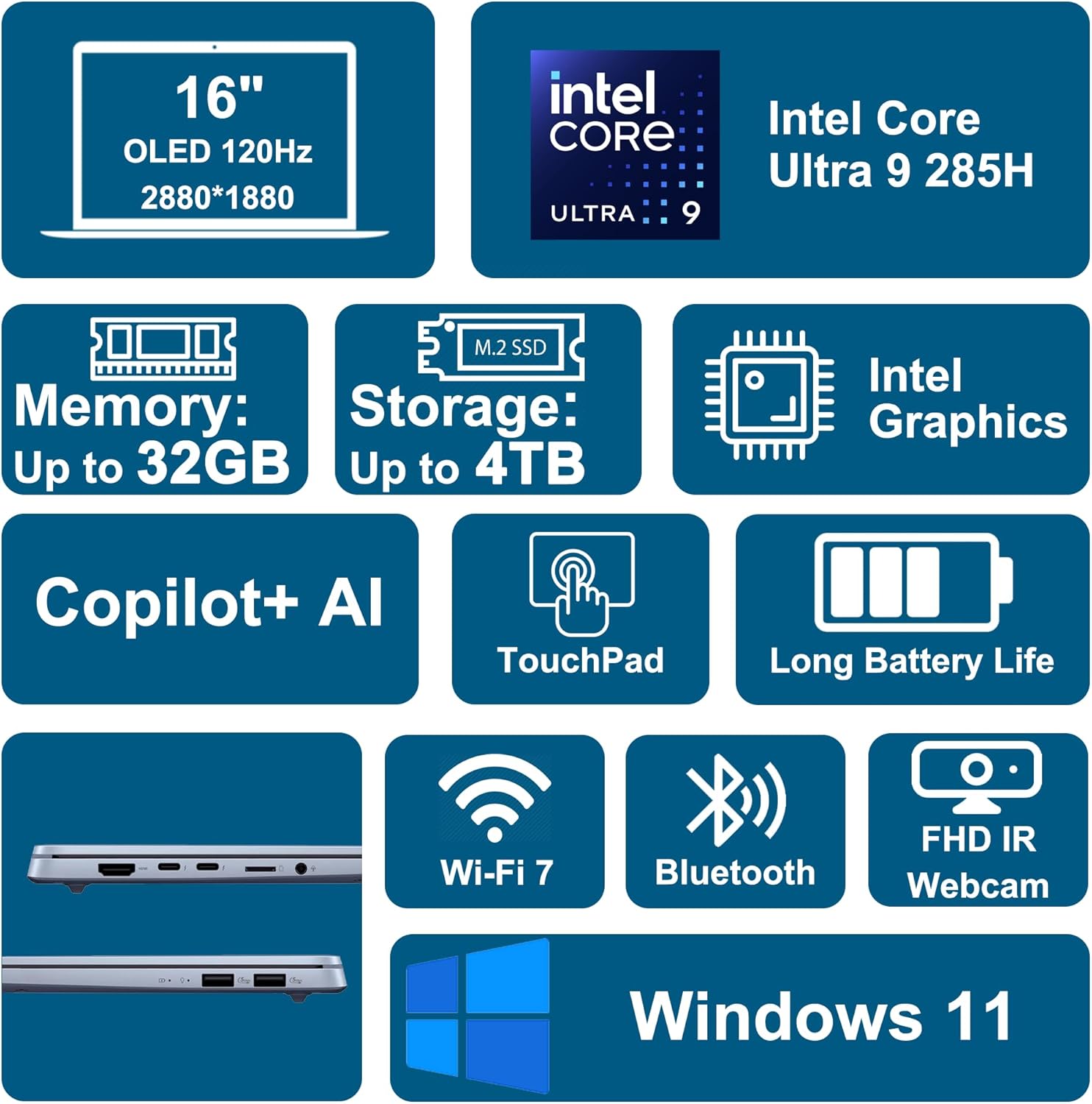
Figura 7: Karatteristiċi Ewlenin Aktar minnview
A visual summary of the laptop's primary components and capabilities.
| Karatteristika | Dettall |
|---|---|
| Isem tal-Mudell | ASUS Vivobook S16 Ultra 9 285H |
| Proċessur | Intel 16-core Ultra 9 285H (2.9 GHz) |
| Sistema Operattiva | Windows 11 Home |
| Wiri | 16-inch 2.8k (2880x1800) OLED, 120Hz, 600nits HDR, 100% DCI-P3 |
| Grafika | Integrated Intel Arc 140T GPU |
| Memorja (RAM) | 32GB DDR5 |
| Ħażna | 1TB SSD (Solid State Drive) |
| Konnettività bla fili | Wi-Fi 7 (802.11ax), Bluetooth |
| Portijiet | 2 x Thunderbolt 4, 2 x USB-A 3.2, 1 x HDMI 2.1 TMDS, 1 x MicroSD Card Reader, 1 x Audio combo jack |
| Tastiera | Tastiera RGB b'1 żoni b'dawl minn wara |
| Webcam | Kamera IR FHD |
| Awdjo | Harman/kardon, Smart Amp Teknoloġija |
| Batterija | 75Wh |
| Dimensjonijiet (LxWxH) | 9.72" x 13.92" x 0.63" |
| Piż | 3.31 lbs |
| Kulur | Mist Blue |

Figure 8: Laptop Dimensions and Weight
Physical dimensions and weight of the ASUS Vivobook S16 laptop.
8. Garanzija u Appoġġ
8.1 Informazzjoni dwar Garanzija
Your ASUS Vivobook S16 AI PC Laptop comes with a standard manufacturer's warranty. Please refer to the warranty card included in your packaging or visit the official ASUS support websit għal termini u kundizzjonijiet dettaljati speċifiċi għar-reġjun tiegħek.
Optional protection plans may be available for purchase to extend coverage. For example:
- Pjan ta' Protezzjoni ta' Sentejn
- Pjan ta' Protezzjoni ta' Sentejn
- Complete Protect (abbonament ta' kull xahar)
Note: Availability and terms of protection plans may vary.
8.2 Appoġġ Tekniku
Għal assistenza teknika, downloads ta' sewwieqa, jew aktar informazzjoni dwar il-prodott, jekk jogħġbok żur is-sit uffiċjali tal-appoġġ tal-ASUS websit:
When contacting support, please have your laptop's serial number ready. The serial number is typically located on a sticker on the bottom of the laptop or can be found in the system information within Windows.