
1. Introduzzjoni
The Lenovo ThinkStation P3 Ultra Gen 2 30J50039US is a powerful and compact workstation designed for professionals requiring high performance and reliability. This manual provides essential information for setting up, operating, maintaining, and troubleshooting your workstation.
Equipped with an Intel Core Ultra 5 2nd Gen processor, 16 GB DDR5 RAM, and a 512 GB SSD, this workstation is built to handle demanding tasks and applications with efficiency. It comes pre-installed with Windows 11 Pro, offering a secure and user-friendly operating environment.
2. Setup
2.1 Disimballaġġ
Carefully remove the workstation and all accessories from the packaging. Ensure all components listed in the packing slip are present. Retain the packaging for future transport or service needs.
2.2 Konnessjoni tal-Periferali
- Qabbad id-Displej: Use a DisplayPort cable to connect your monitor(s) to the DisplayPort outputs on the rear of the workstation. This model features 3 DisplayPort outputs.
- Qabbad it-Tastiera u l-Maws: Plug your USB keyboard and mouse into any of the available USB ports. The workstation has 7 USB ports, including 2 USB-C ports.
- Qabbad in-Netwerk: For wired internet access, connect an Ethernet cable from your router or modem to the Ethernet port on the rear panel.
- Qabbad l-Enerġija: Plug the power cord into the workstation's power input, then into a grounded electrical outlet.

Figure 2.1: Rear panel connections of the ThinkStation P3 Ultra Gen 2.

Figure 2.2: Front panel of the ThinkStation P3 Ultra Gen 2.
2.3 Tixgħel Inizjali
Press the power button on the front of the workstation. Follow the on-screen instructions to complete the Windows 11 Pro setup process.
3. It-Tħaddim tal-Istazzjon tax-Xogħol Tiegħek
Your Lenovo ThinkStation P3 Ultra Gen 2 is designed for optimal performance in professional environments. It features a 14-core Intel Core Ultra 5 processor and 16GB of DDR5 RAM, ensuring smooth multitasking and efficient handling of demanding applications.
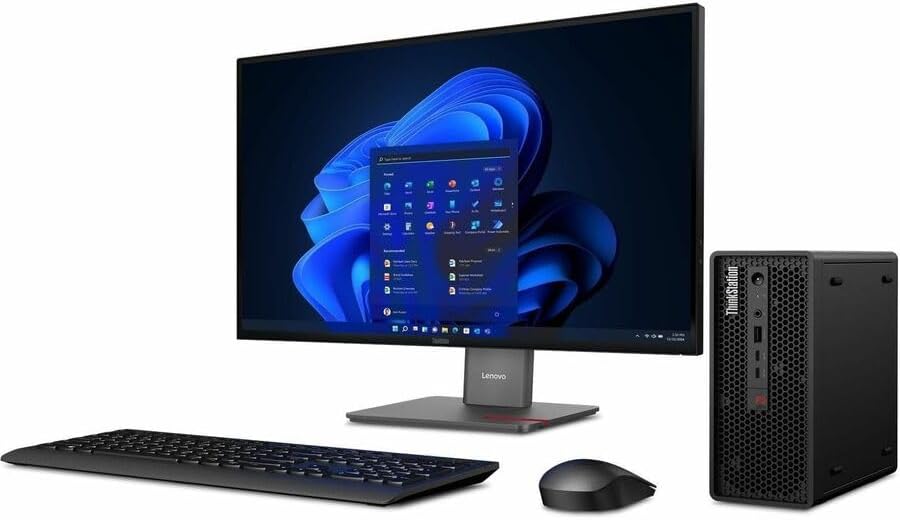
Figure 3.1: ThinkStation P3 Ultra Gen 2 in a typical desktop setup.
3.1 Windows 11 Pro
Familiarize yourself with the Windows 11 Pro interface. Utilize features like virtual desktops for improved workflow organization and the integrated security features for data protection.
3.2 Ottimizzazzjoni tal-Prestazzjoni
To maintain peak performance, regularly close unused applications and monitor system resources. The workstation's robust hardware is capable of handling intensive tasks, but proper resource management can further enhance your experience.
4. Manutenzjoni
Manutenzjoni regolari tgħin biex tiżgura l-lonġevità u l-prestazzjoni ottimali tal-istazzjon tax-xogħol tiegħek.
4.1 Tindif
- Barra: Uża drapp ratba u mingħajr ħelu dampened with a mild cleaning solution to wipe down the exterior surfaces. Avoid harsh chemicals.
- Ventijiet: Periodically use compressed air to clear dust from the ventilation grilles to prevent overheating.

Figure 4.1: Side panel with ventilation for optimal airflow.
4.2 Aġġornamenti tas-Software
Keep your operating system and drivers updated. Windows Update will automatically manage OS updates, and Lenovo VantagIs-softwer jista' jgħin bl-aġġornamenti tas-sewwieqa u tal-firmware.
4.3 Backup tad-Dejta
Agħmel backup tad-dejta importanti tiegħek regolarment fuq drajv estern jew ħażna fil-cloud biex tevita t-telf ta' dejta.
5 Issolvi l-problemi
This section addresses common issues you might encounter with your workstation.
5.1 Ebda Qawwa
- Ensure the power cord is securely connected to both the workstation and the electrical outlet.
- Ivverifika li s-sokit elettriku jaħdem billi tqabbad apparat ieħor.
5.2 Kwistjonijiet tal-Wiri
- Check that the monitor cables are securely connected to both the workstation and the monitor.
- Kun żgur li l-monitor ikun mixgħul u ssettjat għas-sors tad-dħul korrett.
5.3 Prestazzjoni bil-mod
- Agħlaq kwalunkwe applikazzjoni bla bżonn li tkun qed taħdem fl-isfond.
- Iċċekkja u installa kwalunkwe aġġornament pendenti tal-Windows jew aġġornamenti tas-sewwieqa.
- Kun żgur li jkun hemm ventilazzjoni adegwata biex tevita t-tnaqqis tas-sħana.
6. Speċifikazzjonijiet
| Karatteristika | Speċifikazzjoni |
|---|---|
| Isem tal-Mudell | P3 Ultra Gen 2 |
| Numru tal-Mudell tal-Oġġett | 30J50039US |
| Manifattur tal-proċessur | Intel |
| Tip ta' proċessur | Core Ultra 5 (2nd Gen, 235) |
| Core Processor | Tetradeca-core (14 Core) |
| L3 Cache | 24 MB |
| vPro Technology | Iva |
| Memorja Standard | 16 GB |
| Memorja Massima Appoġġjata | 128 GB |
| Teknoloġija tal-Memorja | DDR5 SDRAM |
| Veloċità tal-Arloġġ tal-Memorja | 6.40 GHz (6400 MHz) |
| Total Solid State Drive Capacity | 512 GB |
| Solid State Drive Interface | PCI Express NVMe 5.0 x4 |
| Graphics Controller Manufacturer | Intel (Integrated Graphics) |
| Teknoloġija Ethernet | Gigabit Ethernet |
| LAN bla fili | Iva |
| Bluetooth | Iva |
| Total Number of USB Ports | 7 |
| Portijiet USB 3.2 Ġen 2 | 5 |
| Portijiet USB tat-Tip Ċ | 2 (USB 20Gbps / USB 3.2 Gen 2x2, data transfer only) |
| DisplayPort Outputs | 3 |
| Sistema Operattiva | Windows 11 Pro |
| Dimensjonijiet tal-Prodott | 11.6 x 19.4 x 8.5 pulzieri |
| Piż tal-oġġett | 11.97 liri |
| Sena ta' Rilaxx | 2025 |
| Mħaddma bl-AI | Iva |
7. Prodott Aktarview Video
Vidjo 7.1: Overview of the Lenovo P3 Tiny Workstation, showcasing its internal components and features. This video highlights the Intel Core processor, NVIDIA graphics, DDR5 memory, and various expansion slots, demonstrating its compact yet powerful design for professional use.
8. Garanzija u Appoġġ
8.1 Informazzjoni dwar Garanzija
This Lenovo ThinkStation P3 Ultra Gen 2 Workstation comes with a Garanzija limitata ta 'senaJekk jogħġbok irreferi għall-karta tal-garanzija inkluża mal-prodott tiegħek għat-termini u l-kundizzjonijiet sħaħ.
8.2 Appoġġ Tekniku
Għal assistenza teknika, downloads ta' sewwieqa, jew aktar appoġġ, jekk jogħġbok żur is-sit uffiċjali tal-appoġġ ta' Lenovo website or contact Lenovo customer service. Have your product model number (30J50039US) and serial number ready when contacting support.
Appoġġ Lenovo Websit: support.lenovo.com