
1. Introduzzjoni
Welcome to your new Acer Nitro 60 N60-640-UR25 Desktop. This manual provides essential information for setting up, operating, maintaining, and troubleshooting your computer. Please read this guide thoroughly to ensure optimal performance and longevity of your device.
2. Informazzjoni dwar is-Sigurtà
Observe the following safety precautions to prevent damage to your computer and to ensure your personal safety.
- Provvista tal-Enerġija: Use only the power adapter provided with your desktop. Ensure the power outlet is properly grounded.
- Ventilazzjoni: Do not block ventilation openings. Ensure adequate airflow around the desktop to prevent overheating.
- Likwidu u Umdità: Keep the desktop away from liquids and excessive moisture. Do not operate with wet hands.
- Pjazzament: Place the desktop on a stable, flat surface. Avoid placing it near heat sources or in direct sunlight.
- Servizzi: Do not attempt to service the desktop yourself. Refer all servicing to qualified service personnel.
3. Kontenut tal-Pakkett
Ivverifika li l-oġġetti kollha huma preżenti fil-pakkett tiegħek:
- Unità tad-Desktop Acer Nitro 60 N60-640-UR25
- Korda tal-Enerġija
- Dokumentazzjoni (Gwida ta' Bidu Mgħaġġel, Karta tal-Garanzija)
4. Setup
4.1 Disimballaġġ
Carefully remove the desktop from its packaging. Retain the packaging materials for future transport or servicing needs.
4.2 Konnessjoni tal-Periferali
Connect your monitor, keyboard, mouse, and other devices to the appropriate ports on the desktop.

Immaġni: Wara view of the Acer Nitro 60 desktop, highlighting the available ports for connecting peripherals such as monitors, keyboards, mice, and network cables.
- Monitor: Connect your monitor to the NVIDIA GeForce RTX 5070 Ti graphics card's HDMI or DisplayPort outputs.
- Tastiera u maws: Qabbad it-tastiera u l-maws tiegħek mal-portijiet USB disponibbli.
- Netwerk: For a wired connection, connect an Ethernet cable to the LAN port. For wireless, ensure your Wi-Fi antenna is connected (if external) or that the internal Wi-Fi is enabled.
- Awdjo: Qabbad l-ispikers jew il-headphones mal-jacks tal-output tal-awdjo.
4.3 Tixgħel
After connecting all peripherals, plug the power cord into the desktop and then into a wall outlet. Press the power button located on the front or top of the desktop to turn it on.

Image: A close-up of the top-front panel of the Acer Nitro 60 desktop, illustrating the location of the power button, USB ports, and audio jacks for easy access.
4.4 Is-Setup Inizjali tal-Windows
Upon first boot, Windows 11 Home will guide you through the initial setup process. Follow the on-screen instructions to configure your region, language, network, and user account.
5. It-Tħaddim tad-Desktop Tiegħek
5.1 Ġestjoni tal-Enerġija
- Itfi: Ikklikkja l-buttuna Start, imbagħad Power > Shut down.
- Ibda mill-ġdid: Ikklikkja l-buttuna Start, imbagħad Power > Restart.
- Irqad: Ikklikkja l-buttuna Start, imbagħad Power > Sleep.
5.2 Understanding Ports and Connectivity
Your Acer Nitro 60 desktop offers a variety of ports for versatile connectivity:
- Portijiet USB: For connecting keyboards, mice, external drives, and other USB devices.
- HDMI: For connecting to monitors or TVs.
- Ethernet (LAN): Għal konnessjoni tal-internet bil-fili.
- Bluetooth: For wireless connection to compatible devices like headphones or game controllers.
- Wi-Fi: Għal aċċess għall-internet mingħajr fili.
5.3 Prestazzjoni tal-Grafika
Mgħammar b' NVIDIA GeForce RTX 5070 Ti Graphics Card, your desktop delivers high-performance visuals for gaming, content creation, and AI-driven tasks. Ensure your display drivers are up to date for optimal performance.
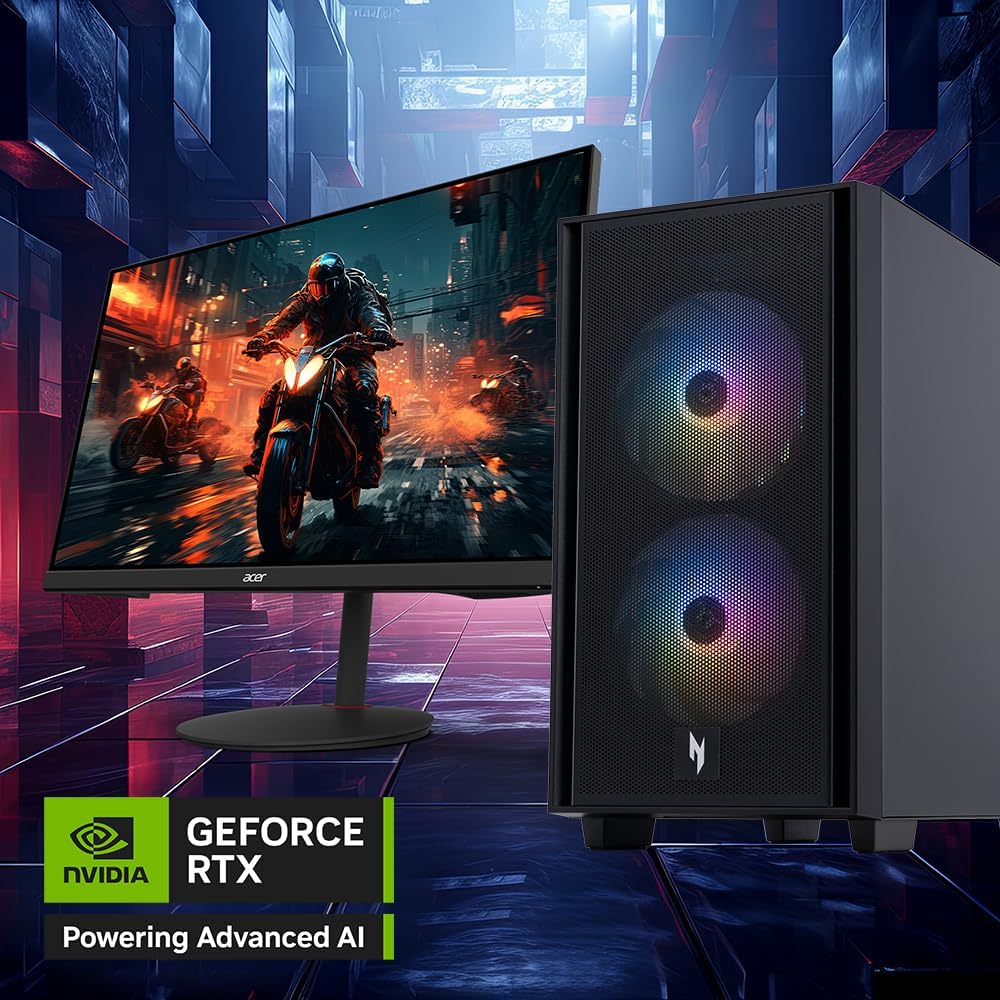
Image: The Acer Nitro 60 desktop positioned beside a monitor, showcasing its capability to render detailed and immersive gaming environments, powered by its advanced graphics card.
5.4 Proċessur u Memorja
Il- Intel Core i7-14700F 20-Core Processor u 32GB DDR5 Memorja provide robust performance for demanding applications and multitasking. The SSD ta' 2TB PCIe 4.0 NVMe ensures fast boot times and rapid data access.

Immaġni: Interna view of the Acer Nitro 60 desktop, revealing the Intel Core i7 processor with its cooling solution and the installed DDR5 memory sticks, emphasizing the powerful internal components.
6. Manutenzjoni
6.1 Tindif tad-Desktop Tiegħek
Regular cleaning helps maintain performance and extends the lifespan of your desktop.
- Barra: Uża artab, damp cloth to wipe the exterior surfaces. Avoid harsh chemicals.
- Ventilazzjoni: Periodically use compressed air to clear dust from the ventilation grilles and fans. Ensure the desktop is powered off before cleaning.
6.2 Aġġornamenti tas-Software
Żomm is-sistema operattiva u d-drivers tiegħek aġġornati biex tiżgura s-sigurtà, l-istabbiltà, u l-aħjar prestazzjoni.
- Aġġornamenti tal-Windows: Access Windows Update through Settings > Update & Security > Windows Update.
- Aġġornamenti tas-sewwieq: Regularly check the Acer support website and NVIDIA's website for the latest graphics drivers.
6.3 Backup tad-Dejta
Agħmel backup tad-dejta importanti tiegħek regolarment fuq drajv estern jew ħażna fil-cloud biex tevita t-telf ta' dejta.
7 Issolvi l-problemi
Din it-taqsima tindirizza kwistjonijiet komuni li tista’ tiltaqa’ magħhom.
| Ħruġ | Soluzzjoni Possibbli |
|---|---|
| Desktop does not power on | Kun żgur li l-korda tal-enerġija hija konnessa sew kemm mad-desktop kif ukoll mal-plakka tal-ħajt. Ittestja l-plakka b'apparat ieħor. |
| L-ebda wiri fuq il-monitor | Check monitor power and cable connections. Ensure the monitor is connected to the graphics card output, not the motherboard's integrated graphics ports. Try a different cable or monitor if possible. |
| Is-sistema hija bil-mod jew ma tirrispondix | Agħlaq l-applikazzjonijiet mhux meħtieġa. Iċċekkja t-Task Manager għal użu għoli tas-CPU/memorja. Kun żgur li hemm biżżejjed spazju ħieles fuq l-SSD. Mexxi skennjar tal-virus. |
| Kwistjonijiet ta' konnettività tan-netwerk | For wired connections, check the Ethernet cable and router. For Wi-Fi, ensure Wi-Fi is enabled and you are connected to the correct network. Restart your router/modem. Update network drivers. |
| Unusual noises from desktop | Loud fan noise may indicate overheating or dust buildup. Clean the fans. If the noise persists or is grinding, contact customer support. |
8. Speċifikazzjonijiet
Key technical specifications for your Acer Nitro 60 N60-640-UR25 Desktop:
- Proċessur: Intel Core i7-14700F 20-Core Processor (Up to 5.4 GHz)
- Grafika: NVIDIA GeForce RTX 5070 Ti with 16 GB GDDR7 Video Memory
- Memorja: 32 GB DDR5 RAM
- Ħażna: 2 TB PCIe 4.0 NVMe SSD
- Sistema Operattiva: Windows 11 Home
- Awdjo: Realtek Awdjo
- Konnettività: Bluetooth, Ethernet, HDMI, USB, Wi-Fi (802.11ac)
- Dimensjonijiet: 12 x 19 x 21 pulzieri
- Piż: 25 Liri
- Tip ta 'plagg tal-enerġija: Tip A - 2 pinnijiet (Amerika ta' Fuq)
9. Informazzjoni dwar Garanzija
Your Acer Nitro 60 N60-640-UR25 Desktop comes with a Garanzija limitata ta 'sena. Please refer to the included warranty card for detailed terms and conditions. Keep your proof of purchase for warranty claims.
10. Appoġġ għall-Klijent
For technical assistance, warranty service, or additional information, please visit the official Acer support websit jew ikkuntattja lid-dipartiment tas-servizz tal-konsumatur tagħhom.
Appoġġ Acer Websit: www.acer.com/support