
1. Introduzzjoni
This manual provides essential information for setting up, operating, maintaining, and troubleshooting your Lenovo Slim 7 14ILL10 2025 Laptop. Please read this guide thoroughly to ensure optimal performance and longevity of your device.
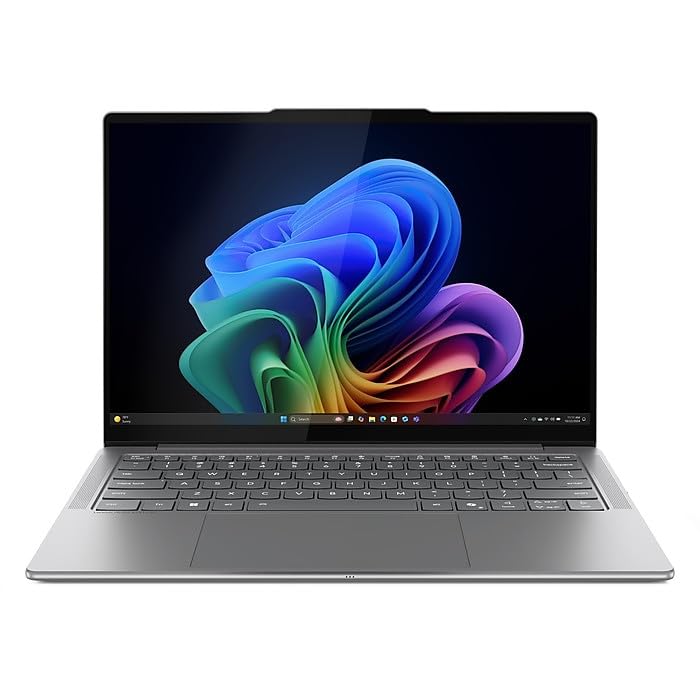
Figure 1.1: Lenovo Slim 7 14ILL10 2025 Laptop, angled view with screen slightly open.
2. X'hemm fil-Kaxxa
Iċċekkja li l-oġġetti kollha huma preżenti fl-imballaġġ:
- Lenovo Slim 7 14ILL10 2025 Laptop
- Adapter AC 65W
- Drive USB ta' 32GB ONT
3. Setup
3.1 Tixgħel Inizjali
- Oħroġ il-laptop u l-aċċessorji kollha mill-pakkett.
- Connect the 65W AC adapter to the laptop's USB-C power jack and then to a power outlet.
- Iftaħ l-għatu tal-laptop. Il-laptop jista’ jixgħel awtomatikament, jew jista’ jkollok bżonn tagħfas il-buttuna tal-qawwa.
- Segwi l-istruzzjonijiet fuq l-iskrin biex tlesti l-proċess tas-setup tal-Windows 11 Home. Dan jinkludi l-għażla tar-reġjun tiegħek, il-konnessjoni ma' netwerk Wi-Fi, u l-ħolqien ta' kont tal-utent.
3.2 Konnessjoni tal-Periferali
Il-laptop tiegħek għandu diversi portijiet għall-konnessjoni ta' apparati esterni:
- USB Thunderbolt 4 / USB4 40Gbps Type-C (x2): For high-speed data transfer, power delivery, and DisplayPort video output.
- USB 3.2 Ġen 1 Tip-A (x1): Għal apparati USB standard.
- HDMI v2.1 (x1): Għall-konnessjoni ma' displays jew projetturi esterni.
- Jack tal-Headphone/Mikrofonu Combo (x1): Għad-dħul/ħruġ tal-awdjo.
- Card Reader (x1): Għal karti tal-memorja.

Figure 3.1: Left side ports including USB-A and headphone jack.
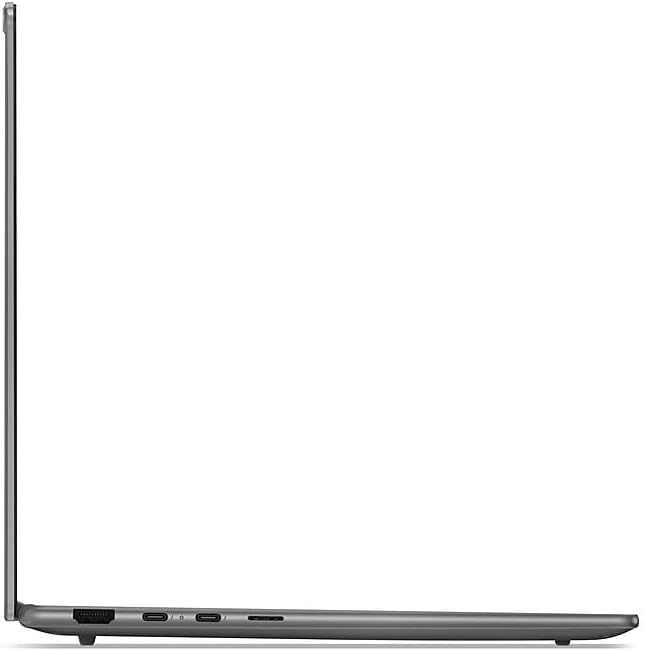
Figure 3.2: Right side ports including Thunderbolt 4 and HDMI.
4. Istruzzjonijiet Operattivi
4.1 Wiri u Input
- Touchscreen: The 14" WUXGA (1920 x 1200) display supports touch input. Use gestures similar to a smartphone or tablet.
- Tastiera backlit: Adjust keyboard backlight brightness using the function keys (Fn + Spacebar, typically).
- Touchpad: Use the integrated touchpad for cursor control and multi-touch gestures.
4.2 Konnettività
- Wi-Fi: Connect to wireless networks using Intel Wi-Fi 7 BE201. Access Wi-Fi settings via the Windows taskbar.
- Bluetooth: Pair Bluetooth devices such as headphones or mice using Bluetooth 5.3. Manage Bluetooth settings in Windows.
4.3 Kamera u Awdjo
- 5.0MP + IR Camera: Located at the top of the display, featuring an E-Shutter for privacy.
- Awdjo: The laptop is equipped with 4 stereo speakers (2W x2 woofers, 2W x2 tweeters) optimized with Dolby Atmos and Smart Ampaktar ħaj.
4.4 Ġestjoni tal-batterija
The laptop features a 4-cell 70Wh battery, providing up to 8 hours of non-gaming battery life. To maximize battery lifespan:
- Evita li tiċċarġja l-batterija kompletament ta' spiss.
- Aħżen il-laptop f'post frisk u niexef.
- Adjust power settings in Windows to optimize battery usage.
5. Manutenzjoni
5.1 Tindif
- Uża drapp ratba u mingħajr ħelu ftit dampNaddaf bl-ilma jew b'prodott tat-tindif tal-iskrin biex tnaddaf id-displej.
- Għat-tastiera u x-chassis, uża drapp artab. Evita kimiċi ħarxa.
- Regularly clean dust from vents to ensure proper airflow.
5.2 Aġġornamenti tas-Software
Keep your operating system and drivers updated to ensure security and optimal performance. Windows Update will manage most system updates. Check the Lenovo support website for specific driver updates for your model.
6 Issolvi l-problemi
This section addresses common issues. For more complex problems, refer to the Lenovo support websit.
6.1 Kwistjonijiet tal-Enerġija
- Il-laptop mhux qed jixgħel: Ensure the AC adapter is securely connected and the power outlet is functional. Try holding the power button for 10-15 seconds.
- Il-batterija mhix qed tiċċarġja: Verify the AC adapter connection. Check for any visible damage to the adapter or charging port.
6.2 Kwistjonijiet tal-Wiri
- Ebda wiri: Qabbad monitor estern permezz tal-HDMI biex tivverifika jekk il-problema hijiex fid-displej intern tal-laptop.
- Skrin li jteptep: Aġġorna s-sewwieqa tal-grafika tiegħek.
6.3 Kwistjonijiet ta' Konnettività
- Il-Wi-Fi mhux qed jikkonnettja: Restart your router and laptop. Ensure Wi-Fi is enabled in Windows settings.
- Apparat Bluetooth mhux qed jitqabbad: Ensure the device is in pairing mode and within range. Restart Bluetooth on your laptop.
7. Speċifikazzjonijiet
| Karatteristika | Speċifikazzjoni |
|---|---|
| Brand | Lenovo |
| Numru tal-Mudell | 83MC0009US-CTO |
| Proċessur | Intel Ultra 7 256V 8-Core (Up to 4.8 GHz) |
| Grafika | Intel Arc Graphics 140V |
| Wiri | 14" WUXGA (1920 x 1200) Touchscreen, 600 nits, 100% DCI-P3, 60Hz |
| Memorja | 16GB LPDDR5 8533 MHz SDRAM |
| Ħażna | SSD NVMe M.2 ta' 1TB |
| Sistema Operattiva | Windows 11 Home |
| Konnettività bla fili | Intel Wi-Fi 7 BE201 (2x2), Bluetooth 5.3 |
| Portijiet | 2x USB Thunderbolt 4, 1x USB 3.2 Gen 1 Type-A, 1x HDMI v2.1, 1x Headphone/Microphone Combo Jack, 1x Card Reader |
| Kamera | 5.0MP + IR Camera with E Shutter |
| Awdjo | 4 stereo speakers (2W x2 woofers, 2W x2 tweeters), Dolby Atmos |
| Batterija | 4 Cell 70Wh |
| Dimensjonijiet (L x W x H) | 12.28 x 8.63 x 0.55 pulzieri |
| Piż | 2.82 lbs |
| Kulur | Luna Griża |
8. Garanzija u Appoġġ
Your Lenovo Slim 7 14ILL10 2025 Laptop comes with an On Site warranty. For detailed warranty terms, service requests, and technical support, please visit the official Lenovo support websit:
You will need your laptop's model number (83MC0009US-CTO) and serial number (typically found on a sticker on the bottom of the laptop) when contacting support.