
1. Introduzzjoni
This user manual provides detailed instructions for the Bemi Cognita Tab 6+ E-Reader. Please read this manual carefully before using your device to ensure proper operation and to maximize your reading experience. Keep this manual for future reference.
1.1 Kontenut tal-Pakkett
- Bemi Cognita Tab 6+ E-Reader
- Cable tal-Iċċarġjar tal-USB
Ensure all items are present and in good condition upon unboxing.
2. Device Overview
Familiarize yourself with the physical components of your Bemi Cognita Tab 6+ E-Reader.

Figura 2.1: Quddiem view of the Bemi Cognita Tab 6+ E-Reader. The device features a 6-inch E-Ink display with the Bemi logo and model name visible. The screen is designed to mimic paper for a comfortable reading experience.

Figura 2.2: Quddiem u lura view of the Bemi Cognita Tab 6+ E-Reader. This image highlights the device's thin design and the textured back cover, which provides a secure grip.

Figura 2.3: Ġenb view of the Bemi Cognita Tab 6+ E-Reader, illustrating the location of the power button and a small LED indicator. This button is used for turning the device on/off and waking it from sleep.
2.1 Komponenti Ewlenin:
- 6-inch E-Ink Touchscreen: Glare-free display for comfortable reading.
- Buttuna tal-Qawwa: Located on the side for turning the device on/off and sleep/wake.
- Port USB-C: Għall-iċċarġjar u t-trasferiment tad-dejta.
- Slott tal-Karta MicroSD: Expandable storage up to 256GB.
- Side Control Buttons: For page turning and navigation.
- SMARTlight: Adjustable front light for reading in various conditions.
3. Setup
3.1 Iċċarġjar inizjali
Before first use, fully charge your Bemi Cognita Tab 6+ E-Reader. Connect the provided USB cable to the device's USB-C port and the other end to a compatible USB power adapter (not included) or a computer's USB port.
- Ċarġ sħiħ tipikament jieħu madwar 2-3 sigħat.
- Id-dawl indikatur tal-iċċarġjar se juri l-istatus tal-iċċarġjar.
3.2 Tixgħel/Jitfi
- Biex Tixgħel: Press and hold the Power button (refer to Figure 2.3) for a few seconds until the screen activates.
- Biex Tifi: Press and hold the Power button until a power-off menu appears, then select "Power Off".
- Biex Torqod/Tqum: Agħfas fil-qosor il-buttuna tal-Enerġija biex tpoġġi l-apparat fil-modalità sleep jew biex tqajmu.
3.3 Konnessjoni Wi-Fi
Connecting to Wi-Fi allows you to download books, transfer files, and access online services.
- Mill-iskrin tad-dar, tektek il- Settings ikona.
- Agħżel Wi-Fi.
- Aqleb is-swiċċ tal-Wi-Fi għal On.
- The device will scan for available networks. Select your desired network from the list.
- Daħħal il-password jekk tintalab, imbagħad tektek Qabbad.
3.4 Konfigurazzjoni Inizjali
Upon first power-on, you may be guided through initial setup steps, including language selection and time zone settings. Follow the on-screen prompts.
4. Istruzzjonijiet Operattivi
4.1 Navigazzjoni tal-Interfaċċja
The Bemi Cognita Tab 6+ features a touch-sensitive E-Ink screen and physical side buttons for navigation.
- Ġesti mess: Tektek biex tagħżel, skrollja biex tiskrollja, aqbad biex tagħmel zoom (fejn appoġġjat).
- Buttuni tal-ġenb: Use the physical buttons on the side to turn pages forward or backward during reading.
- G-Sensor: The device automatically rotates the screen orientation based on how you hold it, accommodating both right and left-handed users.
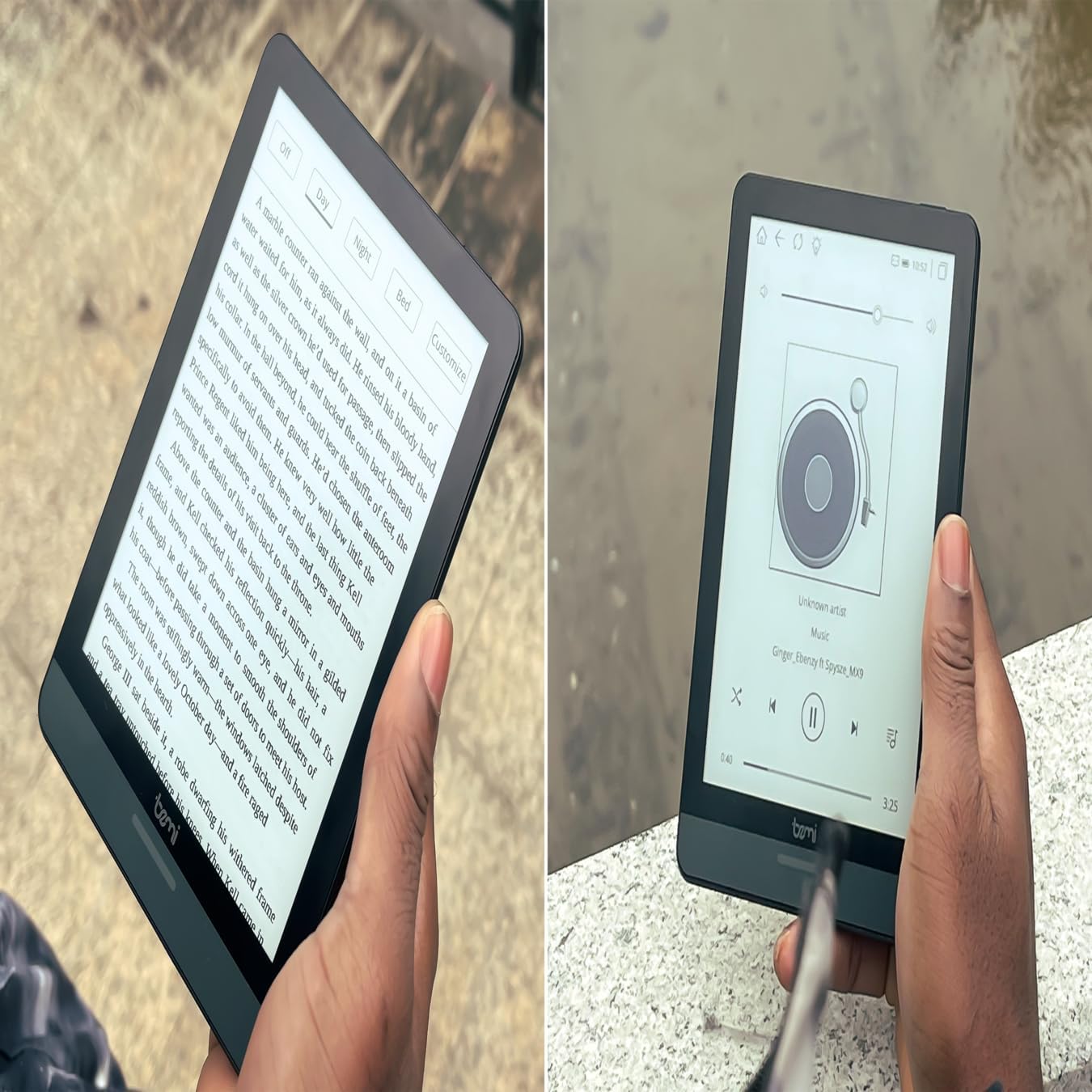
Figura 4.1: User holding the Bemi Cognita Tab 6+ E-Reader while reading. The image shows the clear text display on the E-Ink screen, highlighting the device's readability.
4.2 Qari tal-Kotba
To open and read a book:
- From the home screen, tap on the Librerija or Kotba ikona.
- Browse your collection or use the search function to find a book.
- Tap on the book cover to open it.
- Use the touch screen or side buttons to turn pages.
4.3 Adjusting SMARTlight
The SMARTlight feature allows you to adjust both the brightness and color temperature of the screen's front light.
- During reading, tap the center of the screen to bring up the reading menu.
- Fittex għall- Dawl or SMARTlight ikona.
- Adjust the sliders for brightness (intensity) and color temperature (warm to cool) to your preference.
4.4 Trasferiment Files
You can transfer e-books and other supported files to your device via Wi-Fi or USB cable.
- Permezz tal-Wi-Fi: If your device supports cloud services or direct Wi-Fi transfer, follow the specific application instructions.
- Via USB Cable:
- Connect your E-Reader to a computer using the provided USB cable.
- The device will appear as a removable storage drive on your computer.
- Iddreggja u qiegħed dak li tixtieq files (e.g., EPUB, PDF, MOBI) into the appropriate folders on the E-Reader (e.g., "Books" folder).
- Oħroġ l-apparat mill-kompjuter tiegħek b'mod sigur qabel ma skonnettja l-kejbil.
4.5 Using MicroSD Card
To expand storage, insert a microSD card (up to 256GB) into the designated slot.
- Gently insert the microSD card with the gold contacts facing down until it clicks into place.
- Biex tneħħiha, imbotta l-karta bil-mod 'il ġewwa sakemm toħroġ 'il barra.
- Files on the microSD card will be accessible through the device's file manager or library.
5. Manutenzjoni
5.1 Tindif tal-Apparat
- Uża drapp artab u mingħajr suf biex timsaħ bil-mod l-iskrin u l-qafas tal-apparat.
- Għal tbajja' iebsa, ftit dampLaħlaħ id-drapp bl-ilma jew b'prodott tat-tindif tal-iskrin iddisinjat speċifikament għall-elettronika.
- Evita li tuża kimiċi ħarxa, materjali li joborxu, jew umdità eċċessiva.
5.2 Kura tal-Batterija
- Biex ittawwal il-ħajja tal-batterija, evita li tiċċarġja kompletament il-batterija ta' spiss.
- Aħżen l-apparat f'post frisk u niexef meta ma jkunx qed jintuża għal perjodi twal.
- Charge the device regularly, even if not used, to prevent deep discharge.
5.3 Ħażna
When not in use, store your E-Reader in a protective case to prevent scratches and damage to the screen.
6 Issolvi l-problemi
If you encounter issues with your Bemi Cognita Tab 6+, refer to the following common solutions:
| Problema | Soluzzjoni |
|---|---|
| L-apparat ma jixgħelx. | Ensure the battery is charged. Connect the device to a power source for at least 30 minutes. If it still doesn't turn on, try a hard reset by holding the power button for 10-15 seconds. |
| L-iskrin huwa ffriżat jew ma jirrispondix. | Perform a soft reset by holding the power button for 5-7 seconds until the device restarts. If the issue persists, try a hard reset. |
| Ma tistax tikkonnettja mal-Wi-Fi. | Check if Wi-Fi is enabled in settings. Verify the Wi-Fi password. Restart your E-Reader and your Wi-Fi router. Ensure you are within range of the Wi-Fi signal. |
| Books are not appearing in the library. | Tiżgura l- files are in a supported format (e.g., EPUB, PDF). If transferred via USB, ensure they are in the correct folder. Try refreshing the library or restarting the device. |
| Il-batterija tiskula malajr. | Reduce screen brightness. Turn off Wi-Fi and Bluetooth when not in use. Close background applications. Ensure the device is not constantly searching for networks. |
7. Speċifikazzjonijiet
| Karatteristika | Dettall |
|---|---|
| Isem tal-Mudell | Bemi Cognita Tab 6+ |
| Daqs tal-Iskrin | 6 Inches (E-Ink Carta, 1024x758, 212 ppi) |
| Memorja Interna | 32 GB |
| Ħażna espansibbli | MicroSD card slot, up to 256 GB |
| Konnettività | Wi-Fi, Bluetooth |
| Sistema Operattiva | Android 8.1 |
| Input tal-Interface tal-Bniedem | Touchscreen, Side Control Buttons |
| Karatteristiċi Speċjali | Adjustable SMARTlight, G-Sensor for auto-rotation, Glare-Free & Eye-Friendly E-Ink Display |
| Dimensjonijiet (Approx.) | 7 mm ħxuna |
| Komponenti Inklużi | Cable USB |
8. Garanzija u Appoġġ
8.1 Informazzjoni dwar Garanzija
Your Bemi Cognita Tab 6+ E-Reader comes with a standard manufacturer's warranty. Please refer to the warranty card included in your product packaging or visit the official Bemi websit għal termini u kundizzjonijiet dettaljati dwar il-kopertura u t-tul tal-garanzija.
Pjanijiet ta' protezzjoni fakultattivi jistgħu jkunu disponibbli għal kopertura estiża. Jekk jogħġbok iċċekkja mal-bejjiegħ tiegħek għad-dettalji.
8.2 Appoġġ għall-Klijent
For technical assistance, troubleshooting beyond this manual, or warranty claims, please contact Bemi customer support:
- Websit: www.bemi-electronics.com
- Email: Refer to the Bemi websit għall-email ta' kuntatt.
- Telefon: Refer to the Bemi websit għal numri tat-telefon ta' kuntatt.
When contacting support, please have your device model (Cognita Tab 6+) and purchase information ready.