
ARZOPA Z1C
ARZOPA 16.1-inch Z1C Portable Monitor User Manual
Model: Z1C | Brand: ARZOPA
Introduzzjoni
This manual provides essential information for setting up, operating, and maintaining your ARZOPA 16.1-inch Z1C Portable Monitor. Please read it thoroughly before use to ensure optimal performance and longevity of your device.
X'hemm fil-Kaxxa
- 1 x ARZOPA 16.1" Portable Monitor
- 1 x USB-C għal USB-C Cable
- 1 x Mini HDMI għal Cable HDMI
- 1 x Gwida għall-Utent (dan id-dokument)

Figure 1: Included accessories with the ARZOPA Z1C Portable Monitor.
Karatteristiċi tal-Prodott
- 16.1" FHD 1080P Display: Experience clear picture quality with 1920x1080 resolution and 100% sRGB color gamut for vibrant visuals.
- Dual-Orientation & Stable Kickstand: Easily switch between horizontal and vertical display modes. The integrated 80° adjustable kickstand provides stable support on various surfaces.
- Kompatibilità Universali: Connects instantly to laptops, PCs, Macs, smartphones (with full-function USB-C), Xbox/PS5/Switch consoles, and more via USB-C or HDMI.
- Disinn Ultra-Portabbli: Weighing just 1.7lbs with a 0.3-inch slim profile, the monitor is designed for easy transport in backpacks or briefcases.

Figure 2: The ARZOPA Z1C Portable Monitor showcasinil-kapaċitajiet tal-wiri tiegħu.
Setup
1. Spakkjar u Spezzjoni Inizjali
Carefully remove all components from the packaging. Inspect the monitor and accessories for any signs of damage. Retain the packaging for future transport or storage.
2. Konnessjoni mal-Apparat Tiegħek
The ARZOPA Z1C supports multiple connection methods:
- USB-C (Full Function): Use the provided USB-C to USB-C cable to connect the monitor to a compatible laptop, smartphone, or tablet. This single cable can transmit both video signal and power.
- HDMI & USB-A: Use the provided Mini HDMI to HDMI cable for video signal and a USB-A to USB-C cable (not explicitly listed in "What's in the Box" but implied by "Rich Cables Boost Compatibility" image) for power if your device does not support full-function USB-C.

Figure 3: Connection options for the ARZOPA Z1C Portable Monitor.
Ensure your device's USB-C port supports video output (DisplayPort Alternate Mode) and power delivery for single-cable operation. If not, external power via USB-A is required.
Video 1: A user demonstrates connecting the ARZOPA portable monitor to a laptop via USB-C, highlighting its ease of use and slim design.
Istruzzjonijiet Operattivi
1. Power On/Off
The monitor will typically power on automatically when connected to a powered device. To manually power on/off or access the On-Screen Display (OSD) menu, use the buttons located on the side of the monitor.

Figura 4: Aktarview of the monitor's ports and control buttons.
2. Modi tal-Wiri
Once connected, your operating system should detect the monitor. You can configure display modes (Duplicate, Extend, Second Screen Only) through your device's display settings.
- Horizontal/Vertical Orientation: The monitor supports both landscape and portrait modes. Adjust the physical orientation and then change the display settings on your connected device accordingly.
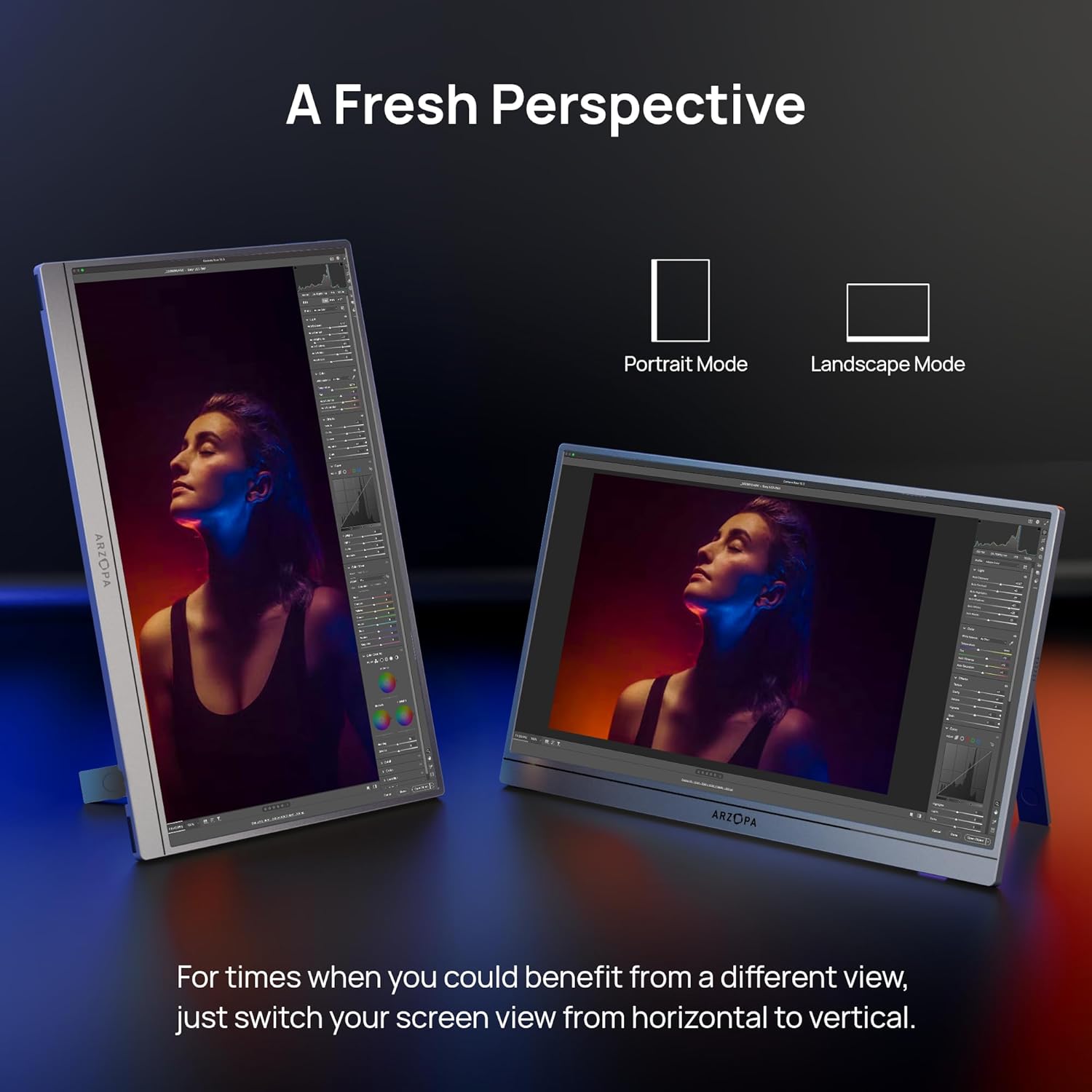
Figure 5: The ARZOPA Z1C monitor supports both portrait and landscape orientations.
3. Menu tal-Wiri fuq l-Iskrin (OSD).
Use the OSD menu button and adjustment controls to fine-tune settings such as brightness, contrast, color temperature, input source, and more.
Manutenzjoni
- Tindif: Use a soft, lint-free cloth to gently wipe the screen and exterior. Avoid harsh chemicals or abrasive materials.
- Ħażna: When not in use, store the monitor in a cool, dry place, ideally in its original packaging or a protective sleeve to prevent scratches.
- Immaniġġjar: Evita li tapplika pressjoni eċċessiva fuq l-iskrin jew li twaqqa' l-apparat.
Issolvi l-problemi
- Ebda Sinjal:
- Ensure cables are securely connected to both the monitor and the source device.
- Verify the input source selected on the monitor matches the connected port (e.g., USB-C, HDMI).
- Check if your device's USB-C port supports video output.
- Skrin li jteptep:
- Ensure the monitor is receiving sufficient power. If using a single USB-C cable, try connecting an additional power source to the monitor's second USB-C port or using a dedicated power adapter.
- Reduce screen brightness if flickering persists.
- Ebda Ħsejjes:
- Check the monitor's volume settings in the OSD menu.
- Verify your device's audio output is directed to the portable monitor.
Speċifikazzjonijiet
| Daqs tal-Iskrin | 16.1 Pulzier |
| Riżoluzzjoni | FHD 1080p (1920 x 1080 Pixel) |
| Proporzjon ta' l-aspett | 16:9 |
| Wiċċ tal-Iskrin | Matte |
| Piż tal-oġġett | 1.7 liri |
| Dimensjonijiet tal-Prodott | 14.37 x 11.02 x 0.39 pulzieri |
| Portijiet USB totali | 2 (USB-C) |
| Voltage | 220 Volt (Input) |
| Manifattur | ARZOPA |
| Numru tal-Mudell | Z1C |
Garanzija u Appoġġ
ARZOPA offers 24-month after-service support. For any inquiries or issues, please contact the dedicated customer support team. This ensures prompt responses and hassle-free solutions from purchase to long-term use.
Pjanijiet ta' protezzjoni addizzjonali huma disponibbli għax-xiri:
- Pjan ta' Protezzjoni ta' Sentejn
- Pjan ta' Protezzjoni ta' Sentejn
- Protezzjoni Kompleta: Pjan wieħed ikopri x-xiri kollu eliġibbli tal-passat u tal-futur (kontijiet ta' kull xahar)
Ask a question about this manual
Ask about setup, troubleshooting, compatibility, parts, safety, or missing instructions. Manuals+ will review the question and use this page’s manual context to help answer it.