
Rocketek B0FFGMBWRZ
Wireless CarPlay and Android Auto Dongle User Manual
Rocketek Model: B0FFGMBWRZ
Introduzzjoni
This manual provides comprehensive instructions for the 2025 Upgraded Wireless CarPlay and Android Auto Dongle. This device is designed to convert your existing wired CarPlay or Android Auto system into a wireless setup, offering enhanced convenience and functionality. It allows seamless integration with your smartphone, retaining original vehicle controls while adding features like built-in Netflix and YouTube.
Setup
Follow these steps to set up your Wireless CarPlay and Android Auto Dongle:
- Qabbad id-Dongle: Connect the wireless CarPlay dongle to your car's original USB or USB-C port using the provided USB-A to USB-C or USB-C to USB-C cable. Ensure the connection is secure.
- Stenna għar-Rikonoxximent: After connecting, the car's system will load and recognize the USB dongle. This may take a few moments. The car's display will show the dongle's interface.
- Enable Wireless Connectivity: On your smartphone, switch on both Wi-Fi and Bluetooth.
- Pair with the Dongle: On your phone's Bluetooth settings, find and select the Bluetooth name of the dongle (usually labeled "HI-BOX"). Click "Pair" on your phone when prompted.
- Tlesti Konnessjoni: After successful pairing, choose the "Use CarPlay/Android Auto" option on your phone to establish the wireless connection.
Once connected, your car's display will mirror your CarPlay or Android Auto interface wirelessly.

Figure 1: Plug and Play Installation Steps
Video 1: Demonstration of Wireless CarPlay and Android Auto Adapter Setup and Use. This video shows the connection process, how the car's screen loads the dongle, and the seamless transition to wireless CarPlay, including the use of steering wheel controls and Siri voice commands.
Istruzzjonijiet Operattivi
The Wireless CarPlay and Android Auto Dongle enhances your in-car experience with various features:
Wireless CarPlay & Android Auto
After initial setup, the dongle automatically connects to your phone's CarPlay or Android Auto wirelessly. You can access navigation, music, calls, messages, and other applications directly from your car's display. The system retains the car's original controls, including touch screen, physical buttons, knobs, and voice commands (e.g., Siri).

Figure 2: Retained Original Vehicle Controls
Built-in Netflix & YouTube
The dongle features pre-installed Netflix and YouTube applications, allowing you to stream video content directly on your car's screen when connected to the internet. For offline entertainment, you can insert a TF card to play local videos and music.

Figure 3: Built-in Entertainment Features
Kompatibilità
The Wireless CarPlay and Android Auto Dongle is designed for broad compatibility:
- Compatible with most original car models equipped with wired CarPlay/Android Auto from the factory after 2016.
- Supports iPhone devices running iOS 10 and above.
- Supports Android phones running Android 11 and above.
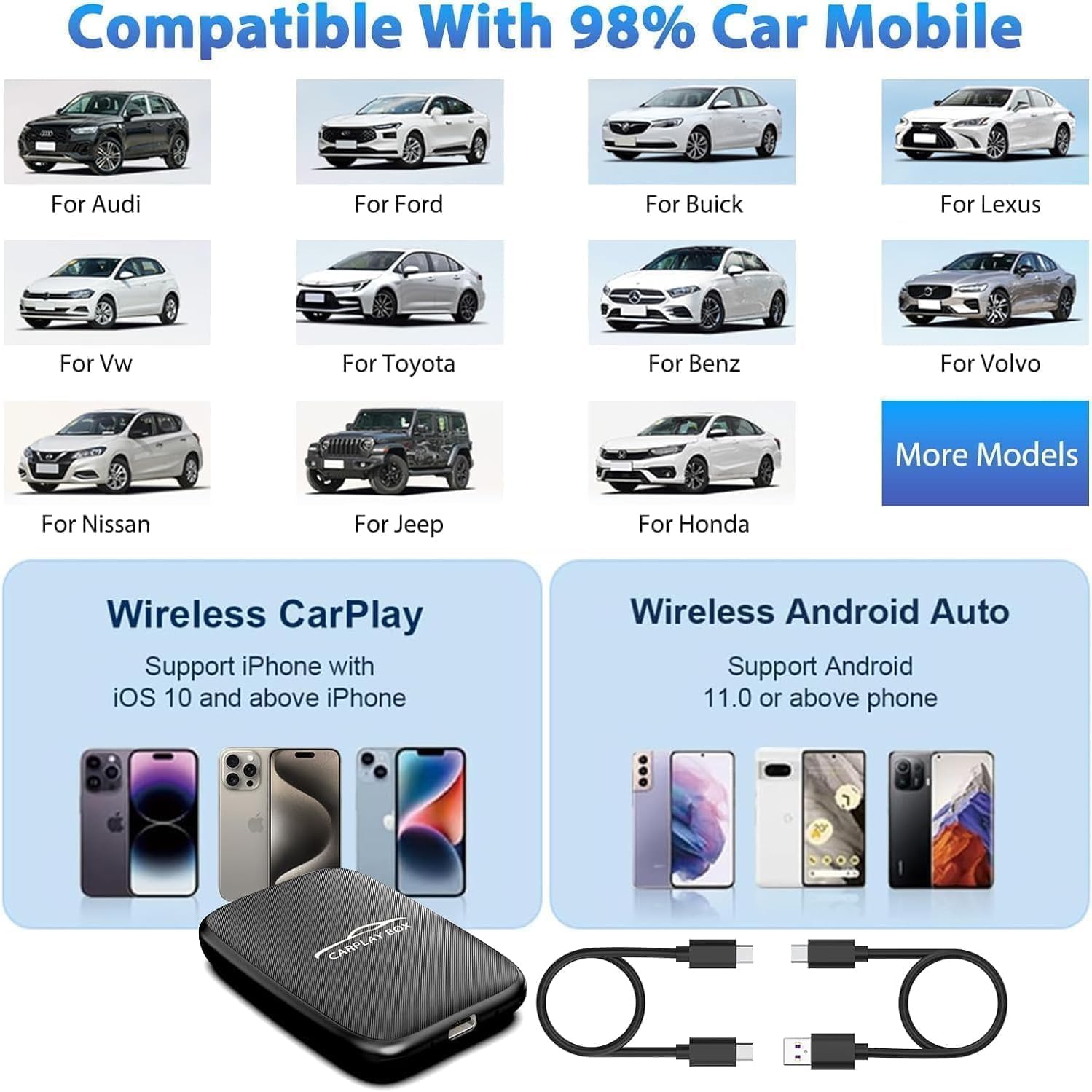
Figure 4: Broad Compatibility with Vehicles and Smartphones
Manutenzjoni
To ensure optimal performance and longevity of your dongle:
- Żomm l-apparat nadif u ħieles mit-trab. Uża drapp artab u niexef għat-tindif.
- Evita li tesponi l-apparat għal temperaturi estremi, dawl tax-xemx dirett, jew umdità.
- Tippruvax tiżżarma jew issewwi l-apparat int stess. Dan jannulla l-garanzija.
- Store the dongle in a cool, dry place when not in use.
Issolvi l-problemi
If you encounter issues with your dongle, try the following solutions:
- Kwistjonijiet ta' Konnessjoni:
- Ensure the dongle is securely plugged into the car's USB port.
- Verify that your phone's Wi-Fi and Bluetooth are enabled.
- Forget the Bluetooth connection on your phone and re-pair with the "HI-BOX" device.
- Restart both your car's infotainment system and your smartphone.
- Netflix/YouTube Not Working:
- Ensure the dongle has an active internet connection (e.g., via your phone's hotspot).
- Check for any available software updates for the dongle.
- Verify that the Netflix/YouTube apps are updated to their latest versions.
- Ebda Awdjo:
- Iċċekkja l-livelli tal-volum kemm fuq is-sistema tal-karozza tiegħek kif ukoll fuq l-ismartphone tiegħek.
- Ensure the car's audio input is set to the correct source (e.g., USB, Bluetooth).
Jekk il-problemi jippersistu, jekk jogħġbok ikkuntattja l-appoġġ għall-klijenti.
Speċifikazzjonijiet
| Karatteristika | Dettall |
|---|---|
| Brand | Rocketek |
| Numru tal-Mudell | B0FFGMBWRZ |
| Piż tal-oġġett | 3.2 uqija |
| Dimensjonijiet tal-Pakkett | 16.73 x 5.91 x 0.83 pulzieri |
| Kulur | iswed |
| Karatteristiċi Speċjali | Wireless CarPlay, Built-in Netflix, Built-in YouTube |
| Konnettività | 5.8 GHz WiFi, Bluetooth 5.0 |
| Compatibility (Car) | Original models with wired CarPlay/Android Auto (after 2016) |
| Compatibility (Phone) | iOS 10+ (iPhone), Android 11+ (Android) |
Garanzija u Appoġġ
Rocketek provides a Servizz ta 'wara l-bejgħ ta' 12 xahar for this product. If you have any questions, concerns, or require technical assistance, please do not hesitate to contact our friendly customer support team. We are committed to providing quality products and superior customer service.
For support, please refer to the contact information provided with your product packaging or visit the official Rocketek websit.
Ask a question about this manual
Ask about setup, troubleshooting, compatibility, parts, safety, or missing instructions. Manuals+ will review the question and use this page’s manual context to help answer it.