
TABWEE K10
Manwal tal-Utent tat-Tablet TABWEE K10 għat-Tfal b'Mudell Wi-Fi ta' 10.1 pulzieri
Your guide to setting up, operating, and maintaining your TABWEE K10 Kids Tablet.
1. Introduzzjoni
Welcome to the TABWEE K10 Kids Tablet! This 10.1-inch Wi-Fi tablet is designed to provide a safe and engaging learning and entertainment experience for children. Featuring Android 15 Go Edition, Google Kids Space, robust parental controls via Google Family Link, and a durable EVA protective case, the K10 is built for young users.
This manual will guide you through the tablet's features, setup process, operation, maintenance, and troubleshooting to ensure a smooth and enjoyable experience.
X'hemm fil-Kaxxa
Upon opening your TABWEE K10 Kids Tablet package, you should find the following items:
- TABWEE K10 Kids Tablet (with pre-installed EVA protective case)
- Immiss il-Pinna
- Kejbil USB Type-C
- Adapter tal-Enerġija
- Manwal għall-Utent (dan id-dokument)
- AR Zoo Cards (for interactive learning)
Video: Unboxing the TABWEE K10 Kids Tablet, showing the tablet, protective case, and accessories.
2. Informazzjoni dwar is-Sigurtà
Please read the following safety guidelines carefully to ensure safe and proper use of your TABWEE K10 Kids Tablet:
- Superviżjoni għall-adulti: Always supervise young children while they are using the tablet.
- Iċċarġjar: Use only the provided power adapter and USB Type-C cable for charging. Do not use damaged chargers or cables. Ensure the tablet is charged in a well-ventilated area.
- Ilma u Umdità: Keep the tablet away from water, liquids, and excessive humidity.
- Temperatura: Evita li tesponi l-pillola għal temperaturi estremi (sħana jew kesħa).
- Ħsara Fiżika: While the EVA case provides protection, avoid dropping the tablet from significant heights or applying excessive force.
- Ħin tal-Iskrin: Encourage breaks during extended use to prevent eye strain. Utilize parental controls to manage screen time.
- Protezzjoni tas-Smigħ: When using headphones, ensure the volume is set to a safe level to protect hearing.
- Tindif: Use a soft, dry cloth to clean the tablet. Do not use harsh chemicals.
3. L-Ibda (Setup)
3.1 Ħlas Inizjali
Before first use, fully charge the tablet using the included USB Type-C cable and power adapter. The battery indicator on the screen will show charging progress.
3.2 Tixgħel/Jitfi
- Biex Tixgħel: Press and hold the Power button (located on the side) for a few seconds until the TABWEE logo appears.
- Biex Tifi: Press and hold the Power button until a menu appears on the screen. Select "Power Off" and confirm.
- Biex terġa' tibda: From the power menu, select "Restart."
3.3 Wizard tas-Setup Inizjali
Malli tixgħelha għall-ewwel darba, it-tablet jiggwidak permezz ta' proċess inizjali ta' setup:
- Għażla tal-Lingwa: Agħżel il-lingwa ppreferuta tiegħek.
- Konnessjoni Wi-Fi: Agħżel in-netwerk Wi-Fi tiegħek u daħħal il-password biex tikkonnettja mal-internet.
- Kont Google: Sign in with an existing Google account or create a new one. This is necessary for accessing Google services like Kids Space and Play Store.
- Data u Ħin: Issettja d-data u l-ħin korretti.
- Google Kids Space Setup: Follow the on-screen prompts to set up Google Kids Space for your child. This will provide age-appropriate content and a child-friendly interface.
- Google Family Link Setup: Install the Google Family Link app on your own smartphone and follow the instructions to link your child's tablet. This enables parental control features.
4. Prodott Aktarview (Components & Controls)
Familiarize yourself with the physical components and controls of your TABWEE K10 Kids Tablet:

Image: The TABWEE K10 tablet showing its various ports, buttons, and cameras.
- Buttuna tal-Qawwa: Turns the tablet on/off or puts it to sleep.
- Buttuni tal-Volum: Jaġġusta l-volum tal-awdjo.
- Port USB tat-Tip Ċ: Għall-iċċarġjar u t-trasferiment tad-dejta.
- Jack Awdjo 3.5mm: Għall-konnessjoni tal-headphones.
- Slott tal-Karta MicroSD: Għall-espansjoni tal-ħażna sa 2TB.
- Kamera ta' Quddiem (2MP): Għal sejħiet bil-vidjo u selfies.
- Kamera ta' wara (5MP): Għat-teħid ta' ritratti u vidjows.
- Kelliema: Jipprovdi output awdjo.
- Mikrofonu: Għall-input tal-vuċi.
- EVA Protective Case: Provides drop protection and includes a built-in stand/handle.
5. Istruzzjonijiet Operattivi
5.1 Navigazzjoni Bażika
The TABWEE K10 uses a touchscreen interface. Use your finger or the included touch pen for navigation:
- Tektek: Agħżel oġġett jew iftaħ app.
- Swipe: Skrollja minn paġni jew menus.
- Oqros: Iżżumja 'l ġewwa jew 'il barra fuq l-immaġnijiet u web paġni.
5.2 Spazju għat-Tfal tal-Google
Google Kids Space offers a curated library of apps, books, and videos designed for children. It categorizes content into "Play," "Read," "Watch," and "Make" to encourage exploration and learning.
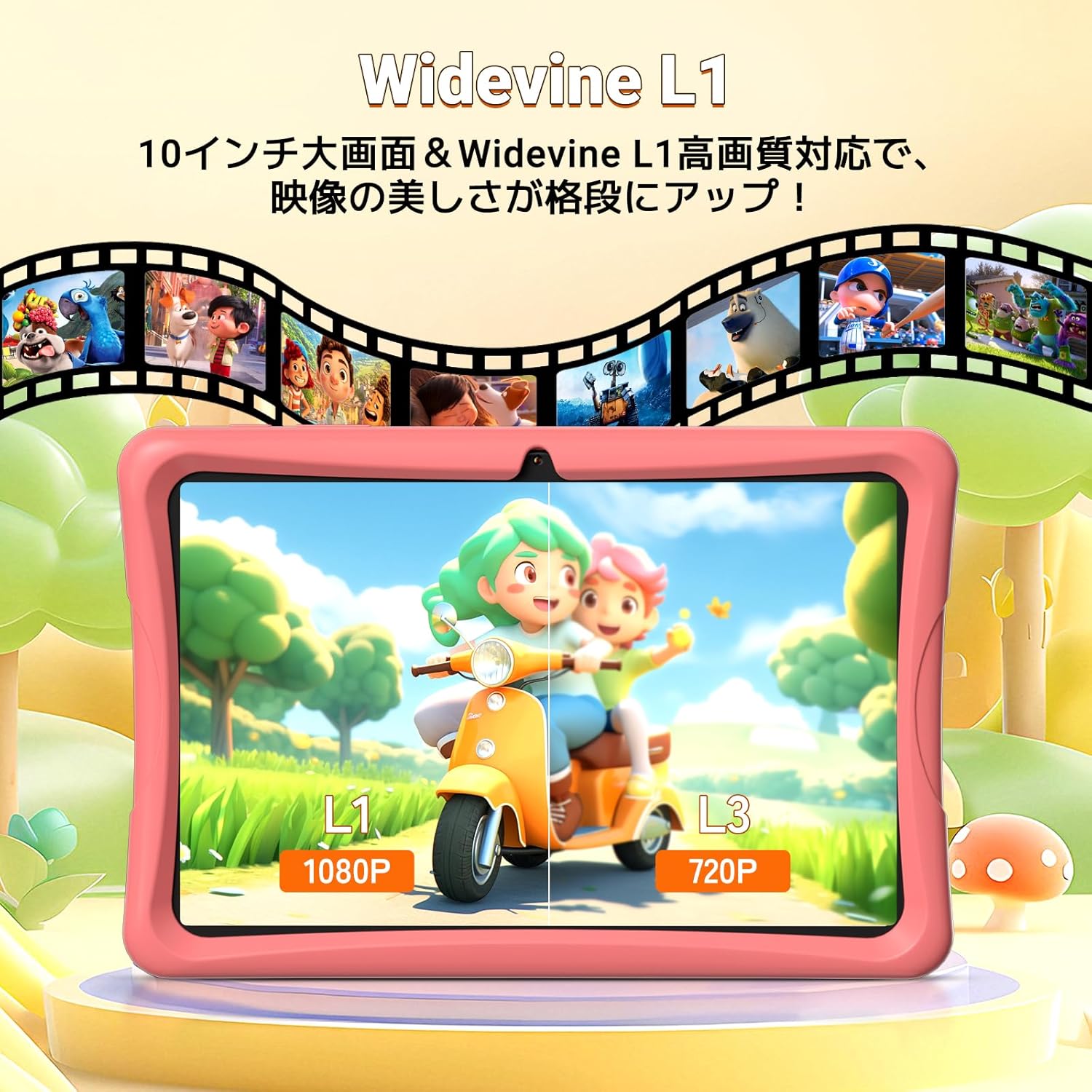
Image: The tablet screen showing the Google Kids Space interface with various app categories.
To access Kids Space, tap its icon on the home screen. Parents can manage the content available through Google Family Link.
Video: Demonstrating the variety of educational apps and content available within Google Kids Space.
5.3 YouTube Kids
The tablet supports YouTube Kids, offering a safer video experience for children. You can adjust filter settings based on your child's age and preferences.

Image: The tablet screen displaying the YouTube Kids application.
5.4 Kontroll tal-Ġenituri (Google Family Link)
Google Family Link allows you to manage your child's tablet usage remotely from your smartphone. Key features include:
- Ġestjoni tal-Ħin fuq l-Iskrin: Set daily usage limits in 15-minute increments.
- App Restrictions: Block or allow specific apps.
- Iffiltrar tal-Kontenut: Ensure age-appropriate content is displayed.
- Monitoraġġ mill-bogħod: View your child's activity and screen time.
Video: Demonstration of Google Family Link features for managing app usage and screen time on the tablet.
5.5 Using the Touch Pen
The included touch pen allows for precise interaction with the tablet, making drawing, writing, and educational games more engaging. Simply use the pen as you would your finger on the screen.

Image: A child interacting with the tablet using the dedicated touch pen.
5.6 Modi tal-Wiri
The tablet offers various display modes to enhance comfort and reduce eye strain:
- Modalità bil-lejl: Inaqqas l-emissjoni tad-dawl blu għal ambjent komdu viewing f’kundizzjonijiet ta’ dawl baxx.
- Modalità Skura: Changes the interface to a darker color scheme, which can reduce eye fatigue.
- Modalità Qarrej: Optimizes the display for reading, often by adjusting colors to mimic paper.

Image: The tablet screen demonstrating Night Mode, Dark Mode, and Reader Mode.
5.7 AR Zoo App
The tablet comes with an AR Zoo app that uses augmented reality technology. Use the included AR Zoo cards with the tablet's camera to bring animals to life on the screen, providing an interactive learning experience.
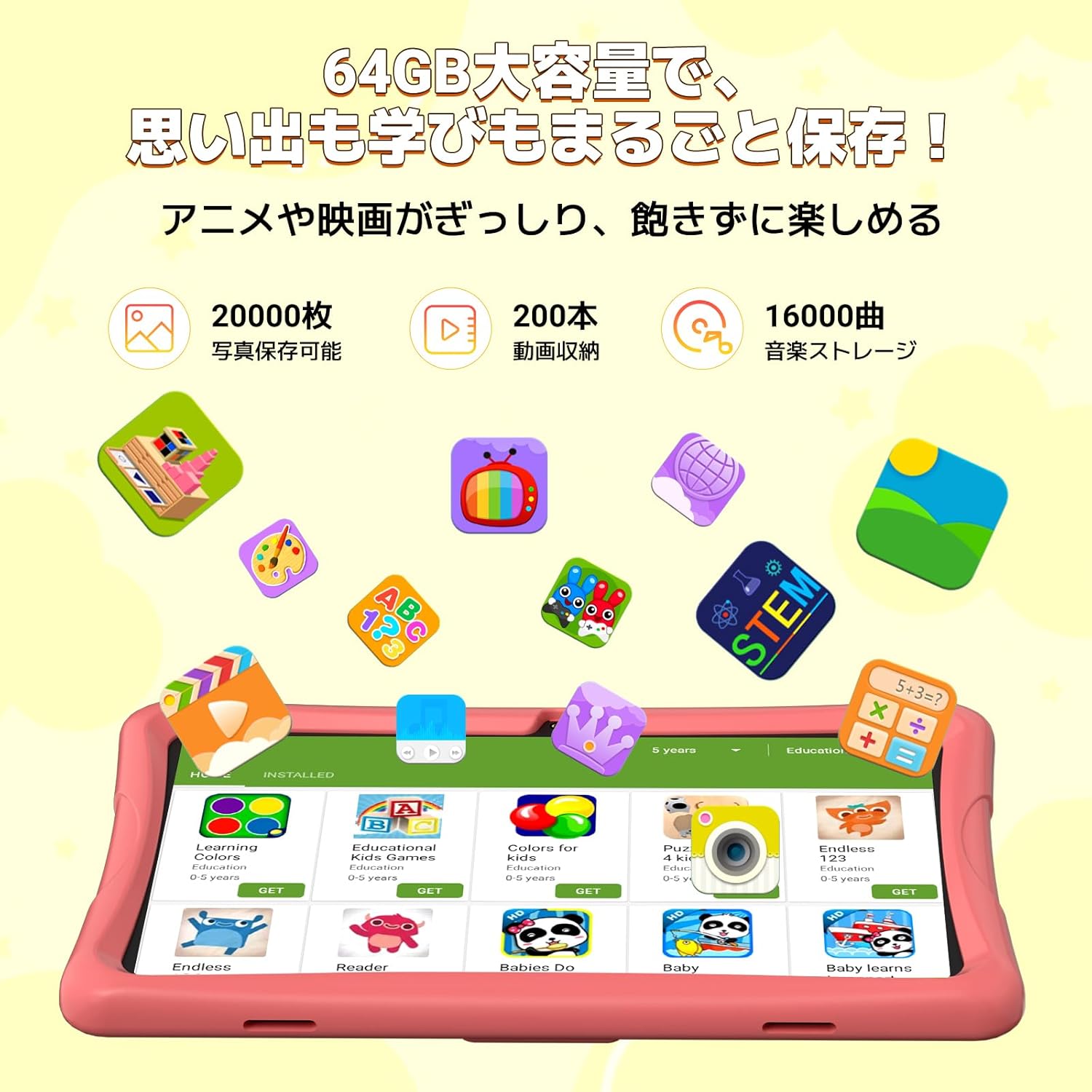
Image: The tablet displaying an augmented reality animal from the AR Zoo app, with physical cards nearby.
5.8 Ġestjoni tal-Ħażna
The tablet has 64GB of internal storage, which can be expanded up to 2TB using a microSD card (sold separately). To insert a microSD card, locate the card slot on the side of the tablet and gently push the card in until it clicks into place.
5.9 Użu tal-Kamera
The tablet is equipped with a 2MP front camera and a 5MP rear camera. Open the Camera app to take photos or record videos. The intuitive interface makes it easy for children to capture their moments.
6. Manutenzjoni
- Tindif: Use a soft, lint-free cloth to wipe the screen and body of the tablet. For stubborn smudges, slightly dampLaħlaħ id-drapp bl-ilma. Evita li tuża prodotti tat-tindif jew solventi li joborxu.
- Kura tal-batterija: To prolong battery life, avoid fully discharging the tablet frequently. Charge the tablet when the battery level is low. Store the tablet in a cool, dry place when not in use for extended periods.
- Aġġornamenti tas-Software: Periodically check for system updates in the tablet's settings. Keeping the software updated ensures optimal performance and security.
- Każ EVA: The EVA case can be cleaned with mild soap and water if it gets dirty. Ensure it is completely dry before reattaching it to the tablet.
7 Issolvi l-problemi
If you encounter any issues with your TABWEE K10 Kids Tablet, please refer to the following common solutions:
| Problema | Soluzzjoni |
|---|---|
| It-tablet ma jixgħelx. | Ensure the tablet is fully charged. Connect the charger and wait a few minutes before attempting to power on again. |
| Problemi bil-konnessjoni tal-Wi-Fi. | Check if your Wi-Fi router is working correctly. Go to Settings > Network & internet > Wi-Fi, forget the network, and reconnect. Restart the tablet and router. |
| L-apps qed jiġġarraf jew jiffriżaw. | Close the problematic app and reopen it. Clear the app's cache (Settings > Apps > [App Name] > Storage & cache > Clear cache). Restart the tablet. |
| Prestazzjoni bil-mod. | Close unnecessary background apps. Clear app caches. Ensure there is sufficient free storage space. Restart the tablet. |
| Parental controls not working as expected. | Ensure both the tablet and your smartphone have the latest Google Family Link app versions. Check the settings within the Family Link app on your smartphone. |
| Touch pen not responding. | Ensure the screen is clean. Try restarting the tablet. |
Jekk il-problema tippersisti wara li tipprova dawn il-passi, jekk jogħġbok ikkuntattja l-appoġġ għall-klijenti għal aktar assistenza.
8. Speċifikazzjonijiet
| Karatteristika | Dettall |
|---|---|
| Isem tal-Mudell | TABWEE K10 |
| Sistema Operattiva | Android 15 Go Edizzjoni |
| Wiri | 10.1-inch HD IPS (1280x800 pixels) |
| Proċessur | RK3562 Quad-Core (Cortex-A55, max 2.0GHz) |
| GPU | Mali-G52 |
| RAM | 12GB (4GB fiżiku + 8GB virtwali) |
| Ħażna Interna | 64GB ROM |
| Ħażna espansibbli | Sa 2TB permezz ta' kard microSD (mhux inkluża) |
| Batterija | 5000mAh Lithium-ion |
| Kamera ta' Quddiem | 2MP |
| Kamera ta' wara | 5MP |
| Konnettività | Wi-Fi (802.11ac), Bluetooth |
| Dimensjonijiet | 32.79 x 20 x 3.9 ċm |
| Piż | 1.02 kg |
| Ċertifikazzjonijiet | TELEC, GMS |
9. Garanzija u Appoġġ
Your TABWEE K10 Kids Tablet comes with a 24-il xahar garanzija from the date of purchase. This warranty covers manufacturing defects and ensures peace of mind.
For any questions, technical support, or warranty claims, please contact TABWEE customer service. Our support team is available 24 hours a day via email in both Japanese and English.
Kif Tikkuntattja l-Appoġġ:
- Through Amazon: Go to your Amazon account, navigate to "Order History," select the relevant order, and click "Contact Seller."
- From the Product Page: On the product page, below the "Add to Cart" button, click on the store name. Then, in the upper right corner, click "Ask a Question" to send an email.
We aim to respond to all inquiries as quickly as possible, excluding holidays.

Image: A customer support representative assisting with inquiries.
Ask a question about this manual
Ask about setup, troubleshooting, compatibility, parts, safety, or missing instructions. Manuals+ will review the question and use this page’s manual context to help answer it.