
Introduzzjoni
The Mercusys MA72XH is a high-performance Wi-Fi 6 AX1800 USB adapter designed to provide fast and stable wireless connectivity for your desktop or laptop computer. Featuring dual-band support, USB 3.0 interface, and advanced security protocols like WPA3, this adapter enhances your online experience for streaming, gaming, and video calls. This manual provides detailed instructions for the proper installation, operation, and maintenance of your MA72XH adapter.
Kontenut tal-Pakkett
Ivverifika li l-pakkett tiegħek fih l-oġġetti li ġejjin:
- 1 x Mercusys MA72XH AX1800 High-Performance Dual-Band Wireless USB Adapter
- 1 x Gwida ta 'Installazzjoni Mgħaġġla
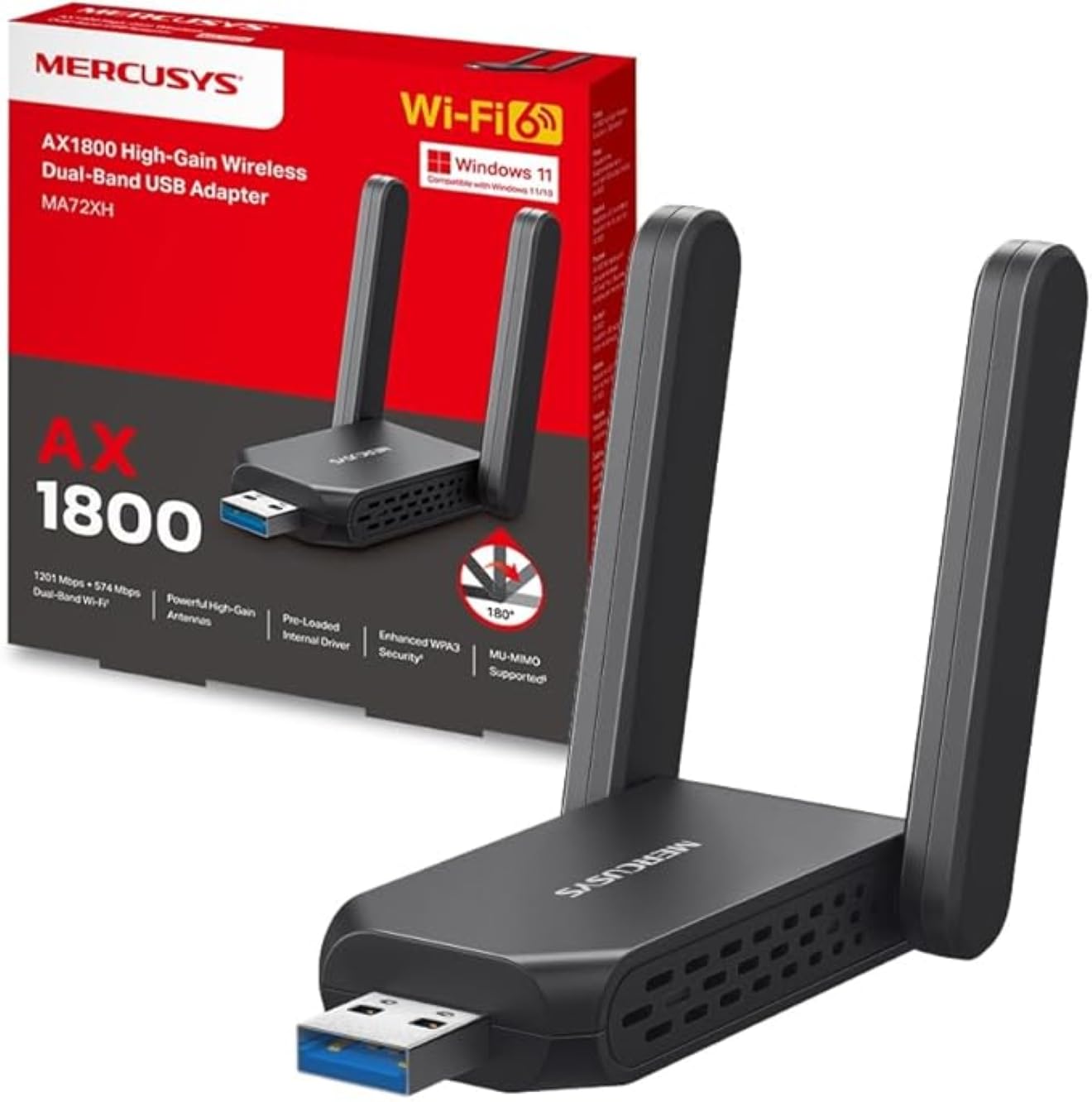
Image: The Mercusys MA72XH WiFi 6 AX1800 USB Adapter, showcasing its compact design and two adjustable external antennas.
Karatteristiċi tal-Prodott
- High-Speed Dual-Band Wi-Fi: Achieves speeds up to 1201 Mbps on the 5 GHz band and 574 Mbps on the 2.4 GHz band, supported by two high-performance antennas.
- Preloaded Internal Driver: Offers simple plug-and-play installation for most Windows 10/11 systems, eliminating the need for manual driver downloads in many cases.
- Teknoloġija MU-MIMO: Enables the adapter to communicate with multiple devices simultaneously, reducing latency and improving overall network efficiency.
- Enhanced WPA3 Security: Utilizes the latest Wi-Fi security standard to provide robust protection for your network and personal data against unauthorized access.
- Interface USB 3.0: Ensures superior data transfer speeds, optimizing performance for high-definition streaming, online gaming, and large file transfers when paired with Wi-Fi 802.11ax.
- Kompatibilità Wiesgħa: Fully compatible with Windows 10 and Windows 11 operating systems.
Gwida ta' Setup
Follow these steps to install your Mercusys MA72XH WiFi adapter:
- Daħħal l-Adapter: Plug the MA72XH adapter into an available USB 3.0 port on your desktop or laptop computer. For optimal performance, use a USB 3.0 port (often blue inside).
- Installazzjoni tas-sewwieq:
- Installazzjoni Awtomatika: In most cases, Windows 10 or 11 will automatically detect the adapter and install the necessary drivers from its preloaded internal memory. Wait for a notification indicating successful driver installation.
- Manual Installation (if needed): If the driver does not install automatically, or if you encounter issues, you may need to download the latest drivers from the official Mercusys support website. Insert the adapter, then navigate to the Mercusys support page for the MA72XH model, download the driver, and follow the on-screen instructions for installation.
- Aġġusta l-antenni: Position the two external antennas for optimal signal reception. Generally, pointing them upwards or slightly angled can improve performance.
- Qabbad man-Netwerk Wi-Fi:
- Once the driver is installed, click the Wi-Fi icon in your computer's system tray (usually in the bottom-right corner).
- Agħżel in-netwerk Wi-Fi mixtieq tiegħek mil-lista ta' netwerks disponibbli.
- Daħħal iċ-ċavetta tas-sigurtà tan-netwerk (password) jekk tintalab, imbagħad ikklikkja "Qabbad".
Your Mercusys MA72XH adapter should now be connected to your wireless network.
Istruzzjonijiet Operattivi
The Mercusys MA72XH operates as a standard Wi-Fi adapter once installed.
- Connecting/Disconnecting: Manage your Wi-Fi connections through the standard Windows network settings. Click the Wi-Fi icon in the system tray to view available networks, connect to a new one, or disconnect from an existing one.
- Operazzjoni ta' Faxxa Doppja: The adapter automatically selects the optimal band (2.4 GHz or 5 GHz) based on network conditions and router capabilities. If your router broadcasts separate SSIDs for each band, you can manually choose to connect to the 5 GHz network for higher speeds or the 2.4 GHz network for better range.
- MU-MIMO Benefits: When connected to a MU-MIMO compatible router, the MA72XH can process data streams to and from multiple devices simultaneously, leading to more efficient network usage and reduced buffering, especially in busy network environments.
Manutenzjoni
To ensure the longevity and optimal performance of your MA72XH adapter:
- Aġġornamenti tas-sewwieq: Iċċekkja perjodikament l-uffiċjal tal-Mercusys website for the latest driver updates. Keeping your drivers current can improve performance, stability, and security.
- Kura Fiżika: Keep the adapter clean and free from dust. Avoid exposing it to extreme temperatures, humidity, or direct sunlight. Do not attempt to disassemble the device.
- Tqegħid ta' l-antenna: Ensure the antennas are not obstructed and are positioned for the best possible signal reception. Avoid placing the adapter near large metal objects or other electronic devices that may cause interference.
- Konnessjoni Sikura: Always ensure the adapter is firmly seated in the USB port to prevent intermittent connections.
Issolvi l-problemi
If you encounter issues with your Mercusys MA72XH adapter, refer to the following common solutions:
- Ebda Konnessjoni Wi-Fi:
- Kun żgur li l-adapter huwa mdaħħal sew f'port USB li jaħdem. Ipprova port USB ieħor.
- Verify that Wi-Fi is enabled in your computer's settings.
- Check if the adapter's driver is correctly installed in Device Manager (Windows Key + X > Device Manager > Network adapters). If there's a yellow exclamation mark, reinstall the driver.
- Restart your computer and your Wi-Fi router.
- Veloċità baxxa tal-Wi-Fi:
- Ensure you are connected to the 5 GHz band if available and your router supports it, as it generally offers higher speeds.
- Move closer to your Wi-Fi router or adjust the adapter's antennas for better signal strength.
- Iċċekkja għal interferenza minn apparati elettroniċi oħra (eż., microwaves, telefowns mingħajr fili).
- Aġġorna d-drajvers tal-adapter tiegħek għall-aħħar verżjoni.
- Skonnettjar Frekwenti:
- Ensure the adapter is not loose in the USB port.
- Disable any power-saving features for the USB port in Device Manager (right-click the adapter > Properties > Power Management tab, uncheck "Allow the computer to turn off this device to save power").
- Aġġorna l-firmware tar-router tiegħek.
- Try connecting to a different Wi-Fi channel on your router to avoid congestion.
- Falliment fl-Installazzjoni tas-Sewwieq:
- Iddiżattiva temporanjament is-softwer tal-antivirus waqt l-installazzjoni tad-drajver.
- Download the driver directly from the Mercusys official website and run the installer as an administrator.
- Kun żgur li s-sistema operattiva Windows tiegħek hija aġġornata.
Speċifikazzjonijiet
| Brand | MERCUSYS |
| Numru tal-Mudell | MA72XH |
| Standard Wireless | IEEE 802.11ax (Wi-Fi 6) |
| Rata ta' Trasferiment tad-Data | Sa 1800 Mbps (1201 Mbps fuq 5 GHz, 574 Mbps fuq 2.4 GHz) |
| Frekwenza | Doppju Banda (2.4 GHz u 5 GHz) |
| Interface | USB 3.0 |
| Sigurtà | WPA3, WPA2, WPA |
| Kompatibilità | Windows 10, Windows 11 |
| Antenni | 2 Antenni Esterni ta' Prestazzjoni Għolja |
| Dimensjonijiet (L x W x H) | 11.3 x 10.1 x 2.7 ċm |
| Piż | 50 g |
Garanzija u Appoġġ
Għal informazzjoni dwar il-garanzija u appoġġ tekniku, jekk jogħġbok irreferi għall-websajt uffiċjali ta' Mercusys. website or the documentation included with your product. You can typically find support resources, FAQs, and contact information by visiting www.mercusys.com/support and searching for your model (MA72XH).