
1. Introduzzjoni
The Lenovo ThinkPad Universal Thunderbolt 4 Dock and Mini U Speaker provide a comprehensive solution for enhancing your workspace productivity and audio experience. This manual guides you through the setup, operation, and maintenance of your devices, ensuring optimal performance and longevity. The Thunderbolt 4 Dock offers versatile connectivity for multiple displays and peripherals, while the Mini U Speaker delivers portable, high-quality audio.
2. Kontenut tal-Pakkett
Qabel ma tipproċedi bis-setup, jekk jogħġbok ivverifika li l-oġġetti kollha li ġejjin huma inklużi fil-pakkett tiegħek:
- Lenovo ThinkPad Universal Thunderbolt 4 Dock
- Lenovo Mini U Speaker
- Adapter tal-Enerġija
- Korda tal-Enerġija
- Cable Thunderbolt

Figure 2.1: Included components of the Lenovo ThinkPad Universal Thunderbolt 4 Dock and Mini U Speaker.
3. Setup
3.1. ThinkPad Universal Thunderbolt 4 Dock Setup
- Qabbad l-Enerġija: Connect the power adapter to the dock's power input port, then plug the power cord into an electrical outlet.
- Qabbad mal-Kompjuter: Use the provided Thunderbolt cable to connect the dock to a Thunderbolt 4 or USB-C port on your compatible Lenovo ThinkPad or other laptop.
- Ikkonnettja l-Periferali:
- Wirjiet: Connect your monitors to the dock's DisplayPort or HDMI ports. The dock supports up to four 4K displays or one 8K display.
- Apparat USB: Connect USB devices such as keyboards, mice, external drives, or webcams to the available USB ports (USB-A or USB-C) on the dock.
- Netwerk: For a wired network connection, connect an Ethernet cable from your router or network switch to the RJ-45 port on the dock.
- Awdjo: Connect headphones or external speakers to the 3.5mm audio jack on the front of the dock.

Figure 3.1: Rear ports of the Thunderbolt 4 Dock.

Figure 3.2: Front ports of the Thunderbolt 4 Dock.
3.2. Mini U Speaker Setup
- Iċċarġja lill-Ispeaker: Before first use, charge the Mini U Speaker using the provided Micro USB charging cord. Connect the cord to the speaker and a USB power source. The battery indicator will show charging status.
- Qawwa Mixgħul: Press and hold the power button on the speaker until you hear an audible cue or see an indicator light.
- Par via Bluetooth:
- Ensure Bluetooth is enabled on your device (e.g., laptop, smartphone).
- The speaker will enter pairing mode automatically or by pressing a dedicated Bluetooth button.
- On your device, search for available Bluetooth devices and select "Lenovo Mini U Speaker" (or similar name) to connect.
- A confirmation sound or light will indicate successful pairing.
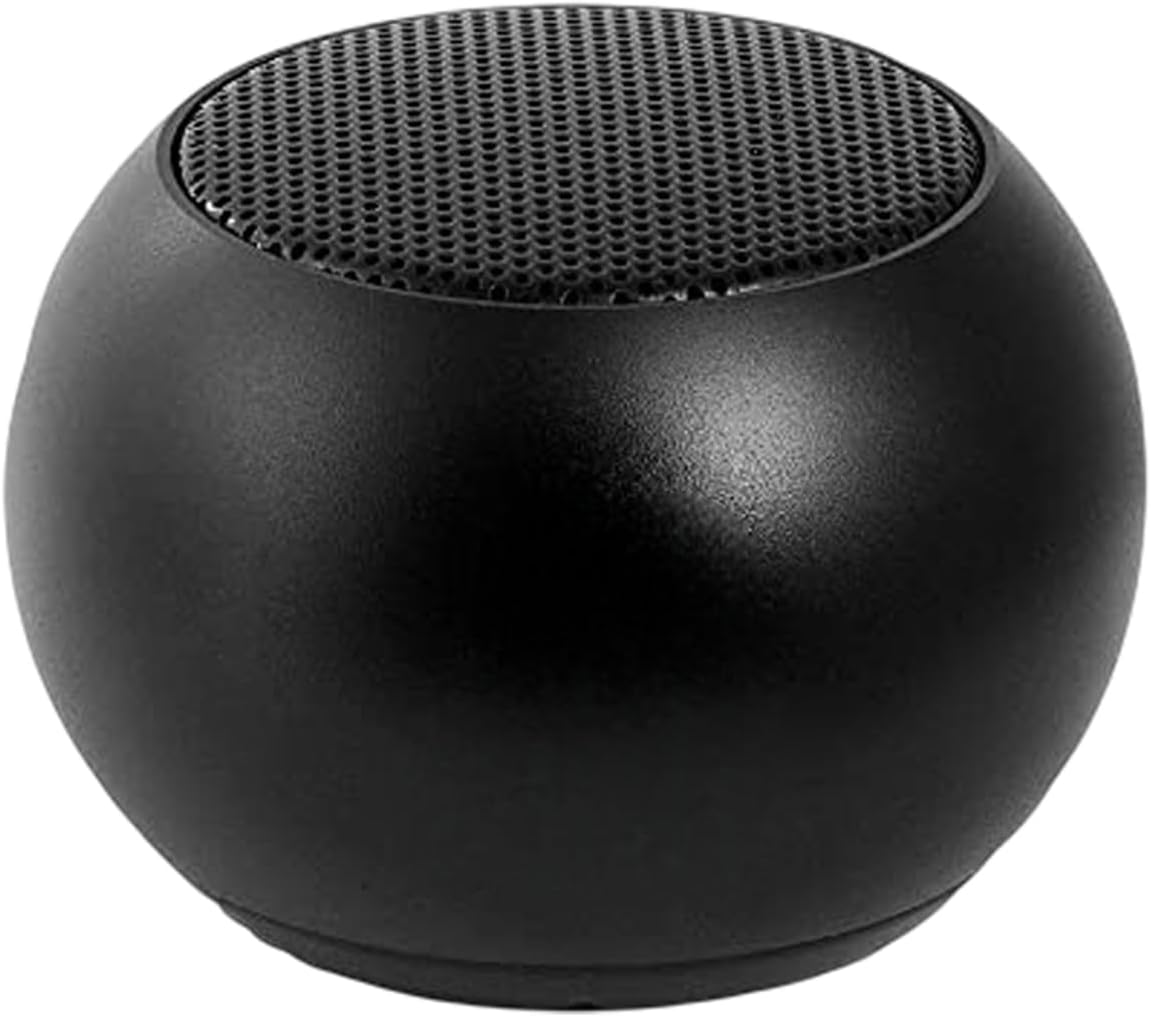
Figure 3.3: Lenovo Mini U Speaker.
4. Istruzzjonijiet Operattivi
4.1. ThinkPad Universal Thunderbolt 4 Dock Operation
- Ġestjoni tal-Enerġija: The dock typically powers on automatically when connected to a powered laptop. Disconnect the Thunderbolt cable to power off the dock.
- Konfigurazzjoni tal-Wiri: Once connected, your operating system should detect the external displays. You can configure display settings (e.g., extend, duplicate, primary display) through your computer's display settings.
- Użu ta' Apparat USB: Connected USB devices will function as if directly connected to your computer. Ensure any necessary drivers for specific peripherals are installed on your computer.
- Aċċess għan-Netwerk: The Gigabit Ethernet port provides a stable wired network connection. Verify network settings on your computer if connectivity issues arise.
- Iċċarġjar: The dock provides up to 100W power delivery to your connected laptop, charging it while in use.
4.2. Mini U Speaker Operation
- Power On/Off: Press and hold the power button for approximately 3 seconds to turn the speaker on or off.
- Konnessjoni Bluetooth: After initial pairing, the speaker should automatically reconnect to the last paired device when powered on and within range. If not, manually select it from your device's Bluetooth settings.
- Daqq tal-awdjo: Once connected, audio from your paired device will play through the Mini U Speaker. Control volume and playback (play/pause, skip tracks) directly from your connected device.
- Sejħiet mingħajr idejn: If supported by your device, the speaker may function as a hands-free device for calls.
5. Manutenzjoni
- Tindif: Use a soft, dry, lint-free cloth to clean the surfaces of the dock and speaker. Avoid using liquid cleaners, aerosols, or harsh chemicals.
- Aġġornamenti tal-Firmware: Periodically check for firmware updates for your ThinkPad Universal Thunderbolt 4 Dock using the Lenovo Dock Manager application. Keeping the firmware updated ensures optimal performance, compatibility, and security.
- Ħażna: Meta ma tkunx qed tużahom għal perjodi twal, aħżen l-apparati f'post frisk u niexef 'il bogħod mix-xemx diretta u minn temperaturi estremi.
- Ġestjoni tal-Kejbil: Ensure cables are not excessively bent or tangled to prevent damage.
6 Issolvi l-problemi
6.1. ThinkPad Universal Thunderbolt 4 Dock
- Ebda Qawwa/Funzjonalità:
- Ensure the power adapter is securely connected to both the dock and a working electrical outlet.
- Verify the Thunderbolt cable is firmly connected to both the dock and your laptop.
- Try connecting the dock to a different Thunderbolt/USB-C port on your laptop.
- L-ebda Output tal-Wiri:
- Check all display cable connections between the dock and monitors.
- Ensure monitors are powered on and set to the correct input source.
- Update your computer's graphics drivers and the dock's firmware.
- Test with a single monitor to isolate the issue.
- Apparati USB Mhux Jaħdmu:
- Reconnect the USB device to a different port on the dock.
- Connect the USB device directly to your computer to confirm it is functional.
- Ensure necessary drivers for the USB device are installed.
- L-ebda Konnessjoni man-Netwerk:
- Verify the Ethernet cable is securely connected to the dock and your router/switch.
- Iċċekkja s-settings tan-netwerk tal-kompjuter tiegħek.
- Erġa' ibda r-router/modem tiegħek.
6.2. Mini U Speaker
- L-Ispeaker Mhux Mixgħul:
- Ensure the speaker is charged. Connect it to a power source and allow it to charge for a period.
- Press and hold the power button for the required duration (typically 3 seconds).
- Ma tistax tikkopja permezz tal-Bluetooth:
- Ensure the speaker is in pairing mode (often indicated by a blinking light).
- Kun żgur li l-Bluetooth huwa attivat fuq l-apparat tiegħek u li jista' jiġi skopert.
- Mexxi l-ispiker eqreb lejn l-apparat tiegħek.
- Insieh l-ispiker mil-lista tal-Bluetooth tat-tagħmir tiegħek u erġa' pprova tqabbad.
- Ebda Ħoss/Volum Baxx:
- Żid il-volum kemm fuq l-ispiker kif ukoll fuq l-apparat konness tiegħek.
- Kun żgur li l-ispiker huwa konness sew permezz tal-Bluetooth.
- Check if the audio output on your device is set to the Bluetooth speaker.
7. Speċifikazzjonijiet
| Karatteristika | Speċifikazzjoni |
|---|---|
| Dimensjonijiet tal-Prodott (Baċir) | 3.1"T x 1.2"W x 8.7"Għ (7.87 x 3.05 x 22.1 ċm) |
| Item Weight (Dock) | 16 liri (7.26 kg) |
| Kulur | Iswed |
| Interface tal-Ħardwer | Thunderbolt 4, USB 2.0 |
| Portijiet USB totali | 4 (tipi varji) |
| Portijiet HDMI totali | 1 |
| DisplayPorts | 2 |
| Port Ethernet | 1 x RJ-45 (Gigabit Ethernet) |
| Wattage (Kunsinna tal-Enerġija) | 100.0 W |
| Mini U Speaker Dimensions | 45.45mm x 33mm (1.75” x 1.3”) |
| Mini U Speaker Battery | 400 mAh (up to 4 hours playback) |
| Apparati Kompatibbli | Lenovo ThinkPad & ThinkBook models including E14 (Gen 1-5), E15 (Gen 1-5), E16 (Gen 1-2), L13 (Gen 1-3), L13 Yoga (Gen 1-3), L14 (Gen 1-3), L15 (Gen 1-3), P14s (Gen 1-3), T14 (Gen 1-3), T14s (Gen 1-3), T15 (Gen 1-3), P1 (Gen 1-6), X13 (Gen 1-3), X13 Yoga (Gen 1-3), X1 Carbon (Gen 8-10), X1 Yoga (Gen 5-7), Z13 (Gen1-2), Z16 (Gen1-2) |
| UPC | 840104351864 |
8. Informazzjoni dwar il-Garanzija u l-Appoġġ
Lenovo products are covered by a limited warranty. For detailed warranty terms and conditions, please refer to the warranty card included with your product or visit the official Lenovo support website. The warranty period typically begins from the date of purchase.
For technical support, driver downloads, firmware updates, and additional product information, please visit the official Lenovo Support website. You will need your product's serial number for specific support inquiries.
Appoġġ Lenovo Websit: https://support.lenovo.com