
rockspace AC1200
rockspace AC1200 Dual Band WiFi Extender Instruction Manual
Mudell: AC1200
1. Prodott Aktarview
The rockspace AC1200 Dual Band WiFi Extender is designed to expand your existing wireless network coverage, eliminating dead zones and providing a stronger, more reliable internet connection throughout your home or office. It operates on both 2.4 GHz and 5 GHz frequency bands, offering combined speeds up to 733Mbps for various online activities.

Image 1.1: The rockspace AC1200 Dual Band WiFi Extender with its two external antennas and indicator lights.
Karatteristiċi ewlenin:
- Kopertura Estiża: Provides 360° signal coverage, extending your WiFi network up to 1292 sq. ft.
- Dual-Band Performance: Supports both 2.4 GHz (for wider coverage) and 5 GHz (for faster speeds) bands, with a combined rate of up to 733Mbps.
- Kompatibilità Universali: Works with all standard 802.11n/g/b/ac routers and gateways.
- Indikatur tas-Sinjal Intelliġenti: Helps identify the optimal placement for the extender by displaying connection status with varied colors.
- Setup faċli: Features a one-press WPS button setup for quick connection to your router.

Image 1.2: Illustration showing how the WiFi extender expands coverage to eliminate dead zones in a multi-story home.
2. Istruzzjonijiet ta' Setup
There are two primary methods to set up your rockspace AC1200 WiFi Extender: using the WPS button or via a web browser.
2.1. WPS Button Setup (Recommended for quick setup)
The WPS (Wi-Fi Protected Setup) method allows for a quick and easy connection to your existing router.
- Qawwa Mixgħul: Plug the WiFi extender into an electrical outlet near your main router. Wait for the Power (PWR) LED to turn solid blue.
- Attiva l-WPS fuq l-Estensur: Press the WPS button on the side of the extender. The WPS LED will start blinking.
- Attiva l-WPS fuq ir-Router: Within two minutes, press the WPS button on your main router. Refer to your router's manual if you cannot locate the WPS button.
- Qabbad: Wait for the WPS LED on the extender to turn solid blue, indicating a successful connection. This may take a few moments.
- Riloka: Once connected, unplug the extender and move it to a location halfway between your router and the WiFi dead zone. Plug it into an outlet and wait for the Signal LED to turn blue (indicating a good connection).

Image 2.1: Diagram illustrating the WPS setup process, showing pressing WPS buttons on both the router and the extender.
2.2. Web Setup tal-browser
If your router does not have a WPS button, or if the WPS method fails, you can set up the extender using a web browser.
- Qawwa Mixgħul: Plug the WiFi extender into an electrical outlet near your main router. Wait for the Power (PWR) LED to turn solid blue.
- Connect to Extender's WiFi: On your computer or smartphone, connect to the extender's default WiFi network (e.g., "rockspace_EXT" or similar, usually found on a label on the device). No password is required initially.
- Paġna tas-Setup tal-Aċċess: Iftaħ a web browser (eż., Chrome, Firefox) u daħħal l-indirizz IP jew l-isem tad-dominju default (eż., re.rockspace.local or 192.168.0.254) fil-bar tal-indirizz.
- Segwi l-Istruzzjonijiet fuq l-Iskrin: Create an administrator password, select your existing WiFi network, and enter its password. The extender will then connect to your router.
- Riloka: Once setup is complete, unplug the extender and move it to an optimal location. Plug it back in and wait for the Signal LED to turn blue.
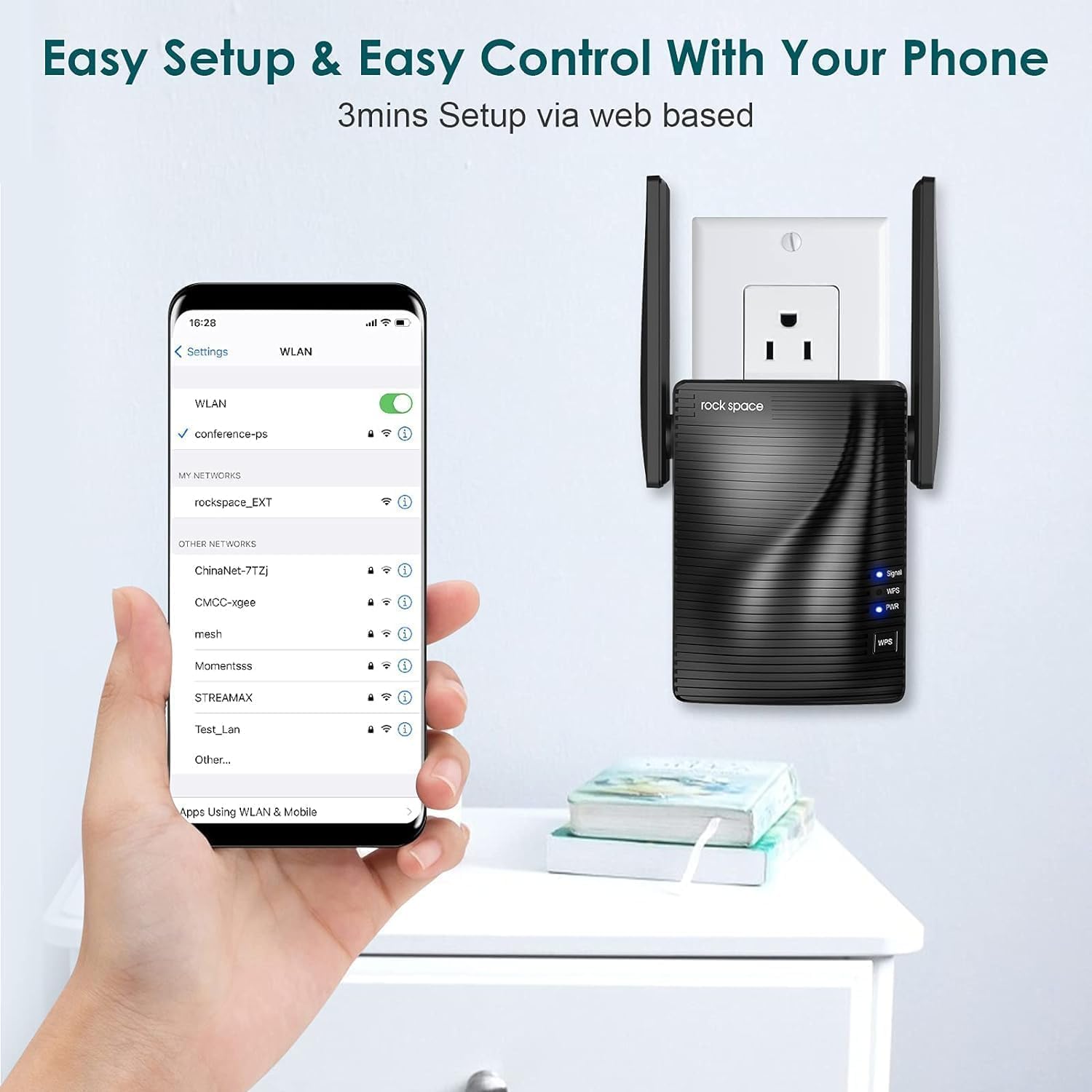
Image 2.2: A smartphone screen showing connection to the extender's WiFi network for websetup ibbażat fuq.
3. Istruzzjonijiet Operattivi
3.1. Understanding Indicator Lights
- Power (PWR) LED: Solid blue indicates the extender is powered on.
- WPS LED: Blinking indicates WPS pairing mode. Solid blue indicates a successful WPS connection.
- LED tas-Sinjal:
- Blu solidu: Good signal strength from the router.
- Aħmar Solidu: Weak signal strength from the router. Consider relocating the extender closer to the router.
- Mitfi: No connection to the router.
3.2. Tħaddim b'Doppju Banda
The AC1200 extender creates two extended networks, one for 2.4 GHz and one for 5 GHz. Devices connected to the 2.4 GHz network will generally have a wider range, while devices connected to the 5 GHz network will experience faster speeds, ideal for streaming and gaming.

Image 3.1: Illustration showing devices connected to 2.4GHz and 5GHz bands with their respective speed capabilities.
3.3. Konnessjoni bil-fili
The extender may include an Ethernet port, allowing you to connect a wired device (like a desktop computer, gaming console, or smart TV) to the extended network for a stable, high-speed connection.
4. Manutenzjoni
Proper maintenance ensures the longevity and optimal performance of your WiFi extender.
- Tindif: Gently wipe the device with a dry, soft cloth. Avoid using liquid cleaners or aerosols.
- Ventilazzjoni: Ensure the extender is placed in a location with adequate airflow to prevent overheating. Do not cover ventilation holes.
- Ambjent: Avoid placing the extender in direct sunlight, near heat sources, or in areas with high humidity.
- Aġġornamenti tal-Firmware: Periodically check the rockspace official websit għal aġġornamenti tal-firmware. L-aġġornament tal-firmware jista' jtejjeb il-prestazzjoni, iżid karatteristiċi ġodda, u jirranġa l-iżbalji.
5 Issolvi l-problemi
If you encounter issues with your WiFi extender, try the following troubleshooting steps:
5.1. No Internet Connection or Weak Signal
- Iċċekkja l-Pjazzament: Relocate the extender closer to your main router. The Signal LED should be solid blue.
- Ivverifika l-Konnessjoni tar-Router: Ensure your main router is working correctly and providing internet access.
- Re-setup: Try performing the setup process again, either via WPS or web browser.
- Interferenza: Move the extender away from large metal objects, microwaves, cordless phones, or other devices that might cause interference.
5.2. Slow Speeds
- Poġġiment ottimali: Ensure the extender is placed in an optimal location (Signal LED solid blue).
- Għażla tal-Banda: For speed-intensive tasks, try connecting your device to the 5 GHz extended network if available.
- Konġestjoni tan-Netwerk: Too many devices on your network or heavy internet usage can slow down speeds.
5.3. WPS Setup Fails
- Żmien: Ensure you press the WPS button on both the extender and router within the two-minute window.
- WPS tar-Router: Some routers require WPS to be enabled in their settings. Check your router's manual.
- Setup Alternattiv: Uża l- web browser setup method if WPS continues to fail.
5.4. Forgot Administrator Password or Network Name/Password
- Irrisettjar tal-Fabbrika: Locate the reset button (usually a small pinhole) on the extender. With the extender powered on, use a paperclip to press and hold the reset button for about 8-10 seconds until the LEDs flash. The extender will revert to factory default settings, and you will need to set it up again.
6. Speċifikazzjonijiet
| Karatteristika | Speċifikazzjoni |
|---|---|
| Mudell | AC1200 |
| Standard Wireless | IEEE 802.11ac/n/g/b |
| Meded ta' Frekwenza | 2.4 GHz & 5 GHz |
| Combined Speed | Up to 733 Mbps (300 Mbps for 2.4 GHz, 433 Mbps for 5 GHz) |
| Antenni | Dual External Antennas |
| Port Ethernet | 1 x 10/100 Mbps |
| Sigurtà | WPA-PSK/WPA2-PSK |
| Dimensjonijiet | 4.8 x 3.86 x 3.43 pulzieri |
| Piż | 9.4 uqija |
7. Informazzjoni dwar Garanzija
rockspace products typically come with a limited warranty. For detailed warranty terms and conditions, please refer to the warranty card included with your product or visit the official rockspace websit. Żomm l-irċevuta tax-xiri tiegħek bħala prova tax-xiri għal talbiet ta' garanzija.
8. Appoġġ għall-Klijent
If you require further assistance or have questions not covered in this manual, please contact rockspace customer support through their official webis-sit jew l-informazzjoni ta' kuntatt ipprovduta mal-imballaġġ tal-prodott tiegħek.
Ask a question about this manual
Ask about setup, troubleshooting, compatibility, parts, safety, or missing instructions. Manuals+ will review the question and use this page’s manual context to help answer it.