
1. Introduzzjoni
The Ortis WiFi Pool Timer Switch (Model KJ-071) provides smart control for your pool equipment and outdoor devices. This device features remote control via the GeniLife APP, dual waterproof outlets, and an integrated LCD display for convenient operation. It is designed for use with pool pumps, filters, outdoor lights, and other compatible 120V/15A/60Hz appliances.
Il-karatteristiċi ewlenin jinkludu:
- APP-Enabled Smart Control: Manage your pool equipment remotely using the GeniLife APP, compatible with 2.4G and 5G WiFi networks.
- Flexible Scheduling Options: Customize daily repeat schedules or countdown intervals through the GeniLife APP for precise energy management.
- Ħwienet Doppju: Two individually covered outlets allow simultaneous control of multiple devices, such as a pool pump and a salt chlorinator.
- Intuitive Display & Easy Setup: Features a clear LCD screen for real-time feedback and a user-friendly interface for straightforward installation and programming.
- Universal Outdoor Application: Suitable for various outdoor gear including pool pumps, pond lights, automatic cleaners, and garden fountains.

2. Informazzjoni dwar is-Sigurtà
Jekk jogħġbok aqra u ifhem l-istruzzjonijiet kollha tas-sigurtà qabel l-installazzjoni u t-tħaddim. Jekk ma ssegwix dawn l-istruzzjonijiet, dan jista' jirriżulta f'xokk elettriku, nar, jew korriment serju.
- Ensure the total load connected to the timer does not exceed 15A (1800W at 120V).
- Always connect the timer to a properly grounded 120V/60Hz outlet.
- Do not immerse the device in water. It is designed for outdoor use but should be protected from direct heavy rainfall if possible.
- Keep children away from the device and connected appliances.
- Inspect the timer and connected appliance plugs for damage before each use. Do not use if damaged.
- Skonnettja l-enerġija qabel ma tagħmel xi manutenzjoni jew tindif.

3. Prodott Aktarview
The Ortis WiFi Pool Timer Switch is a robust outdoor device designed for durability and ease of use. It features a bright yellow casing for visibility and black waterproof outlet covers.
3.1 Komponenti
- Display LCD: Shows current time, operating mode, and output status.
- Buttuni tal-Kontroll: Manual (M), Time (T), Up (▲), Down (▼), Lock, Time On/Off.
- Dual Outlets (S1, S2): Two independent, covered outlets for connecting appliances.
- Korda tal-Enerġija: Integrated power cord with a standard 3-prong plug.
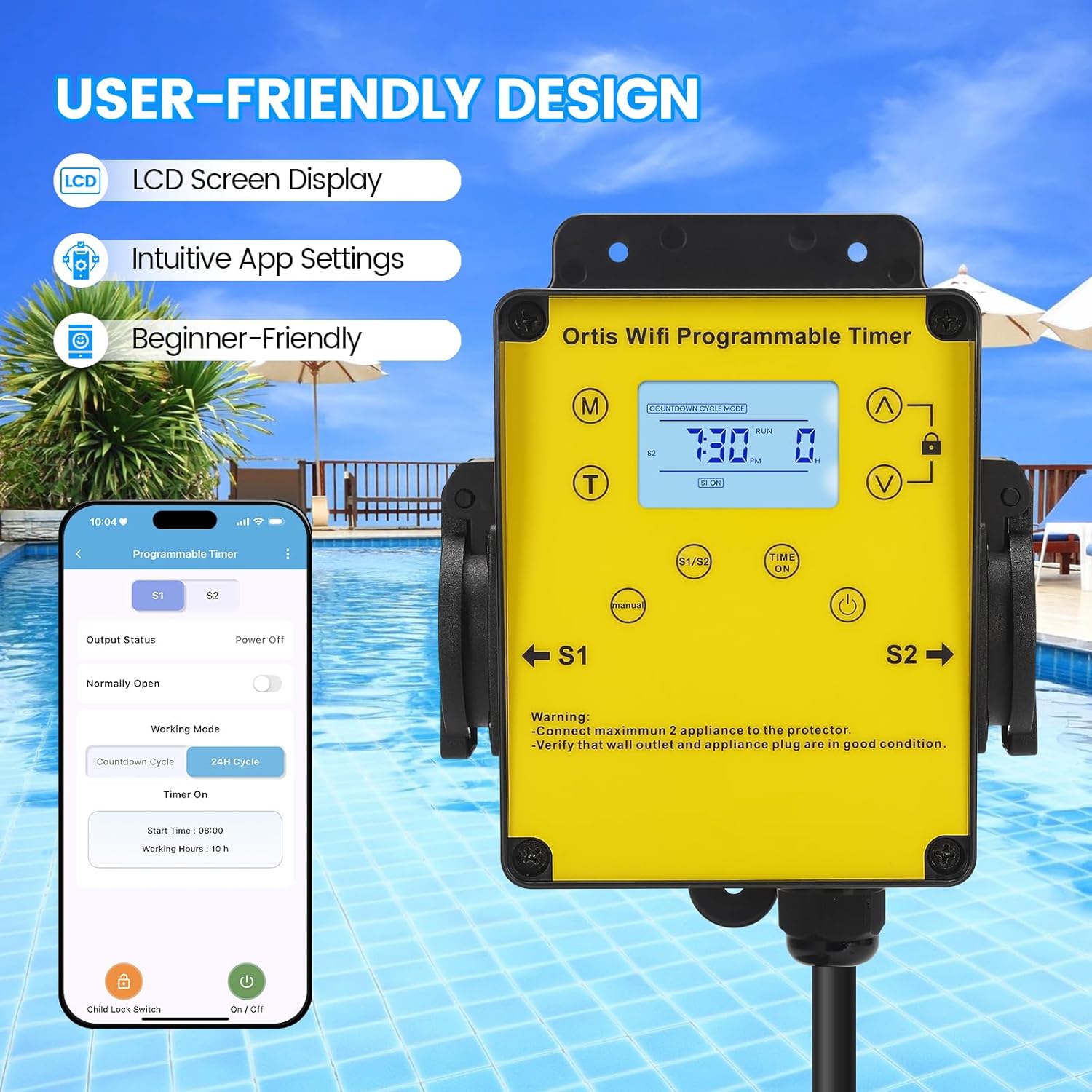


4. Setup
4.1 Installazzjoni Fiżika
- Choose a suitable outdoor location for the timer, ensuring it is protected from direct heavy rain and easily accessible.
- Mount the timer securely using appropriate hardware (not included) through the mounting holes on the device.
- Plug the timer's power cord into a grounded 120V/60Hz outdoor electrical outlet.
- Connect your pool pump, filter, or other appliances to the S1 and S2 outlets. Ensure the total load does not exceed 15A.

4.2 GeniLife APP Installation
- Download the "GeniLife" APP from your smartphone's app store (iOS or Android).
- Irreġistra għal kont ġdid jew idħol jekk diġà għandek wieħed.
4.3 Konnessjoni WiFi
- Ensure your smartphone is connected to a 2.4GHz or 5GHz WiFi network.
- Open the GeniLife APP and tap "Add Device" or the "+" icon.
- Follow the in-app instructions to connect your Ortis WiFi Pool Timer Switch. This typically involves putting the device into pairing mode (refer to the device's LCD or manual for specific button presses to initiate pairing mode, usually holding a button for a few seconds until an indicator flashes).
- Ladarba tkun konness, tista' tbiddel isem l-apparat għal identifikazzjoni aktar faċli.

5. Istruzzjonijiet Operattivi
5.1 Kontroll Manwali
You can manually turn the outlets ON or OFF directly from the device:
- Press the "Time On/Off" button to cycle through ON, OFF, or AUTO modes for the connected outlets.
- The LCD display will indicate the current status.
5.2 Scheduling via GeniLife APP
The GeniLife APP offers comprehensive scheduling options:
- Daily Cycle Mode: Issettja ħinijiet speċifiċi ta' ON/OFF għal kull jum tal-ġimgħa.
- Timer Cycle Mode: Configure repeating ON/OFF intervals (e.g., 2 hours ON, 2 hours OFF).
- Timer tal-Countdown: Set a countdown for the device to turn ON or OFF after a specified duration.
- Skeda ta' kull Ġimgħa: Create custom schedules for different days or groups of days.
Biex tiffissa skeda:
- Open the GeniLife APP and select your Ortis Pool Timer Switch.
- Navigate to the "Programmable Timer" section.
- Choose your desired working mode (e.g., Countdown Cycle, 24H Cycle).
- Enter the start time, working hours, or specific ON/OFF times as prompted by the app.
- Confirm your settings to activate the schedule.

5.3 Dual Outlet Control
The timer allows independent control of each outlet (S1 and S2) through the GeniLife APP. You can set separate schedules or manually control each outlet as needed, provided the total load does not exceed the device's maximum capacity.
6. Manutenzjoni
- Tindif: Periodically wipe the device with a soft, damp cloth. Do not use harsh chemicals or abrasive cleaners. Ensure the device is unplugged before cleaning.
- Spezzjoni: Regularly check the power cord, plug, and outlets for any signs of wear or damage. Replace the device if any damage is found.
- Ħażna: If storing the timer for an extended period, disconnect it from power and store it in a dry, protected area.
7 Issolvi l-problemi
| Problema | Kawża Possibbli | Soluzzjoni |
|---|---|---|
| L-apparat ma jixgħelx. | No power from outlet; damaged cord/plug. | Check the wall outlet with another device. Inspect the timer's cord and plug for damage. |
| Ma nistax nikkonnettja mal-WiFi. | Password tal-WiFi mhux korretta; apparat mhux fil-modalità ta' tqabbil; problemi bir-router. | Ensure correct WiFi password. Put the device into pairing mode (refer to app instructions). Restart your router. Ensure your phone is on a 2.4GHz or 5GHz network. |
| Scheduled events not working. | Incorrect schedule settings; device in manual mode; power interruption. | Verify schedule settings in the GeniLife APP. Ensure the device is in AUTO mode. Check for power outages. |
| Outlets not turning ON/OFF. | Overload; faulty appliance; device malfunction. | Ensure total load does not exceed 15A. Test with a different appliance. If issues persist, contact support. |
| Cannot set different schedules for each outlet. | App setting misunderstanding. | In the GeniLife APP, ensure you are selecting and configuring schedules for S1 and S2 independently. Some app interfaces may require switching between outlet views. |
8. Speċifikazzjonijiet
| Karatteristika | Dettall |
|---|---|
| Numru tal-Mudell | KJ-071 |
| Brand | Ortis |
| Input Voltage | 120V AC, 60Hz |
| Kurrent Massimu tat-Tagħbija | 15A |
| Max Power | 1800W |
| Numru ta' Ħwienet | 2 (Individually controlled) |
| Kompatibilità WiFi | 2.4G & 5G |
| App Control | GeniLife APP |
| Materjal | Plastik |
| Kulur | Isfar |
| Dimensjonijiet (madwar) | 4.9 pulzieri (għoli) x 3.9 pulzieri (wisa ') x 3.3 pulzieri (fond) |

9. Garanzija u Appoġġ
For warranty information or technical support, please refer to the documentation included with your purchase or contact Ortis customer service. Keep your purchase receipt as proof of purchase.