
1. Introduzzjoni
This manual provides detailed instructions for setting up, operating, and maintaining your Totolink X18 AX1800 Wi-Fi 6 Mesh Router System. This 3-pack system is designed to deliver extensive and reliable Wi-Fi coverage throughout your home, utilizing advanced Wi-Fi 6 technology for high-speed and efficient network performance.
The Totolink X18 system supports dual-band operation (2.4GHz and 5GHz), MU-MIMO, WPA3 security, and EasyMesh technology, ensuring a secure and seamless internet experience for multiple devices.
2. Kontenut tal-Pakkett
- 3 x Totolink X18 Mesh Routers
- 3 x Power Adapters
- 1 x Cable Ethernet
- 1 x Quick Installation Guide (this manual serves as a comprehensive guide)
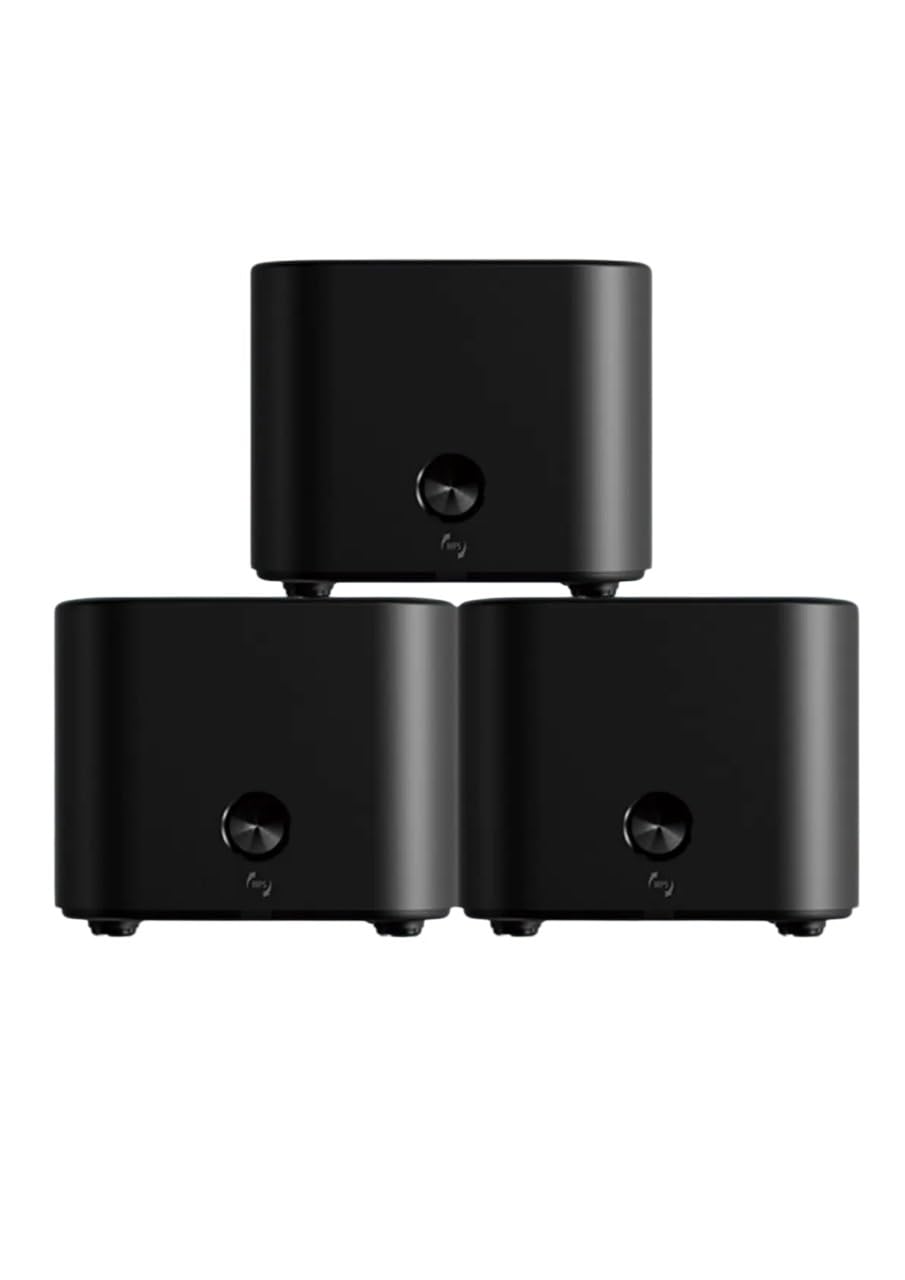
Image: The Totolink X18 Mesh Router system, showing three units and their compact design. This image represents the typical components included in the package.
3. Prodott Aktarview
Each Totolink X18 mesh router unit features a compact design with essential ports and indicators for easy management.
3.1 Panel ta 'Quddiem
- Indikatur LED: Displays the status of the router (e.g., power, internet connection, mesh status).
- Buttuna Qabbad: Used for WPS or EasyMesh pairing.
3.2 Panel ta 'wara
- Port WAN (Isfar): Jikkonnettja mal-modem jew mat-tagħmir tal-fornitur tas-servizz tal-internet (ISP) tiegħek.
- Portijiet LAN (Oranġjo): Connects to wired devices such as computers, smart TVs, or gaming consoles. (Typically 2 LAN ports per unit).
- Input ta' Enerġija DC: Jikkonnettja mal-adapter tal-enerġija inkluż.
- Buttuna Irrisettja: Used to restore factory default settings (usually a small pinhole button).

Immaġni: Wara view of a Totolink X18 mesh router unit, highlighting the WAN (yellow), LAN (orange), and DC power input ports. This illustrates the connectivity options available on each unit.
4. Gwida ta' Setup
Follow these steps to set up your Totolink X18 Mesh Router System.
4.1 Initial Router Setup (Main Unit)
- Ippakkja: Remove all three X18 units and power adapters from the packaging.
- Pożizzjoni: Place one X18 unit near your modem or internet service entry point. This will be your main router.
- Qabbad mal-Modem: Connect one end of the provided Ethernet cable to the WAN port (yellow) of the main X18 unit and the other end to your modem's LAN port.
- Qawwa Mixgħul: Connect the power adapter to the DC power input of the main X18 unit and plug it into a power outlet. The LED indicator will light up.
- Wait for Boot: Wait for the LED indicator to turn solid blue (or green, depending on model) which indicates a successful internet connection. This may take a few minutes.
4.2 Connecting Satellite Units (Mesh Pairing)
After setting up the main unit, you can add the other two units to create your mesh network.
- Position Satellite Units: Place the other two X18 units in locations where you need extended Wi-Fi coverage, ensuring they are within range of the main unit or another satellite unit.
- Qawwa Mixgħul: Connect the power adapters to the satellite X18 units and plug them into power outlets.
- Tqabbil awtomatiku: The satellite units are designed to automatically detect and pair with the main unit. The LED indicator on the satellite units will change color (e.g., from blinking to solid blue/green) once successfully connected to the mesh network. This process may take a few minutes.
- Manual Pairing (if needed): If automatic pairing fails, press the "Connect" button on the main unit, then within two minutes, press the "Connect" button on the satellite unit. The LEDs will flash during pairing and turn solid upon successful connection.
4.3 Konnessjoni Inizjali tal-Wi-Fi
- Sib l-Isem tan-Netwerk (SSID): On your computer or smartphone, search for available Wi-Fi networks. The default SSID and password are usually printed on a label on the bottom of each X18 unit.
- Qabbad: Select your network name and enter the default password.
- Aċċess Web Interface: Iftaħ a web browser u tip
http://itotolink.netor192.168.0.1into the address bar. Log in with the default username and password (usuallyadmingħat-tnejn). - Ippersonalizza Settings: Follow the on-screen wizard to change your Wi-Fi name (SSID) and password for better security. It is highly recommended to change the default login credentials for the router's web interface as well.
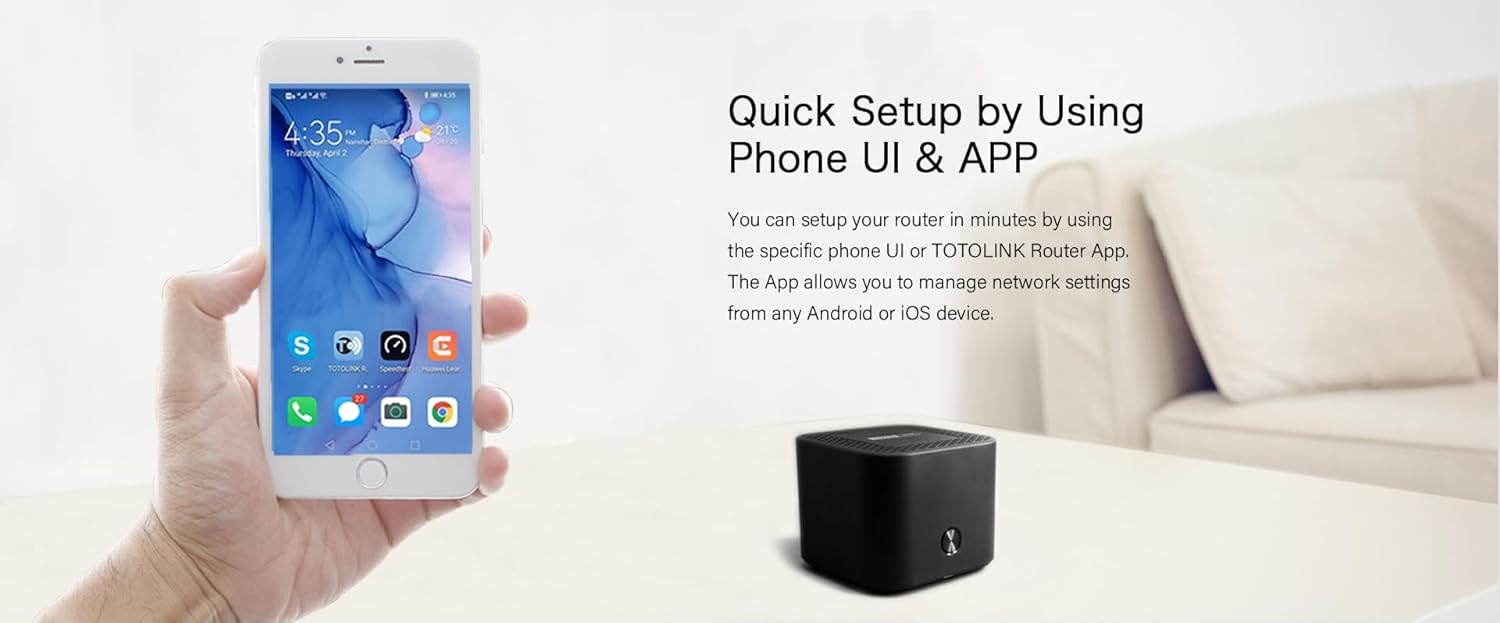
Image: A smartphone screen showing the Totolink router application, illustrating the quick setup process via a mobile app. This app allows for convenient network management from Android or iOS devices.
5. Istruzzjonijiet Operattivi
Once your mesh network is set up, you can manage and optimize it using the web interface or the dedicated mobile application.
5.1 Web Ġestjoni tal-Interface
Aċċess għall- web interface by opening a browser and navigating to http://itotolink.net or 192.168.0.1. Log in with your administrator credentials.
- Issettjar tan-Netwerk: Configure WAN connection type (DHCP, Static IP, PPPoE), LAN settings, and DHCP server.
- Settings bla fili: Change Wi-Fi name (SSID), password, security type (WPA2/WPA3), and channel settings.
- Netwerk tal-Mistiedna: Create a separate Wi-Fi network for guests with isolated access.
- Kontroll tal-Ġenituri: Immaniġġja l-ħinijiet tal-aċċess għall-internet u imblokka speċifiċi websiti għal apparati konnessi.
- QoS (Kwalità tas-Servizz): Agħti prijorità lit-traffiku tan-netwerk għal applikazzjonijiet jew apparati speċifiċi.
- Għodod tas-Sistema: Update firmware, backup/restore configuration, change login password, and view zkuk tas-sistema.
5.2 Mobile App Management
Download the "TOTOLINK Router App" from your device's app store (Android or iOS). The app provides a user-friendly interface for common network management tasks.
- Dashboard: View network status, connected devices, and internet speed.
- Settings tal-Wi-Fi: Easily modify Wi-Fi name and password.
- Ġestjoni tal-Apparat: See connected devices, block unwanted devices, and set parental controls.
- Mesh Status: Monitor the connection status of your mesh units.
6. Karatteristiċi Avvanzati
The Totolink X18 system incorporates several advanced technologies to enhance your network experience.
- Wi-Fi 6 (802.11ax): Provides faster speeds (up to 1800Mbps), increased capacity, and improved efficiency, especially in device-dense environments.
- Dual-Band Performance: Operates on both 2.4GHz (for wider coverage) and 5GHz (for higher speeds) frequencies, automatically steering devices to the optimal band.
- MU-MIMO: Multi-User, Multiple-Input, Multiple-Output technology allows the router to communicate with multiple devices simultaneously, reducing latency and improving overall network efficiency.
- Sigurtà WPA3: The latest Wi-Fi security protocol offering enhanced encryption and protection against brute-force attacks, ensuring a more secure network.
- Appoġġ IPv6: Supports the latest internet protocol, providing a larger address space and improved security features.
- EasyMesh Technology: Ensures seamless roaming and simplified network management across all mesh units, compatible with other EasyMesh certified devices.
- Ħin ta' Qawmien fil-Mira (TWT): An energy-saving feature of Wi-Fi 6 that allows devices to negotiate when and how often they will wake up to send or receive data, prolonging battery life for connected devices.

Image: A visual representation comparing the speed capabilities of AX1800 Wi-Fi 6 (up to 1775Mbps) against AC1200, demonstrating the significant performance improvement offered by Wi-Fi 6 technology for activities like 4K streaming and online gaming.

Image: A Totolink X18 unit accompanied by text explaining the energy-efficient aspects of Wi-Fi 6, specifically mentioning Target Wake Time (TWT) which helps devices conserve power and extend battery life.
7. Manutenzjoni
Regular maintenance ensures optimal performance and security for your mesh network.
7.1 Aġġornamenti tal-Firmware
Firmware updates often include performance improvements, new features, and security patches. It is recommended to keep your router's firmware up to date.
- Iċċekkja għal Aġġornamenti: Idħol fil- web interface (
http://itotolink.net) and navigate to "System Tools" > "Firmware Upgrade". - Niżżel il-Firmware: If a new version is available, download it from the official Totolink webfuq il-kompjuter tiegħek.
- Upload and Upgrade: Tella l-firmware mniżżel file permezz tal- web interface and follow the on-screen instructions. Do not power off the router during the upgrade process.
7.2 Irrisettja l-Fabbrika
A factory reset will erase all custom settings and restore the router to its default configuration. This can be useful for troubleshooting or when reconfiguring your network.
- Method 1 (Button): With the router powered on, use a paperclip or pin to press and hold the "Reset" button (usually a small pinhole on the rear panel) for approximately 5-10 seconds until the LED indicator flashes rapidly. Release the button and wait for the router to restart.
- Method 2 (Web Interfaċċja): Idħol fil- web interface and navigate to "System Tools" > "Factory Defaults" or "Backup & Restore". Select the option to restore factory settings.
8 Issolvi l-problemi
This section addresses common issues you might encounter with your Totolink X18 Mesh Router System.
8.1 Ebda Aċċess għall-Internet
- Iċċekkja Kejbils: Ensure the Ethernet cable from your modem is securely connected to the WAN port (yellow) of the main X18 unit.
- Status tal-Modem: Verify that your modem is working correctly and has an active internet connection. Restart your modem if necessary.
- LED tar-router: Check the LED indicator on the main X18 unit. If it's not solid blue/green, there might be an issue with the internet connection or router configuration.
- Issettjar tal-ISP: Confirm your WAN connection type (DHCP, Static IP, PPPoE) in the router's web interface matches your ISP's requirements.
8.2 Sinjal Dgħajjef tal-Wi-Fi jew Żoni Mejta
- Pjazzament ta' Unità: Adjust the placement of your satellite X18 units. Ensure they are not too far from the main unit or other satellite units. Avoid placing them near large metal objects, concrete walls, or interference sources (e.g., microwaves, cordless phones).
- Interferenza: Change the Wi-Fi channel in the router's wireless settings to avoid interference from neighboring networks.
- Mesh Status: Check the mesh status in the mobile app or web interface to ensure all units are properly connected.
8.3 Ma nistax naċċessa Web Interface
- Indirizz IP: Ensure your device is connected to the X18's Wi-Fi network or via an Ethernet cable to a LAN port. Try accessing
http://itotolink.netor192.168.0.1. - Cache tal-Browser: Neħħi l-cache u l-cookies tal-brawżer tiegħek, jew ipprova brawżer ieħor.
- Firewall/Antivirus: Iddiżattiva temporanjament kwalunkwe firewall jew softwer antivirus fuq il-kompjuter tiegħek li jista' jkun qed jimblokka l-aċċess.
- Irrisettjar tal-Fabbrika: If all else fails, perform a factory reset (see Section 7.2) and try accessing the interface with default credentials.
9. Speċifikazzjonijiet
| Karatteristika | Speċifikazzjoni |
|---|---|
| Isem tal-Mudell | X18 |
| Wi-Fi Standard | IEEE 802.11ax (Wi-Fi 6) |
| Veloċità Wi-Fi | AX1800 (1201Mbps on 5GHz, 573.5Mbps on 2.4GHz) |
| Banda ta' Frekwenza | Doppju Banda (2.4GHz & 5GHz) |
| Portijiet Ethernet | 1 x WAN, 2 x LAN (per unit) |
| Sigurtà | WPA2/WPA3 |
| Karatteristiċi Speċjali | Dual Band, EasyMesh, MU-MIMO, Wi-Fi 6, WPA3, IPv6, TWT |
| Kopertura | Up to 600 square meters (with 3 units) |
| Dimensjonijiet | 12 x 12 x 15 cm (per unit) |
| Kulur | Iswed |
| Apparati Kompatibbli | All Networks, Laptops, Smart Home Devices, Smartphones |
10. Informazzjoni dwar is-Sigurtà
- Uża biss l-adapter tal-enerġija pprovdut mal-apparat.
- Do not expose the device to water, fire, humidity, or hot environments.
- Tippruvax iżarma, isewwi jew timmodifika l-apparat.
- Żomm l-apparat 'il bogħod minn kampi elettromanjetiċi qawwija.
- Żgura ventilazzjoni xierqa madwar l-apparat biex tevita sħana żejda.
- Żomm fejn ma jintlaħaqx mit-tfal.
11. Garanzija u Appoġġ
For warranty information and technical support, please refer to the official Totolink webis-sit jew ikkuntattja lill-bejjiegħ lokali tiegħek. Żomm l-irċevuta tax-xiri tiegħek għal talbiet ta' garanzija.
Riżorsi onlajn:
- Official Totolink Websit: www.totolink.net (Please verify the actual official websit għal appoġġ)
- Support Email/Phone: Refer to the websit għal informazzjoni ta' kuntatt reġjonali.