
1. Introduzzjoni
This manual provides detailed instructions for the installation, operation, and maintenance of your INQMEGA 6MP TUYA Smart Camera. Please read this manual thoroughly before using the product to ensure correct usage and optimal performance. Keep this manual for future reference.
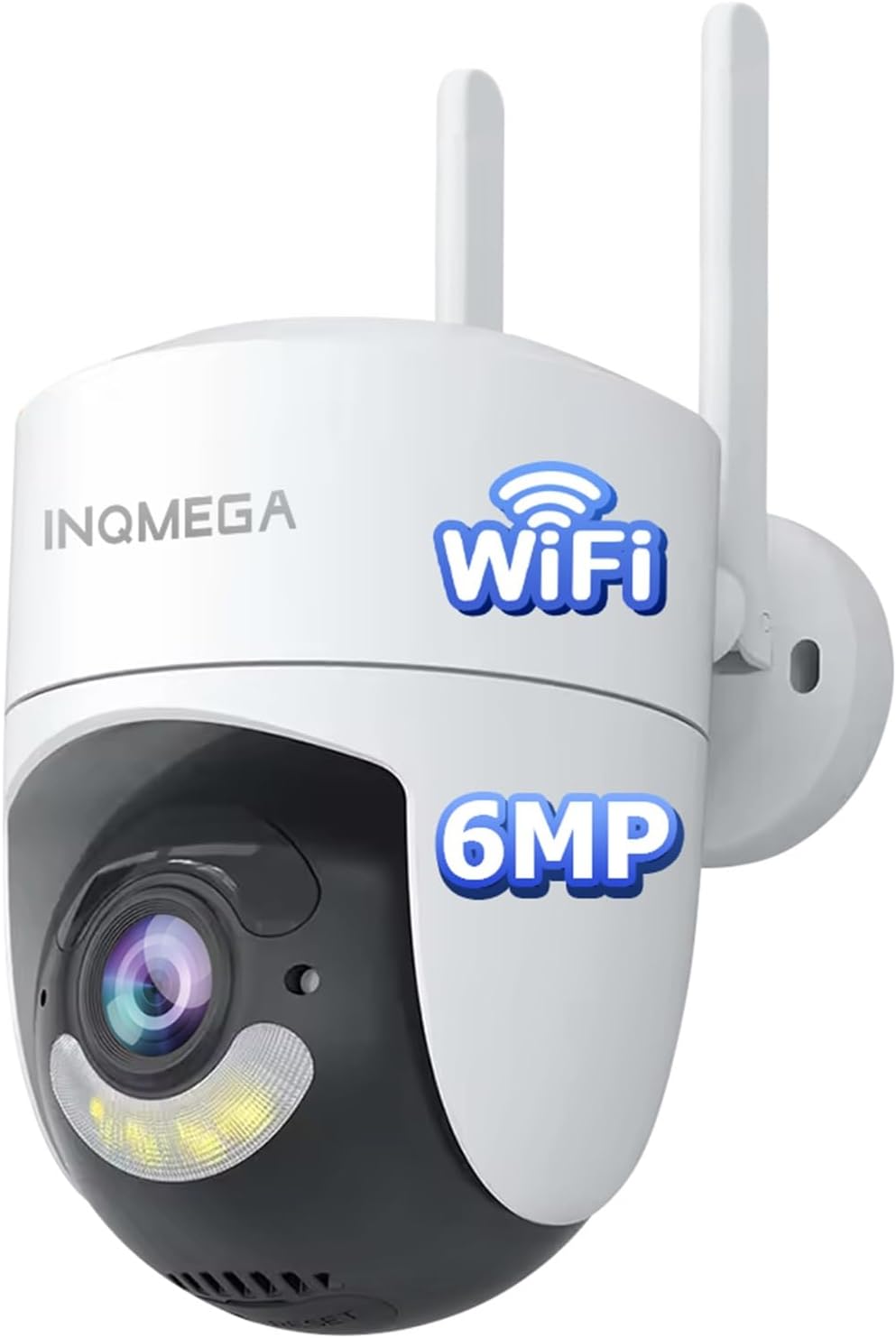
Image 1.1: The INQMEGA 6MP TUYA Smart Camera, a white dome-shaped camera with two antennas, a lens, and a spotlight, designed for outdoor surveillance.
2. Prodott Aktarview
2.1 Karatteristiċi ewlenin
- Riżoluzzjoni HD ta' 6MP: Jipprovdi foo video ċara u dettaljatatage.
- Panoramika ta' 355° u Inklinazzjoni ta' 120°: Joffri kopertura estensiva b'kontroll remot permezz tal-app.
- Konnettività Wi-Fi 2.4GHz: Supports stable wireless connection (5GHz Wi-Fi is not supported).
- Awdjo f'żewġ direzzjonijiet: Mikrofonu u kelliem integrati għall-komunikazzjoni.
- Viżjoni bil-Lejl bil-Kulur u bl-IR: Switchable modes for clear visibility in low-light conditions.
- Motion Detection & Auto Tracking: Detects movement and tracks subjects, sending instant alerts.
- IP66 li ma jgħaddix ilma minnha: Iddisinjat biex jiflaħ diversi kundizzjonijiet tat-temp.
- Ħażna Flessibbli: Supports local storage via SD card (not included) and cloud storage (subscription required).
- Installazzjoni faċli: Features an upgraded mounting bracket for quick setup and removal.
2.2 Kontenut tal-Pakkett
- INQMEGA 6MP TUYA Smart Camera (Model: ST-986-6M-TY)
- Bracket tal-Immuntar
- Power Adapter with 6.5ft Power Cord
- Viti tal-Immuntar u Plugs tal-Ħajt
- Manwal għall-Utent (dan id-dokument)

Image 2.1: The INQMEGA Smart Camera shown installed outdoors, illustrating its IP66 waterproof and dustproof capabilities against rain, snow, and sun.
3. Setup
3.1 Installazzjoni tal-App
- Download the 'TUYA Smart' or 'Smart Life' app from your mobile device's app store (Google Play Store for Android or Apple App Store for iOS).
- Irreġistra għal kont ġdid jew idħol jekk diġà għandek wieħed.
3.2 Tqabbil tal-Apparat
- Power on the camera using the provided power adapter. Ensure the camera is within range of your 2.4GHz Wi-Fi router.
- Open the TUYA Smart app and tap the '+' icon to add a new device.
- Select 'Security & Video Surveillance' and then 'Smart Camera (Wi-Fi)'.
- Follow the on-screen instructions to connect the camera to your 2.4GHz Wi-Fi network. You may need to scan a QR code displayed on your phone with the camera lens.
- Ladarba tkun konnessa, il-kamera tidher fil-lista tal-apparati tiegħek.

Image 3.1: The INQMEGA Smart Camera with two antennas, indicating its 2.4GHz Wi-Fi connectivity and showing a router for network connection. Note that 5GHz Wi-Fi is not supported.
3.3 Immuntar
The camera features an upgraded mounting bracket for flexible installation. It can be mounted on a wall, ceiling, or placed on a desktop.
- Agħżel Post: Select a suitable location that provides the desired viewing angle and is within range of your 2.4GHz Wi-Fi network and a power outlet.
- Installa l-Bracket: Uża l-viti u t-tappijiet tal-ħajt provduti biex twaħħal sew il-bracket tal-immuntar mal-wiċċ magħżul.
- Waħħal il-Kamera: Align the camera with the bracket and twist it into place until it locks securely. The quick-release design allows for easy removal of the camera from the mounted bracket without unscrewing the entire mount.

Image 3.2: Illustration of various installation methods including wall mounting, ceiling hanging, and desktop placement for the INQMEGA Smart Camera.

Image 3.3: A hand demonstrating the quick-release feature, easily removing the INQMEGA Smart Camera from its mounted bracket without needing to unscrew the mount itself.
4. Istruzzjonijiet Operattivi
4.1 Ħaj View
Once the camera is paired, open the TUYA Smart app and select the camera from your device list to access the live video feed. You can view the 6MP HD video stream in real-time.
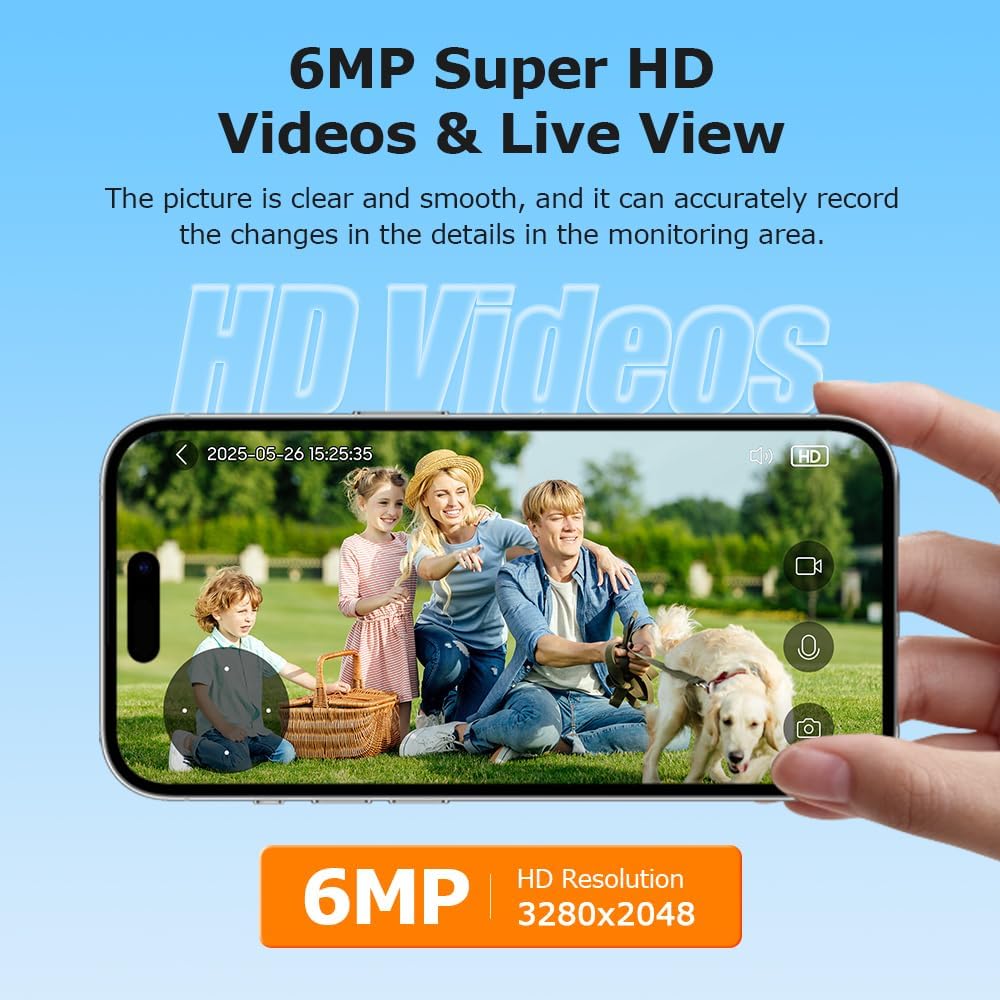
Image 4.1: A smartphone screen showing a clear 6MP HD live video feed from the INQMEGA Smart Camera, capturing a family in a garden.
4.2 Awdjo b'żewġ direzzjonijiet
The camera is equipped with a built-in microphone and speaker, allowing for two-way communication. Tap the microphone icon in the app to speak through the camera, and listen to audio from the camera's surroundings.

Image 4.2: A delivery person at a door, with a smartphone displaying the camera's live view and a text bubble indicating two-way audio communication: "Hello, your package is arriving."
4.3 Sejbien tal-Mozzjoni u Traċċar Awtomatiku
The camera can detect motion and automatically track moving objects. When motion is detected, the camera will send instant alerts to your phone, often including a picture preview of the event. Configure motion detection sensitivity and alert settings within the app.

Image 4.3: A visual representation of the camera detecting and tracking a person carrying boxes, with a smartphone displaying a 'Motion detected' alarm notification.
4.4 Modi ta' Viżjoni bil-Lejl
Il-kamera toffri żewġ modi ta' viżjoni bil-lejl:
- Viżjoni bil-lejl bil-kulur: Utilizes built-in white light LEDs to provide full-color video in low-light conditions.
- Viżjoni Lejl IR: Uses infrared LEDs for black and white video in complete darkness, with a range of up to 85 feet.
You can switch between these modes or set them to automatic activation based on ambient light levels within the app settings.

Image 4.4: A side-by-side comparison showing the camera's Color Night Vision (with white light illumination) and IR Night Vision (infrared, black and white) capabilities.
4.5 Pan/Tilt/Zoom Control
Ikkontrolla l-kamera viewing angle remotely using the pan (horizontal) and tilt (vertical) controls in the app. The camera supports 355° pan and 120° tilt. Digital zoom (up to 4x) is also available to magnify specific areas of the live feed.

Image 4.5: A smartphone screen displaying the live view from the INQMEGA Smart Camera, with on-screen controls indicating 355° pan and 120° tilt rotation capabilities.
4.6 Reġistrazzjoni u Ħażna
The camera offers flexible recording options:
- Ħażna tal-Kard SD: Insert a microSD card (up to 128GB, not included) into the camera's designated slot for local storage of recordings. This option incurs no additional monthly fees.
- Ħażna Cloud: Subscribe to a cloud storage plan through the TUYA Smart app for secure, remote storage of your video recordings.

Image 4.6: The INQMEGA Smart Camera with an SD card being inserted into its slot, alongside icons representing both Cloud Storage and SD Card storage options.
5. Manutenzjoni
- Tindif: Imsaħ bil-mod il-lenti u l-korp tal-kamera b'ċarruta ratba u damp drapp. Tużax kimiċi ħarxa jew tindif li joborxu.
- Aġġornamenti tal-Firmware: Regularly check the TUYA Smart app for available firmware updates to ensure optimal performance and security. Follow the in-app instructions for updating.
- Provvista tal-Enerġija: Ensure the power cord and adapter are in good condition and free from damage.
6 Issolvi l-problemi
- Kamera Offline: Ensure the camera is powered on and within range of your 2.4GHz Wi-Fi router. Check your Wi-Fi network status. If the issue persists, try restarting the camera and your router.
- Ma tistax tikkonnettja mal-Wi-Fi: Verify that you are connecting to a 2.4GHz Wi-Fi network. Ensure the Wi-Fi password is entered correctly. Move the camera closer to the router during setup.
- Kwalità Fqira tal-Vidjo: Iċċekkja l-veloċità tal-konnessjoni tal-internet tiegħek. Kun żgur li l-lenti tal-kamera hija nadifa u ħielsa minn ostakli.
- Is-Sejbien tal-Moviment Mhux Taħdim: Verify that motion detection is enabled in the app settings. Adjust sensitivity levels as needed. Ensure the camera's view ma jkunx ostakolat.
- Kwistjonijiet tal-Awdjo f'żewġ direzzjonijiet: Check the volume settings on your phone and within the app. Ensure there are no obstructions blocking the camera's microphone or speaker.
7. Speċifikazzjonijiet
| Karatteristika | Speċifikazzjoni |
|---|---|
| Isem tal-Mudell | ST-986-6M-TY |
| Riżoluzzjoni tal-Qbid tal-Vidjo | 6MP |
| Medda Pan/Tilt | 355° Pan, 120° Mejjel |
| Teknoloġija tal-Konnettività | 2.4G WIFI (5G WIFI not supported) |
| Medda tal-Viżjoni Lejl | 85 Saqajn |
| Livell ta 'Reżistenza għall-Ilma | IP66 Waterproof |
| Għażliet ta' Ħażna | Karta SD (sa 128GB), Ħażna fis-Sħab |
| Sors tal-Enerġija | Corded Elettriku |
| Tip ta' Kontrollur | App (TUYA Smart/Smart Life), Amazon Alexa |
| Materjal | Plastik |
| Dimensjonijiet tal-oġġett (L x W x H) | 1 x 1 x 1 pulzieri |
| Piż tal-oġġett | 15.5 uqija |
8. Garanzija u Appoġġ
For warranty information and technical support, please refer to the product packaging or contact INQMEGA customer service directly. You can typically find contact details on the manufacturer's official webis-sit jew permezz tal-pjattaforma tax-xiri tiegħek.