Introduzzjoni
This manual provides detailed instructions for the setup, operation, and maintenance of your Generic 2.4G Dual Handle Gaming Controller. Please read this manual thoroughly before using the product to ensure optimal performance and longevity.
Prodott Overview
The Generic 2.4G Dual Handle Gaming Controller set includes two wireless gamepads and a single USB receiver, designed for a seamless two-player gaming experience. The controllers feature an ergonomic design for comfortable use during extended play sessions.
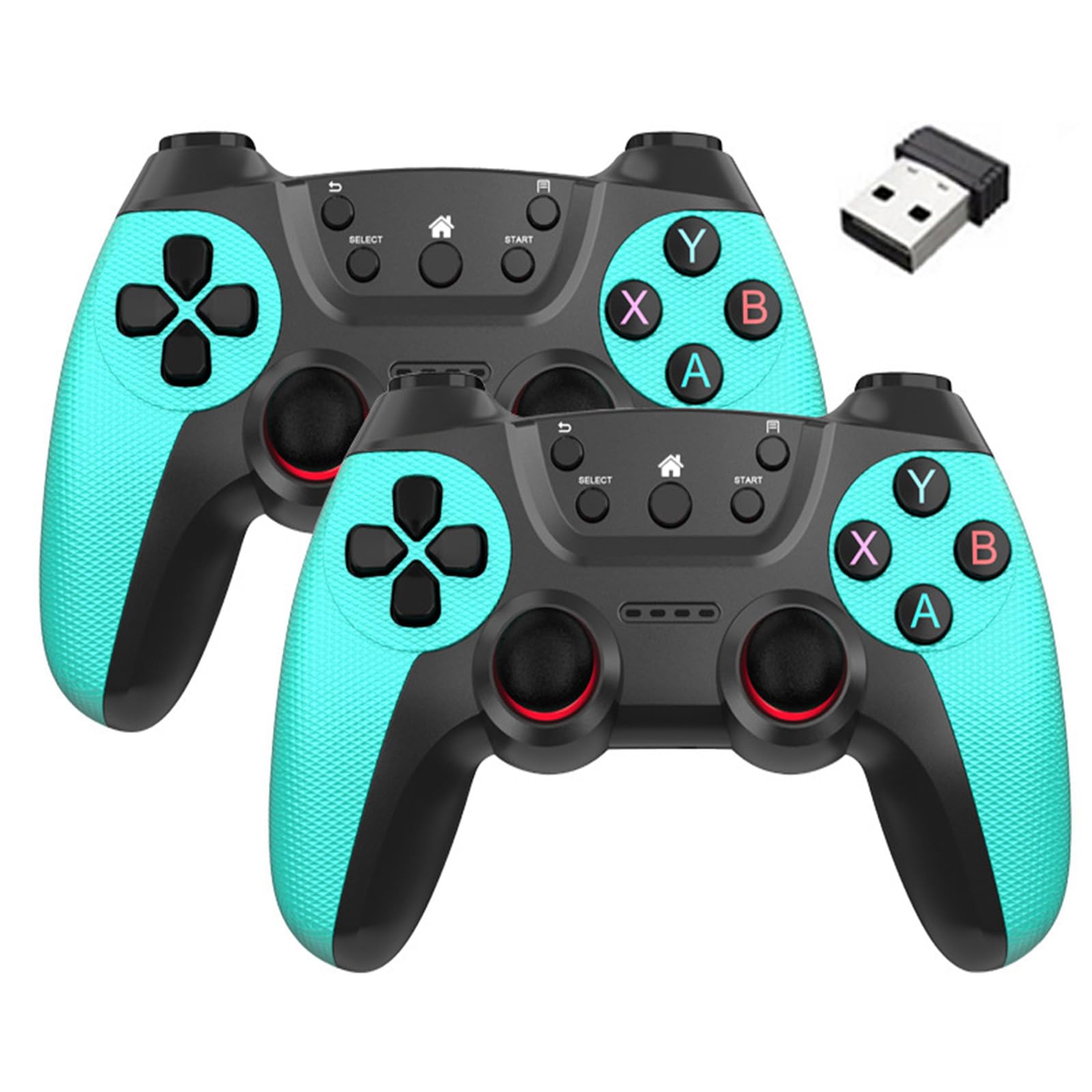
Image: Contents of the 2.4G Dual Handle Gaming Controller package, showing two controllers, one USB receiver, and two AAA batteries.
Komponenti Ewlenin:
- Wireless Gamepads (x2): Ergonomically designed controllers for comfortable gameplay.
- USB Receiver (x1): Provides 2.4G wireless connectivity for both gamepads to your device.
- AAA Batteries (x3 per controller, included): Power source for each gamepad.
Setup Istruzzjonijiet
1. Installazzjoni tal-batterija
- Locate the battery compartment on the back of each gamepad.
- Iftaħ l-għatu tal-kompartiment tal-batterija.
- Insert three (3) AAA batteries into each gamepad, ensuring correct polarity (+/-).
- Agħlaq l-għatu tal-kompartiment tal-batterija sew.

Immaġni: Wara view of the gamepad, indicating the location of the battery compartment.
2. Konnessjoni tar-Riċevitur USB
- Ensure your PC, laptop, Android TV box, or console is powered on.
- Insert the USB receiver into an available USB port on your device.
- The device should automatically detect and install the necessary drivers. This is a plug-and-play device, so no manual driver installation is typically required.
- The gamepads will automatically connect to the receiver. An indicator light on the gamepad may illuminate or stop blinking to confirm connection.
Note: For some games or operating systems, you may need to configure the controller settings within the game or system preferences. Some games may require an XInput wrapper or software for full compatibility.
Istruzzjonijiet Operattivi
Kontrolli Bażiċi
The gamepads feature standard button layouts for intuitive gameplay.

Immaġni: Quddiem view of the cyan gamepad, highlighting the directional pad, action buttons (A, B, X, Y), analog sticks, and central function buttons (Select, Start, Home).
- Kuxxinett Direzzjonali (D-Pad): Għal input direzzjonali preċiż.
- Analog Sticks (x2): Għal moviment ta' 360 grad u kontroll tal-kamera.
- Buttuni ta' Azzjoni (A, B, X, Y): Għal azzjonijiet fil-logħba.
- Buttuni tal-ispalla (L1, R1) u Triggers (L2, R2): Located on the top of the controller for additional actions.
- Buttuni START/SELECT: For pausing games, accessing menus, or other functions.
- Buttuna HOME: Typically returns to the system's main menu or dashboard.
Konnettività bla fili
The 2.4G wireless technology provides a stable connection up to 33 feet (10 meters) from the USB receiver. Ensure there are no significant obstructions between the controllers and the receiver for optimal performance.
Manutenzjoni
Sostituzzjoni tal-batterija
When the controller's performance degrades or the indicator light signals low battery, replace the AAA batteries in both controllers. Always replace all three batteries in a controller at the same time with new ones to ensure consistent power.
Tindif
To clean the controllers, use a soft, dry cloth. For stubborn dirt, a slightly damp cloth can be used, but ensure no moisture enters the controller's openings. Do not use harsh chemicals or abrasive cleaners.
Ħażna
Store the controllers and USB receiver in a cool, dry place away from direct sunlight and extreme temperatures. If storing for an extended period, it is recommended to remove the batteries to prevent leakage.
Issolvi l-problemi
- Il-Kontrollur Mhux Qed Jikkonnettja:
- Kun żgur li l-batteriji huma installati b'mod korrett u li jkollhom biżżejjed ħlas.
- Iċċekkja li r-riċevitur tal-USB huwa mdaħħal sew f'port tal-USB li jaħdem.
- Ipprova waħħal ir-riċevitur USB f'port USB differenti.
- Move the controllers closer to the USB receiver.
- Restart your PC/device.
- Dewmien jew Skonnettjar:
- Check for potential interference from other 2.4G wireless devices (e.g., Wi-Fi routers, cordless phones).
- Ensure the controllers are within the 33ft operating range.
- Ibdel il-batteriji jekk ikunu baxxi.
- Buttons/Joysticks Not Responding Correctly:
- Check in-game controller settings.
- Ensure the controller is clean and free from debris.
- For PC games, some titles may require specific controller input types (e.g., XInput). You might need to use third-party software to emulate XInput if the game does not natively support DirectInput.
- Only One Controller Working:
- Ensure both controllers have fresh batteries.
- Confirm both controllers are powered on and attempting to connect.
- The single USB receiver supports both controllers simultaneously. If one is not connecting, try the troubleshooting steps for "Controller Not Connecting" for that specific gamepad.
Speċifikazzjonijiet
| Mudell | B0F5WWZYYT |
| Konnettività | 2.4G Wireless |
| Firxa Wireless | Sa 33 pied (10 metri) |
| Sors tal-Enerġija | 3 x AAA Batteries per controller (included) |
| Estimated Playtime | 20+ hours per set of batteries |
| Kompatibilità | Windows PCs, Laptops, Android TV Boxes, Consoles (with USB receiver support) |
| Materjal | Shock-resistant ABS construction |
| Piż tal-oġġett | 12.8 uqija (pakkett totali) |
| Dimensjonijiet tal-Pakkett | 9 x 7 x 3 pulzieri |