
1. Introduzzjoni u Fuqview
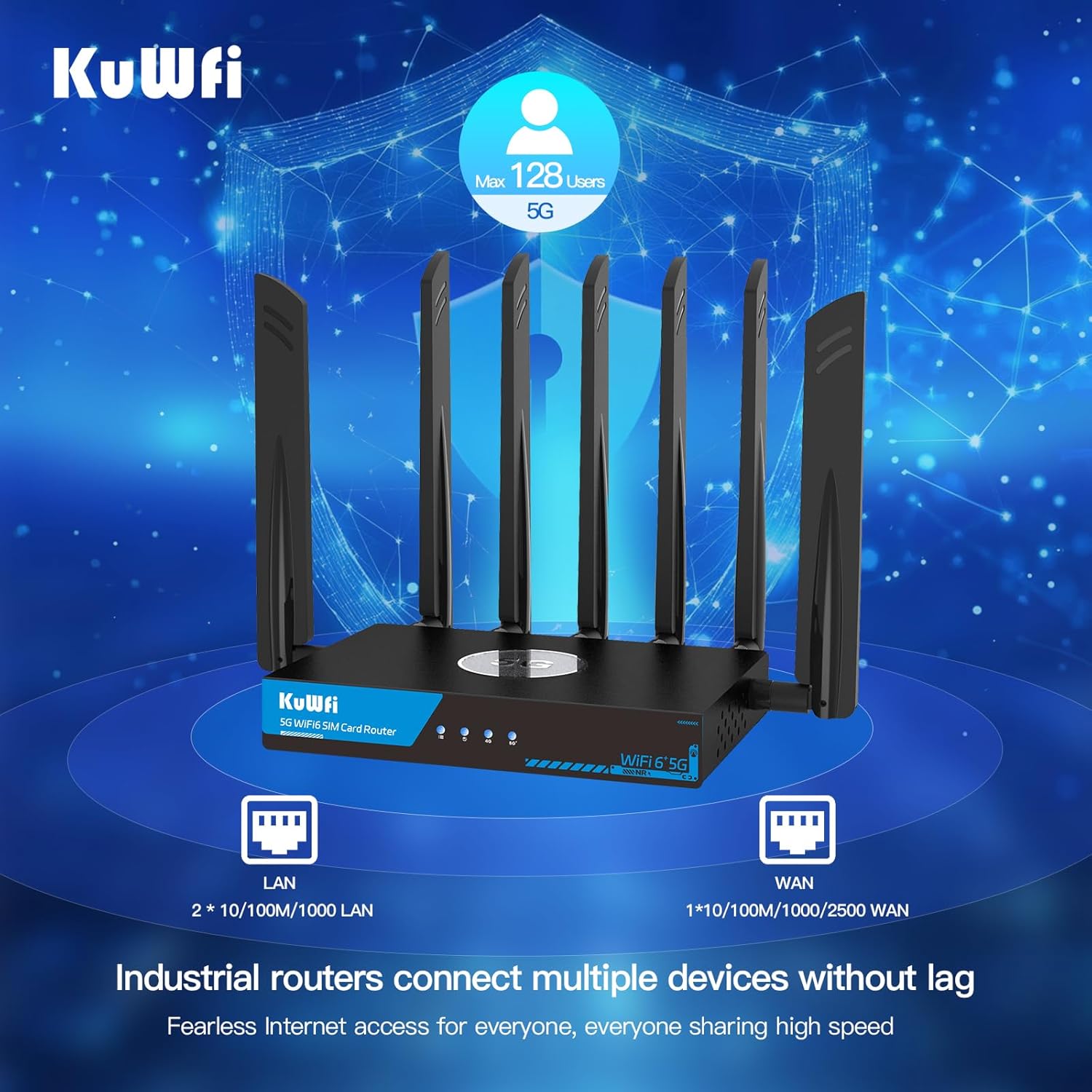
The KuWFi RM503Qpro is an advanced AX3000 WiFi 6 5G router designed for versatile connectivity. Featuring dual SIM card slots, it supports global 5G and 4G LTE networks, providing ultra-fast broadband connections wherever you need them. This router is ideal for use as a primary or backup internet solution in homes, apartments, RVs, mobile living, remote work environments, and small businesses. Its robust design includes a 2.5G WAN port and an integrated fan cooling system to ensure stable performance.

Image: KuWFi RM503Qpro 5G WiFi 6 Router, highlighting its advanced features.
2. Kontenut tal-Pakkett
Kun żgur li l-oġġetti kollha huma preżenti fil-pakkett:
- 1 x KuWFi RM503Qpro 5G WiFi 6 Router
- 7 x Detachable Cellular Antennas
- 1 x Adapter tal-Enerġija
- 1 x Kejbil tal-Ethernet RJ45
- 1 x Quick Installation Guide (Manual)
- 1 x SIM Card Ejector Tool (for Nano-SIM)
3. Prodott Aktarview
3.1 Indikaturi ta' Front Panel
- Indikatur tal-Enerġija: Juri l-istatus tal-qawwa.
- Indikatur tal-Internet: Shows internet connection status.
- 2.4G WiFi Indicator: Shows 2.4GHz Wi-Fi activity.
- 5G WiFi Indicator: Shows 5GHz Wi-Fi activity.
- Cellular Signal Strength: Indicates the strength of the 5G/4G cellular signal.
3.2 Portijiet u Buttuni tal-Panel ta' Wara
Immaġni: Wara view of the KuWFi RM503Qpro router, detailing port layout.
- Buttuna RST (Irrisettjar): Agħfas u żomm għal 5-10 sekondi biex tirrestawra s-settings default tal-fabbrika.
- MESH Button: For mesh networking configuration.
- SIM1 & SIM2 Slots: Insert Nano-SIM cards for cellular connectivity.
- Portijiet LAN (x3): Portijiet Gigabit Ethernet għal apparati bil-fili.
- WAN/LAN 2.5G Port (x1): A 2.5 Gigabit Ethernet port that can function as either a WAN or LAN port.
- Input ta' Enerġija DC 12V: Qabbad l-adapter tal-enerġija pprovdut.
- Konnetturi tal-antenna: Multiple SMA connectors for attaching external 5G NR and Wi-Fi antennas.
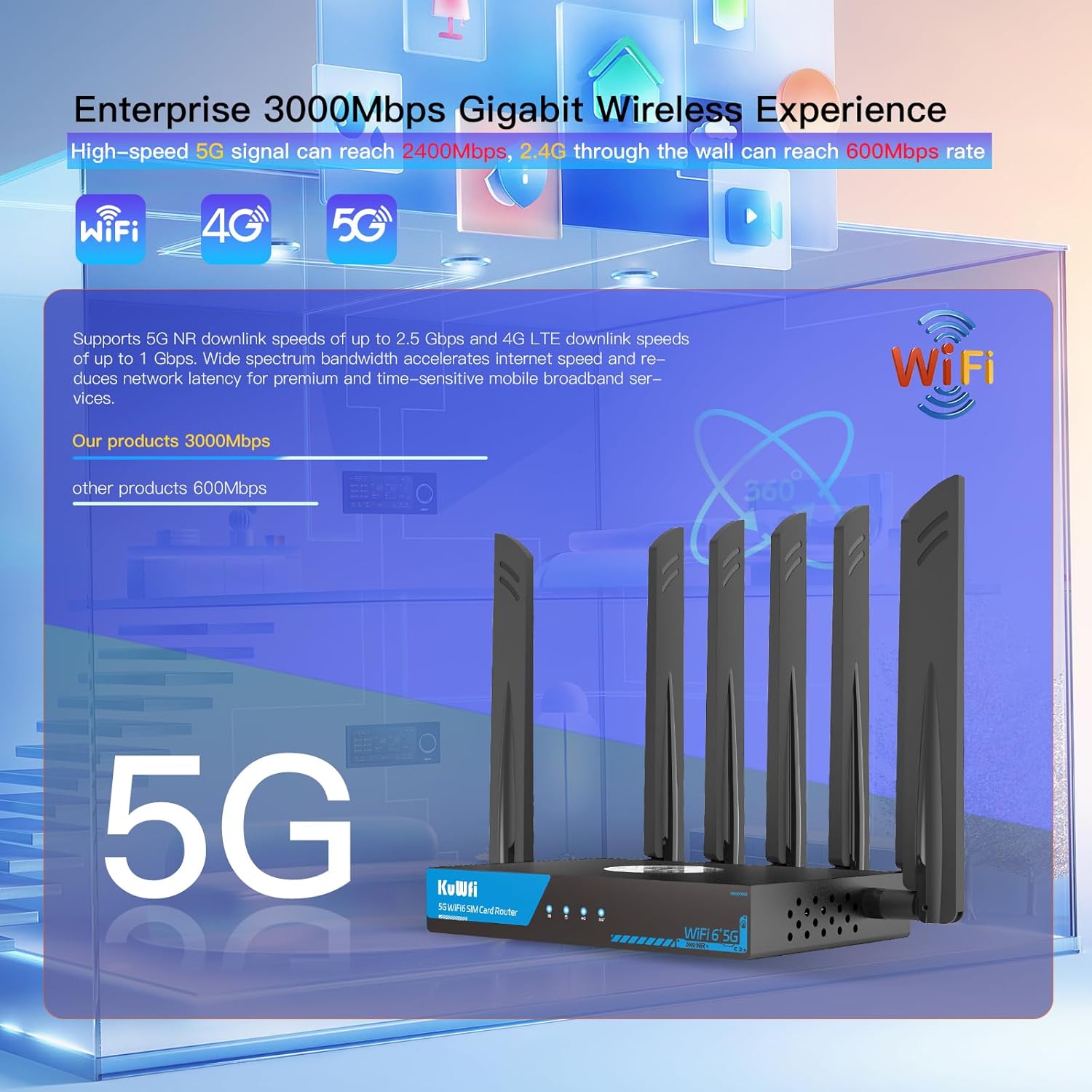
Image: Close-up of the router's LAN and WAN ports.

Immaġni: Dettaljata view of the dual Nano-SIM card slots.
4. Setup
4.1 Installazzjoni tal-Karta SIM
- Locate the SIM1 and SIM2 slots on the rear panel of the router.
- Using the provided SIM ejector tool or a paperclip, gently press into the small hole next to the SIM slot to release the tray.
- Place your Nano-SIM card(s) into the tray(s) with the gold contacts facing down and the notched corner aligned correctly.
- Gently push the tray(s) back into the router until it clicks into place.
4.2 Installazzjoni tal-antenna
- Identify the antenna connectors on the rear panel. There are connectors for NR 5G and 2.4/5.8G Wi-Fi.
- Screw the provided external antennas onto their respective connectors. Ensure they are finger-tight.
- Aġġusta l-antenni għal riċeviment ottimali tas-sinjal.
4.3 Konnessjoni tal-Enerġija
- Connect the power adapter to the DC 12V power input port on the router.
- Ipplaggja l-adapter tal-enerġija fi żbokk elettriku standard.
- The Power LED indicator on the front panel should light up.
4.4 Konfigurazzjoni Inizjali (Web UI Access)
- Wait for the router to boot up. The Internet and Cellular Signal LEDs should eventually turn blue, indicating a successful connection. If the Cellular Signal LED is red, check SIM card installation and network coverage.
- Connect your computer or smartphone to the router's default Wi-Fi network. The default SSID and password can typically be found on a label on the bottom of the router.
- Iftaħ a web browser and enter the default access IP address (e.g., 192.168.1.1) or URL (e.g., http://kuwfi.com) into the address bar.
- Idħol billi tuża l-isem tal-utent u l-password awtomatiċi (ġeneralment 'admin' għat-tnejn, jew kif speċifikat fuq it-tikketta).
- Follow the on-screen setup wizard to configure basic settings such as timezone, APN profile (if not automatically detected), and customize your Wi-Fi network name (SSID) and password.
Video: KuWFi Industrial Cellular 5G Router with Dual SIM Slot - This video demonstrates the physical setup and features of the router, including SIM card insertion and port overview.
5. Istruzzjonijiet Operattivi
Konnettività Wi-Fi 6 b'Veloċità Għolja 5.1
The router supports dual-band AX3000 Wi-Fi 6, providing high-speed wireless connectivity for up to 256 devices simultaneously. This ensures smooth streaming, gaming, and general internet usage.

Image: Illustration of the router providing extensive Wi-Fi 6 coverage.
5.2 Dual SIM Failover
With dual SIM slots, the router offers automatic failover. If the primary SIM's network connection is lost or unstable, the router will automatically switch to the secondary SIM, ensuring uninterrupted internet access.

Image: Visual representation of the dual SIM functionality for reliable connectivity.
5.3 VPN and Security Features
The router comes with pre-installed VPN protocols including WireGuard, OpenVPN, and IPsec. These features enable secure and private internet browsing, as well as secure remote access to your network. Parental controls are also included to manage internet access for specific devices or users.

Image: Router highlighting VPN and security features.
5.4 Multi-WAN Backup
The 2.5G WAN port allows the router to be used with existing broadband or satellite routers, providing a multi-WAN backup solution for maximum internet uptime and reliability.
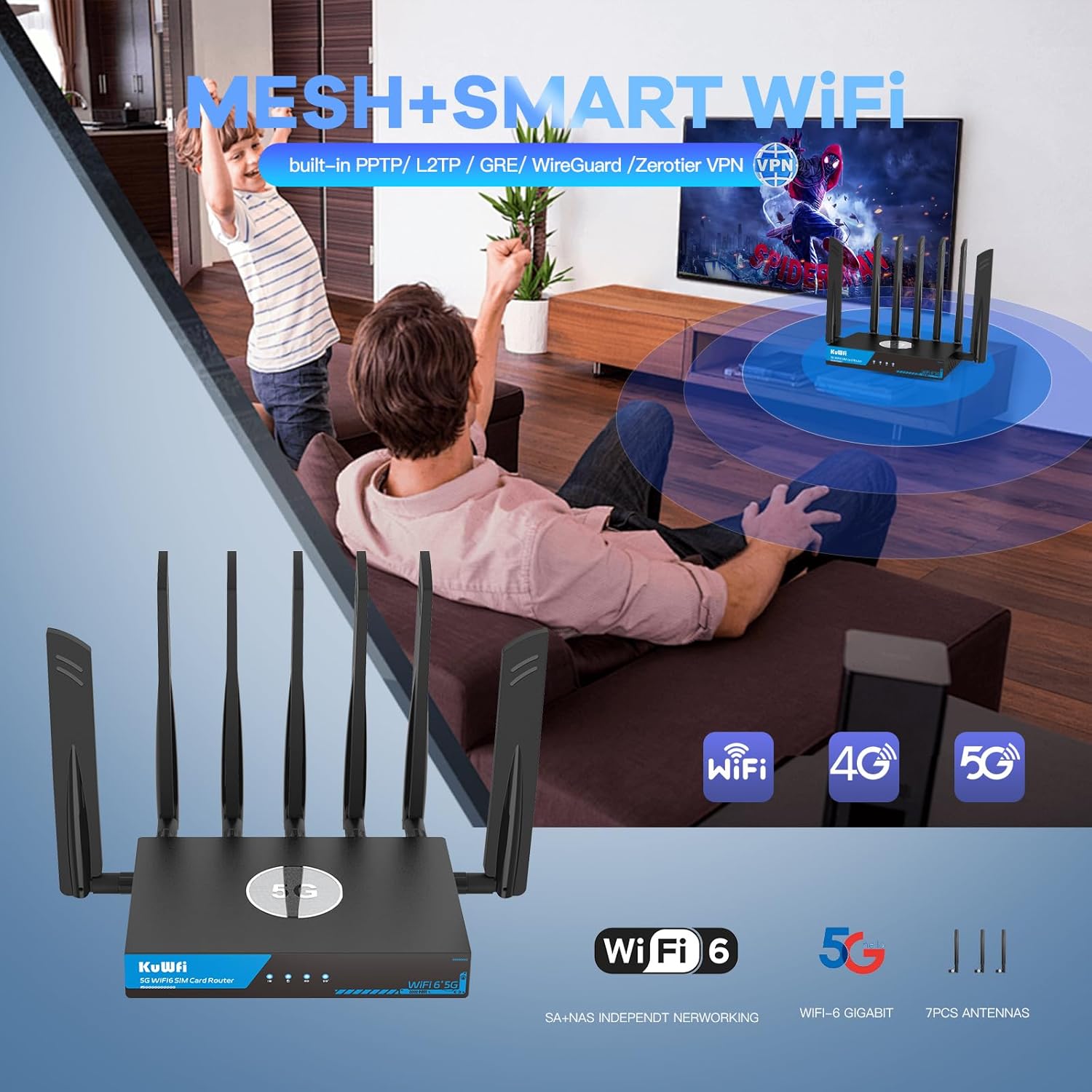
Image: Router seamlessly integrated into a home environment.

Image: Router providing connectivity in an RV setting.
6. Manutenzjoni
6.1 Sistema ta' Tkessiħ bil-Fann
The KuWFi RM503Qpro is equipped with a built-in fan cooling system. This system actively dissipates heat, preventing overheating and throttling, which is crucial for maintaining stable performance during continuous operation, especially in demanding environments.

Image: Diagram illustrating the router's internal fan cooling system.
6.2 Aġġornamenti tal-Firmware
To ensure optimal performance, security, and access to the latest features, it is recommended to regularly check for and install firmware updates for your router. Refer to the web management interface for available updates and installation instructions.
7 Issolvi l-problemi
7.1 No Cellular Signal or Red LED
- Iċċekkja SIM Card: Ensure the Nano-SIM card(s) are correctly inserted into the SIM slots.
- Kopertura tan-Netwerk: Verify that you are in an area with adequate 5G/4G cellular network coverage.
- Settings APN: Aċċess għall- web management interface and confirm that the APN (Access Point Name) settings are correctly configured for your cellular provider.
- Antenni: Ensure all cellular antennas are securely attached and properly oriented.
7.2 Veloċità baxxa tal-Internet
- Qawwa tas-Sinjal: Check the cellular signal strength indicator. Low signal can result in slower speeds.
- Tagħbija tal-Apparat: Too many devices connected or high-bandwidth activities (streaming, large downloads) can impact speed.
- Konġestjoni tan-Netwerk: Cellular network performance can vary based on local congestion.
- Interferenza tal-Wi-Fi: Ensure your Wi-Fi channels are not congested. Adjust channels in the web UI if necessary.
7.3 Ma nistax naċċessa Web Interface tal-Ġestjoni
- Konnessjoni Wi-Fi: Confirm your device is connected to the router's Wi-Fi network.
- Indirizz IP: Ensure you are using the correct default IP address (e.g., 192.168.1.1) or URL (http://kuwfi.com).
- Kredenzjali tal-login: Verify the username and password. If forgotten, a factory reset may be necessary.
7.4 Irrisettja l-Fabbrika
If you encounter persistent issues or forget your login credentials, you can perform a factory reset. With the router powered on, use a pin or paperclip to press and hold the RST button on the rear panel for 5-10 seconds until the indicators flash. The router will restart with default settings.
8. Speċifikazzjonijiet
| Isem tal-Mudell | RM503Qpro |
| Dimensjonijiet tal-Prodott | 3.5 x 2.5 x 0.5 pulzieri |
| Piż tal-oġġett | 2.2 liri |
| Klassi ta' Banda ta' Frekwenza | Doppju Banda (2.4GHz & 5GHz) |
| Komunikazzjoni mingħajr fili Standard | 802.11ax (WiFi 6) |
| Teknoloġija tal-Konnettività | Wi-Fi, Cellular (5G/4G/3G), Ethernet |
| Karatteristika Speċjali | Parental Control, Dual SIM Failover, Fan Cooling, VPN (WireGuard, OpenVPN, IPsec) |
| 5G NR SA/NSA Bands | n1/ 2/ 3/ 5/ 7/ 8/ 12/ 13/ 14/ 18/ 20/ 25/ 26/ 28/ 29/ 30/ 38/ 40/ 41/ 48/ 66/ 70/ 71/ 75/ 76/ 77/78/ 79 |
| 4G&3G Frequency Bands | LTE-FDD B1/ 2/ 3/ 4/ 5/ 7/ 8/ 12/ 13/ 14/ 17/ 18/ 19/ 20/ 25/ 26/ 28/ 29/ 30/ 32/ 66/ 71 LTE-TDD B34/ 38/ 39/ 40/ 41/ 42/ 43/ 48 |
9. Garanzija u Appoġġ
The KuWFi RM503Qpro router is covered by a 12-il xahar garanzija from the date of purchase against product quality issues. For any technical assistance, questions, or warranty claims, please contact our dedicated support team:
Email: support@kuwfi.com
We are committed to providing prompt technical solutions or, if necessary, a complete device replacement.