
1. Matulview
The Lenovo GeForce RTX 4070 Ti Super is a high-performance graphics card designed for demanding gaming and creative applications. Powered by the NVIDIA Ada Lovelace architecture, it features 16GB of GDDR6X memory, support for DLSS 3, and real-time ray tracing capabilities. This card is engineered with advanced cooling technology to maintain optimal thermal performance and quiet operation during intensive use. It offers flexible connectivity with multiple HDMI 2.1 and DisplayPort 1.4a outputs, supporting high-resolution monitors and VR headsets.

Figura 1: Quddiem view of the Lenovo GeForce RTX 4070 Ti Super Graphics Card.
2. Kontenut tal-Pakkett
Ivverifika li l-oġġetti kollha huma preżenti fl-imballaġġ tal-prodott:
- Lenovo GeForce RTX 4070 Ti Super Graphics Card
- Dokumentazzjoni (dan il-manwal tal-utent)
3. Karatteristiċi ewlenin
- Next-Gen Performance: Powered by NVIDIA’s Ada Lovelace architecture and DLSS 3 for ultra-fast, AI-enhanced graphics.
- 16GB GDDR6X Memory: Capable of handling 4K gaming, 3D rendering, and heavy multitasking.
- Sistema Avvanzata ta' Tkessiħ: Efficient thermal design ensures the GPU remains cool and quiet under load.
- Built for Gamers & Creators: Supports real-time ray tracing, high frame rates, and smooth content creation.
- Konnettività flessibbli: Equipped with HDMI 2.1 and DisplayPort 1.4a ports for diverse display setups.
4. Setup
4.1 Installazzjoni Fiżika
- Ipprepara s-sistema tiegħek: Kun żgur li l-kompjuter tiegħek huwa mitfi u skonnettjat. Iftaħ il-kaxxa tal-PC tiegħek.
- Locate PCIe slot: Identify an available PCIe 4.0 x16 slot on your motherboard. Ensure your case has sufficient clearance for the card's dimensions.
- Installa l-karta grafika: Carefully align the graphics card with the PCIe slot and press down firmly until it is securely seated. Secure the card with the retention clip or screw provided by your PC case.
- Qabbad il-kejbils tad-dawl: Connect the necessary PCIe power cables from your power supply unit (PSU) to the graphics card. Refer to your PSU and graphics card documentation for specific power requirements.
- Close case: Once installed, close your PC case and reconnect all peripherals and power.
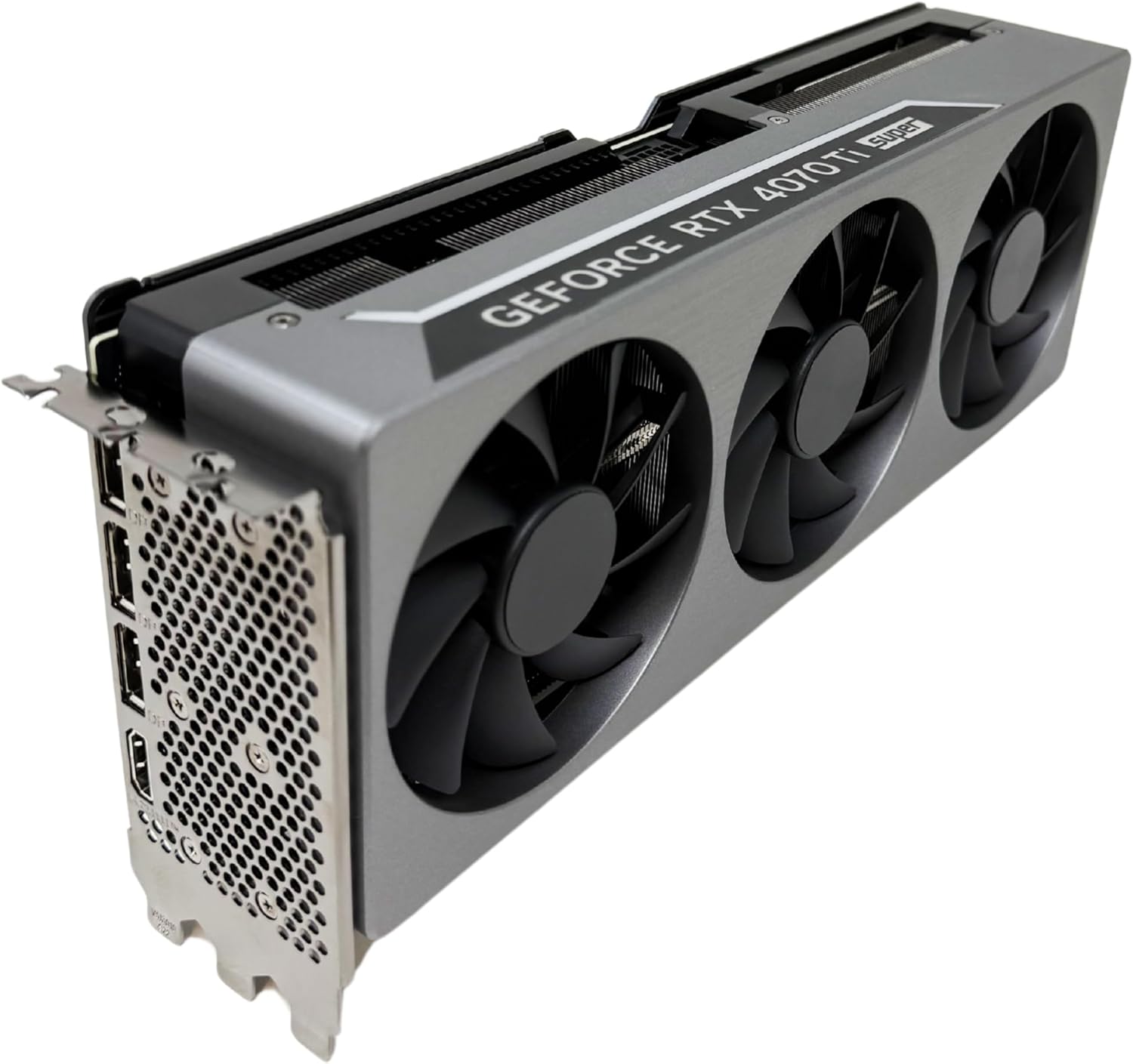
Figure 2: Graphics card installed in a system, illustrating its form factor.
4.2 Installazzjoni tas-sewwieq
After physical installation, you must install the latest NVIDIA drivers for optimal performance and stability.
- Ixgħel: Boot your computer. Your operating system may automatically install a basic display driver.
- Niżżel is-sewwieqa: Żur l-NVIDIA uffiċjali websit (www.nvidia.com/sewwieqa) and download the latest drivers for the GeForce RTX 4070 Ti Super.
- Installa s-sewwieqa: Run the downloaded installer and follow the on-screen instructions. A system restart may be required.
4.3 Konnessjoni tad-Displays
Connect your monitors to the available ports on the graphics card. The Lenovo GeForce RTX 4070 Ti Super features HDMI 2.1 and DisplayPort 1.4a outputs.
- Use high-quality cables for optimal signal integrity, especially for high-resolution or high-refresh-rate displays.
- For multi-monitor setups, connect each display to a separate port on the graphics card.
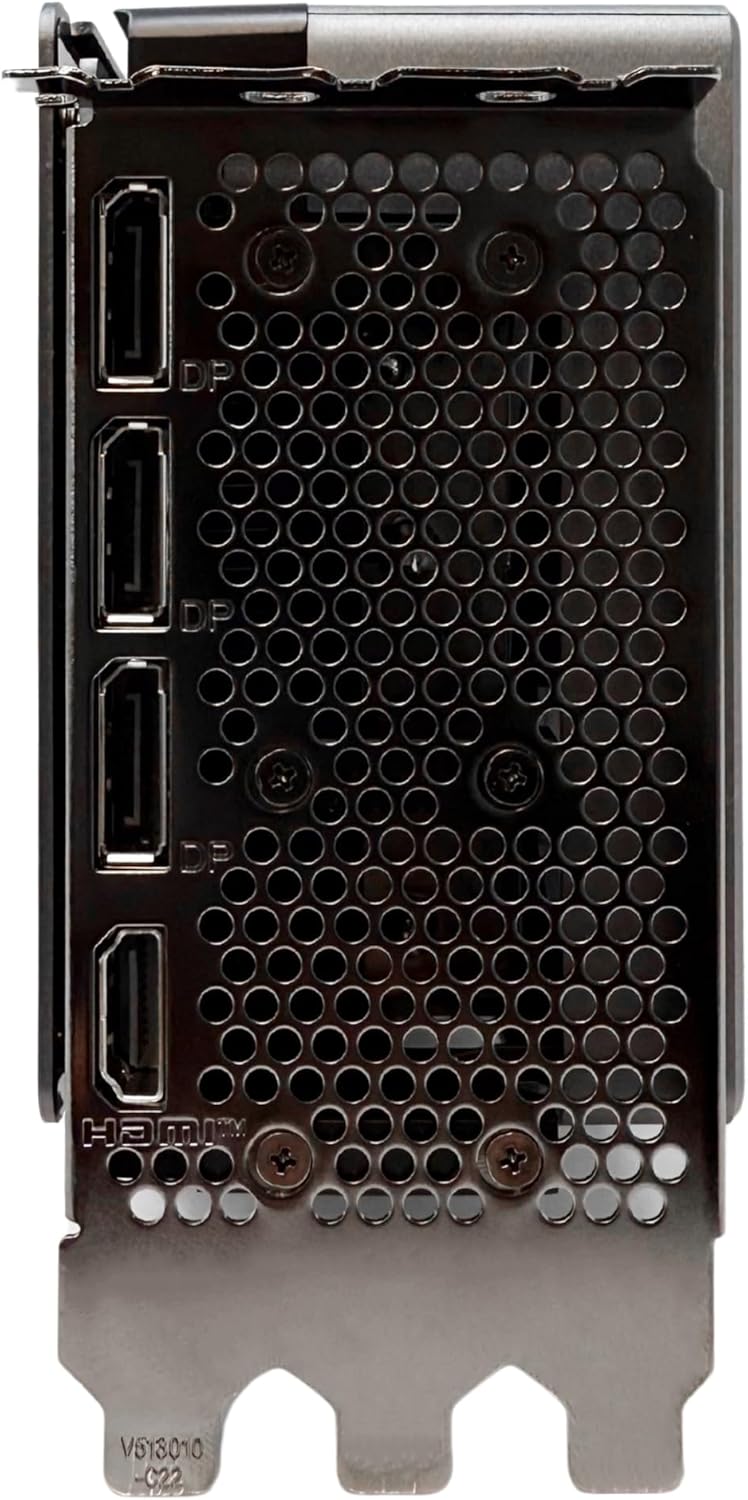
Figura 3: Wara view of the graphics card with display output ports.
5. Operazzjoni
5.1 Użu Bażiku
Once installed and drivers are updated, your graphics card is ready for use. It will automatically handle graphics processing for your applications, games, and operating system interface.
- Logħob: Adjust in-game graphics settings to balance visual quality and frame rate according to your preference.
- Ħolqien tal-Kontenut: Utilize the card's processing power for tasks such as video editing, 3D rendering, and graphic design.
- Pannell tal-Kontroll tal-NVIDIA: Access the NVIDIA Control Panel (usually via right-click on desktop) to fine-tune display settings, 3D settings, and other graphics card features.
5.2 Multi-Monitor Configuration
The graphics card supports up to four monitors simultaneously. You can configure your display setup through your operating system's display settings or the NVIDIA Control Panel. Options typically include:
- Estendi: Use multiple monitors as a single, larger desktop space.
- Duplikat: Show the same content on all connected monitors.
- Wiri Uniku: Use only one connected monitor.
6. Manutenzjoni
6.1 Tindif
Regular cleaning helps maintain optimal cooling performance and extends the lifespan of your graphics card.
- Frekwenza: Clean your graphics card every 3-6 months, or more frequently if your environment is dusty.
- Proċedura: Power off and unplug your computer. Carefully remove the graphics card from your PC. Use compressed air to gently blow dust from the fans and heatsink fins. Hold the fan blades in place while using compressed air to prevent over-spinning and potential damage.

Figura 4: Fuq view of the graphics card, highlighting the cooling fans and heatsink.
6.2 Aġġornamenti tas-Sewwieqa
Keep your graphics drivers updated to ensure compatibility with the latest games and applications, benefit from performance improvements, and address potential bugs or security vulnerabilities. Check the NVIDIA website regularly for new driver releases.
7 Issolvi l-problemi
Jekk tiltaqa' ma' problemi bil-karta grafika tiegħek, ikkunsidra l-passi komuni li ġejjin għas-soluzzjoni tal-problemi:
- L-ebda Output tal-Wiri:
- Kun żgur li l-monitor ikun mixgħul u konness mal-karta grafika, mhux mal-grafika integrata tal-motherboard.
- Verify the graphics card is fully seated in the PCIe slot and all power cables are securely connected.
- Ittestja b'kejbil tad-displej jew monitor differenti jekk possibbli.
- Prestazzjoni Baxxa fil-Logħob/Applikazzjonijiet:
- Kun żgur li għandek l-aħħar sewwieqa tal-grafika installati.
- Check in-game or application settings to ensure they are not excessively high for your system configuration.
- Monitor GPU temperatures to rule out thermal throttling (see Overheating below).
- Verify your system meets the minimum requirements for the software you are running.
- Overheating/Excessive Fan Noise:
- Ensure your PC case has adequate airflow and is not obstructed.
- Clean the graphics card fans and heatsink from dust (refer to Section 6.1).
- Check fan speeds using monitoring software; adjust fan curves if necessary via NVIDIA Control Panel or third-party utilities.
- Is-Sistema Tiġġarraf/Tiffriża:
- Kun żgur li l-unità tal-provvista tal-enerġija (PSU) tiegħek tipprovdi biżżejjed ilmatage for your entire system, including the graphics card.
- Agħmel installazzjoni nadifa tas-sewwieqa tal-grafika.
- Iċċekkja għal xi softwer jew proċessi fl-isfond li jkunu konfliġġenti.
8. Speċifikazzjonijiet Tekniċi
| Karatteristika | Speċifikazzjoni |
|---|---|
| Manifattur | Lenovo |
| Numru tal-Mudell | GeForce RTX 4070 Ti SUPER |
| Koproċessur tal-Grafika | NVIDIA GeForce RTX 4070 Ti SUPER |
| Daqs tar-RAM tal-Grafika | 16 GB GDDR6X |
| Interface tal-Output tal-Vidjo | DisplayPort, HDMI |
| Interface PCIe | PCIe 4.0 |
| Dimensjonijiet tal-Prodott | 11.4 x 4.4 x 0.1 pulzieri |
| Piż tal-oġġett | 3.53 liri |
9. Garanzija u Appoġġ
This Lenovo graphics card is covered by a manufacturer's warranty. For detailed information regarding warranty terms, duration, and service procedures, please refer to the warranty documentation included with your product or visit the official Lenovo support websit.
For technical assistance, driver downloads, and further support resources, please visit the Lenovo support portal or contact their customer service. Ensure you have your product model number and serial number available when seeking support.