
Introduzzjoni
Thank you for choosing the KOORUI S3241XO 31.5-inch 4K OLED Gaming Monitor. This manual provides essential information for setting up, operating, and maintaining your monitor. Please read it thoroughly before use to ensure optimal performance and safety.
Informazzjoni dwar is-Sigurtà
- Tesponix il-monitor għax-xita jew għall-umdità biex tevita nar jew xokk elettriku.
- Tiftaħx il-monitor casing. Ġewwa m'hemm l-ebda partijiet li jistgħu jiġu rranġati mill-utent. Irreferi għal kull manutenzjoni għand persunal tas-servizz kwalifikat.
- Poġġi l-monitor fuq wiċċ stabbli u ċatt biex tevita li jaqa'.
- Aċċerta ruħek li jkun hemm ventilazzjoni xierqa madwar il-monitor. Timblokkax il-fetħiet tal-ventilazzjoni.
- Uża biss l-adapter tal-enerġija u l-kejbils ipprovduti mill-manifattur.
- Skonnettja l-monitor mill-plagg tal-enerġija waqt maltempati bis-sajjetti jew meta ma jintużax għal perjodi twal.
- Avoid placing heavy objects on the power cord or monitor cables.
Kontenut tal-Pakkett
Ivverifika li l-oġġetti kollha huma preżenti fil-pakkett tiegħek:
- KOORUI S3241XO 31.5-inch 4K OLED Gaming Monitor
- Kejbil HDMI 2.1
- DisplayPort 1.4 Cable (1.8m)
- USB 3.0 AB Cable
- Kejbil tat-Tip Ċ
- Kejbil tal-Enerġija AC
- Adapter tal-Enerġija
- Manwal għall-Utent
Setup
1. Assemblea tal-Monitor
Segwi dawn il-passi biex tiġbor l-istand tal-monitor u twaħħlu mal-pannell tal-wiri.

Image: The KOORUI S3241XO monitor with its stand, showcasing the display and connectivity options.
2. Konnessjoni ma' Apparati
The monitor offers various connectivity options. Ensure your device supports the required output.
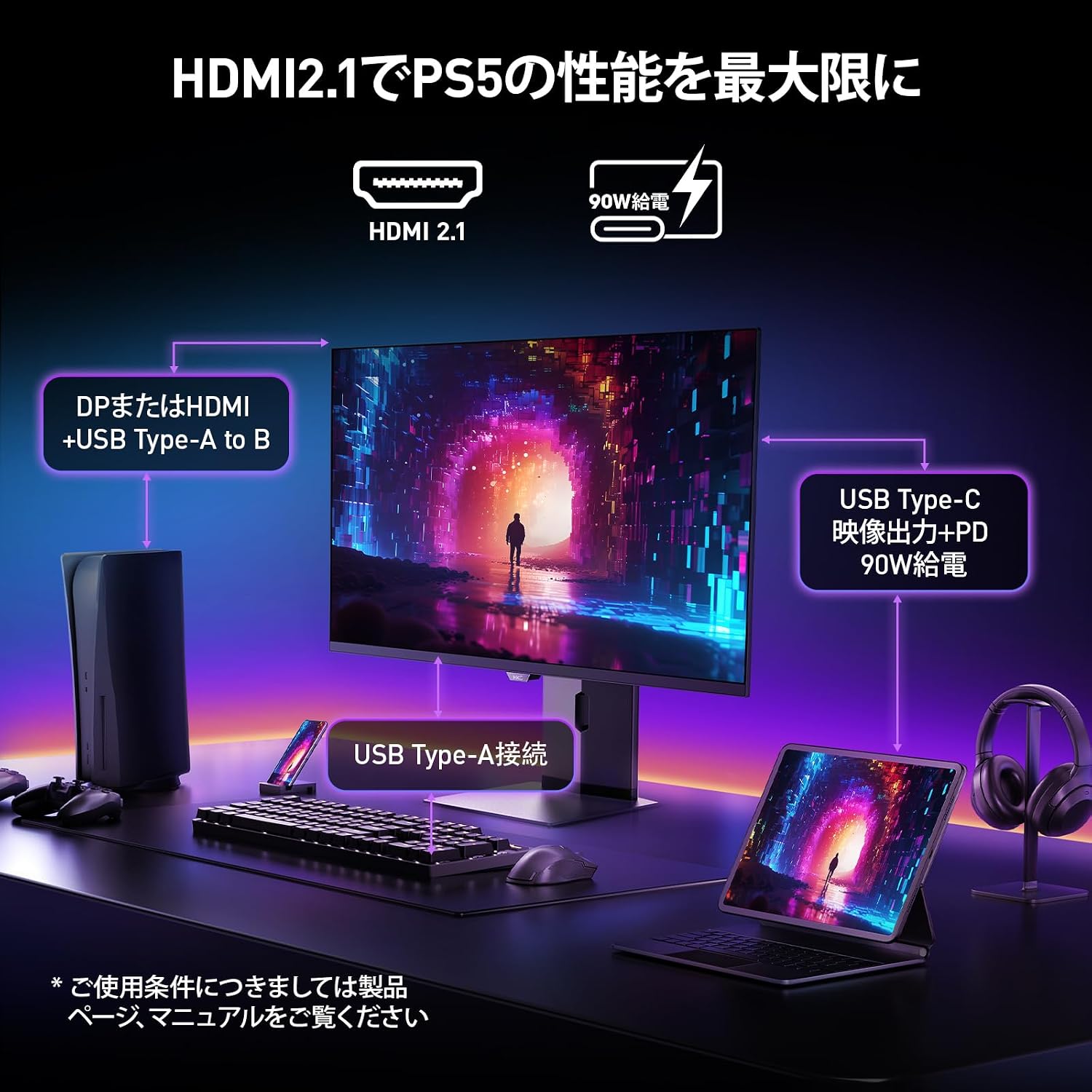
Image: A diagram illustrating how to connect various devices like a PS5, laptop, and peripherals to the monitor using HDMI 2.1, USB Type-C, and USB Type-A ports.
Port Matulview:

Immaġni: Dettaljata view of the monitor's rear input/output ports with numerical labels for identification.
- Cable tal-Enerġija: Connect the AC power cable to the monitor and a power outlet.
- USB Type-B (Upstream): Connect to your computer to enable the monitor's USB-A ports.
- USB 3.1 Type-A (x2): Għall-konnessjoni ta' periferali USB.
- HDMI 2.1 (x2): Connect to devices supporting HDMI 2.1 for 4K 240Hz output.
- DisplayPort 1.4: Connect to devices supporting DisplayPort 1.4 for 4K 240Hz output.
- Type-C (with PD): Connect to compatible devices for video input and power delivery (up to 90W).
- Ħruġ tal-headphones: Għall-konnessjoni ta' headphones jew kelliema esterni.
Istruzzjonijiet Operattivi
1. Power On/Off
Agħfas il-buttuna tal-qawwa, li ġeneralment tinsab fuq wara jew fil-qiegħ tal-monitor, biex tixgħelu jew titfih.
2. Menu tal-Wiri fuq l-Iskrin (OSD).
Use the joystick or buttons on the monitor to navigate the OSD menu. The OSD allows you to adjust various settings.
Issettjar Ewlenin tal-OSD:
- Settings tal-Istampa: Aġġusta l-luminożità, il-kuntrast, in-nitidezza, u t-temperatura tal-kulur.
- Modi tal-Kulur: Select from various preset color modes, including a professional color mode for accurate color reproduction (99% DCI-P3, 100% sRGB, Delta E<2, True 10-bit color).
- Sors tad-dħul: Manually select the input source (HDMI 1, HDMI 2, DisplayPort, Type-C).
- Karatteristiċi tal-Logħob: Access specific gaming modes (RPG, FPS, RCG) and settings like FreeSync and G-Sync compatibility.
- Ħin ta' Rispons: The monitor features a 0.03ms (OD) response time for rapid image transitions.
- HDR True Black 400: Optimizes black levels for enhanced detail in dark scenes.
- DIC (Digital Image Control) Mode: Enable or disable DIC to prevent ghosting and improve image quality.

Image: Visual representation of the monitor's color accuracy and wide color gamut.

Image: Illustrates the difference in motion clarity at various refresh rates, highlighting the 240Hz 0.03ms response.

Image: Demonstrates the enhanced black levels and detail in dark scenes provided by the KOORUI QD OLED technology compared to a typical LCD.

Image: Shows the effect of Digital Image Control (DIC) mode on reducing ghosting for smoother visuals.
3. Aġġustamenti Ergonomiċi
L-istand tal-monitor jippermetti diversi aġġustamenti biex jottimizza tiegħek viewesperjenza:
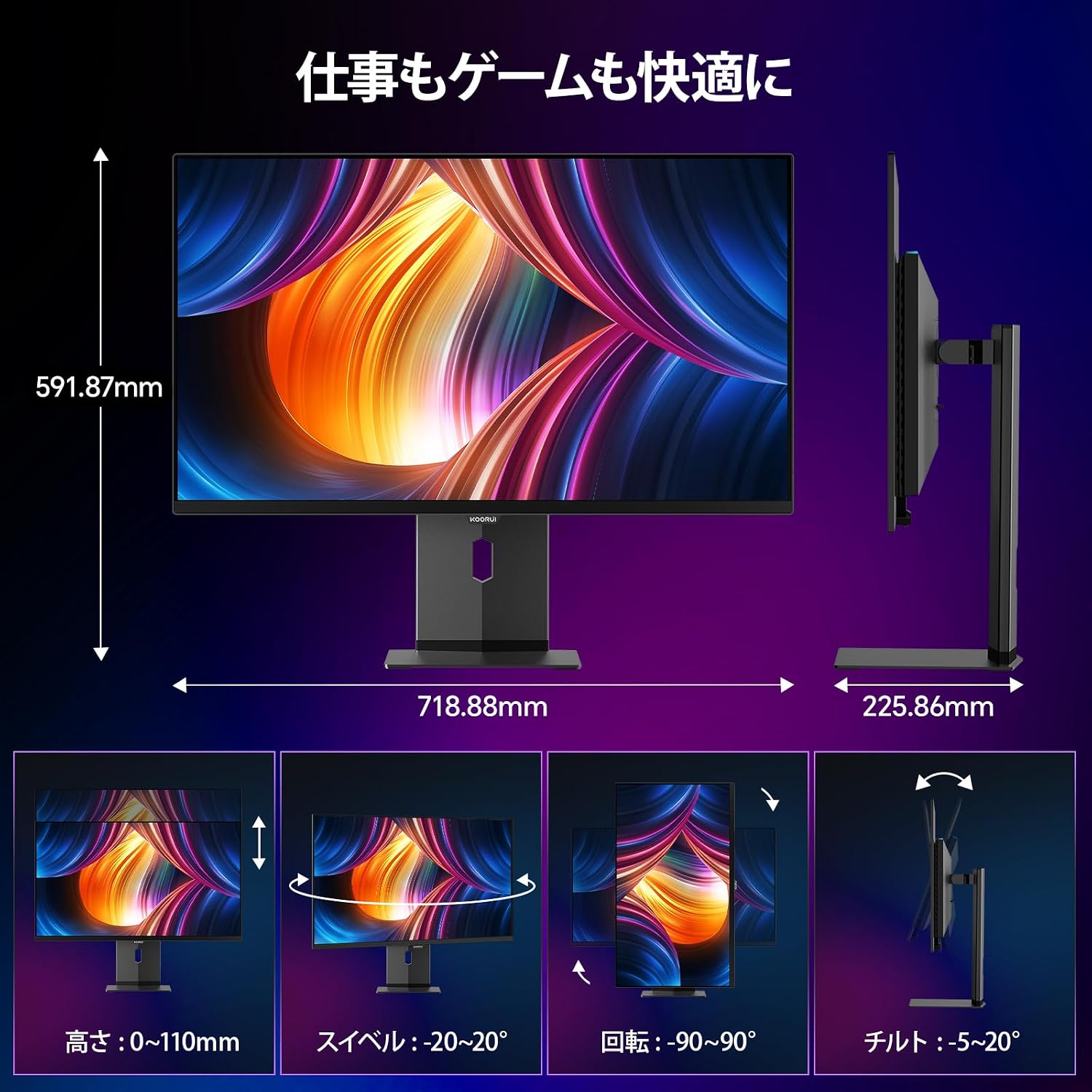
Image: Illustrations of the monitor's adjustable features: height, swivel, pivot (rotation), and tilt.
- Aġġustament Għoli: Adjust the display height by up to 110mm.
- Mejjel: Tilt the screen from -5° to 20° for comfortable viewangoli.
- Dawwar: Swivel the monitor -20° to 20° horizontally.
- Pern (Rotazzjoni): Rotate the screen -90° to 90° for portrait or landscape orientation.
Manutenzjoni
1. Tindif tal-Monitor
- Dejjem aqla l-monitor qabel it-tindif.
- Uża ċarruta ratba u mingħajr ħelu dampMaħsul bl-ilma jew b'tindif tal-iskrin ħafif u mhux abrażiv.
- Tisprejjax it-tindif direttament fuq l-iskrin.
- Avoid using benzene, thinner, or any volatile solvents, as they may damage the screen surface.
2. Karatteristiċi tal-Kura tal-Għajnejn
The monitor includes features to reduce eye strain during prolonged use:
- Hardware Blue Light Cut: Reduces harmful blue light emissions without affecting color accuracy.
- Flicker Guard: Jelimina t-teptep tal-iskrin għal aktar komdu viewing esperjenza.

Image: Demonstrates the effectiveness of hardware blue light reduction in preserving natural colors.

Image: Illustrates the difference between Flicker Guard off and on, showing reduced screen flickering.
3. Panel Protection Features
To prevent OLED burn-in, the monitor incorporates proprietary panel protection technologies:
- Pixel Shift: Periodically shifts pixels slightly to prevent static images from causing burn-in.
- Sejbien tat-Taskbar: Detects static elements like the taskbar and adjusts their brightness to minimize burn-in risk.
- Graphene Sheet + Custom Heatsink: Advanced thermal management to maintain optimal operating temperature.

Image: Visual explanation of pixel shift, taskbar detection, and thermal management for panel protection.
Issolvi l-problemi
Jekk tiltaqa' ma' problemi bil-monitor tiegħek, irreferi għall-problemi u s-soluzzjonijiet komuni li ġejjin:
| Problema | Kawża Possibbli | Soluzzjoni |
|---|---|---|
| L-ebda immaġni fuq l-iskrin | Power cable disconnected, incorrect input source, device not powered on. | Check power connections, select correct input source via OSD, ensure connected device is on. |
| Image flickering | Flicker Guard disabled, cable issue, graphics card driver issue. | Enable Flicker Guard in OSD, try a different cable, update graphics drivers. |
| Kwalità fqira tal-kulur | Incorrect color mode, cable issue. | Adjust color settings in OSD, try a different cable. |
| L-ebda ħoss mill-headphones | Headphones not properly connected, audio settings on device/monitor. | Ensure headphones are fully plugged in, check audio output settings on your computer and monitor. |
| Il-portijiet tal-USB ma jaħdmux | USB Type-B upstream cable not connected. | Connect the USB Type-B cable from the monitor to your computer. |
Speċifikazzjonijiet
| Karatteristika | Speċifikazzjoni |
|---|---|
| Brand | KOORUI |
| Numru tal-Mudell | S3241XO |
| Daqs tal-Iskrin | 31.5 pulzieri |
| Tip ta' Panel | OLED (QLED) |
| Riżoluzzjoni | 4K UHD (3840 x 2160 pixel) |
| Riffriskar Rata | 240 Hz |
| Ħin ta' Rispons | 0.03 ms (OD) |
| Proporzjon ta' l-aspett | 16:9 |
| Proporzjon ta' Kuntrast | 1,500,000:1 |
| Luminożità | 280 cd/m² |
| Gamut tal-Kulur | 99% DCI-P3, 100% sRGB |
| Profond tal-Kulur | True 10-bit (1.07 billion colors) |
| Appoġġ HDR | DisplayHDR400 True Black |
| Sinkronizzazzjoni Adattiva | FreeSync and G-Sync Compatible |
| Konnettività | 2x HDMI 2.1, 1x DisplayPort 1.4, 1x Type-C (with 90W PD), 2x USB-A 3.1, 1x USB-B, 1x Headphone Jack |
| Ergonomija | Height Adjustment (110mm), Tilt (-5° to 20°), Swivel (-20° to 20°), Pivot (-90° to 90°) |
| Muntatura VESA | 100 x 100 mm |
| Dimensjonijiet (W x H x D) | Madwar 71.9 x 59.2 x 22.6 ċm (bl-istand) |
| Piż | Appross. 8.3 KG |
| Konsum tal-Enerġija | 264 Watt (Mass) |
Garanzija u Appoġġ
The KOORUI S3241XO monitor comes with a Garanzija ta' 3 snin mill-manifattur. The LCD panel itself is covered by a 1-year warranty. For warranty claims or technical support, please contact KOORUI customer service.
KOORUI also offers a free recycling service for monitors. Please refer to the official KOORUI website or contact support for details on how to utilize this service.
Għal aktar għajnuna, jekk jogħġbok żur il- KOORUI Brand Store.