
1. Introduzzjoni
The Nextech Klutch One Gamepad is a versatile gaming controller designed for a wide range of devices, including mobile phones (iPhone 15 & above, Android), PCs, and consoles. It offers dual connectivity options: Type-C wired for zero-lag gaming and Bluetooth wireless for ultimate freedom. This manual provides detailed instructions for setup, operation, and maintenance to ensure an optimal gaming experience.

Image: Nextech Klutch One Gamepad with a smartphone, illustrating its universal compatibility and ergonomic design.
2. Prodott Aktarview
2.1 Karatteristiċi ewlenin
- Kompatibilità Multi-Pjattaforma: Supports iPhone 15 & above, Android, XBOX, HID, and Keymap modes.
- Konnettività Doppju: Type-C wired for low latency and Bluetooth wireless for flexibility.
- Responsive Controls: Ultra-responsive joysticks and dynamic lighting indicators.
- Disinn Ergonomiku: Built for comfort during extended gaming sessions.
- Personalizzabbli: Remappable back buttons (L4/R4) and customizable action buttons.
- Awdjo Integrat: 3.5mm audio jack for immersive sound.
- Buttuna Qbid: Dedicated button for instant screen capture and recording.
2.2 Gamepad Components
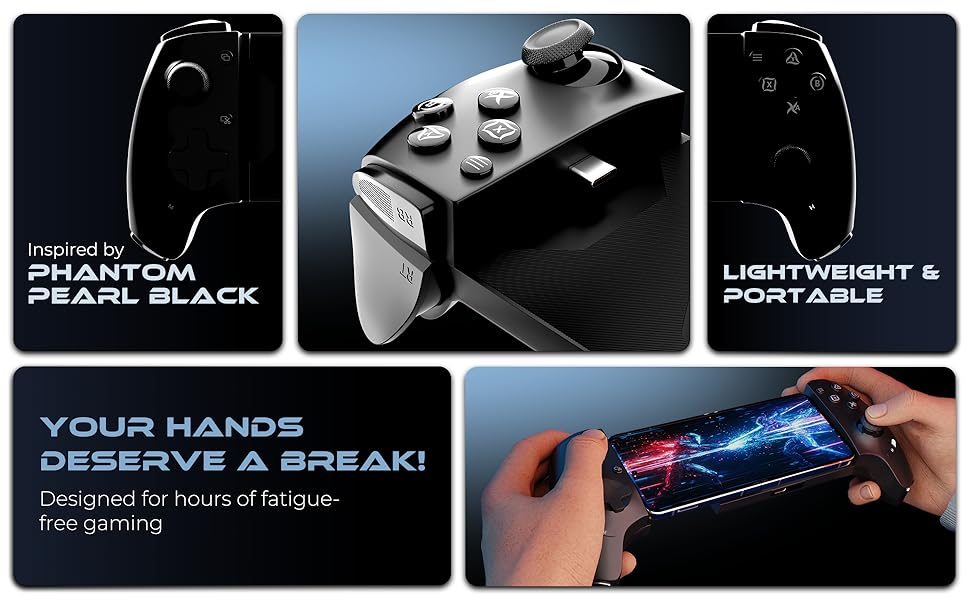
Image: Detailed diagram of the Klutch One Gamepad, labeling all buttons, joysticks, ports, and features.
- Left Joystick (LS): Vertically pressed down.
- D-Pad: Kuxxinett direzzjonali.
- Buttuna Qbid: For instant screen capture and recording.
- Buttuna M: Buttuna Mode.
- RB/RT Buttons: Right bumper and right trigger.
- R4/L4 Buttons: Macro back buttons.
- USB-C Power In: Għall-iċċarġjar u l-konnessjoni bil-fili.
- Jack Awdjo 3.5mm: Għall-konnessjoni tal-headphones.
- Dwal indikaturi: Show connection status.
- Buttuna H: Buttuna tad-dar.
- A/B/X/Y Action Buttons: Standard gamepad action buttons.
- Right Joystick (RS): Vertically pressed down.
- LB/LT Buttons: Left bumper and left trigger.
- View Buttuna: Aċċessi view funzjonijiet.
- Buttuna tal-menu: Accesses menu functions.
- Toqob għad-dissipazzjoni tas-sħana: For cooling the device.
3. Setup u Konnessjoni
3.1 Installazzjoni Fiżika
To install your smartphone, gently slide it into the gamepad's adjustable holder. Ensure the phone is securely seated and the Type-C connector aligns if using wired mode. The gamepad is designed to accommodate phones between 115-193mm (4.5-7.6 inches) in width. It is recommended to use the mobile gaming controller without a case or using a case within 1mm thickness for optimal fit.
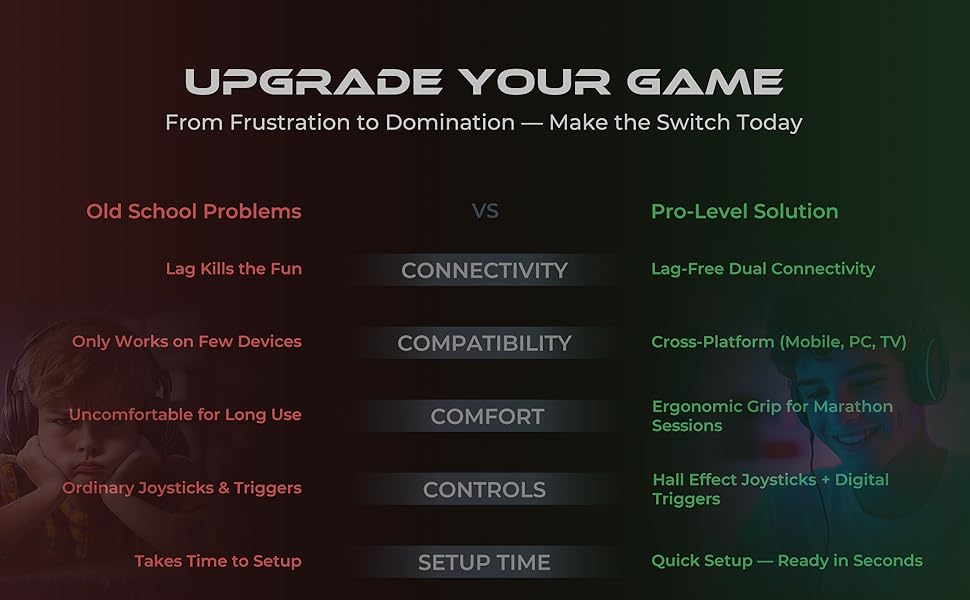
Image: The Nextech Klutch One Gamepad with a phone inserted, demonstrating its telescopic design.
3.2 Modi ta' Konnessjoni
The Klutch One Gamepad supports multiple connection modes for various devices. Refer to the table below for specific instructions.

Image: Connection Modes table for various operating systems and devices.
- Android (Xbox Wireless Mode - Green LED): Tap H + B twice. Connect via Bluetooth settings. Device name will appear as 'Xbox Wireless Controller'.
- Android (Key Mapping Mode - Red LED): Tap H + Y once. Use the Moo-Wii Gaming App for unsupported games.
- iOS / PS (Orange LED): Tap H + B. Launch the game. Note: iOS does not support key mapping for games like BGMI & Free Fire.
- PS Remote Play (Orange LED): Tap H + B. Open the PS Remote Play App, log in with your PSN ID, and start playing.
- PC (Xbox Wireless Mode - Green LED): Tap H + B twice. Connect via Bluetooth settings. Device name will appear as 'Xbox Wireless Controller'. Tip: Connect via a power source for PC gaming.
3.3 Indikaturi LED
- Blinking LED Light: Konnessjoni għaddejja.
- Dawl LED solidu: Connection established (ready to play).
3.4 Noti ta' Kompatibbiltà
The Klutch One Gamepad works with iPhone 15 & 16 series and most Android phones running USB-C. It does le work with iPhone 14 series and older Lightning iPhones. If the mobile is plugged in but the controller indicator does not light up, simply hold the sides of the controller and push it into the center to ensure a secure connection.

Image: Compatibility details for iPhone and Android devices.
3.5 Connection Tutorials
Video: A tutorial demonstrating how to connect the Nextech Klutch One Gamepad to iOS, Android, and PC devices.
Video: A tutorial on setting up PS Remote Play with the Klutch One Gamepad.
4. Operazzjoni
4.1 Kontrolli Bażiċi
- Sticks Analogiċi: Pro-grade analog sticks provide precise movement and aiming.
- Digital D-Pad: Għal input direzzjonali preċiż.
- Triggers (LT/RT): Hall magnetic triggers offer responsive input for actions like aiming and shooting.
- Buttuni ta' Azzjoni (A/B/X/Y): Customizable for various in-game actions.

Image: Pro-grade gaming controls including analog sticks, D-pad, and customizable action buttons.
4.2 Key Mapping (Android Only)
For Android devices, the Klutch One Gamepad supports key mapping for touch-based games that do not have native gamepad support. This feature allows you to customize button assignments using the Moo-Wii Gaming App.
Image: Keymap Mode for Android touch games, highlighting compatibility with popular titles.
Video: A tutorial demonstrating how to use the Moo-Wii Gaming Key Mapping App for Android.
4.3 Karatteristiċi Speċjali
- Remappable Back Buttons (L4/R4): Customize these buttons for a pro-level gaming experience.
- Dedicated Capture Button: Instantly snap screenshots or record gameplay.
- Jack Awdjo 3.5mm: Connect your headphones for lag-free, immersive audio.
Image: Features like remappable back buttons, capture button, and audio jack.
4.4 Appoġġ u Riżorsi
For additional support, including iOS games lists and a comprehensive controller guide, scan the QR code below:
5. Speċifikazzjonijiet
- Dimensjonijiet tal-Prodott: 22 x 5 x 6 ċm
- Piż tal-oġġett: 300 g
- Numru tal-Mudell tal-Oġġett: Android & IOS (Klutch One)
- Pajjiż ta' Oriġini: Iċ-Ċina
- Manifattur: Amson Interconnect Pvt Ltd
- Konnettività: Type-C (Wired), Bluetooth (Wireless)
- Kompatibilità: iPhone 15 & above, Android, XBOX, HID, Keymap Modes, PC, Console
6 Issolvi l-problemi
- Il-kontrollur mhux qed jikkonnettja: Ensure the correct mode (iOS, Android, PC) is selected by pressing H + B (twice for Xbox Wireless Mode) or H + Y (for Android Key Mapping). Check Bluetooth settings on your device.
- Indicator light not on when phone is plugged in: Gently push the sides of the controller further into the center to ensure a firm connection with the phone's Type-C port.
- Key mapping not working on iOS: Key mapping functionality is generally not supported for iOS games like BGMI & Free Fire. This feature is primarily for Android devices using the Moo-Wii Gaming App.
- Lag in wireless mode: Ensure your device's Bluetooth is stable and there are no significant interferences. For critical gaming, use the Type-C wired connection.
- Problemi bil-konnessjoni tal-PC: Ensure the gamepad is connected to a power source via a Type-C cable when using it with a PC, as recommended for optimal performance.
7. Kura u Manutenzjoni
- Żomm il-gamepad nadif billi timsaħ b'ċarruta ratba u niexfa.
- Evita li tesponi l-gamepad għal temperaturi estremi, dawl tax-xemx dirett, jew umdità.
- Do not attempt to disassemble or repair the gamepad yourself, as this may void the warranty.
- Aħżen il-gamepad f'post sigur meta ma tkunx qed tużah biex tevita l-ħsara.
8. Garanzija u Appoġġ
For information regarding warranty coverage, returns, or technical support, please refer to the product packaging or contact Nextech customer service directly. Details may also be available on the official Nextech website or through the provided QR code link in Section 4.4.