
Epico Epico Keyboard Case
Manwal tal-Utent tal-Kaxxa tat-Tastiera tal-iPad Epico
Model: Epico Keyboard Case
Introduzzjoni
Transform your iPad into a versatile workstation with the Epico iPad Keyboard Case. This innovative accessory features a detachable keyboard with seven-colour backlighting, a multi-finger gesture touchpad, and comprehensive iPadOS shortcuts. Designed for both functionality and protection, it enhances your iPad experience for typing, watching, and browsing.

Image: The Epico iPad Keyboard Case with an iPad inserted, shown in a tilted typing position.
Karatteristiċi
- Tastiera backlit: Seven distinct backlight colours with adjustable brightness levels for comfortable typing in any lighting condition.
- Touchpad Functionality: Multi-finger gesture touchpad provides precise control and enhanced navigation capabilities.
- Shortcut Integration: Comprehensive range of iPadOS shortcuts built into the keyboard for efficient device control and workflow optimisation.
- Disinn versatili: Includes detachable keyboard and tilted backside stand for multiple viewing angles and usage modes.
- Soluzzjoni tal-Enerġija: Equipped with Li-ion battery and USB-C charging capability, operating independently from iPad's power source.
Kontenut tal-Pakkett
- Epico iPad Keyboard Case
- USB-C għal USB-C Charging Cable
- Manwal għall-Utent (dan id-dokument)
Setup
1. Iċċarġjar tat-Tastiera
Before first use, fully charge the keyboard. Connect the provided USB-C to USB-C charging cable to the keyboard's USB-C port and the other end to a compatible USB-C power adapter (not included).
Immaġni: Ġenb view of the keyboard case, highlighting the USB-C charging port.
2. Daħħal l-iPad tiegħek
- Gently align your iPad with the case's frame.
- Press firmly but carefully to secure the iPad into the protective shell. Ensure all edges are properly seated.

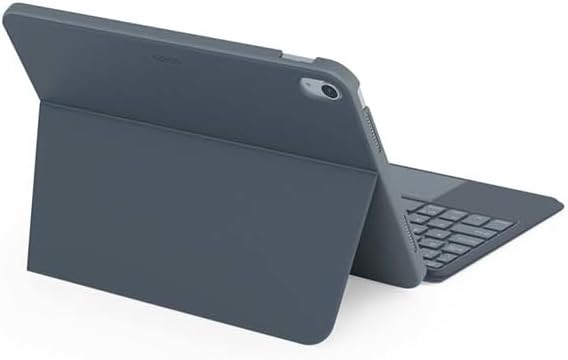
Immaġni: Wara view of the Epico iPad Keyboard Case, demonstrating the secure fit of the iPad.
3. Pairing with iPad
- Turn on the keyboard by sliding the power switch (usually located on the side or back of the keyboard).
- Fuq l-iPad tiegħek, mur fuq Settings > Bluetooth.
- Enable Bluetooth. The keyboard should appear in the "Other Devices" list as "Epico Keyboard" or similar.
- Tap on the keyboard name to pair. Follow any on-screen prompts.
- Once paired, the keyboard's indicator light will change, and it will be ready for use.
Istruzzjonijiet Operattivi
Użu tat-Tastiera
The keyboard functions like a standard QWERTY keyboard. Ensure the keyboard is paired with your iPad before typing.

Immaġni: Quddiem view of the Epico iPad Keyboard Case, displaying the full keyboard layout and touchpad.
Kontroll tad-dawl ta' wara
- Agħfas il- Bozza tad-Dawl key (often near the function keys) to cycle through backlight colours.
- Agħfas Fn + Bozza tad-Dawl key to adjust backlight brightness levels.
Ġesti Touchpad
The integrated touchpad supports multi-finger gestures for enhanced navigation:
- Tektek b'Saba' Wieħed: Ikklikkja fuq ix-xellug.
- Tektek b'Żewġ Swaba': Ikklikkja bil-lemin (menù tal-kuntest).
- Skrolljar b'Żewġ Swaba': Skrollja 'l fuq/'l isfel jew lejn ix-xellug/lemin.
- Oqros biex Iżżumja: Agħmel zoom in/out fuq il-kontenut.
- Refer to iPadOS settings for additional gesture customization.
iPadOS Shortcuts
The keyboard includes dedicated function keys for common iPadOS shortcuts. These may vary slightly by iPadOS version, but typically include:
- Dar: Irritorna għall-iskrin tad-dar.
- Fittex: Activate Spotlight search.
- Kontroll tal-luminożità: Aġġusta l-luminożità tal-iskrin.
- Kontroll tal-Midja: Play/Pause, Previous/Next track.
- Kontroll tal-Volum: Aġġusta l-volum tas-sistema.
- Lock Screen: Illokkja l-iPad tiegħek.
Manutenzjoni
Tindif
- Use a soft, lint-free cloth to wipe the exterior of the case and keyboard.
- Għal marki iebsa, d ftitampmt id-drapp bl-ilma jew cleaner ħafif u li ma jobrox.
- Avoid getting moisture into the keyboard keys or ports.
- Tużax kimiċi ħarxa, solventi, jew materjali li joborxu.
Ħażna
Meta ma tkunx qed tużaha għal perjodi twal, aħżen il-kaxxa tat-tastiera f'post frisk u niexef. Kun żgur li t-tastiera tkun mitfija biex tippreserva l-ħajja tal-batterija.
Issolvi l-problemi
- It-tastiera mhux qed tikkonnettja:
Ensure the keyboard is charged and turned on. Check iPad's Bluetooth settings to confirm it's enabled and the keyboard is paired. Try unpairing and re-pairing the keyboard.
- Iċ-ċwievet ma jirrispondux:
Check battery level. Restart both the keyboard and your iPad. Ensure no debris is lodged under the keys.
- Id-dawl ta' wara mhux qed jaħdem:
Ensure the keyboard is on and charged. Cycle through backlight settings using the dedicated key.
- It-touchpad mhux qed jirrispondi:
Ensure the touchpad is enabled (some keyboards have a function key to toggle it). Check iPadOS settings for touchpad functionality.
Speċifikazzjonijiet
| Brand | Epika |
| Isem tal-Mudell | Epico Keyboard Case |
| Apparati Kompatibbli | Apple iPad |
| Konnettività | Bluetooth |
| Dawl ta' wara | 7-Colour, Adjustable Brightness |
| Touchpad | Multi-finger Gesture Support |
| Port tal-Iċċarġjar | USB-C |
| Sors tal-Enerġija | Mibnija fil-batterija tal-jone |
| Piż tal-oġġett | 15.9 uqija (madwar 450g) |
| Dimensjonijiet tal-Prodott (LxWxH) | 9.94 x 7.24 x 0.48 pulzieri (madwar 25.25 x 18.39 x 1.22 ċm) |
| Materjal | Plastik, Metall |
Garanzija u Appoġġ
This Epico product is covered by a manufacturer's warranty. Please refer to the warranty card included with your purchase or visit the official Epico websit għal termini u kundizzjonijiet dettaljati tal-garanzija.
For technical support, troubleshooting assistance, or inquiries about your product, please contact Epico customer service through their official webis-sit jew l-informazzjoni ta' kuntatt ipprovduta fuq l-irċevuta tax-xiri tiegħek.
Ask a question about this manual
Ask about setup, troubleshooting, compatibility, parts, safety, or missing instructions. Manuals+ will review the question and use this page’s manual context to help answer it.