
KTC A27Q7
KTC 27-inch MegPad A27Q7 Portable Smart Touchscreen Monitor User Manual
Comprehensive guide for setup, operation, and maintenance of your KTC MegPad A27Q7.
1. Introduzzjoni
The KTC 27-inch MegPad A27Q7 is a versatile portable touchscreen monitor designed for a wide range of uses, from entertainment to productivity. Featuring an EDLA-certified Android 14 operating system, a powerful Octa-core Qualcomm SM6115 chip, 8GB RAM, and 128GB internal storage, it offers a smooth and responsive user experience. Its full swivel rotation, long-lasting battery, and built-in camera make it an adaptable device for various environments.

Figure 1: The KTC MegPad A27Q7 in a home setting, showcasing its portability and sleek design.
2. Kontenut tal-Pakkett
Upon unboxing your KTC MegPad A27Q7, ensure all components are present and undamaged. The package typically includes:
- KTC 27-inch Smart Mobile Screen (MegPad A27Q7)
- Base with silent universal wheels
- Telescopic rod/stand assembly
- Kontroll mill-bogħod
- 2 x Batteriji AAA (għall-kontroll remot)
- Adapter tal-enerġija u kejbil
- Tornavit tar-ras Phillips
- Mounting screws (for base assembly)
- Gwida għall-Utent (dan il-manwal)

Figure 2: All included components of the KTC MegPad A27Q7, neatly arranged for inspection.
3. Setup u Assemblea
Follow these steps to assemble your KTC MegPad A27Q7. It is recommended to perform assembly on a soft, flat surface to prevent scratches.
- Ipprepara l-Bażi: Place the Styrofoam packaging flat on the floor. Position the circular base of the stand onto the designated slot in the Styrofoam.
- Attach the Telescopic Rod: Carefully align the bottom of the telescopic rod with the connection point on the base. Push down firmly until it clicks into place, ensuring a secure connection.
- Sikura l-Bażi: Using the provided Phillips head screwdriver and screws, fasten the base to the telescopic rod from underneath. Ensure all screws are tightened securely.
- Mount the Screen: Slide the screen onto the top of the telescopic rod. Pay attention to the arrows or guides on the screen's back plate and the rod to ensure correct orientation. The screen should slide down and lock into place.
- Qabbad Kejbil tal-Enerġija: Locate the USB-C port on the back of the screen. Connect the power cable to this port.
- Installa Batteriji Remoti: Open the battery compartment on the back of the remote control and insert the two AAA batteries, observing polarity.
- Qawwa Inizjali Mixgħula: Plug the power adapter into a wall outlet. Press and hold the power button on the back of the screen for 3 seconds to power on the device.
- Par Kontroll Remot: Follow the on-screen instructions to pair your remote control with the MegPad. This usually involves pressing specific buttons on the remote simultaneously until an indicator light blinks.
Video 1: A detailed guide on unboxing and assembling the KTC MegPad A27Q7, demonstrating each step for a smooth setup process.

Figura 3: Wara view of the MegPad screen, highlighting the mounting interface and connectivity options.
4. Istruzzjonijiet Operattivi
4.1 Power On/Off
To power on, press and hold the power button on the back of the screen for 3 seconds. To power off, press and hold the power button again, then select "Power Off" from the on-screen menu.
4.2 Touchscreen and Remote Control
The MegPad features a responsive 10-point Incell touchscreen for direct interaction. Alternatively, use the included remote control for navigation, volume adjustment, and accessing various functions. The remote also includes a "flying mouse" feature for precise cursor control.
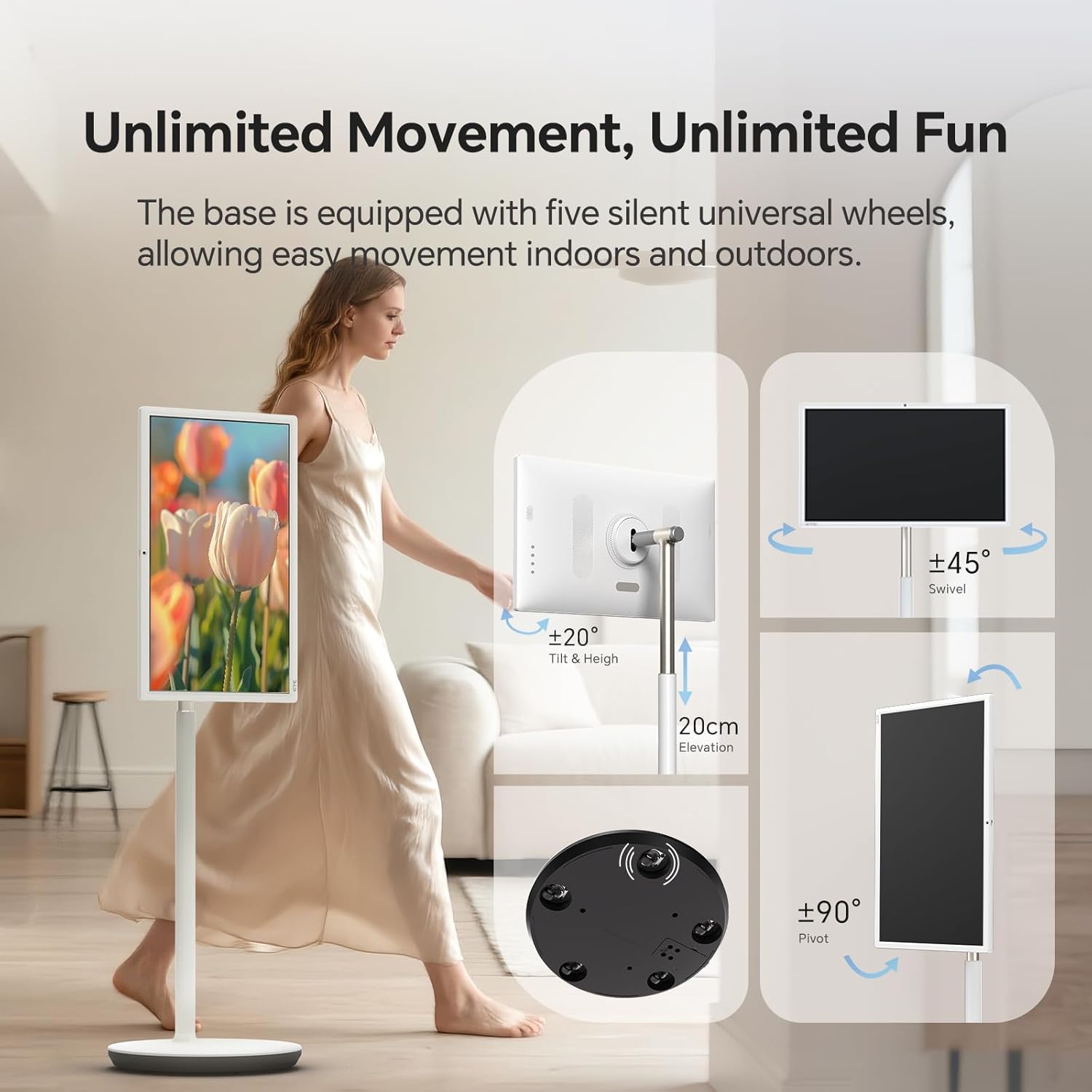
Figure 4: User interacting with the 10-point touchscreen for intuitive control.

Figure 5: The remote control provides convenient operation from a distance.
4.3 Android OS and Applications
The MegPad runs on EDLA-certified Android 14 OS, powered by a Qualcomm SM6115 Octa-core CPU with 8GB RAM and 128GB storage. This allows you to download and install a wide array of applications directly from the Google Play Store, including streaming services, social media, and productivity tools.

Figure 6: The Android 14 OS interface with access to Google Play Store applications.
4.4 Aġġustament tal-Iskrin
The screen offers full adjustability, allowing you to rotate, tilt, and lift it to achieve the optimal viewing angle. The base is equipped with five silent universal wheels for easy movement across different locations.

Figure 7: Multi-angle adjustment features for customized viewing.
4.5 Connectivity and Screen Mirroring
The MegPad supports Wifi5 wireless connection for internet access and content sharing. It also features a Type-C interface for easy device pairing and full-function output. Screen mirroring is supported via Apple AirPlay, Miracast, and Android DLNA, allowing you to cast content from your mobile phone, tablet, or laptop.

Figure 8: Wireless screen casting in action, displaying content from a phone to the MegPad.
4.6 Built-in Camera and Audio
An integrated camera and 4x5W speakers enable clear video calls and business meetings. The monitor also incorporates low blue light technology to reduce eye fatigue during extended use.

Figure 9: The built-in camera facilitates video conferencing and online interactions.
4.7 Battery Life and Mobility
The 9500mAh built-in battery provides 4-6 hours of continuous use, offering flexibility to enjoy content without a constant power connection. The rolling design with silent universal wheels allows for easy movement between rooms or even outdoors.

Figure 10: Enjoy extended usage with the long-lasting battery, perfect for various settings.
5. Manutenzjoni
To ensure the longevity and optimal performance of your KTC MegPad A27Q7, follow these maintenance guidelines:
- Tindif tal-Iskrin: Uża drapp artab u mingħajr suf iddisinjat speċifikament għall-elettronika. Għal tbajja' persistenti, nixxef bil-mod.ampNaddaf id-drapp bl-ilma jew b'soluzzjoni tat-tindif li ma tagħmilx ħsara lill-iskrin. Evita kimiċi ħarxa jew materjali li joborxu.
- Cleaning the Stand and Base: Wipe down the stand and base with a soft, damp cloth. Ensure no liquid enters any openings.
- Kura tal-batterija: To maximize battery life, avoid fully discharging the battery frequently. Charge the device when the battery level is low. If storing the device for an extended period, charge it to about 50-60% and store in a cool, dry place.
- Ħażna: When not in use, store the MegPad in a clean, dry environment away from direct sunlight and extreme temperatures.
6 Issolvi l-problemi
If you encounter issues with your KTC MegPad A27Q7, refer to the following common troubleshooting steps:
- L-Apparat Mhux Jixgħel:
- Kun żgur li l-adapter tal-enerġija huwa konness sew kemm mal-apparat kif ukoll ma' sokit tal-enerġija li jaħdem.
- Ivverifika li s-sokit tal-enerġija qed jaħdem billi tqabbad apparat ieħor.
- Charge the device for at least 30 minutes before attempting to power it on again.
- If the device is stuck in a boot loop (repeatedly showing the logo and turning off), try performing a hard reset by pressing and holding the power and volume buttons simultaneously for several seconds until the device restarts.
- L-iskrin tat-touchscreen ma jirrispondix:
- Ibda mill-ġdid l-apparat.
- Kun żgur li l-iskrin ikun nadif u ħieles minn debris jew umdità.
- Il-Kontroll mill-bogħod Mhux Jaħdem:
- Iċċekkja u ibdel il-batteriji AAA fil-kontroll remot.
- Kun żgur li ma jkunx hemm ostakoli bejn il-remote u l-apparat.
- Re-pair the remote control with the MegPad by following the on-screen instructions during initial setup or in the device settings.
- Ebda Konnessjoni Wi-Fi:
- Kun żgur li r-router tal-Wi-Fi tiegħek huwa mixgħul u qed jaħdem sew.
- Iċċekkja jekk apparati oħra jistgħux jikkonnettjaw mal-istess netwerk Wi-Fi.
- Restart the MegPad and your Wi-Fi router.
- Go to "Settings" > "Network & Internet" and ensure Wi-Fi is enabled and you are connected to the correct network.
Video 2: Demonstration of a boot loop issue, where the device repeatedly shows the logo and turns off, along with a user's attempt at troubleshooting.
7. Speċifikazzjonijiet
| Karatteristika | Dettall |
|---|---|
| Brand | Estensjoni KTC |
| Isem tal-Mudell | A27Q7 |
| Daqs tal-Iskrin | 27 pulzieri |
| Riżoluzzjoni | 1920x1080 FHD 1080p |
| Tip ta 'Wiri | LCD |
| Riffriskar Rata | 60Hz |
| Proporzjon ta' Kuntrast | 4000:1 |
| Sistema Operattiva | EDLA-Certified Android 14 |
| CPU | Octa-core Qualcomm SM6115 |
| RAM | 8GB |
| Ħażna Interna | 128GB |
| Kapaċità tal-batterija | 9500mAh (4-6 hours use) |
| Konnettività | Wifi5, Bluetooth, USB Type-C |
| Kelliema | 4x5W Built-in Speakers |
| Kamera | Mibnija fil- |
| Karatteristiċi Speċjali | 10-point Touch, Low Blue Light, Full Swivel Rotation, Universal Wheels |
| Piż tal-oġġett | 40.32 Liri |
| Dimensjonijiet tal-oġġett (D x W x H) | 38"D x 9"W x 20"H |
8. Garanzija u Appoġġ
The KTC MegPad A27Q7 comes with a Garanzija tal-Manifattur ta' 1 Snin. For any issues during installation or use, please contact KTC-Official through the Amazon platform for consultation. Our professional engineers are available to provide solutions as soon as possible.
For further assistance, please refer to the contact information provided in your purchase documentation or visit the official KTC websit.
Ask a question about this manual
Ask about setup, troubleshooting, compatibility, parts, safety, or missing instructions. Manuals+ will review the question and use this page’s manual context to help answer it.