
GNCC P5
Manwal tal-Utent tal-Kamera tas-Sigurtà ta' Ġewwa tal-GNCC
Mudell: P5
Marka: GNCC
Prodott Overview
The GNCC P5 Indoor Security Camera provides comprehensive home monitoring with advanced features. It offers 2K FHD video quality, night vision, two-way audio, and smart motion detection, ensuring you can keep an eye on your home, pets, or baby from anywhere. The camera supports pan and tilt functionality for a wide coverage area and integrates with popular smart home platforms.

Image: GNCC P5 Indoor Security Camera shown alongside a smartphone displaying its live feed, highlighting its remote monitoring capability.
1. Gwida ta' Setup
1.1 X'hemm fil-Kaxxa
- Kamera tas-Sigurtà ta 'Ġewwa GNCC P5
- Adapter tal-Enerġija
- Type-C Power Cable (2 meters)
- Screw Package (for optional wall mounting)
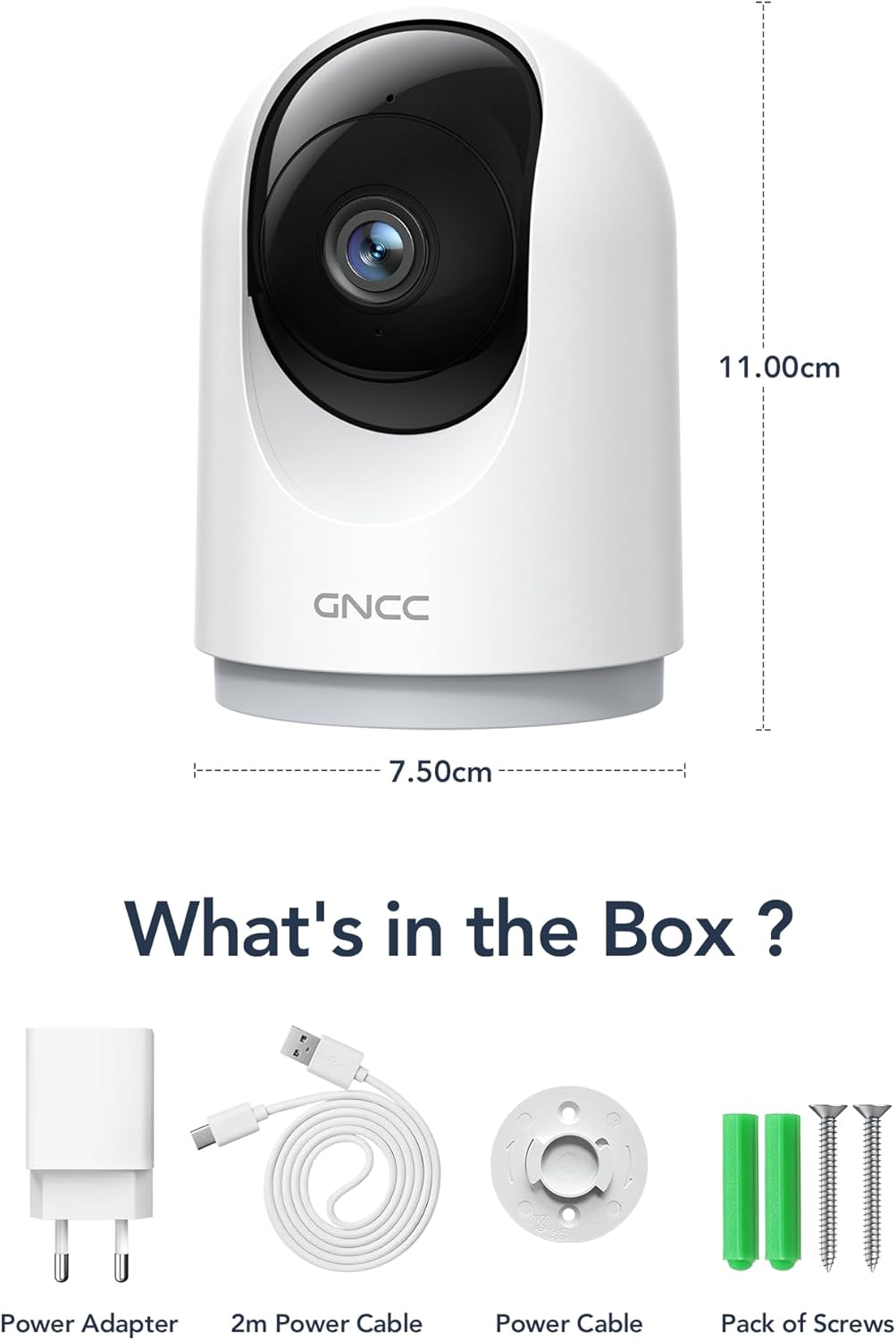
Image: Illustration of the GNCC P5 camera and its included accessories: power adapter, USB-C cable, and mounting hardware.
1.2 Konfigurazzjoni Fiżika
- Agħżel Post: Place the camera on a flat surface or mount it to a wall using the provided screw package. Ensure the location provides a clear view taż-żona li tixtieq tissorvelja.
- Konnessjoni tal-Enerġija: Connect the Type-C power cable to the camera and the power adapter. Plug the adapter into a standard electrical outlet. The camera will power on automatically.
- Wi-Fi Proximity: Ensure the camera is within 3 feet of your 2.4Ghz Wi-Fi router during the initial setup process for optimal connection. Note: This camera only supports 2.4Ghz Wi-Fi, not 5Ghz.

Image: The GNCC P5 camera positioned on a shelf, illustrating its compact design and highlighting its key features through surrounding icons.
1.3 Installazzjoni u Konnessjoni tal-App
The GNCC P5 camera operates via the OSAIO app. Follow these steps to connect your camera:
- Download the OSAIO App: Fittex għal "OSAIO" in your smartphone's app store (App Store for iOS or Google Play Store for Android) and download it.
- Oħloq Kont: Open the OSAIO app and follow the on-screen instructions to create a new user account or log in if you already have one.
- Żid Apparat: Tap the "+" icon or "Add Device" option within the app. Select the GNCC P5 camera model from the list.
- Segwi l-Istruzzjonijiet fl-App: The app will guide you through the Wi-Fi connection process, which typically involves scanning a QR code displayed on your phone with the camera's lens.
- Semmi l-Kamera Tiegħek: Once connected, you can assign a name to your camera (e.g., "Living Room Camera," "Baby's Room").
2. Istruzzjonijiet Operattivi
2.1 Ħaj View u Kontroll Pan/Tilt
Access the live video feed of your camera through the OSAIO app. The camera features 355° horizontal and 90° vertical rotation, providing a 360° panoramic view tal-ispazju tiegħek.
- Aċċess Live View: From the app's main screen, tap on your camera's name to open the live feed.
- Kontroll tal-Pan/Tilt: Use the directional controls (usually a joystick or arrow buttons) within the live view interface to remotely adjust the camera's viewangolu tal-ing.

Image: The GNCC P5 camera demonstrating its 360° panoramic view, with a phone screen showing the extensive coverage of a living space.
Vidjo: Overview of the GNCC 2K Security Camera, showcasing its features including 360° panoramic view, 2K HD resolution, motion detection, sound detection, 2-way audio, and night vision capabilities.
2.2 Awdjo b'żewġ direzzjonijiet
The camera features a built-in microphone and speaker, enabling real-time two-way communication.
- Initiate Talk: Fil-live view, tektek l-ikona tal-mikrofonu biex titkellem permezz tal-ispiker tal-kamera.
- Isma': Il-mikrofonu tal-kamera se jiġbor awdjo mill-inħawi ta' madwarha, li tista' tisma' permezz tat-telefon tiegħek.

Image: A user interacting with the camera via the app, demonstrating the two-way audio function to communicate with someone on the other end.
2.3 Sejbien tal-Mozzjoni u Twissijiet
The camera is equipped with smart motion detection and tracking. When motion is detected, you will receive instant notifications on your phone.
- Ippermetti Twissijiet: Configure motion detection sensitivity and notification preferences in the OSAIO app settings for your camera.
- Traċċar tal-Mozzjoni: The camera can automatically track detected movement within its field of view.

Image: The camera actively tracking movement in a room, with corresponding motion detection alerts shown on a smartphone.
2.4 Viżjoni bil-lejl
The GNCC P5 camera provides clear night vision, allowing you to monitor your space even in low-light or no-light conditions.
- Attivazzjoni Awtomatika: Il-viżjoni bil-lejl tipikament tiġi attivata awtomatikament f'kundizzjonijiet ta' dawl baxx.
- Kontroll manwali: Some settings within the app may allow for manual control of night vision mode.

Image: The camera providing clear night vision of a baby's room, as seen on a smartphone screen, ensuring monitoring in darkness.
2.5 Storage Options (SD Card / Cloud)
The camera offers flexible storage solutions for your recorded video footage.
- Ħażna tal-Kard SD: Insert a Micro SD card (up to 128GB, not included) into the camera's designated slot for continuous 24/7 recording.
- Ħażna Cloud: A 30-day trial of cloud storage is available. You can subscribe to a cloud plan through the OSAIO app for secure, off-site storage of alert videos.
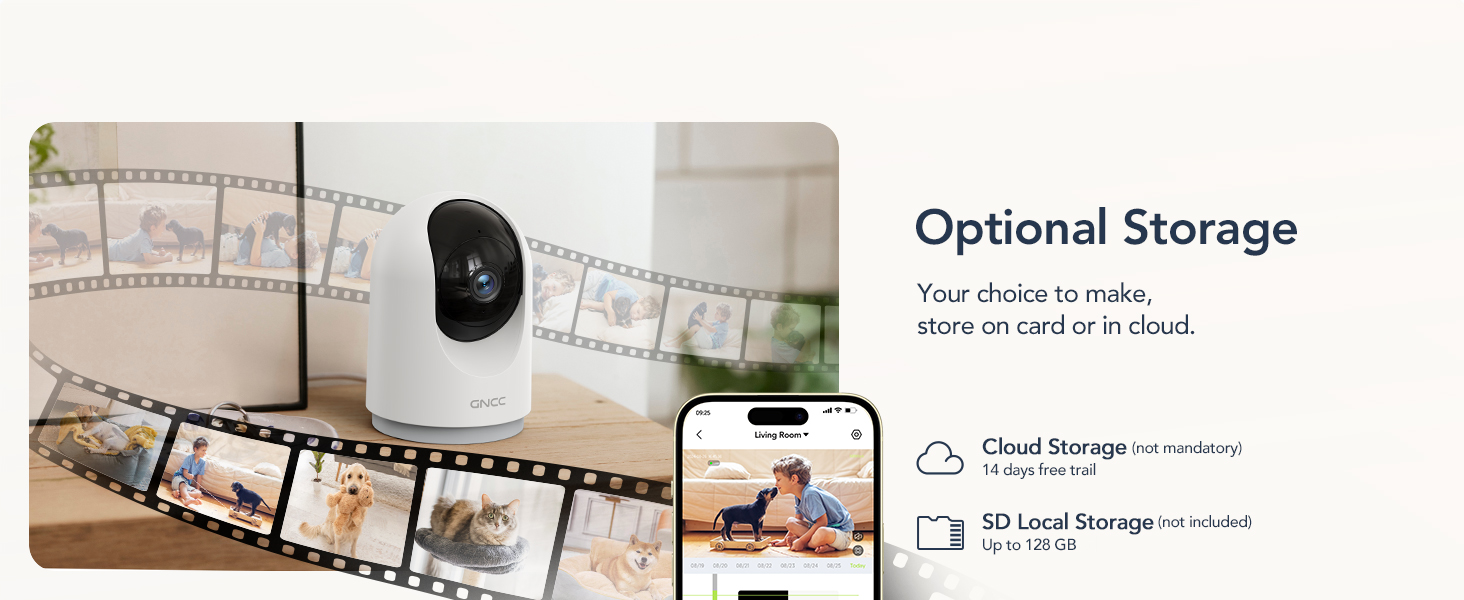
Image: Visual representation of the camera's optional storage methods: cloud storage and local SD card storage, with a smartphone showing recorded footage.
2.6 Integrazzjoni ta' Dar Intelliġenti
The GNCC P5 camera is compatible with Amazon Alexa and Google Assistant, allowing for voice-controlled viewing of your live camera feed.
- Tqabbil: Follow the instructions in the Alexa or Google Home app to link your OSAIO account and discover your GNCC camera.
- Kmandi bil-vuċi: Use simple voice commands such as "Alexa, show me the baby's room" or "Hey Google, show me the living room camera" to view il-feed dirett fuq displays intelliġenti kompatibbli.

Image: A user commanding Alexa to display the camera feed on a smart display, illustrating the camera's integration with smart home systems.
3. Manutenzjoni
- Tindif: Uża drapp artab u niexef biex tnaddaf il-lenti u l-qafas tal-kamera. Evita li tuża prodotti tat-tindif likwidi jew materjali li joborxu.
- Aġġornamenti tal-Firmware: Periodically check the OSAIO app for available firmware updates. Keeping your camera's firmware updated ensures optimal performance and security. Follow the in-app instructions for any updates.
4 Issolvi l-problemi
| Problema | Soluzzjoni |
|---|---|
| Il-kamera mhix qed tikkonnettja mal-Wi-Fi. |
|
| Kwalità fqira tal-vidjo. |
|
| L-ebda twissija ta' skoperta ta' moviment. |
|
| L-awdjo f'żewġ direzzjonijiet mhux qed jaħdem. |
|
5. Speċifikazzjonijiet
| Karatteristika | Dettall |
|---|---|
| Isem tal-Mudell | P5 |
| Użu fuq ġewwa/barra | Ġewwa |
| Riżoluzzjoni tal-Qbid tal-Vidjo | 2K FHD |
| ViewIng Angolu | 355° Orizzontali, 90° Vertikali |
| Medda tal-Viżjoni Lejl | 33 Saqajn |
| Protokoll tal-Konnettività | Wi-Fi (2.4Ghz biss) |
| Sors tal-Enerġija | Elettriku bil-Fili (Tip Ċ) |
| Apparati Kompatibbli | OSIAO App, Amazon Alexa, Google Assistant |
| Għażliet ta' Ħażna | Karta Mikro SD (sa 128GB), Ħażna fis-Sħab |
| Awdjo Two-Way | Iva |
| Sejbien tal-Moviment | Yes, with Motion Tracking |
| Tip ta 'Twissija | Awdjo u Mozzjoni |
| Dimensjonijiet (L x W x H) | 2.95 x 2.95 x 4.33 pulzieri |
| Piż tal-oġġett | 6 uqija (0.17 Kilogrammi) |
| Voltage | 5 Volts |
| Wattage | 3 watt |
| Frame Rata | 10 frejm kull sekonda |
| Zoom ottiku | 4x |
6. Garanzija u Appoġġ
For warranty information and technical support, please refer to the official GNCC webis-sit jew ikkuntattja lis-servizz tal-konsumatur tagħhom direttament. Żomm l-irċevuta tax-xiri tiegħek bħala prova tax-xiri għal talbiet ta' garanzija.
Riżorsi onlajn:
- Żur il- GNCC Store on Amazon for product updates and related information.
Ask a question about this manual
Ask about setup, troubleshooting, compatibility, parts, safety, or missing instructions. Manuals+ will review the question and use this page’s manual context to help answer it.