
1. Introduzzjoni
This manual provides detailed instructions for the setup, operation, and maintenance of your Lenovo L22-4e Monitor. Designed for office and general use, this 21.5-inch FHD IPS display offers a 100Hz refresh rate, 4ms MPRT, and 99% sRGB color space coverage. Its three-sided borderless design and ergonomic tilt stand enhance both aesthetics and user comfort. Please read this manual thoroughly to ensure optimal performance and longevity of your monitor.

Figura 1: Quddiem view of the Lenovo L22-4e Monitor.
2. Setup
2.1 Tneħħi l-ippakkjar tal-Monitor
Neħħi l-komponenti kollha mill-imballaġġ bir-reqqa. Kun żgur li l-oġġetti li ġejjin huma preżenti:
- Monitor
- Mejjel Stand
- Kejbil tal-Enerġija
- Cable HDMI
- Gwida ta 'Twaqqif Quick
- Informazzjoni dwar Garanzija
2.2 Armar tal-Istand
- Poġġi l-monitor wiċċu 'l isfel fuq wiċċ artab u nadif biex tevita l-grif.
- Attach the stand base to the stand neck. Secure it using the integrated key or screws provided.
- Connect the assembled stand to the back of the monitor until it clicks into place or is securely fastened.

Figure 2: Monitor with the tilt stand assembled.
2.3 Konnessjoni tal-Monitor
The Lenovo L22-4e Monitor supports HDMI and VGA connections.
- Connect one end of the provided HDMI cable to the HDMI port on the monitor.
- Connect the other end of the HDMI cable to the HDMI port on your computer or device.
- Alternatively, use a VGA cable to connect the monitor to your device via the VGA port.
- Qabbad il-kejbil tal-enerġija mad-dħul tal-enerġija tal-monitor, imbagħad daħħal it-tarf l-ieħor f'sokit tal-enerġija.
- Agħfas il-buttuna tal-qawwa fuq il-monitor biex tixgħel.

Figura 3: Wara view showing HDMI, VGA, and Power ports.
2.4 Konfigurazzjoni Inizjali
Upon first power-on, the monitor should automatically detect the input signal. If not, use the On-Screen Display (OSD) menu to select the correct input source.
3. Operazzjoni
3.1 Menù tal-Wiri fuq l-Iskrin (OSD)
The OSD menu allows you to adjust various monitor settings. Typically, a joystick or a series of buttons on the monitor's bezel controls navigation.
- Luminożità/Kuntrast: Aġġusta l-livelli ġenerali ta' luminanza u kuntrast.
- Settings tal-Kulur: Modify color temperature, gamma, and individual RGB values. The monitor features 99% sRGB color space coverage for accurate color reproduction.
- Sors tad-dħul: Agħżel manwalment bejn l-inputs HDMI u VGA.
- Modalità Stampa: Choose from preset display modes optimized for different content types (e.g., Standard, Movie, Game).
- Awdjo: Adjust volume for the built-in speakers (if applicable) or connected headphones.

Figure 4: Monitor displaying data analytics, highlighting clarity and detail.
3.2 Aġġustamenti Ergonomiċi
The tilt stand allows for comfortable viewing angles. Adjust the monitor's tilt (-5° to +22°) to suit your posture and reduce strain.

Figure 5: Monitor demonstrating ergonomic tilt adjustment.
3.3 Karatteristiċi ta' Kumdità għall-Għajnejn
The Lenovo L22-4e monitor incorporates technology to reduce blue light emissions, minimizing potential eye strain during extended use without distorting colors.

Figure 6: Monitor highlighting reduced blue light emissions for eye comfort.
3.4 Karatteristiċi tal-Prestazzjoni
- Rata ta' Aġġornar ta' 100Hz: Jipprovdi viżwali aktar bla xkiel, u jnaqqas iċ-ċajpir tal-moviment f'kontenut b'ritmu mgħaġġel.
- Ħin ta' Rispons MPRT 4ms: Minimizes ghosting for a clearer viewing esperjenza.
- Display IPS: Offers wide 178° viewing angles and consistent color accuracy from various perspectives.
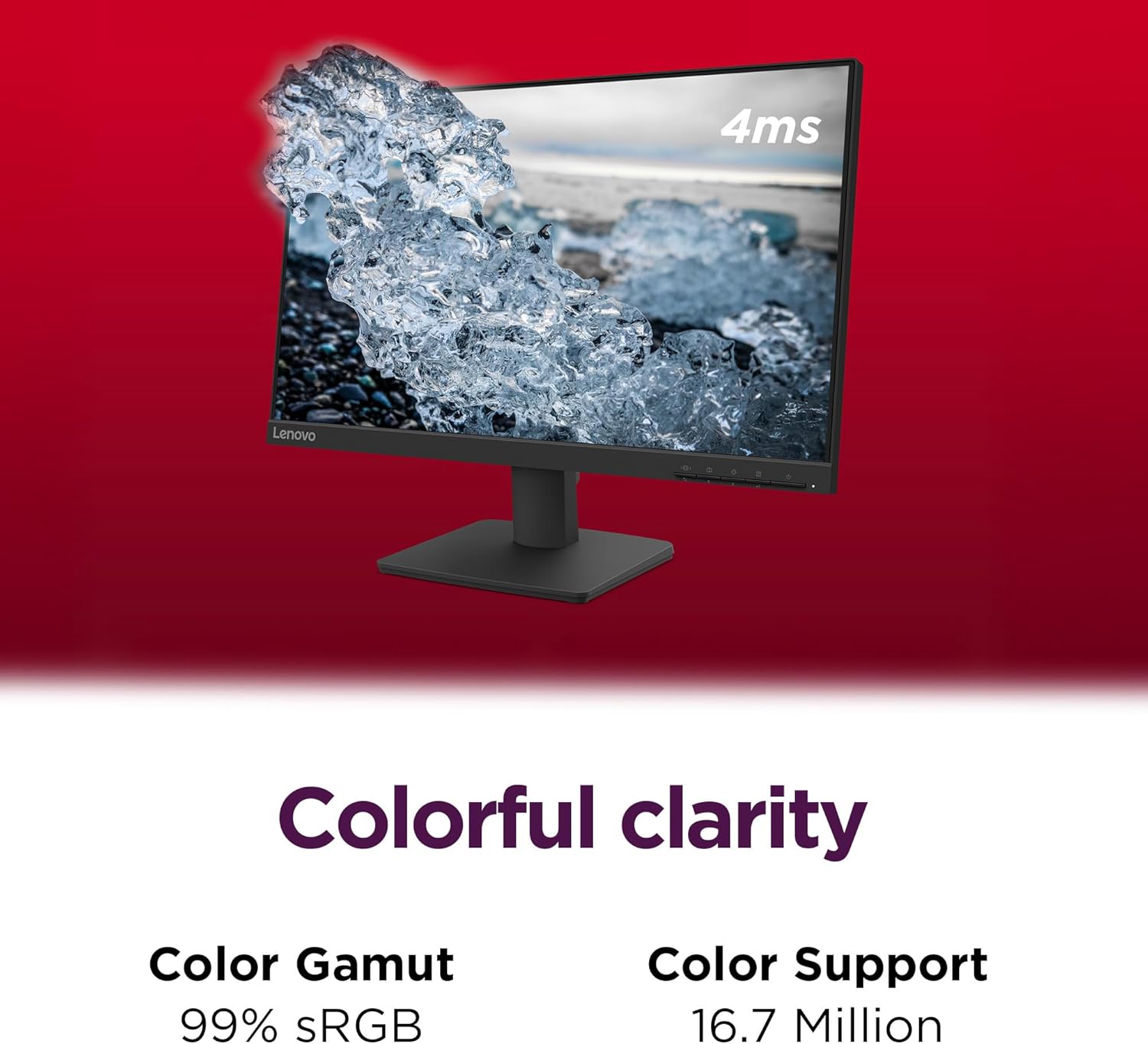
Figura 7: Wirja tal-monitorasing 4ms response time for clear visuals.
3.5 Dimostrazzjonijiet bil-Vidjo
Monitor for Workstation Overview
Dan il-video jipprovdi overview of the Lenovo monitor, highlighting its suitability for workstation environments and overall quality.
Disinn li jiffranka l-ispazju
This video demonstrates the space-saving design of the Lenovo monitor, showcasing its compact footprint and sleek profile.
Monitor for Office Use
This video illustrates the Lenovo monitor's features and benefits for an office environment, emphasizing productivity and display quality.
4. Manutenzjoni
4.1 Tindif tal-Monitor
- Dejjem itfi l-monitor u aqlagħh qabel ma tnaddfu.
- Uża ċarruta ratba u mingħajr ħelu dampMaħsul bl-ilma jew b'tindif tal-iskrin li ma jobrox.
- Tisprejjax it-tindif direttament fuq l-iskrin.
- Evita li tuża kimiċi ħarxa, sustanzi li joborxu, jew solventi.
4.2 Konsiderazzjonijiet Ambjentali
The Lenovo L22-4e monitor is packaged in 100% recyclable paper boxes to minimize environmental impact. Please dispose of packaging materials responsibly. For end-of-life product recycling, consult local regulations or Lenovo's recycling programs.
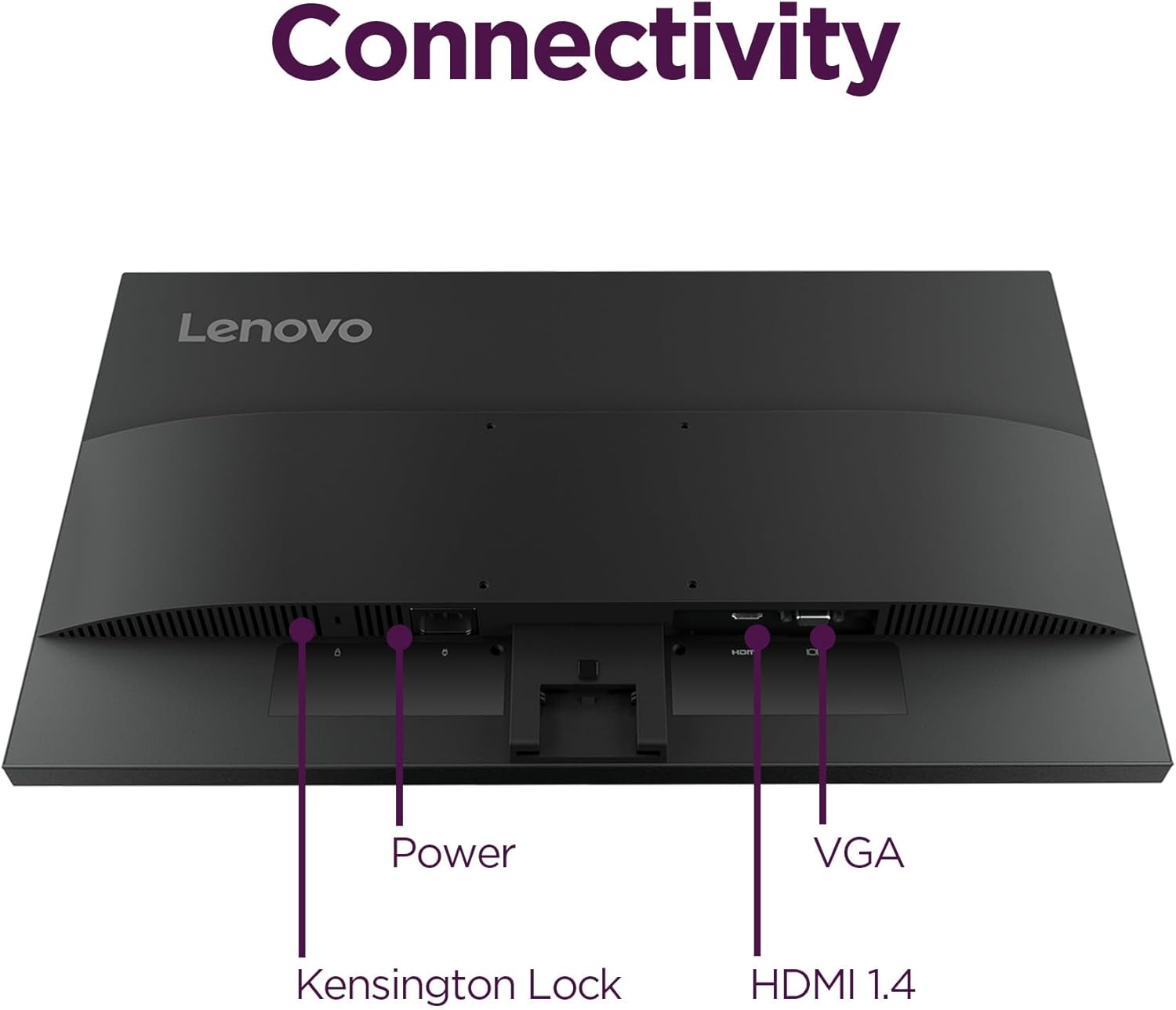
Figure 8: Monitor highlighting its sustainable packaging.
5 Issolvi l-problemi
If you encounter issues with your Lenovo L22-4e Monitor, refer to the following common solutions:
- Ebda Qawwa: Kun żgur li l-kejbil tal-enerġija huwa konness sew kemm mal-monitor kif ukoll mas-sokit tal-enerġija. Ivverifika li s-sokit tal-enerġija jaħdem sew.
- Ebda Sinjal: Check that the video cable (HDMI or VGA) is firmly connected to both the monitor and your computer. Ensure the correct input source is selected in the OSD menu.
- Skrin li jteptep: Verify the video cable is not loose or damaged. Try a different video cable or port. Adjust the refresh rate in your computer's display settings.
- Distorsjoni tal-Immaġni/Kwalità Fqira: Ensure the monitor's native resolution (1920x1080) is selected in your computer's display settings. Adjust OSD settings like brightness, contrast, and color.
- Ebda Awdjo: If using HDMI, ensure your computer's audio output is set to the monitor. Check the monitor's volume in the OSD menu.
For further assistance, consult the Lenovo support websit jew ikkuntattja lis-servizz tal-konsumatur.
6. Speċifikazzjonijiet
| Karatteristika | Dettall |
|---|---|
| Brand | Lenovo |
| Numru tal-Mudell | 67D5KCC6US |
| Daqs tal-Iskrin | 21.5 Pulzier |
| Riżoluzzjoni tal-Iskrin | 1920x1080 (FHD 1080p) |
| Riżoluzzjoni Massima tal-Iskrin | 1920 x 1080 Pixels |
| Riffriskar Rata | 100Hz |
| Ħin ta' Rispons | 4ms MPRT (Extreme Mode) |
| Tip ta' Panel | IPS |
| Gamut tal-Kulur | 99% sRGB |
| Proporzjon ta' Kuntrast | 1300:1 |
| ViewIng Angolu | 178° (Ultra-wide) |
| Proporzjon ta' l-aspett | 16:9 |
| Wiċċ tal-Iskrin | Matte |
| Konnettività | hdmi, vga |
| Ergonomija | Tilt Stand (-5°/+22°), VESA Mount Support |
| Kulur | Raven Iswed |
| Piż tal-oġġett | 6.2 liri |
| Dimensjonijiet tal-Prodott (LxWxH) | 6.85 x 19.26 x 14.94 pulzieri |
7. Garanzija u Appoġġ
7.1 Informazzjoni dwar Garanzija
Your Lenovo L22-4e Monitor comes with a standard warranty. Please refer to the included Warranty Information document for details regarding coverage, terms, and conditions. Retain your proof of purchase for warranty claims.
7.2 Appoġġ għall-Klijent
For technical support, product inquiries, or service requests, please visit the official Lenovo support website or contact their customer service department. Contact information can typically be found in the Quick Setup Guide or on the Lenovo websit.