
1. Introduzzjoni
This manual provides essential information for setting up, operating, maintaining, and troubleshooting your Lenovo Tab 10.1-inch WUXGA tablet. Please read this guide thoroughly to ensure optimal performance and longevity of your device.
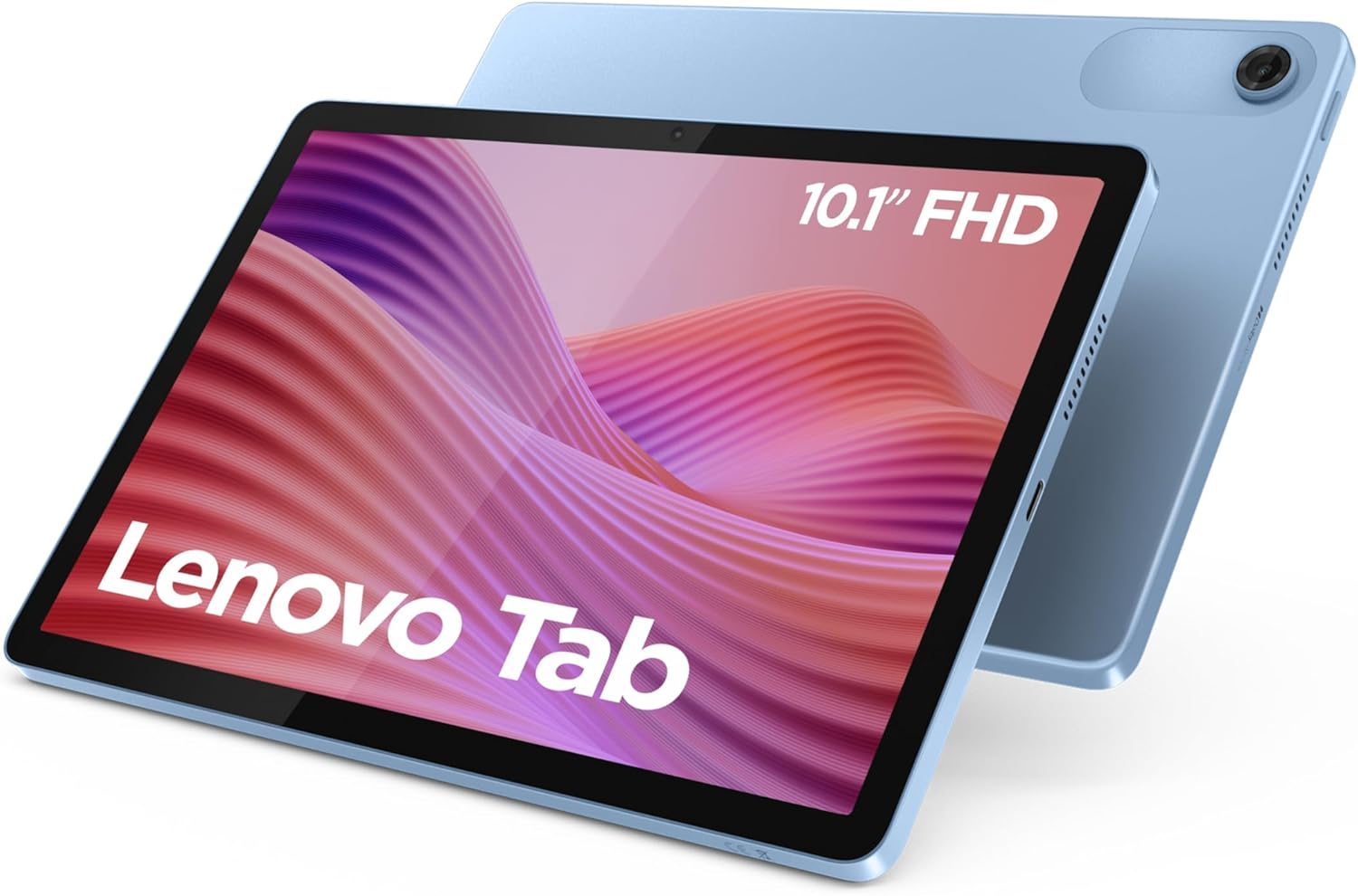
Figure 1: Lenovo Tab 10.1-inch WUXGA Tablet (Polar Blue)
2. Kontenut tal-Pakkett
Ivverifika li l-oġġetti kollha huma preżenti fil-pakkett tal-prodott tiegħek:
- Lenovo Tab 10.1-inch WUXGA Tablet
- Batterija (integrata)
- Transparent Protective Case
- USB Type-C Cable (assumed, necessary for charging)
- Power Adapter (assumed, necessary for charging)
- Quick Start Guide (assumed)
- Warranty Card (assumed)
3. Device Layout and Ports
Familiarize yourself with the physical components and connection points of your Lenovo Tab.

Figure 2: Device Layout with Ports and Slots
- Buttuna tal-Qawwa: Użat biex tixgħel/titfi t-tablet jew biex torqod/tqajjem.
- Kelliema Doppji: Ipprovdi output awdjo stereo.
- Port USB tat-Tip Ċ 2.0: For charging, data transfer, and digital audio output (DP 1.4 compatible).
- Jack tal-Awdjo ta' 3.5 mm: Għall-konnessjoni ta' headphones jew kelliema esterni.
- Buttuna tal-Volum: Jaġġusta l-volum tal-awdjo.
- Mikrofonu: For voice input during calls or recordings.
- MicroSD Card Slot / SIM Card Tray: For expanding storage with a microSD card or inserting a SIM card (LTE models only).
4. Setup
4.1 Ħlas Inizjali
Qabel l-ewwel użu, iċċarġja t-tablet tiegħek kompletament.
- Connect the USB Type-C cable to the tablet's USB Type-C port (3).
- Qabbad it-tarf l-ieħor tal-kejbil mal-adapter tal-enerġija, imbagħad daħħal l-adapter f'sokit tal-ħajt.
- L-indikatur tal-batterija fuq l-iskrin se juri l-istatus tal-iċċarġjar.
4.2 Power On/Off
- Biex Tixgħel: Press and hold the Power Button (1) until the Lenovo logo appears.
- Biex Tifi: Press and hold the Power Button (1), then select "Power off" from the options on the screen.
- Biex terġa' tibda: Press and hold the Power Button (1), then select "Restart" from the options on the screen.
4.3 Wizard tas-Setup Inizjali
Upon first power-on, the tablet will guide you through the initial setup process. Follow the on-screen instructions to:
- Agħżel il-lingwa tiegħek.
- Qabbad ma 'netwerk Wi-Fi.
- Idħol bil-kont Google tiegħek jew oħloq wieħed ġdid.
- Issettja l-illokkjar tal-iskrin (PIN, mudell, password).
- Review u aċċetta t-termini u l-kundizzjonijiet.
4.4 Daħħal Karta MicroSD (Mhux obbligatorja)
To expand storage, you can insert a microSD card into the dedicated slot (7).
- Locate the MicroSD card slot (7) on the side of the tablet.
- Use the provided SIM ejector tool (if applicable) or a small paperclip to gently press into the small hole next to the tray to eject it.
- Place the microSD card onto the tray with the gold contacts facing down.
- Erġa’ daħħal it-trej fl-islott bir-reqqa sakemm tikklikkja f’postu.
5. It-Tħaddim tat-Tablet Tiegħek
5.1 Navigazzjoni f'Android 14
Your Lenovo Tab runs on Android 14, offering an intuitive user interface.
- Skrin tad-dar: Iċ-ċentru ċentrali għall-apps u l-widgets tiegħek.
- Panel tan-Notifiki: Skrolla 'l isfel minn fuq nett tal-iskrin biex taċċessa n-notifiki u s-settings rapidi.
- App Drawer: Swipe 'l fuq mill-qiegħ tal-iskrin għal view l-applikazzjonijiet kollha installati.
- Multitasking: Skrolla 'l fuq u żomm mill-qiegħ tal-iskrin biex view apps riċenti.
5.2 Wirja u Viżwali
The 10.1-inch WUXGA display (1920 x 1200 pixels) provides clear and detailed visuals.

Figure 3: High-quality visual experience on the WUXGA display.
- Aġġustament tal-luminożità: Adjust screen brightness via the quick settings panel or Display settings.
- Modalità Kumdità tal-għajnejn: Activate TÜV eye care certified mode in Display settings to reduce blue light and minimize eye strain.
- Rata ta' Aġġornar: The display features a dynamic 60 Hz refresh rate for smooth visuals.
5.3 Karatteristiċi tal-awdjo
Experience rich and immersive sound with Dolby Atmos stereo speakers.

Figure 4: Immersive audio experience with Dolby Atmos.
- Kontroll tal-Volum: Use the Volume Button (5) or on-screen controls to adjust sound levels.
- Jack tal-headphone: Connect wired headphones to the 3.5 mm audio jack (4).
- Awdjo Bluetooth: Pair Bluetooth headphones or speakers via Settings > Connected devices > Bluetooth.
5.4 Użu tal-Kamera
The tablet is equipped with a 5MP front camera and an 8MP rear camera.
- Iftaħ l-app tal-Kamera mill-iskrin tad-dar jew mill-kexxun tal-app.
- Ibdel bejn il-kameras ta' quddiem u ta' wara kif meħtieġ.
- Tap the shutter button to take photos or record videos.
6. Manutenzjoni
6.1 Tindif tat-Tablet
- Uża drapp artab u mingħajr suf biex tnaddaf l-iskrin u l-korp tat-tablet.
- Għal tbajja' iebsa, ftit dampLaħlaħ id-drapp bl-ilma jew b'prodott tat-tindif tal-iskrin iddisinjat speċifikament għall-elettronika.
- Evita li tuża kimiċi ħarxa, materjali li joborxu, jew umdità eċċessiva.
6.2 Kura tal-Batterija
- Evita temperaturi estremi, għax jistgħu jnaqqsu l-ħajja tal-batterija.
- Għal saħħa ottimali tal-batterija, ipprova żomm il-livell ta' ċarġ bejn 20% u 80%.
- Jekk taħżen it-tablet għal perjodu estiż, iċċarġjah sa madwar 50% qabel ma titfih.
6.3 Aġġornamenti tas-Software
Iċċekkja u installa aġġornamenti tas-softwer regolarment biex tiżgura li t-tablet tiegħek ikollu l-aħħar karatteristiċi, irqajja tas-sigurtà, u titjib fil-prestazzjoni.
- Mur Settings > Sistema > Aġġornament tas-sistema.
- Segwi l-istruzzjonijiet fuq l-iskrin biex tniżżel u tinstalla kwalunkwe aġġornament disponibbli.
7 Issolvi l-problemi
7.1 It-Tablet Mhux Mixgħul
- Kun żgur li l-batterija hija ċċarġjata. Qabbad it-tablet mal-ċarġer tiegħu għal mill-inqas 30 minuta.
- Press and hold the Power Button (1) for 10-15 seconds to perform a forced restart.
7.2 Screen Freezes or Becomes Unresponsive
- Press and hold the Power Button (1) for 10-15 seconds to force a restart.
- If the issue persists, try clearing the cache of problematic apps or performing a factory reset (backup your data first).
7.3 Kwistjonijiet ta' Konnettività tal-Wi-Fi
- Toggle Wi-Fi off and on in quick settings.
- Erġa' ibda r-router tal-Wi-Fi tiegħek.
- Forget the network in Settings > Network & internet > Internet, then reconnect.
7.4 Ħajja tal-Batterija Fqira
- Naqqas il-luminożità tal-iskrin.
- Agħlaq l-apps mhux użati li jaħdmu fl-isfond.
- Iddiżattiva l-Wi-Fi, il-Bluetooth, jew il-GPS meta ma tkunx qed tużahom.
- Iċċekkja l-użu tal-batterija f'Settings > Battery biex tidentifika apps li jikkunsmaw ħafna enerġija.
8. Speċifikazzjonijiet
| Karatteristika | Dettall |
|---|---|
| Brand | Lenovo |
| Numru tal-Mudell | ZAEH0038FR |
| Serje | Tab tal-Lenovo |
| Kulur | Blu |
| Sistema Operattiva | Android 14 |
| Brand tal-proċessur | MediaTek |
| Mudell tal-Proċessur | Helio G85 (Octa-core) |
| Daqs tal-Iskrin | 10.1 pulzieri |
| Riżoluzzjoni tal-Iskrin | 1920 x 1200 pixel (WUXGA) |
| Chipset tal-Grafika | ARM Mali-G52 (Integrated) |
| RAM | 4 GB |
| Ħażna | 64 GB eMMC 5.1 (expandable via MicroSD) |
| Konnettività | Wi-Fi (802.11ac), Bluetooth 5 |
| Portijiet | USB Type-C 2.0, 3.5mm Audio Jack, MicroSD Slot |
| Kameras | 5MP ta 'quddiem, 8MP ta' wara |
| Ħajja tal-Batterija (Medja) | Up to 82 hours (standby), 9.5 hours (YouTube streaming) |
| Dimensjonijiet (L x W x H) | 23.6 x 15.4 x 0.7 ċm |
| Piż | 425 Gramm |
| Karatteristiċi Speċjali | Dolby Atmos Stereo Speakers, TÜV Eye Care Certification, Transparent Protective Case Included |
9. Garanzija u Appoġġ
9.1 Garanzija tal-Manifattur
Your Lenovo Tab comes with a Garanzija ta' 2 snin mill-manifattur. This warranty covers defects in materials and workmanship under normal use. Please refer to the warranty card included in your package for full terms and conditions.
9.2 Appoġġ għall-Klijent
For further assistance, technical support, or warranty claims, please contact Lenovo customer support.
- Appoġġ Lenovo Websit: Żur l-appoġġ uffiċjali ta' Lenovo websit għal FAQs, sewwieqa, u informazzjoni ta' kuntatt. support.lenovo.com
- Riżorsi onlajn: Check the Lenovo community forums for peer-to-peer support and additional tips.