
Introduzzjoni
Thank you for choosing the Phomemo M221 Bluetooth Thermal Label Printer. This manual provides essential information for the safe and efficient operation of your device. Please read it thoroughly before use and retain it for future reference. The Phomemo M221 is designed for fast, clear, and smart label printing, supporting various label types and applications for small businesses, home, and school use.
Informazzjoni dwar is-Sigurtà
Biex tiżgura tħaddim sikur u tevita ħsara, osserva l-prekawzjonijiet li ġejjin:
- Do not disassemble, repair, or modify the printer.
- Żomm il-printer 'il bogħod mill-ilma, l-umdità, u d-dawl tax-xemx dirett.
- Use only Phomemo-approved power adapters and accessories.
- Evita li tmiss ir-ras tal-istampar immedjatament wara l-istampar, għax tista' tkun sħuna.
- Aħżen il-printer u t-tikketti f'post frisk u niexef.
Kontenut tal-Pakkett
Ivverifika li l-oġġetti kollha huma preżenti fil-pakkett tiegħek:
- Printer tat-Tikketti Phomemo M221
- Cable tal-Iċċarġjar tal-USB tat-Tip-Ċ
- 1 roll of 40 x 30 mm thermal labels
- 1 roll of 50 x 80 mm thermal labels
- 1 roll of 70 x 80 mm thermal labels
- Kaxxa tal-ġarr portabbli
- Manwal għall-Utent (dan id-dokument)
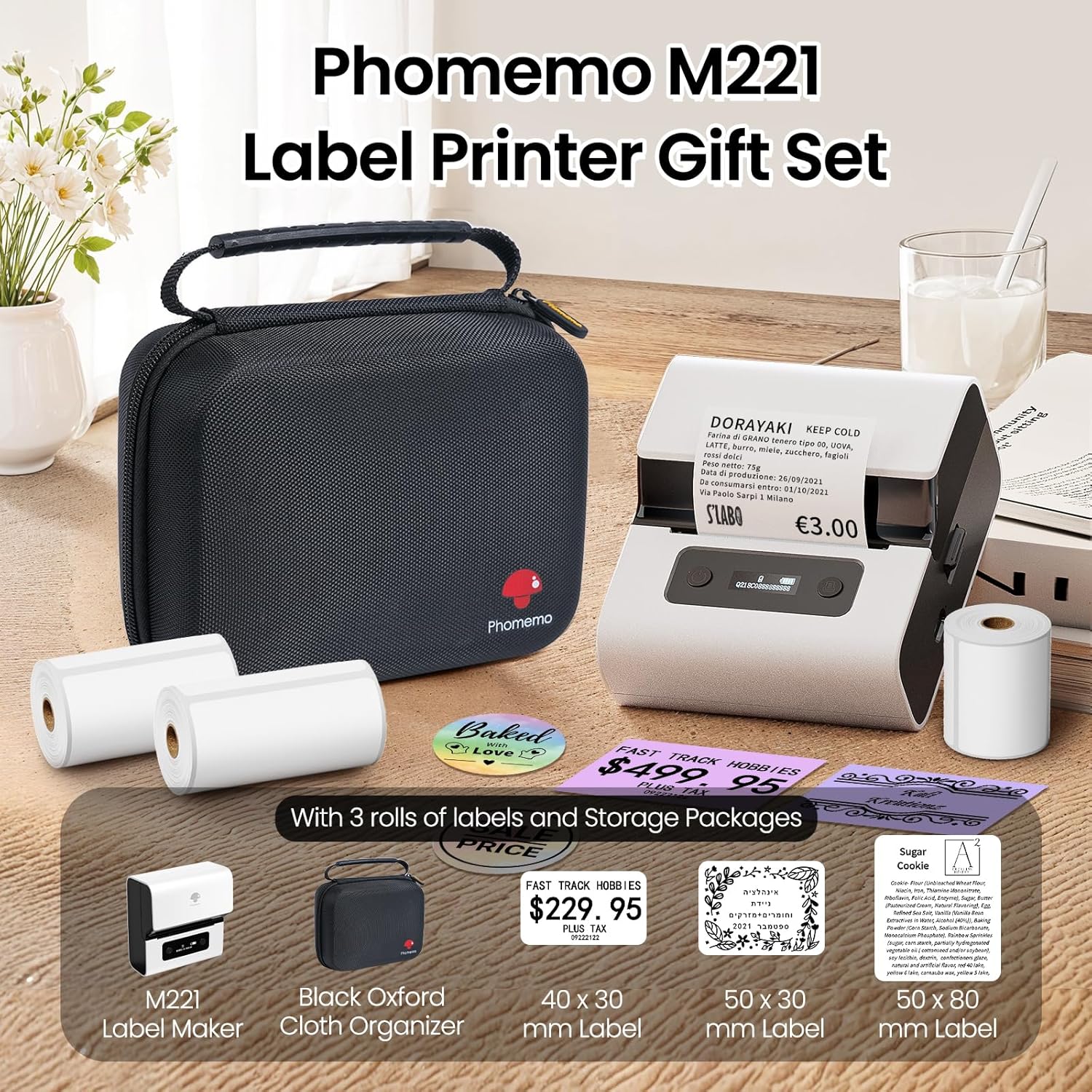
Image: Phomemo M221 Label Printer Gift Set, showing the printer, a black carrying case, and three rolls of white thermal labels.
Prodott Overview
The Phomemo M221 is a compact and efficient thermal label printer. Key features include:
- Teknoloġija tal-Istampar Termali: No ink or toner required.
- Kompatibilità Wiesgħa tat-Tikketti: Supports labels from 20mm to 80mm (0.78" to 3.14") wide, including rectangular, round, transparent, and colored types.
- Konnettività: Bluetooth for iOS/Android smartphones and tablets, USB for Windows PCs.
- Batterija ta' Kapaċità Għolja: 2200 mAh battery with Type-C fast charging.
- Operazzjoni Veloċi u Kwieta: Prints at 50 mm/s with reduced noise.
- Disinn faċli għall-utent: Easy label loading and automatic gap detection.

Image: Phomemo M221 Label Maker Set, illustrating its features such as no ink requirement, large battery capacity, Bluetooth wireless printing, and its suitability as a gift.
Setup
1. Iċċarġja l-Istampatur
Before first use, fully charge the Phomemo M221 printer.
- Connect the provided USB Type-C cable to the printer's charging port.
- Connect the other end of the cable to a 5V USB power adapter (not included) or a computer's USB port.
- The indicator light will show charging status. A full charge typically takes several hours. The 2200 mAh battery supports extended use.
2. It-Tagħbija tat-Tikketti
The M221 features an integrated label fixing structure for easy loading.
- Iftaħ il-qoxra tal-printer.
- Insert the label roll into the compartment, ensuring the printing side faces upwards and the labels feed smoothly.
- Adjust the side guide plates to secure the label roll in place.
- Close the printer cover. The printer will automatically detect and calibrate the label gap.
3. Konnessjoni mal-Apparat Tiegħek
The Phomemo M221 supports both Bluetooth and USB connections.
Bluetooth Connection (Smartphones/Tablets)
- Ensure Bluetooth is enabled on your iOS or Android device.
- Download and install the "Print Master" application from your device's app store.
- Open the "Print Master" app and follow the on-screen instructions to search for and connect to your M221 printer.

Image: Phomemo M221 printer demonstrating Bluetooth wireless connection with a tablet and a smartphone.
USB Connection (Windows PC)
- Connect the USB Type-C cable from the printer to an available USB port on your Windows PC.
- Download and install the "Labelife" software and printer drivers from the official Phomemo websit.
- Follow the software installation prompts. Once installed, you can select the M221 as your printer.

Image: Phomemo M221 printer connected to a laptop using a USB cable, indicating wired connectivity.
Istruzzjonijiet Operattivi
1. Basic Printing with "Print Master" App (Mobile)
- Ensure your M221 printer is connected via Bluetooth to your mobile device.
- Iftaħ l-app "Print Master".
- Select a template or create a new label design. The app offers various templates for text, images, barcodes, QR codes, and more.
- Customize your label content.
- Tap the print icon. Confirm print settings such as quantity.
- The printer will begin printing your labels.
2. Printing with "Labelife" Software (PC)
- Ensure your M221 printer is connected via USB to your Windows PC.
- Open the "Labelife" software.
- Design your label using the software's features, including text, images, barcodes, and QR codes.
- Mur fuq "File" > "Print" or click the print icon.
- Select the Phomemo M221 from the list of available printers and adjust any necessary print settings.
- Click "Print" to start printing.
3. Stampar f'lottijiet
Both "Print Master" and "Labelife" support batch printing for efficiency.
- In the print dialogue, specify the desired number of copies.
- The printer will automatically print multiple labels consecutively.

Image: Phomemo M221 printer demonstrating its versatility with examples of address labels, price tags, ingredient labels, and gift tags.

Image: Phomemo M221 printer showcasing its compatibility with over 50 types of thermal labels, including various shapes and designs.
Manutenzjoni
1. Tindif tar-Ras tal-Istampar
Tindif regolari tar-ras tal-istampar jiżgura kwalità ottimali tal-istampar.
- Itfi l-istampatur u skonnettja l-kejbil tal-enerġija.
- Iftaħ il-qoxra tal-printer.
- Imsaħ ir-ras tal-istampar bil-mod b'tajjara tal-qoton ħafifa.ampened b'alkoħol isopropiliku.
- Ħalli r-ras tal-istampar tinxef kompletament qabel ma tagħlaq l-għatu u tixgħel il-printer.
2. Ħażna
Store the printer in a clean, dry environment, away from extreme temperatures and direct sunlight. When not in use for extended periods, ensure the printer is fully charged and then powered off.

Image: A man holding the Phomemo M221 printer's carrying case, illustrating its portable design.
Issolvi l-problemi
Printer Does Not Turn On or Charge
- Iċċekkja l-Konnessjoni tal-Enerġija: Ensure the USB Type-C cable is securely connected to both the printer and a working power source (5V adapter or PC USB port).
- Ivverifika l-Adapter tal-Enerġija: Use a reliable 5V USB power adapter.
- Tul tal-Ħlas: Allow sufficient time for charging. The battery indicator should show charging status.
No Printing or Blank Output
- Check Label Orientation: Ensure the thermal labels are loaded correctly with the printing side facing upwards.
- Tip ta' Tikketta: Confirm you are using thermal labels. The M221 does not use ink.
- Indafa tar-Ras tal-Istampar: A dirty print head can cause blank lines or poor print quality. Refer to the Maintenance section for cleaning instructions.
- Allinjament tat-Tikketta: Ensure the label roll is properly seated and aligned by the side guide plates to prevent misalignment errors.
Kwistjonijiet ta' Konnessjoni Bluetooth
- Printer Mixgħul: Ensure the printer is powered on and within Bluetooth range of your device.
- Bluetooth Ippermettiet: Verify Bluetooth is active on your smartphone or tablet.
- Konnessjoni tal-App: Connect through the "Print Master" app, not directly through your device's Bluetooth settings.
- Irristartja l-Apparati: Try restarting both the printer and your mobile device.
Kwalità Fqira tal-Istampar
- Indafa tar-Ras tal-Istampar: Naddaf ir-ras tal-istampar kif deskritt fit-taqsima tal-Manutenzjoni.
- Kwalità tat-Tikketta: Use high-quality thermal labels.
- Print Density Settings: Adjust print density settings within the "Print Master" app or "Labelife" software if available.
Speċifikazzjonijiet
| Karatteristika | Dettall |
|---|---|
| Numru tal-Mudell | M221 |
| Brand | Phomemo |
| Teknoloġija tal-Konnettività | Bluetooth, USB Tip Ċ |
| Teknoloġija tal-Istampar | Termali |
| Output tal-Istampar | Monokromu |
| Veloċità Massima tal-Istampar (Monokromu) | 15.0 pages per minute (50 mm/s) |
| Riżoluzzjoni Massima tal-Istampar (Monokromu) | 203 dpi |
| Wisa 'Tikketta Appoġġjata | 20mm - 80mm (0.78" - 3.14") |
| Batterija | 2200 mAh (1 D - included) |
| Piż tal-oġġett | 820 Gramm |
| Dimensjonijiet tal-Prodott (L x W x H) | 12.9 x 6.7 x 11.9 ċentimetru |
| Control Device Type | Smartphone/PC |
| Tip tal-Midja | Tikketti |
Garanzija u Appoġġ
Għal informazzjoni dwar il-garanzija u appoġġ tekniku, jekk jogħġbok irreferi għall-paġna uffiċjali ta' Phomemo. webis-sit jew ikkuntattja lis-servizz tal-konsumatur tagħhom direttament. Żomm l-irċevuta tax-xiri tiegħek bħala prova tax-xiri.
Riżorsi onlajn: Żur il- Ħanut Phomemo fuq Amazon for product updates and FAQs.


