
Introduzzjoni
This manual provides essential information for the proper setup, operation, maintenance, and troubleshooting of your KTC H27T27 27-inch WQHD IPS Flat Monitor. Please read this manual thoroughly before using the product to ensure optimal performance and safety.
The KTC H27T27 monitor features a 27-inch WQHD (2560x1440) IPS panel with a 100Hz refresh rate, designed to deliver clear and detailed images with smooth motion. It includes FreeSync technology for enhanced visual fluidity during dynamic content. The IPS panel ensures vivid colors and wide viewangoli.

Figure 1: KTC H27T27 27-inch WQHD IPS Flat Monitor Front View
Setup
1. Spakkjar
Carefully remove all components from the packaging. Ensure all items listed in the packing list are present and undamaged. Retain the original packaging for future transport or service needs.
2. Assemblea Stand
- Poġġi l-monitor wiċċu 'l isfel fuq wiċċ artab u nadif biex tevita l-grif.
- Waħħal il-bażi tal-istand mal-għonq tal-istand billi tuża l-viti pprovduti.
- Align the assembled stand with the mounting slot on the back of the monitor and secure it firmly.
3. Immuntar VESA (Mhux obbligatorju)
The monitor supports VESA 100x100mm mounting. If using a VESA mount, remove the stand and attach the VESA compatible bracket to the monitor's rear panel using appropriate screws.
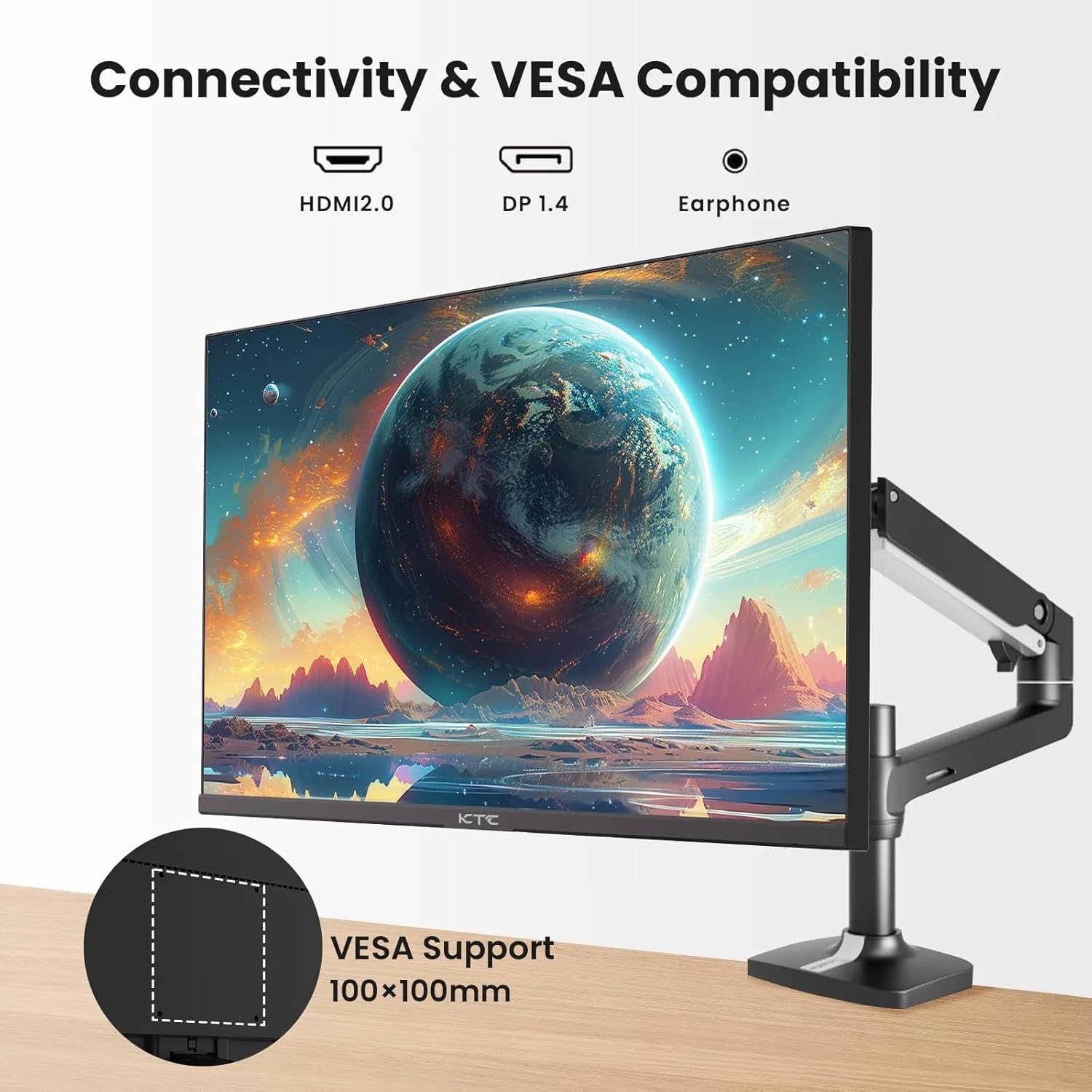
Figure 2: VESA Compatibility and Connectivity Ports
4. Kejbils tal-Konnessjoni
Connect the necessary cables to the monitor and your computer or other devices. Ensure all connections are secure.
- Cable tal-Enerġija: Connect the power adapter to the monitor's DC input port, then plug the power cable into a power outlet.
- Cable tal-vidjo: Connect either an HDMI cable (HDMI 2.0) or a DisplayPort cable (DP 1.4) from your computer's graphics card to the corresponding input port on the monitor.
- Output Awdjo: If desired, connect headphones or external speakers to the 3.5mm audio output jack.

Figura 3: Portijiet tad-Dħul tal-Monitor
5. L-Ewwel Tixgħil
Press the power button on the monitor. The power indicator light will illuminate. If no image appears, ensure your computer is powered on and the correct input source is selected on the monitor.
Operazzjoni
1. Power On/Off
Press the power button located on the monitor to turn it on or off. The power indicator will show the monitor's status.
2. Menu tal-Wiri fuq l-Iskrin (OSD).
Il-menù tal-OSD jippermettilek taġġusta diversi settings tal-monitor. Uża l-buttuni tal-kontroll (ġeneralment jinsabu fuq wara jew fil-qiegħ tal-monitor) biex tinnaviga l-menù.
- Agħfas buttuna biex tattiva l-menù tal-OSD.
- Uża l-buttuni tan-navigazzjoni biex tiċċaqlaq bejn l-għażliet tal-menù.
- Press a selection button to enter a sub-menu or confirm a setting.
- Press an exit button to close the OSD menu.
3. L-aġġustament tas-Settings
Is-settings aġġustabbli komuni jinkludu:
- Luminożità/Kuntrast: Aġġusta l-luminanza ġenerali u d-differenza bejn iż-żoni mdawla u dawk mudlama.
- Settings tal-Kulur: Immodifika t-temperatura tal-kulur, il-gamma, u l-valuri individwali tal-RGB.
- Sors tad-dħul: Agħżel manwalment bejn l-inputs HDMI 1, HDMI 2, jew DisplayPort.
- Modalità Stampa: Select predefined display modes (e.g., Standard, Game, Movie).
4. Rata ta' Aġġornament
The KTC H27T27 supports a 100Hz refresh rate, providing smoother motion compared to standard 60Hz displays. Ensure your graphics card and operating system are configured to output at 100Hz for the best experience.

Figure 4: 100Hz Refresh Rate Benefit
5. FreeSync Technology
This monitor is compatible with AMD FreeSync technology, which synchronizes the monitor's refresh rate with your graphics card's frame rate. This helps eliminate screen tearing and stuttering for a smoother gaming and video experience. Ensure FreeSync is enabled in both the monitor's OSD menu and your graphics card's control panel.
Figure 5: FreeSync Technology in Action
Manutenzjoni
1. Tindif tal-Iskrin
- Itfi l-monitor u aqla l-korda tad-dawl.
- Imsaħ l-iskrin bil-mod b'ċarruta ratba u mingħajr ħelu.
- Għal marki iebsa, ħassar bil-modampLaħlaħ id-drapp bl-ilma jew b'prodott speċjalizzat għat-tindif tal-iskrin (tisprejjax direttament fuq l-iskrin).
- Evita li tuża prodotti tat-tindif li joborxu, alkoħol, jew soluzzjonijiet ibbażati fuq l-ammonja, għax dawn jistgħu jagħmlu ħsara lill-wiċċ tal-iskrin.
2. Kura Ġenerali
- Żomm il-monitor 'il bogħod mix-xemx diretta, mis-sħana eċċessiva, u mill-umdità.
- Kun żgur li jkun hemm ventilazzjoni adegwata madwar il-monitor biex tevita li jisħon iżżejjed.
- Evita li tpoġġi oġġetti tqal fuq il-monitor jew il-kejbils tiegħu.
Issolvi l-problemi
Jekk tiltaqa' ma' problemi bil-monitor tiegħek, irreferi għall-problemi u s-soluzzjonijiet komuni li ġejjin:
- Ebda Qawwa:
- Ensure the power cable is securely connected to both the monitor and the power outlet.
- Verify the power outlet is functional. - Ebda Sinjal:
- Check that the video cable (HDMI or DisplayPort) is securely connected to both the monitor and your computer.
- Ensure your computer is powered on and not in sleep mode.
- Select the correct input source via the monitor's OSD menu. - Immaġni li Tteptep jew Distorta:
- Check the video cable for damage or loose connections.
- Adjust the refresh rate settings on your computer.
- Disable or enable FreeSync in the OSD menu and graphics card settings to test. - Kuluri Mhux Korretti:
- Reset color settings to factory defaults in the OSD menu.
- Adjust color temperature or individual RGB values.
Jekk il-problema tippersisti wara li tipprova dawn is-soluzzjonijiet, jekk jogħġbok ikkuntattja l-appoġġ għall-klijenti.
Speċifikazzjonijiet
| Karatteristika | Speċifikazzjoni |
|---|---|
| Brand | Estensjoni KTC |
| Numru tal-Mudell | H27T27 |
| Daqs tal-Iskrin | 27 pulzieri |
| Riżoluzzjoni | 2560 x 1440 (WQHD) |
| Riffriskar Rata | 100 Hz |
| Tip ta 'Wiri | IPS |
| Ħin ta' Rispons | 7 Millisekondi |
| Sinkronizzazzjoni Adattiva | FreeSync |
| Konnettività | 2x HDMI 2.0, 1x DisplayPort 1.4, 1x 3.5mm Audio Out |
| Proporzjon ta' l-aspett | 1.78:1 |
| Wiċċ tal-Iskrin | Matte |
| Dimensjonijiet tal-oġġett (D x W x H) | 1.85"D x 24.25"W x 14.33"H |
| Piż tal-oġġett | 4 Kilogrammi |
Garanzija u Appoġġ
Informazzjoni dwar Garanzija
This KTC monitor is covered by a manufacturer's warranty. Please refer to the warranty card included in your product packaging for specific terms, conditions, and duration of coverage. Keep your purchase receipt as proof of purchase for warranty claims.
Appoġġ għall-Klijent
For technical assistance, warranty service, or any product-related inquiries, please contact KTC customer support. Contact details can typically be found on the official KTC webis-sit jew fuq il-karta tal-garanzija.
When contacting support, please have your monitor's model number (H27T27) and serial number ready.