
1. Introduzzjoni
Thank you for choosing the MageGee MK-Box 60% Mechanical Gaming Keyboard. This compact 68-key keyboard is designed for both gaming and office use, offering a space-saving layout without compromising essential functionality. Featuring responsive red mechanical switches and customizable LED backlighting, the MK-Box provides a comfortable and efficient typing experience. This manual will guide you through the setup, operation, and maintenance of your new keyboard.
2. Prodott Aktarview
Karatteristiċi ewlenin:
- Mini Portable 60% Compact Layout: The MK-Box features 68 keys, including separate arrow keys and Fn function keys, optimizing desk space while retaining necessary functions.
- Mechanical Red Switches: Characterized by a linear and smoother feel with minimal resistance, these switches offer fast action without a tactile bump, making typing and gaming effortless.
- Classic Charming Blue LED Backlit: Customize your experience with approximately 16 illuminated LED light effects. Adjust backlight modes, speed, and brightness using simple key combinations.
- Kontra l-Ghosting Sħiħ: All 68 keys are conflict-free, ensuring every keystroke is registered accurately during intense gaming sessions.
- Disinn Ergonomiku: Features ergonomic suspension double-color injection keycaps, double kickstand feet for adjustable typing angles, and a detachable USB cable for convenience and durability.
- Kompatibilità estensiva: Compatible with Windows (2000, XP, ME, Vista, 7, 8), Linux, and Mac operating systems. Plug and play, no drivers or software required.
X'hemm fil-Kaxxa:
- MageGee MK-Box Mechanical Keyboard x 1
- Detachable USB-C to USB-A Cable x 1
- Extra Keycaps (e.g., 16 purple keycaps, red WASD keys) x 1 set
- Keycap Puller x 1
- Manwal għall-Utent x 1
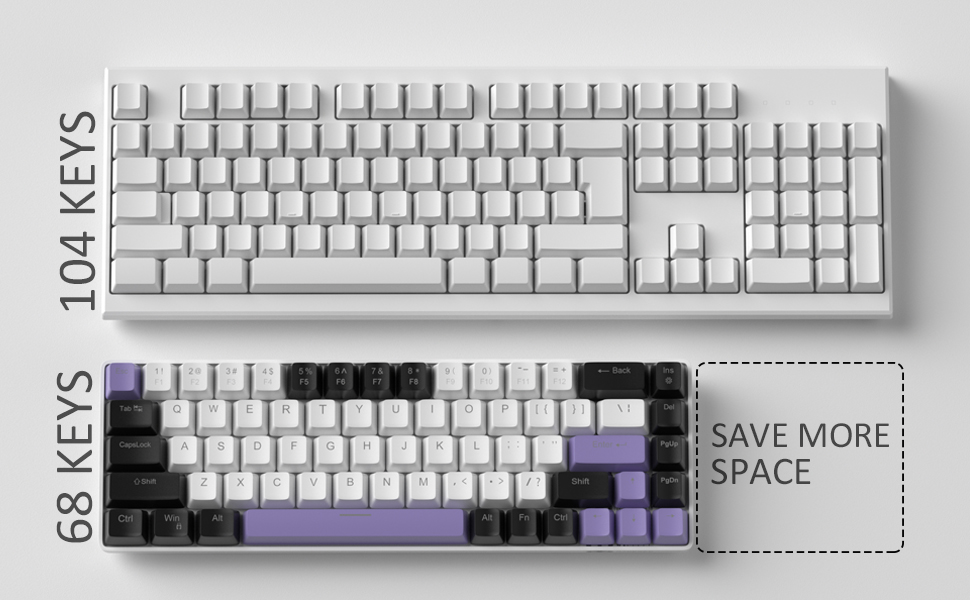
Image: Contents of the MageGee MK-Box packaging, including the keyboard, detachable USB-C cable, extra keycaps, keycap puller, and user manual.
3. Setup
- Qabbad it-Tastiera: Locate the detachable USB-C cable. Plug the USB-C end into the port on the left side of the keyboard and the USB-A end into an available USB port on your computer (Laptop, PC, Mac).
Image: Close-up of the detachable USB-C port on the side of the MageGee MK-Box keyboard, with the cable being inserted.
- Aġġusta l-Angolu tat-Tajpjar: Flip the keyboard over to reveal the double kickstand feet. Gently pull out the feet to adjust the keyboard to your preferred typing angle for ergonomic comfort. There are two levels of adjustment.
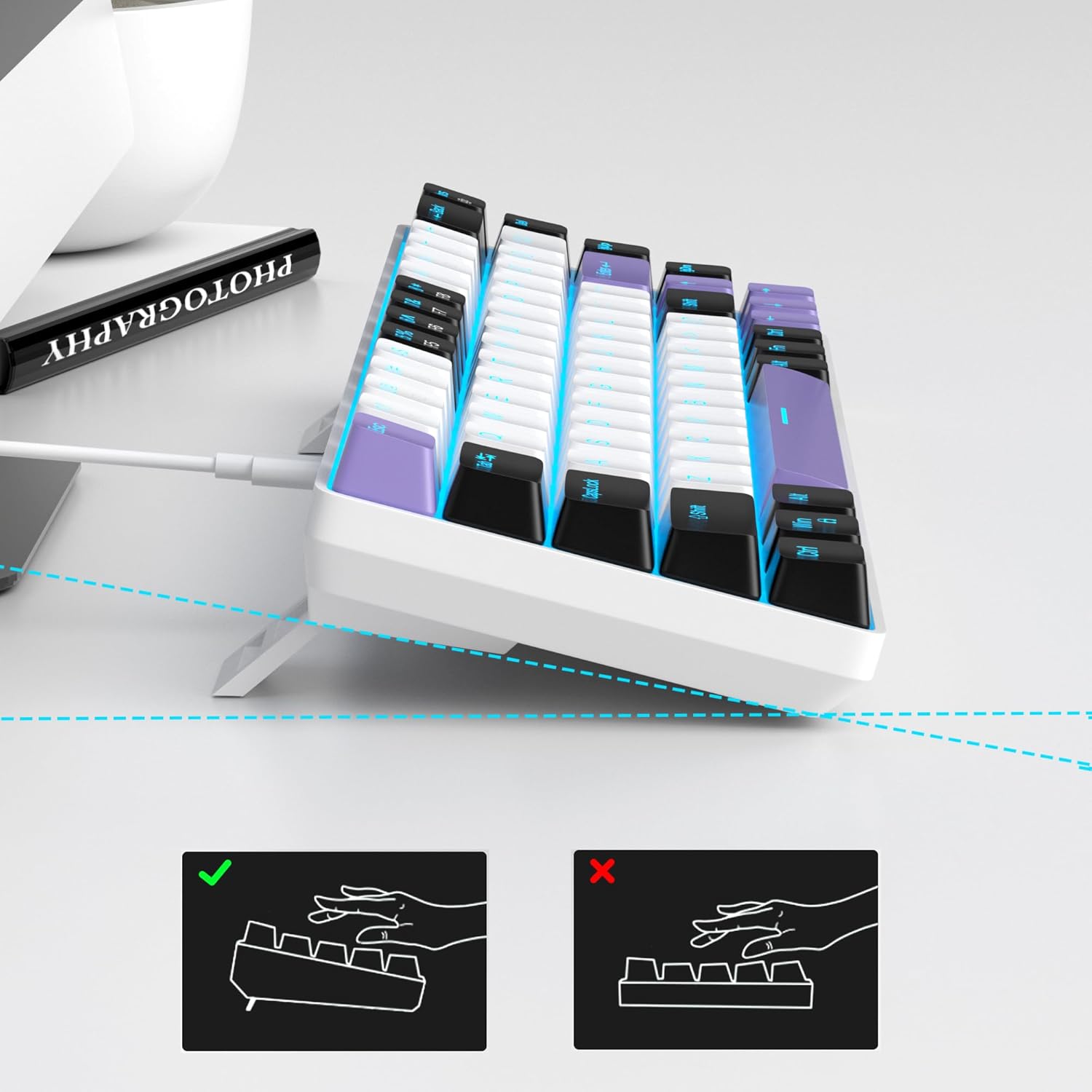
Image: The MageGee MK-Box keyboard shown from a side angle with its adjustable feet extended, illustrating the ergonomic tilt for comfortable typing.
- Rikonoxximent tas-Sistema: Your computer should automatically recognize the keyboard. No additional drivers or software installation is required.
4. Istruzzjonijiet Operattivi
Funzjonijiet Ewlenin Bażiċi:
- The keyboard features a standard QWERTY layout with 68 keys.
- Dedicated arrow keys are located on the bottom right.
- Function keys (F1-F12) are accessed via the Fn key in combination with the number row keys.
Kontroll tad-dawl ta' wara:
The MageGee MK-Box features a classic blue LED backlight with multiple modes and adjustable settings.
- Ibdel il-Modalità tad-Dawl ta' Wara: Agħfas Fn + Ins to cycle through approximately 16 different backlight effects.
- Aġġusta l-veloċità tad-dawl ta' wara: Agħfas Fn + ← (Vleġġa tax-Xellug) to decrease speed or Fn + → (Vleġġa tal-Lemin) biex tiżdied il-veloċità.
- Aġġusta l-luminożità tad-dawl ta' wara: Agħfas Fn + ↓ (Vleġġa 'l isfel) to decrease brightness or Fn + ↑ (Vleġġa 'l fuq) biex tiżdied il-luminożità.

Image: A diagram illustrating the key combinations for controlling the backlight effects, speed, and brightness on the MageGee MK-Box keyboard.
5. Manutenzjoni
- Tindif: Use a soft, dry cloth to wipe down the keyboard surface. For deeper cleaning, you can use a can of compressed air to remove dust and debris from between the keycaps.
- Tneħħija tal-Għatu taċ-Ċwievet: To clean under the keycaps or replace them with the provided extra keycaps, use the included keycap puller. Gently attach the puller to a keycap and pull straight up. When reattaching, align the keycap with the switch stem and press down firmly until it clicks into place.
- Kura tal-Cable: The detachable USB-C cable should be handled with care. Avoid sharp bends or excessive pulling to prevent damage.

Image: A close-up of the keycap puller tool, used for safely removing and replacing keycaps on the mechanical keyboard.
6 Issolvi l-problemi
- It-Tastiera Mhux Tirrispondi:
- Kun żgur li l-kejbil USB huwa konness sew kemm mat-tastiera kif ukoll mal-kompjuter tiegħek.
- Ipprova qabbad it-tastiera ma' port USB differenti fuq il-kompjuter tiegħek.
- Ittestja t-tastiera fuq kompjuter ieħor biex teskludi problema speċifika tal-kompjuter.
- Id-Dawl ta' Wara Mhux Jaħdem/Mhux Korrett:
- Kun żgur li t-tastiera hija konnessa sew u qed tirċievi l-enerġija.
- Agħfas Fn + Ins to cycle through backlight modes, as it might be set to an 'off' mode.
- Aġġusta l-luminożità billi tuża Fn + ↑/↓.
- Keys Not Registering (Ghosting):
- The MK-Box features full anti-ghosting. If you experience issues, ensure no debris is lodged under the keycaps.
- Try reconnecting the keyboard or restarting your computer.
7. Speċifikazzjonijiet
| Karatteristika | Dettall |
|---|---|
| Brand | MageGee |
| Isem tal-Mudell | MK-Box |
| Deskrizzjoni tat-Tastiera | Mekkaniċi |
| Numru ta' Ċwievet | 68 |
| Tip ta' Swiċċ | Linear (Red Switch) |
| Teknoloġija tal-Konnettività | USB (fili) |
| Apparati Kompatibbli | Laptop, PC |
| Familja ta' Sistemi Operattivi Kompatibbli | Windows, Linux, Mac |
| Karatteristika Speċjali | 60% Mechanical Design, LED Backlit, Anti-Ghosting |
| Layout tat-Tastiera | QWERTY |
| Materjal | Plastik |
| Livell ta 'Reżistenza għall-Ilma | Mhux Reżistenti għall-Ilma |
8. Garanzija u Appoġġ
MageGee products are designed for durability and performance. For any product-related inquiries, technical support, or warranty claims, please refer to the contact information provided on the product packaging or visit the official MageGee websit. Jekk jogħġbok żomm il-prova tax-xiri tiegħek għas-servizz tal-garanzija.