
FoMaKo K20UHx3+KC608 Pro
FoMaKo 4K 20X PTZ Camera System (K20UHx3+KC608 Pro) User Manual
Model: K20UHx3+KC608 Pro
1. Introduzzjoni
This manual provides comprehensive instructions for the installation, operation, and maintenance of your FoMaKo 4K 20X PTZ Camera system. This system includes three K20UH 4K PTZ Cameras and one KC608 Pro NDI PTZ Controller. Please read this manual thoroughly before using the product to ensure proper functionality and to prevent damage.
2. Prodott Aktarview
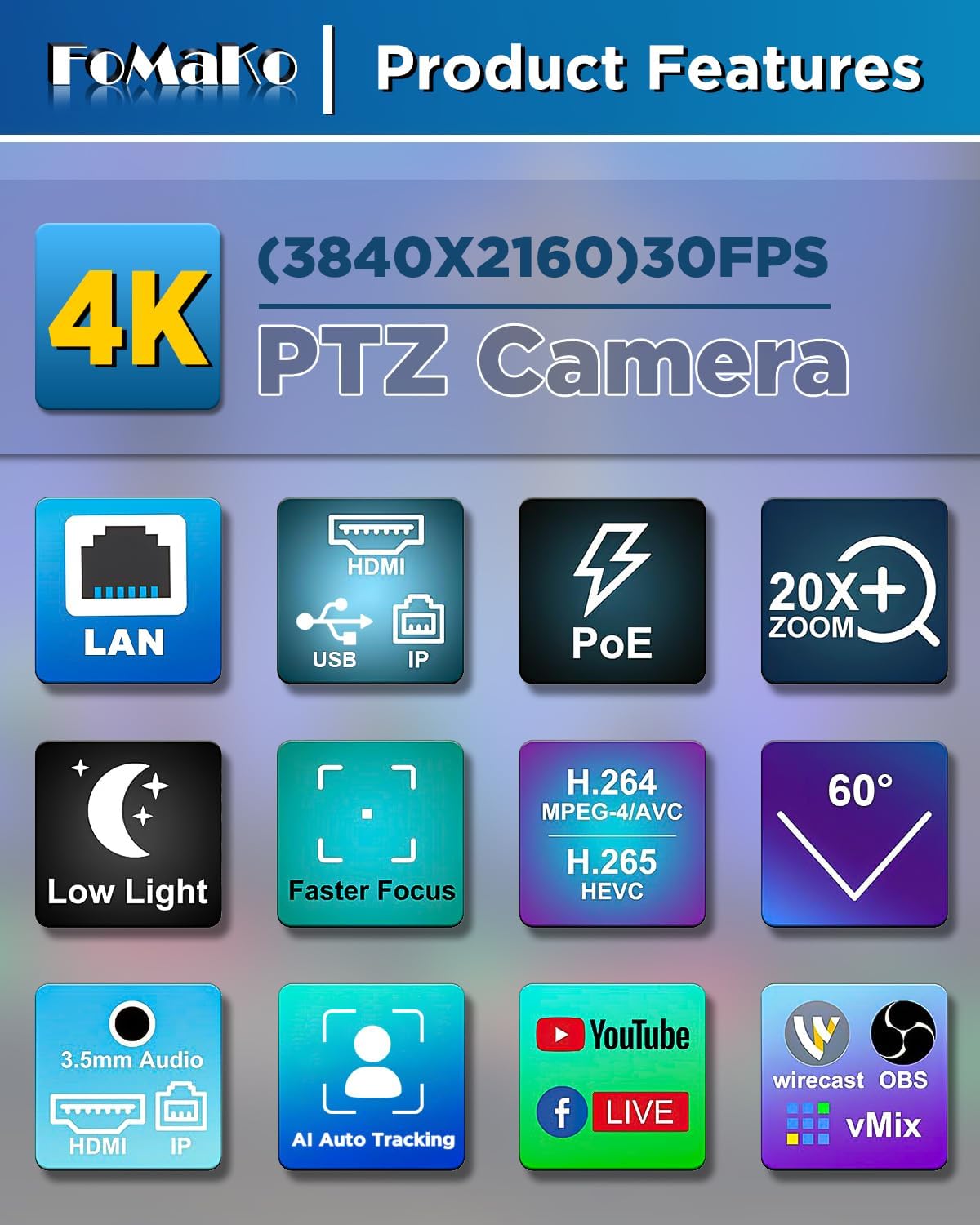
The FoMaKo 4K 20X PTZ Camera system is an all-in-one professional video solution designed for various applications including churches, classrooms, live events, and conferences. It features 4K UHD resolution, 20x optical zoom, AI auto-tracking, and NDI 6 & NDI HX3 certification for seamless multi-camera workflows.
2.1 Karatteristiċi ewlenin
- 4K UHD Clarity (3840x2160): Capture crisp, true-to-life 4K video with a high-end 1/2.8" CMOS sensor (8.42MP) and 20x optical zoom.
- AI Auto-Tracking (3rd Generation): Customizable tracking modes, sensitivity, figure size, character position, and lost target action. Supports real-time and regional tracking.
- NDI 6 & NDI HX3 Certified: Seamless integration with NewTek’s NDI ecosystem for ultra-low-latency, high-quality video over standard networks. NDI HX3 ensures stable streaming with limited bandwidth.
- Appoġġ PoE: Power over Ethernet simplifies setup with a single cable for both power and data.
- Interfaces multipli: Supports HDMI 2.0, USB 3.0, LAN, RS232, RS422, RS485.
- KC608 Pro NDI PTZ Controller: PoE PTZ IP Controller Keyboard with 4D Joystick, compatible with VISCA, PELCO-P & D protocols.
2.2 Kontenut tal-Pakkett
Il-pakkett jinkludi l-oġġetti li ġejjin:
- 3 x FoMaKo K20UH 4K PTZ Camera
- 1 x FoMaKo KC608 Pro NDI PTZ Controller
- Kejbils tal-Enerġija
- Kejbil USB 3.0
- RS232/RS485 Cable
- Ħitan Mount Bracket
- Bracket tal-Immuntar tal-Limitu
- Ħardwer tal-Immuntar
- IR Wireless Remote Control
- Manwal għall-Utent
Vidjo 1: Unboxing u aktarview of the FoMaKo 4K PTZ Camera and included accessories. This video demonstrates the contents of the package, including the camera, cables, mounting options, and remote control.
3. Setup
3.1 Pożizzjonament u Immuntar tal-Kamera
The camera can be placed on a flat surface, mounted on a wall, or suspended from the ceiling. Ensure the camera is positioned to capture the desired area without obstruction.
- Immuntar tal-ħajt: Use the provided metal wall bracket and hardware. Secure the bracket firmly to a sturdy wall surface before attaching the camera.
- Immuntar tas-saqaf: Use the provided metal ceiling mount and hardware. Ensure the ceiling can support the camera's weight.

Stampa 1: FoMaKo K20UH 4K NDI PTZ Camera mounted on a wall, demonstrating its pan and tilt range in a church environment.
3.2 Konnessjonijiet
Connect the camera using the appropriate cables for your setup:
- Qawwa: Connect the power adapter to the DC12V port and plug it into a power outlet. If using PoE, connect an Ethernet cable from a PoE-enabled switch to the LAN port.
- Output tal-vidjo:
- HDMI: Connect an HDMI cable from the camera's HDMI port to a display or video switcher.
- USB 3.0: Connect the USB 3.0 cable from the camera to a computer for video capture and control.
- LAN (NDI/IP Streaming): Connect an Ethernet cable to the LAN port for NDI streaming and IP control.
- Input Awdjo: Connect an audio source to the LINE IN port.
- Kontroll:
- RS232/RS485: Use the provided cable to connect to a PTZ controller or control system.
- LAN (IP Control): Control the camera via its IP address using the KC608 Pro controller or web interface.

Stampa 2: Rear panel of the FoMaKo K20UH camera, highlighting the various input and output ports for connectivity.

Stampa 3: Example connection diagram for a multi-camera setup using FoMaKo PTZ cameras, illustrating how to integrate with a video mixer, PoE switch, and computer for live streaming.
4. Istruzzjonijiet Operattivi
4.1 Tixgħel/Jitfi
After connecting the power supply, toggle the ON/OFF switch on the rear of the camera to power it on. The camera will perform a self-test and initialize.
4.2 Using the KC608 Pro NDI PTZ Controller
The KC608 Pro controller provides comprehensive control over your PTZ cameras. Connect the controller to your network via Ethernet. Ensure the cameras are also connected to the same network.
- Għażla tal-Kamera: Use the camera selection buttons (CAM 1-7) to choose which camera to control.
- Joystick 4D: Use the joystick for precise pan, tilt, and zoom control.
- PTZ Speed Adjustment: Adjust the pan/tilt/zoom speed using the dedicated knobs or buttons on the controller.
- Ġestjoni issettjata minn qabel: Store and recall camera positions using the preset buttons.
- Kontroll tal-Focus: Adjust focus manually or use the auto-focus function.
- Kontroll tal-Espożizzjoni: Adjust exposure settings as needed.
Vidjo 2: FoMaKo KC608 Pro web control panel operation workflow. This video demonstrates how to configure and manage camera settings through the controller's web interface.

Stampa 4: The FoMaKo KC608 Pro PTZ controller in use, displaying its 4D joystick and LCD screen with a camera feed.
4.3 Traċċar Awtomatiku tal-AI
The 3rd generation AI Auto-Tracking feature allows the camera to automatically follow a presenter or subject. This feature can be activated and configured via the remote control or the web interface.
- Activate Tracking: Press F2 on the remote control to turn on automatic tracking.
- Switch Tracking Target: Press F4 on the remote control to switch between tracking targets.
- Personalizzazzjoni: Aċċess għall- web interface to adjust tracking modes (Presenter/Zone), tracking sensitivity, figure size (Close, Half, Full), character position, and action upon lost target.

Stampa 5: The FoMaKo 4K PTZ Camera demonstrating its AI auto-tracking feature, with a speaker highlighted by a green tracking box.

Stampa 6: Web interface settings for AI tracking, illustrating options for adjusting target size (Full, Half, Close) and other advanced tracking parameters.
4.4 Funzjonijiet ta' Kontroll mill-bogħod
The IR wireless remote control provides quick access to essential camera functions:
- Qawwa: Ixgħel jew itfi l-kamera.
- Camera Select: Switch between multiple cameras (Cam 1-4).
- Pan/Tilt/Zoom: Adjust camera direction and zoom level.
- Fokus: Manual and auto-focus controls.
- Issettjat minn qabel: Set and recall preset positions.
- F1/F2/F3/F4: Customizable function keys, pre-assigned for AI tracking on/off.
Stampa 7: The IR wireless remote control for the FoMaKo PTZ camera, showing its layout and key functions.
5. Manutenzjoni
- Tindif: Uża drapp artab u niexef biex tnaddaf il-korp tal-kamera. Għal-lenti, uża drapp u soluzzjoni speċjalizzati għat-tindif tal-lentijiet. Evita kimiċi ħarxa.
- Aġġornamenti tal-Firmware: Iċċekkja regolarment il-manifattur website for firmware updates to ensure optimal performance and access to new features. Firmware can be updated via the web interface.
- Ħażna: When not in use for extended periods, store the camera in a dry, dust-free environment.
6 Issolvi l-problemi
| Problema | Kawża Possibbli | Soluzzjoni |
|---|---|---|
| Ebda output tal-vidjo. | Incorrect cable connection, camera not powered on, incorrect input selected on display. | Check all cable connections (HDMI, USB, LAN). Ensure camera is powered on. Select the correct input source on your display/switcher. |
| Camera not responding to controller. | Incorrect network settings, wrong camera selected, remote control batteries low. | Verify IP addresses and network settings for both camera and controller. Ensure the correct camera is selected on the controller. Replace remote control batteries. |
| It-traċċar tal-AI mhux qed jaħdem. | Tracking feature disabled, subject out of range, incorrect tracking settings. | Activate AI tracking using F2 on the remote or via the web interface. Ensure the subject is within the camera's field of view. Adjust tracking sensitivity and mode in the web interface. |
| Kwalità fqira tal-vidjo. | Insufficient lighting, dirty lens, incorrect resolution settings. | Ensure adequate lighting. Clean the camera lens. Check video output resolution settings on the camera and receiving device. |
7. Speċifikazzjonijiet
| Karatteristika | Dettall |
|---|---|
| Brand | FoMaKo |
| Numru tal-Mudell | K20UHx3+KC608 Pro |
| Teknoloġija tas-Sensor tar-Ritratti | CMOS (1/2.8 inch, 8.42MP Effective Pixels) |
| Riżoluzzjoni tal-Qbid tal-Vidjo | 4K (3840x2160) @ 30fps, 1080P @ 60fps |
| Zoom ottiku | 20x |
| Karatteristiċi Speċjali | 4K Resolution, AI Auto-Tracking (3rd Gen), PoE Capability, NDI 6 & NDI HX3 Certified |
| Teknoloġija tal-Konnettività | Ethernet, HDMI 2.0, USB 3.0, RS232, RS422, RS485 |
| Format awdjo appoġġjat | PCM, AAC, MP3 |
| Daqs tal-Iskrin (Kontrollur) | 3 Pulzier |
8. Garanzija u Appoġġ
FoMaKo provides the following warranty and support for this product:
- Garanzija limitata ta' sentejn: Tkopri difetti fil-manifattura u malfunzjonijiet taħt użu normali.
- Garanzija ta' 30 Jum ta' Money Back: Risk-free purchase.
- Taħriġ Online B'Xejn: Resources available to help you get started.
- Assistenza Espert 24/7: Responses within 24 hours. Please include your Order ID for faster service.
- Appoġġ Tekniku għall-Klijenti tul il-Ħajja: Ongoing support for the product's lifespan. Remote assistance can be provided if necessary.

Stampa 8: FoMaKo customer support information, detailing warranty, money-back guarantee, and technical assistance.
Ask a question about this manual
Ask about setup, troubleshooting, compatibility, parts, safety, or missing instructions. Manuals+ will review the question and use this page’s manual context to help answer it.