
1. Introduzzjoni
This manual provides detailed instructions for the installation, operation, and maintenance of your BrosTrend AX900 USB WiFi 6 Adapter. The AX900 is designed to upgrade your desktop PC or laptop with high-speed, dual-band WiFi 6 connectivity, offering enhanced performance and reliability.
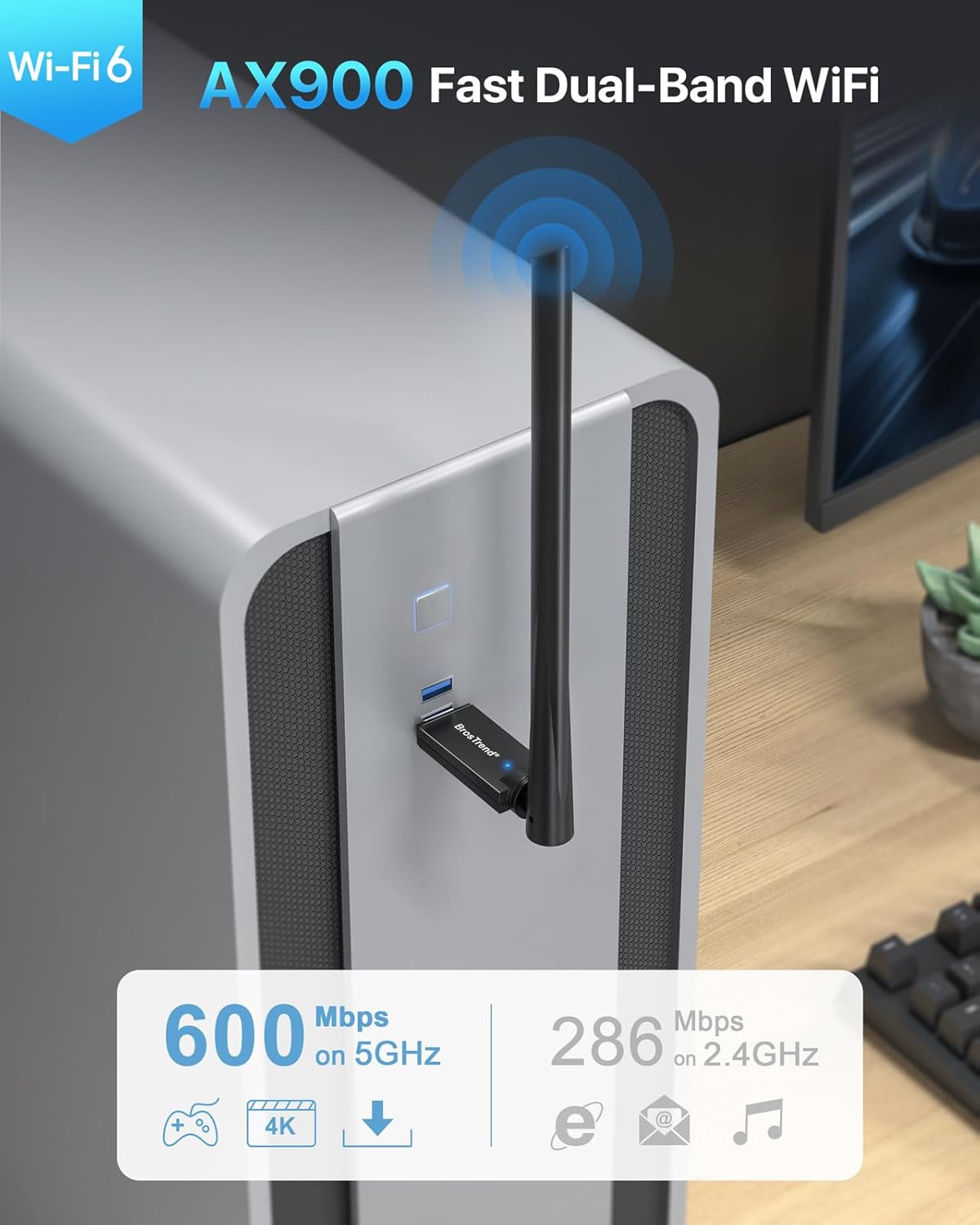
Figure 1: BrosTrend AX900 USB WiFi 6 Adapter
Karatteristiċi ewlenin:
- Dual-band WiFi 6: Supports 5GHz (up to 600Mbps) and 2.4GHz (up to 286Mbps) for flexible and fast connections.
- Antenna ta' Qligħ Għoli ta' 6dBi: Enhances signal reception and extends wireless range.
- Teknoloġiji Avvanzati: Incorporates OFDMA, MU-MIMO, and 1024-QAM for efficient and lag-free performance.
- Setup Mingħajr Tbatija: Pre-loaded drivers for Windows 11/10/7, eliminating the need for CD installation or downloads.
- Konnessjoni Sikura: Supports WPA2 encryption for enhanced network security.
2. Kontenut tal-Pakkett
Ivverifika li l-pakkett tiegħek fih l-oġġetti li ġejjin:
- 1 x BrosTrend AX900 USB WiFi 6 Adapter
- 1 x Gwida ta 'Installazzjoni Mgħaġġla
3. Gwida ta' Setup
Follow these steps to install and configure your BrosTrend AX900 USB WiFi 6 Adapter.
3.1. Qabbad l-Adapter
Insert the BrosTrend AX900 USB WiFi 6 adapter into an available USB port on your computer. For optimal performance, use a USB 3.0 port if available, although it is compatible with USB 2.0.

Figure 2: Connecting the USB WiFi 6 Adapter
3.2. Install the Driver
The driver software for Windows 11, Windows 10, and Windows 7 is pre-loaded in the USB WiFi 6 adapter. A CD-ROM reader is not needed. The latest driver is also available for download from the BrosTrend websit.
- After plugging in the adapter, an auto-play window may appear. If not, open 'This PC' or 'My Computer' and locate the 'WiFi 6 USB' drive.
- Double-click the 'Setup.exe' file to run the driver installation.
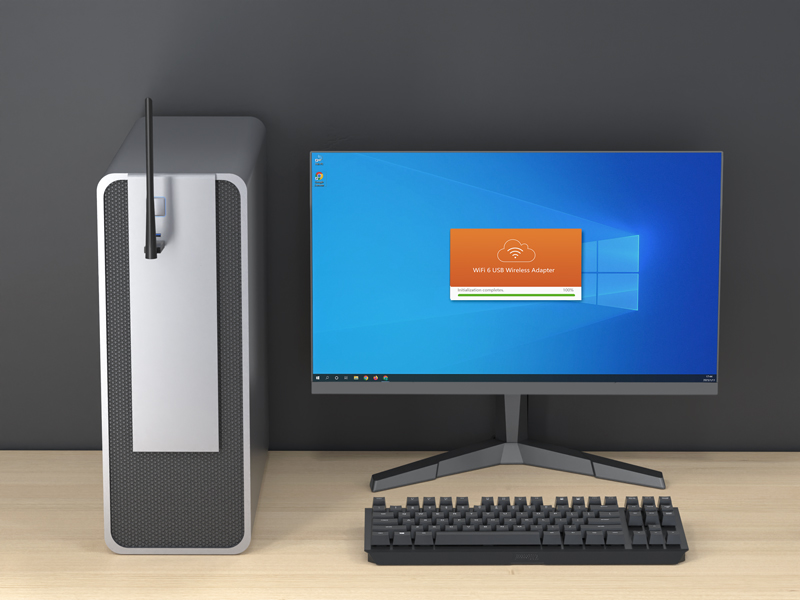
Figure 3: Running the Driver Setup
- Segwi l-istruzzjonijiet fuq l-iskrin biex tlesti l-installazzjoni.
- Once the driver is installed successfully, please restart your computer.
3.3. Join Your WiFi Network
After restarting your computer, it will be able to join a WiFi network using the BrosTrend AX900 adapter.
- Click the network icon on the taskbar (usually in the bottom-right corner).
- Select the WiFi network you want to join from the list and click Qabbad.
- Enter the WiFi password when prompted and click Li jmiss.
- After a short while, the network status will change to Konnessi.
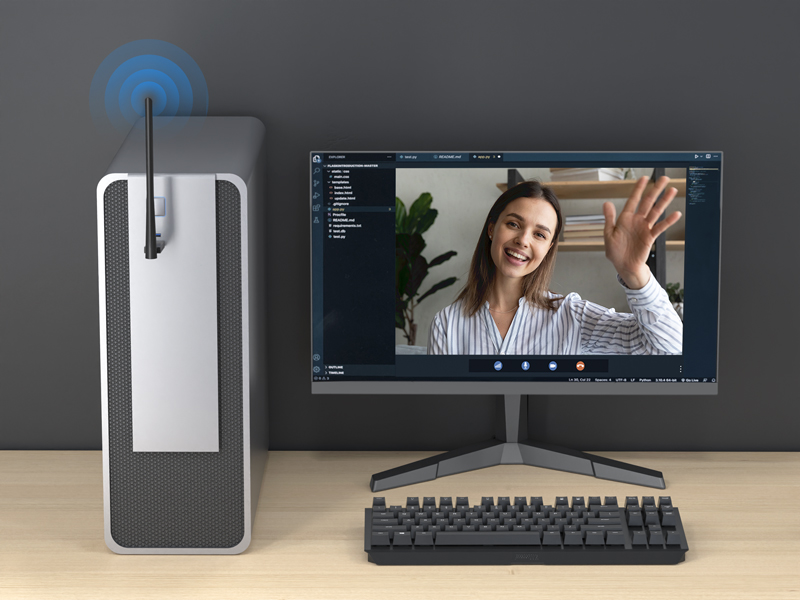
Figure 4: Successfully Connected to WiFi
3.4. Aġġustament tal-antenna
The 6dBi high-gain antenna can be adjusted to optimize signal reception. You can swivel it 180 degrees horizontally and 90 degrees vertically. Position the antenna towards your WiFi router for the best signal strength.
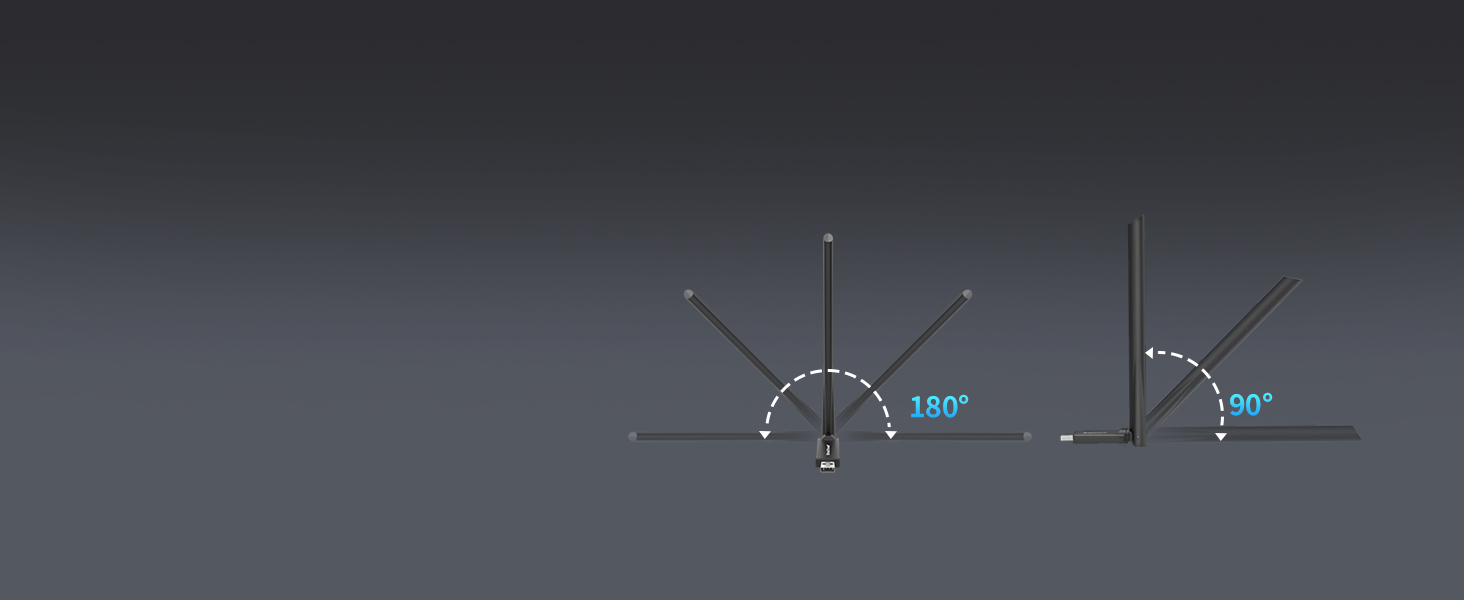
Figure 5: Adjustable Antenna for Enhanced Signal
3.5. Setup Videos
Video 1: Introducing AX900 WiFi 6 USB Adapter. This video provides an overview of the product's features and benefits.
Video 2: AX900 WiFi 6 USB Adapter Setup Guide. This video demonstrates the step-by-step installation process.
4. Istruzzjonijiet Operattivi
The BrosTrend AX900 adapter provides a seamless wireless experience with its advanced features.
4.1. Dual-Band Flexibility
The adapter operates on both 5GHz and 2.4GHz bands. The 5GHz band offers higher speeds (up to 600Mbps) and is ideal for bandwidth-intensive tasks like streaming 4K video and online gaming. The 2.4GHz band provides a wider range and is suitable for general internet browsing and everyday tasks (up to 286Mbps).

Figure 6: Dual-Band Speed Capabilities
4.2. Enhanced Performance with WiFi 6 Technologies
The AX900 utilizes advanced WiFi 6 (802.11ax) technologies to deliver a superior wireless experience:
- OFDMA (Aċċess Multiplu b'Diviżjoni tal-Frekwenza Ortogonali): Allows multiple devices to share a single channel, improving efficiency and reducing latency in busy networks.
- MU-MIMO (Utent Multiplu, Input Multiplu, Output Multiplu): Enables the router to communicate with multiple devices simultaneously, increasing network capacity and speed.
- 1024-QAM (Kwadratura Amplitude Modulation): Packs more data into each signal, leading to higher theoretical speeds.
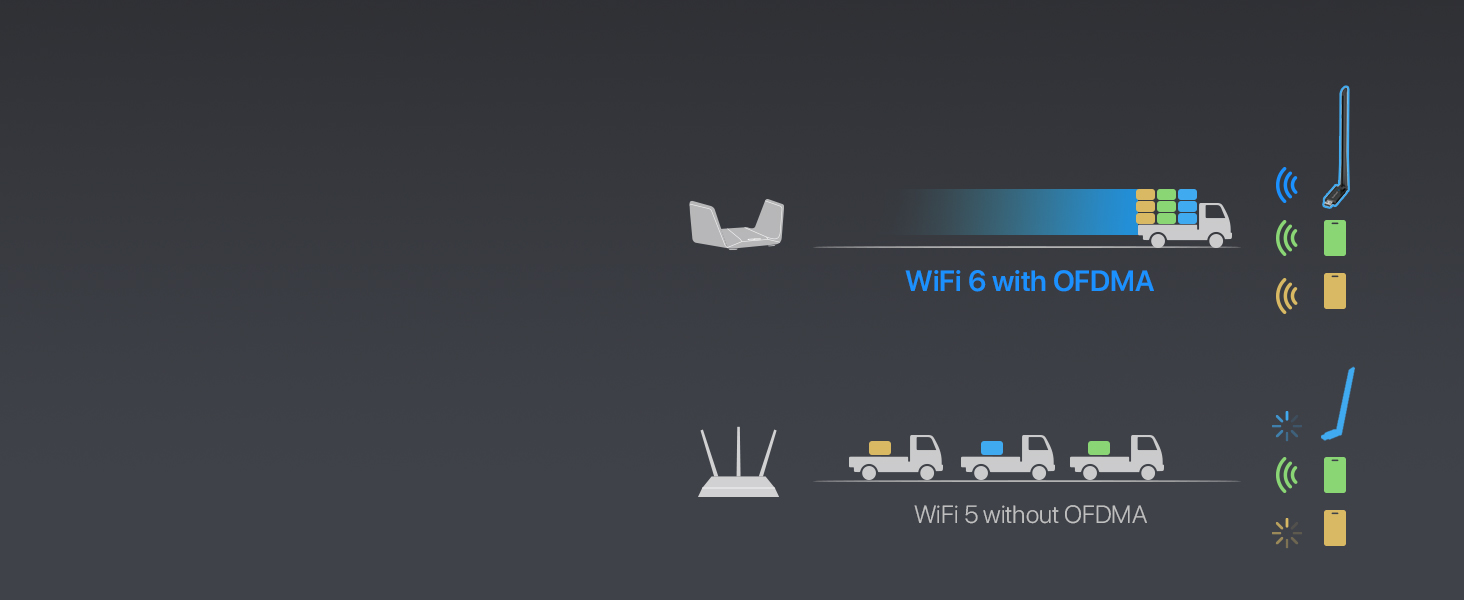
Figure 7: OFDMA for Simultaneous Data Transfer
4.3. Secure WiFi Connection
The adapter supports WPA2 encryption, ensuring your wireless connection is secure and protected from unauthorized access.

Figure 8: WPA2 Encryption Support
5. Manutenzjoni
To ensure the longevity and optimal performance of your BrosTrend AX900 USB WiFi 6 Adapter, consider the following maintenance tips:
- Żomm Sewwieqa Aġġornata: Periodically check the BrosTrend official websit għall-aħħar aġġornamenti tas-sewwieqa biex tiżgura kompatibilità u titjib fil-prestazzjoni.
- Poġġiment xieraq: Avoid placing the adapter in enclosed spaces or near obstructions that could block the signal or cause overheating.
- Naddaf bil-mod: If necessary, gently clean the adapter with a soft, dry cloth. Avoid using liquid cleaners or abrasive materials.
- Ipproteġi mill-Ħsara: Handle the adapter with care to prevent physical damage to the USB connector or antenna.
6 Issolvi l-problemi
If you encounter issues with your BrosTrend AX900 adapter, refer to the following common problems and solutions:
- L-ebda Konnessjoni WiFi:
- Kun żgur li l-adapter huwa mdaħħal sew fil-port USB.
- Verify that the driver was installed correctly and your computer was restarted.
- Check if your WiFi network is visible and you are entering the correct password.
- Veloċitajiet ta' Konnessjoni Baxxi:
- Ensure your router supports WiFi 6 (802.11ax) for peak performance.
- Adjust the adapter's antenna towards your router to improve signal strength.
- Minimize interference from other electronic devices or physical obstructions.
- Try connecting to the 5GHz band for higher speeds if your router supports it.
- Konnessjoni intermittenti:
- Iċċekkja għal sorsi potenzjali ta' interferenza (eż., microwaves, telefowns mingħajr fili).
- Ensure the adapter's drivers are up to date.
- Ipprova port USB differenti fuq il-kompjuter tiegħek.
7. Speċifikazzjonijiet
| Karatteristika | Deskrizzjoni |
|---|---|
| Brand | BrosTrend |
| Numru tal-Mudell | AX900 (3312821011) |
| Interface tal-Ħardwer | USB 2.0 (kompatibbli mal-USB 3.0) |
| Kulur | Iswed |
| Apparati Kompatibbli | PC, Computer, Desktop, Laptop |
| Dimensjonijiet tal-Prodott (L x W x H) | 2.99" x 0.83" x 8.15" |
| Protokoll tal-Kollegament tad-Data | IEEE802.11ax/ac/n/a 5 GHz, IEEE802.11ax/b/g/n 2.4GHz |
| Rata ta' Trasferiment tad-Data | Up to 900 Megabits Per Second (600Mbps on 5GHz, 286Mbps on 2.4GHz) |
| Piż tal-oġġett | 25.7 Gramm |
| Familja ta' Sistemi Operattivi Kompatibbli | Windows (11/10/7) |
8. Informazzjoni dwar Garanzija
BrosTrend offers a one-time replacement for accidental damage within one year of purchase for your AX900 WiFi 6 USB adapter. You can also register for a 2-Year Warranty to extend your coverage.
For more details on warranty terms and registration, please visit the official BrosTrend websit.
9. Appoġġ għall-Klijent
If you require any assistance or have questions regarding your BrosTrend AX900 USB WiFi 6 Adapter, please do not hesitate to contact our support team.
Appoġġ bl-Email: Please send an email to our support email address (not provided in data). We aim to reply to all inquiries within 24 hours.
For additional resources and FAQs, visit the official BrosTrend websit.