
Comfyer BM02
Comfyer Smart WiFi Baby Monitor User Manual
Mudell: BM02
Brand: Comfyer
1. Introduzzjoni
This manual provides detailed instructions for the setup, operation, and maintenance of your Comfyer Smart WiFi Baby Monitor. This device offers dual-mode surveillance, allowing for both local (Wi-Fi-free) monitoring via the parent unit and remote access through a mobile application. It features a 2K camera with 1080P split-screen viewing, HD night vision, two-way audio, motion and sound detection, and a long-lasting battery for comprehensive baby monitoring.
2. X'hemm fil-Kaxxa
Your Comfyer Smart WiFi Baby Monitor package includes the following components:
- 1 Unità tal-Ġenituri (Monitor)
- 1 Unità tat-trabi (Kamera)
- 2 Kejbils USB-C
- 2 Adapters tal-Enerġija
- 1 Immonta mal-ħajt
- 1 Install Screw Kit
- 1 Manwal għall-Utent

Image: All components included in the Comfyer Smart WiFi Baby Monitor package.
3. Istruzzjonijiet ta' Setup
3.1 Qawwa Inizjali
- Connect the Baby Unit (camera) to a power source using one of the provided power adapters and USB-C cables.
- Connect the Parent Unit (monitor) to a power source using the other power adapter and USB-C cable. The monitor has a built-in 5050mAh battery for portable use after initial charging.
- Allow both units to power on and establish a connection. The monitor will automatically display the camera feed.
3.2 Konnessjoni mal-App Mobbli
To utilize remote monitoring features and app-specific functions, connect your baby monitor to the mobile application:
- Download the corresponding Comfyer app to your mobile phone. Scan the QR code provided in the user manual or search for 'Comfyer' in your app store.
- Irreġistra u illoggja fl-app.
- In the app, select 'Add BM02 Baby Monitor'. Follow the on-screen instructions, which will guide you to a QR code page.
- Long press the camera reset button (located next to the Type-C interface on the camera). Ensure the camera is plugged in. You will hear a crisp ringtone indicating a successful reset.
- After the reset, hold your phone with the QR code displayed at the same level as the camera, approximately 15-20cm away. A 'di~' sound confirms the QR code has been recognized. The connection should complete within approximately 1 minute.
Nota Importanti:
- The product only connects to 2.4GHz WiFi networks. It is not compatible with 5GHz WiFi.
- The display screen (Parent Unit) does not have a storage card slot. Only the camera unit supports Micro SD card recording (up to 128GB, not included).
- Motion alerts function is available only through the mobile APP control interface, not on the display screen.

Image: Guide for connecting the baby monitor to the mobile application.
3.3 Metodi ta 'Installazzjoni
The Comfyer Baby Monitor offers versatile installation options:
- Poġġiment fuq il-mejda: Place the camera on a flat, stable surface such as a dresser or nightstand for easy portability and quick setup.
- Muntaġġ tal-ħajt: Use the included wall mount and screw kit to secure the camera to a wall for an elevated perspective, ensuring a clear view of the baby's area.

Immaġni: Eżamples of tabletop and wall-mounted camera installations.
4. Istruzzjonijiet Operattivi
4.1 Dual-Mode Monitoring
The monitor supports two primary modes of operation:
- Local Monitoring (Wi-Fi-free): The Parent Unit directly connects to the Baby Unit, providing real-time video and audio without needing a Wi-Fi connection. This mode is ideal for in-home use.
- Remote App Access (Wi-Fi): Once connected to your home Wi-Fi network via the app, you can monitor your baby from anywhere using your smartphone.

Image: Illustration of local monitor viewing and remote app viewing.
4.2 Pan, Tilt, u Zoom
Ikkontrolla l-kamera view directly from the Parent Unit or the mobile app:
- Ħobż: Dawwar il-kamera orizzontalment sa 355°.
- Mejjel: Aġġusta l-kamera vertikalment sa 67°.
- Zoom: Utilize the 2x/4x digital zoom feature to get a closer look at your baby.
The camera also supports automatic tracking, which can follow your baby's movements within the room.

Image: Automatic tracking feature demonstrating the camera's pan and tilt capabilities.
4.3 Diskussjoni f'żewġ direzzjonijiet
Communicate with your baby or other caregivers in the room using the two-way intercom function. This feature is accessible from both the Parent Unit and the mobile app.

Image: Demonstrating the two-way talk feature between parent and baby.
4.4 Viżjoni bil-lejl
The camera automatically switches to HD night vision in low-light conditions, providing clear monochrome visuals for monitoring your baby during the night.

Image: Clear night vision display of a sleeping baby.
4.5 Sound and Motion Detection
Receive intelligent wake-up notifications when your baby stirs or makes sounds. Sensitivity levels can be adjusted in the app to customize alerts. The mobile app provides real-time alerts for movement and noise detection.

Image: Smart caring features including movement detection, noise detection, and real-time alerts.
4.6 Lullabies and Temperature Sensor
Soothe your baby with gentle lullabies played directly from the camera. The monitor also displays the room temperature, helping you ensure an ideal comfort level for your baby.
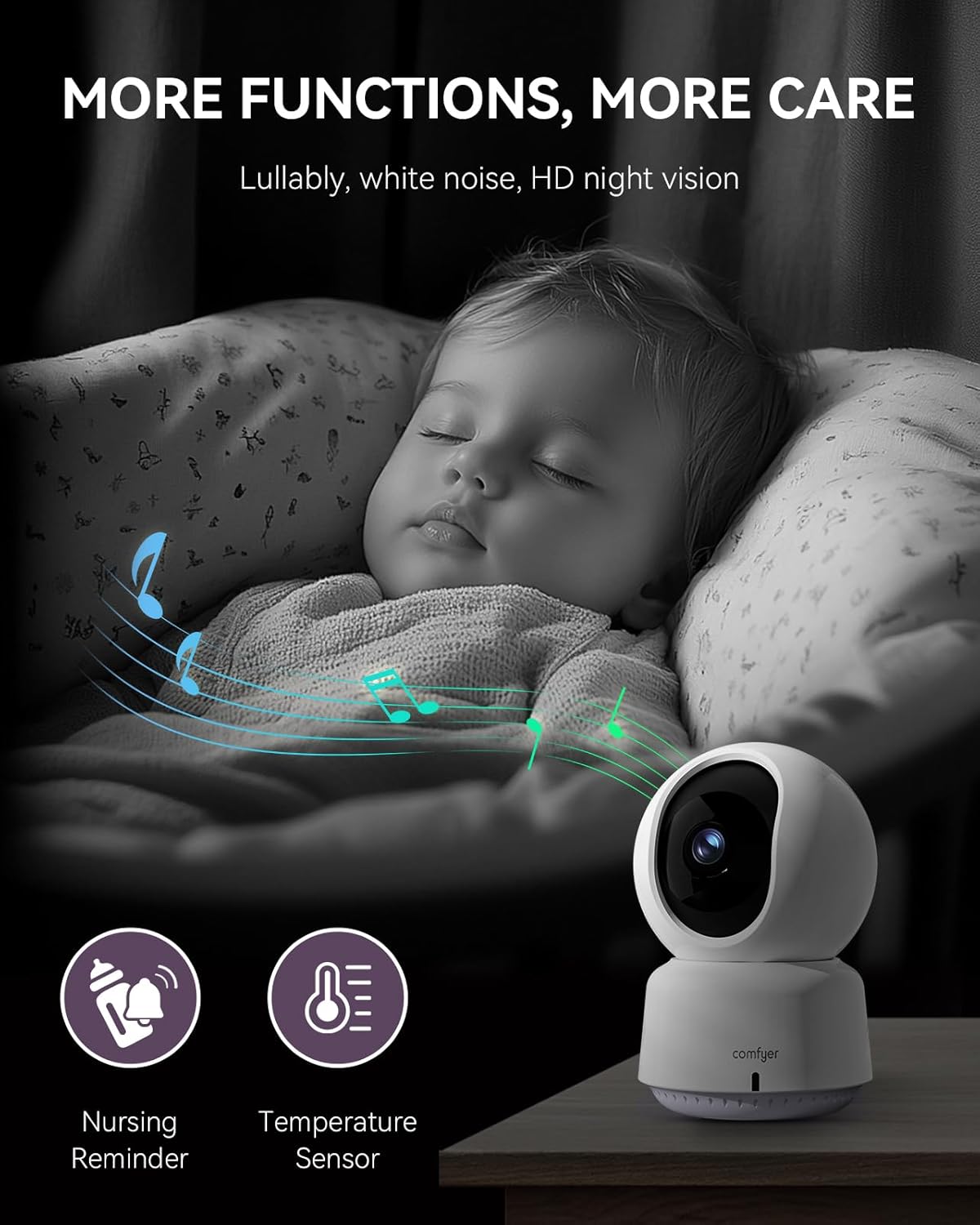
Image: Features like lullabies and temperature monitoring for baby's comfort.
4.7 Skrin Maqsum Viewing and Multi-Camera Support
The 1080P split-screen viewing allows you to monitor multiple areas simultaneously. The system supports connecting up to 4 cameras (additional cameras sold separately) for comprehensive surveillance of different rooms or angles.

Image: Monitor displaying feeds from up to four connected cameras.
4.8 Reġistrazzjoni Lokali
The camera unit supports local recording to a Micro SD card (up to 128GB, not included). This allows for continuous 24/7 surveillance or intelligent motion-detected recording. To access the SD card slot, gently slide the black lens upwards.

Image: Location of the SD card slot for local recording.
4.9 Modalità VOX (Skambju Operat bil-Vuċi)
Enable VOX mode to conserve battery life and minimize distractions. In this mode, the monitor screen will only light up in response to your baby's noises, ensuring uninterrupted rest for parents.

Image: VOX mode for prioritizing parent's sleep.
5. Manutenzjoni
To ensure the longevity and optimal performance of your Comfyer Smart WiFi Baby Monitor, follow these maintenance guidelines:
- Tindif: Use a soft, dry cloth to clean the surfaces of the Parent Unit and Baby Unit. Do not use abrasive cleaners or solvents.
- Kura tal-Lenti: Gently wipe the camera lens with a microfiber cloth to remove dust or smudges. Avoid touching the lens directly with your fingers.
- Ħażna: Meta ma tkunx qed tużah għal perjodi twal, aħżen il-monitor u l-kamera f'post frisk u niexef, 'il bogħod mix-xemx diretta u minn temperaturi estremi.
- Kura tal-batterija: For the Parent Unit's built-in battery, avoid fully discharging it frequently. Charge it regularly to maintain battery health.
6 Issolvi l-problemi
If you encounter issues with your Comfyer Smart WiFi Baby Monitor, refer to the following common questions and solutions:
- Q: Where can I find the SD card slot?
- A: The SD card slot is positioned just below the camera lens. To access it, simply slide the black lens upwards gently. Note: The display screen does not have a card slot.
- Q: Is the connection method of BM02 Wi-Fi or Bluetooth?
- A: The BM02 supports 2.4GHz WiFi connectivity. It cannot connect to 5GHz WiFi. Ensure your WiFi network is 2.4GHz before attempting to connect.
- Q: Does our product have motion alerts function?
- A: Yes, the mobile APP control interface has the motion alerts function. The display screen (Parent Unit) does not have this function.
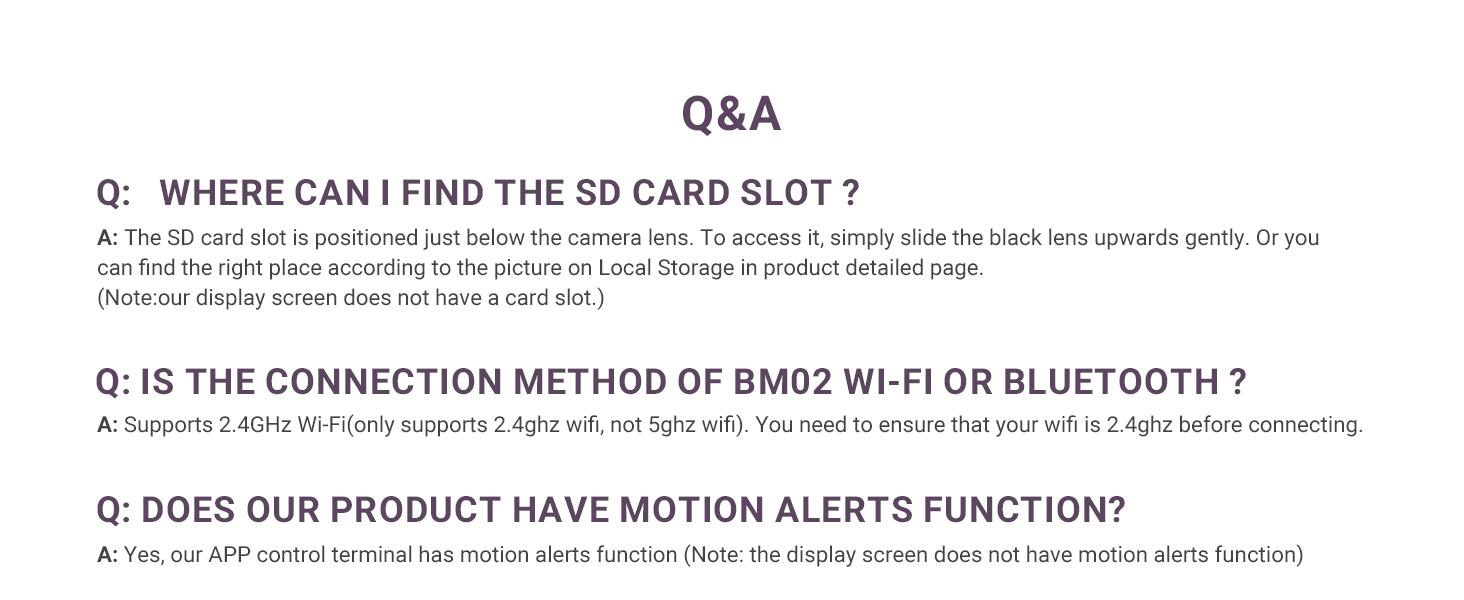
Image: Common questions and answers for troubleshooting.
7. Speċifikazzjonijiet
| Karatteristika | Speċifikazzjoni |
|---|---|
| Isem tal-Mudell | BM02 |
| Brand | Comfyer |
| Teknoloġija tal-Konnettività | WiFi, Wireless (2.4GHz only) |
| Riżoluzzjoni tal-Qbid tal-Vidjo | 2K (Camera), 1080P (Monitor) |
| ViewIng Angolu | 355 Grad (Pan), 67 Grad (Tilt) |
| Zoom ottiku | 4x |
| Medda tal-Viżjoni Lejl | 5 Meters |
| Sors tal-Enerġija | Baby Monitor (Battery-powered), Baby Camera (Corded Electric) |
| Battery Capacity (Monitor) | 5050mAh |
| Battery Life (Display On) | 7-12 Sigħat |
| Battery Life (Display Off/Standby) | Sa 7 Jum |
| Ħażna | Karta Mikro SD (sa 128GB, mhux inkluża) |
| Awdjo Two-Way | Iva |
| Sejbien tal-Moviment | Yes (App control only) |
| Sejbien tal-Ħoss | Iva |
| Sensor tat-Temperatura | Iva |
| Lullabies | Iva |
| Dimensjonijiet (L x W x H) | 10 x 2 x 2.7 pulzieri |
| Piż tal-oġġett | 14.1 uqija (400 Grammi) |
8. Garanzija u Appoġġ
Comfyer is committed to providing high-quality products and customer satisfaction. For warranty information, technical support, or any inquiries regarding your Smart WiFi Baby Monitor, please refer to the contact information provided in your product packaging or visit the official Comfyer websit.
Tista 'wkoll iżżur il- Comfyer Store on Amazon għal aktar informazzjoni dwar il-prodott u riżorsi ta' appoġġ.
Ask a question about this manual
Ask about setup, troubleshooting, compatibility, parts, safety, or missing instructions. Manuals+ will review the question and use this page’s manual context to help answer it.