
1. Introduzzjoni
This manual provides detailed instructions for the setup, operation, maintenance, and troubleshooting of your ACASIS DS-0202 14-in-1 USB C Docking Station. Please read this manual thoroughly before using the product to ensure optimal performance and longevity.

Image 1.1: The ACASIS DS-0202 14-in-1 USB C Docking Station, showcasing its compact design and multiple connectivity options including USB-C, USB-A, HDMI, DisplayPort, Ethernet, and card readers.
2. Karatteristiċi ewlenin
- Konnettività 14 f'1: Expands a single USB-C/Thunderbolt 3/4 port into 14 ports, including 2 HDMI, 1 DisplayPort, 3 USB-C 3.1 (10Gbps), 2 USB-A 3.1 (10Gbps), 1 USB 2.0, SD/TF card reader, 1Gbps Ethernet, 3.5mm audio, and 100W Power Delivery.
- Appoġġ għal Wirja Tripla: Supports single 4K@60Hz display and triple 4K@30Hz displays (under DP1.4). Windows systems support both MST (Multi-Stream Transport) and SST (Single-Stream Transport) for mirror and extend modes. macOS systems do not support MST.
- Trasferiment tad-Dejta b'Veloċità Għolja: Features 3 USB-C 3.1 and 2 USB-A 3.1 ports, all offering 10Gbps data transfer speeds for rapid file trasferimenti.
- Kunsinna tal-Enerġija 100W: Provides up to 100W Power Delivery through the dedicated USB-C port to charge compatible laptops, tablets, and phones.
- Gigabit-Ethernet: Integrated 1000Mbps Ethernet port ensures stable and fast wired network connectivity.
- Konnettività Awdjo: Includes a 3.5mm audio and microphone port for headset connection.
- Qarrejja tal-Kards SD/TF: Built-in SD and TF card slots for convenient data access.
3. Tqassim tal-Port
Familiarize yourself with the various ports on the ACASIS DS-0202 docking station:

Immaġni 3.1: Dettaljata view of the docking station's ports, including RJ45 (Ethernet), DisplayPort, HDMI 1, HDMI 2, USB 2.0, USB-A 3.1, PD 3.0 (Max 100W), 3.5mm Audio, and three USB-C 3.1, two USB-A 3.1, SD/TF 3.0 ports.
- Front/Side Ports:
- 3 x USB-C 3.1 (10Gbps)
- 2 x USB-A 3.1 (10Gbps)
- 1 x SD Card Reader (SD 3.0)
- 1 x TF Card Reader (TF 3.0)
- Portijiet ta' wara:
- 1 x RJ45 Gigabit Ethernet (1000Mbps)
- 1 x DisplayPort (4K@60Hz)
- 2 x HDMI 2.0 (4K@60Hz)
- 1 x USB 2.0 (480Mbps)
- 1 x USB-A 3.1 (10Gbps)
- 1 x USB-C PD 3.0 (Max 100W input)
- 1 x 3.5mm Audio & Mic In
4. Istruzzjonijiet ta' Setup
Before connecting the docking station, ensure your laptop's USB-C port supports Power Delivery, DisplayPort Alt Mode, and Data Transfer. Refer to your laptop's specifications or manufacturer for details.

Image 4.1: USB-C port compatibility check. Ensure your laptop's USB-C port supports Thunderbolt 3/4 or USB-C with Power Delivery, DisplayPort Alt Mode, and Data Transfer for full functionality.
- Qabbad l-Adapter tal-Enerġija (Mhux obbligatorju iżda rakkomandat): If you wish to charge your laptop via the docking station, connect your laptop's USB-C power adapter (up to 100W) to the "PD 100W" USB-C port on the docking station.
- Qabbad mal-Laptop: Connect the integrated USB-C cable from the docking station to a compatible USB-C/Thunderbolt 3/4 port on your laptop.
- Qabbad Displays Esterni:
- For single or dual monitors: Connect your monitors using HDMI cables to the HDMI 1 and HDMI 2 ports, or a DisplayPort cable to the DP port.
- For triple monitors: Connect your monitors to the HDMI 1, HDMI 2, and DP ports.
Note: Ensure your display cables are securely connected.
- Ikkonnettja l-Periferali: Connect your USB devices (keyboard, mouse, external drives, etc.) to the available USB-A and USB-C data ports.
- Qabbad l-Ethernet (Mhux obbligatorju): For a wired network connection, connect an Ethernet cable from your router/modem to the RJ45 port on the docking station.
- Connect Audio Devices (Optional): Ipplaggja l-headphones jew l-ispikers tiegħek fil-jack tal-awdjo ta' 3.5mm.
The docking station is plug-and-play and should be automatically recognized by your operating system. You may need to configure display settings manually.
5. Istruzzjonijiet Operattivi
5.1 Display Configuration (Windows)
Windows operating systems support both Mirror Mode (SST) and Extend Mode (MST) for multiple displays. You can configure these settings via your display settings.

Image 5.1: Triple display setup examples for Windows, illustrating Mirror Mode (A-BBB) and Extend Mode (A-BCD, A-BC, A-BD) with various monitor arrangements and resolutions.
- Mirror Mode (SST): All connected displays show the same content as your laptop screen.
- Extend Mode (MST): Each connected display can show different content, extending your desktop across multiple screens.
- Riżoluzzjoni: Supports up to 4K@60Hz for a single display and 4K@30Hz for triple displays (under DP1.4).
To adjust display settings in Windows:
- Right-click on your desktop and select "Display settings".
- Identify and arrange your displays.
- Select the desired display mode (Extend these displays, Duplicate these displays).
- Adjust resolution and orientation as needed.
5.2 Display Configuration (macOS)
macOS systems do not support Multi-Stream Transport (MST). Therefore, when multiple external monitors are connected, they will either mirror each other or extend the laptop display, but cannot extend independently to three unique displays.

Image 5.2: Triple display setup examples for macOS, illustrating Mirror Mode (A-AAA) where all displays show the same content, and Extend Mode (A-BBB) where external displays mirror each other while extending the laptop screen.
- Modalità mera: All connected displays show the same content as your MacBook screen.
- Modalità Estendi: The external displays will mirror each other, extending your desktop from the MacBook screen. You cannot have three independent extended displays.
- Riżoluzzjoni: Supports up to 4K@30Hz for triple displays.
To adjust display settings in macOS:
- Go to "System Settings" (or "System Preferences" on older macOS versions).
- Select "Displays".
- Arrange your displays and select the desired mode (Mirror Displays or Use as separate display).
5.3 Trasferiment tad-Data
The docking station features 3 USB-C 3.1 and 2 USB-A 3.1 ports, all capable of 10Gbps data transfer. Connect your high-speed storage devices to these ports for optimal performance.

Image 5.3: The docking station's 10Gbps USB-C and USB-A ports enable ultra-fast data transfer for large files and high-bandwidth peripherals.
5.4 Twassil tal-Enerġija
The dedicated USB-C PD port supports up to 100W power input. Connect your laptop's power adapter to this port to charge your laptop while using the docking station.

Image 5.4: The 100W Power Delivery port allows for fast charging of your laptop while connected to the docking station, with an example showing 100W input and 85W output to the laptop.
5.5 Gigabit Ethernet
The RJ45 port provides a stable and fast 1000Mbps (1 Gigabit) Ethernet connection. This is ideal for reliable internet access and large file transfers over a local network.

Image 5.5: The Gigabit Ethernet port provides a fast and stable wired network connection, supporting speeds up to 1000Mbps.
5.6 SD/TF Card Readers
Insert your SD or TF (Micro SD) cards into the respective slots for quick access to photos and other data. Both slots can be used simultaneously.
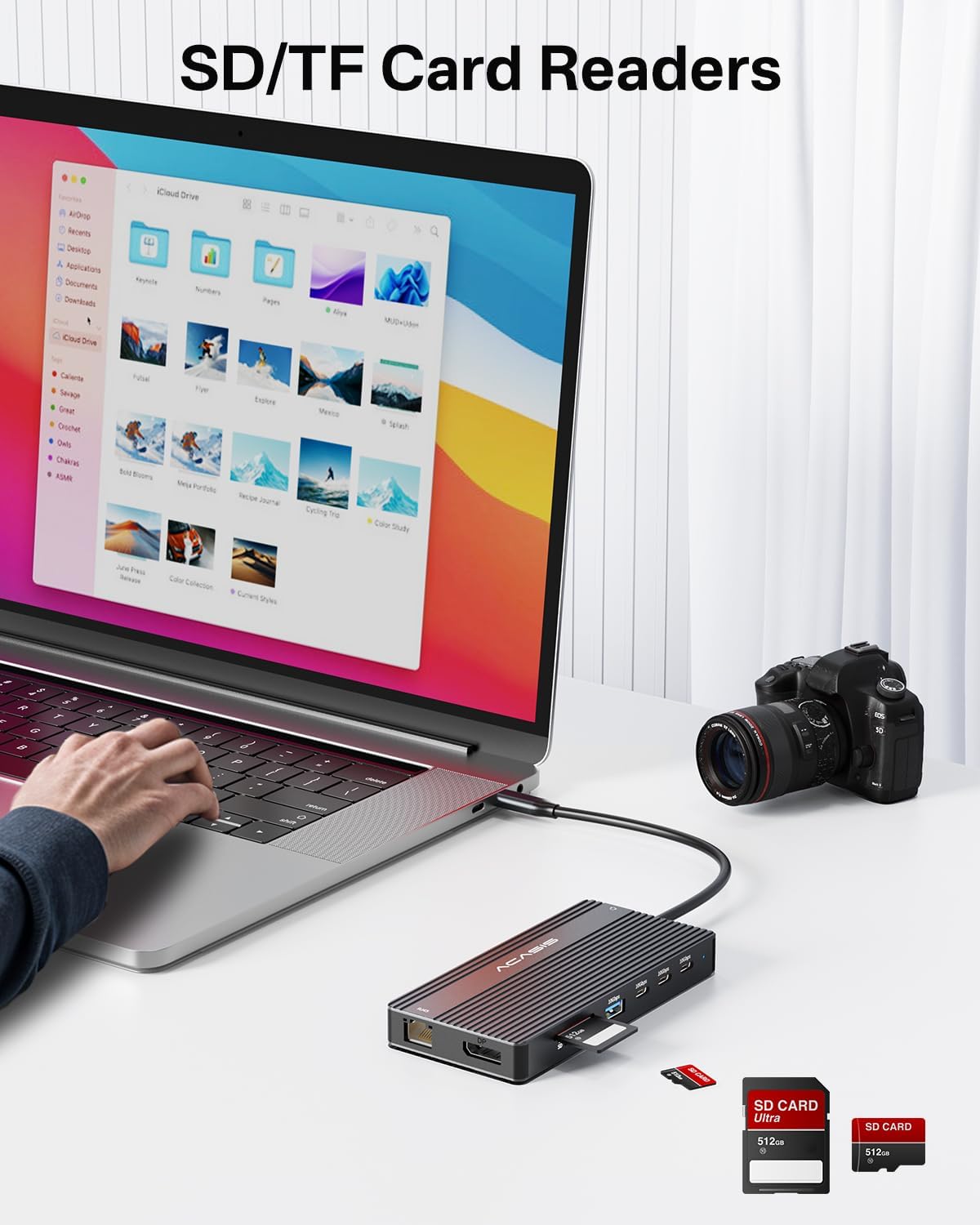
Image 5.6: The integrated SD and TF card readers allow for convenient and fast access to memory card data, useful for photographers and content creators.
6. Manutenzjoni
- Tindif: Use a soft, dry cloth to clean the surface of the docking station. Avoid liquid cleaners or abrasive materials.
- Ħażna: Aħżen l-istazzjon tad-docking f'post frisk u niexef 'il bogħod mix-xemx diretta u minn temperaturi estremi.
- Immaniġġjar: Avoid dropping or subjecting the device to strong impacts. Do not bend the integrated USB-C cable excessively.
- Ventilazzjoni: Ensure the docking station has adequate ventilation to prevent overheating, especially during prolonged use with multiple connected devices.
7 Issolvi l-problemi
| Problema | Kawża Possibbli | Soluzzjoni |
|---|---|---|
| No display output / Flickering screen |
|
|
| Il-laptop mhux qed jiċċarġja |
|
|
| USB devices not recognized / Slow data transfer |
|
|
| Ethernet connection unstable or not working |
|
|
8. Speċifikazzjonijiet
| Karatteristika | Dettall |
|---|---|
| Numru tal-Mudell | DS-0202 |
| Brand | AKAŻI |
| Konnettività | USB-C (Konnessjoni tal-Ospitanti) |
| Output tal-vidjo | 2 x HDMI 2.0 (4K@60Hz), 1 x DisplayPort (4K@60Hz) |
| Portijiet tad-Dejta USB | 3 x USB-C 3.1 (10Gbps), 2 x USB-A 3.1 (10Gbps), 1 x USB 2.0 (480Mbps) |
| Ethernet | 1 x RJ45 Gigabit Ethernet (1000Mbps) |
| Qarrej tal-Kard | SD 3.0, TF 3.0 (simultaneous use) |
| Awdjo | 1 x 3.5mm Audio & Mic In |
| Kunsinna tal-Enerġija | USB-C PD 3.0, up to 100W input |
| Apparati Kompatibbli | Laptops with full-featured USB-C/Thunderbolt 3/4 ports (Dell, HP, Lenovo, ThinkPad, Surface, MacBook, etc.) |
| Sistemi Operattivi | Windows, macOS, Linux, iPadOS |
| Dimensjonijiet tal-Prodott | 1 x 1 x 1 pulzieri (approssimattiv) |
| Piż tal-oġġett | 5 uqija (approssimattiv) |
| Kulur | Iswed |
9. Informazzjoni dwar Garanzija
ACASIS products typically come with a standard manufacturer's warranty. For specific warranty terms and conditions, please refer to the warranty card included with your product or visit the official ACASIS websit. Żomm l-irċevuta tax-xiri tiegħek bħala prova tax-xiri għal talbiet ta' garanzija.
Protection plans are also available for purchase separately:
- Pjan ta' Protezzjoni ta' Sentejn
- Pjan ta' Protezzjoni ta' Sentejn
- Complete Protect (pjan ta' kull xahar)
These plans offer extended coverage beyond the standard manufacturer's warranty.
10. Appoġġ għall-Klijent
If you encounter any issues or have questions regarding your ACASIS DS-0202 14-in-1 USB C Docking Station, please contact ACASIS customer support through the following channels:
- Uffiċjali Websit: Żur il- ACASIS Store on Amazon għal informazzjoni dwar il-prodott u riżorsi ta' appoġġ.
- Appoġġ bl-Email: Refer to your product packaging or the ACASIS websit għall-aktar indirizz elettroniku ta' appoġġ riċenti.
- Formola ta' Kuntatt onlajn: Many manufacturers provide a contact form on their websit għall-assistenza teknika.
When contacting support, please have your product model number (DS-0202) and purchase details ready.