
1. Prodott Aktarview u Karatteristiċi
The ACASIS DS-0801GY is an 8-in-1 multifunctional USB-C docking station designed to expand your laptop's connectivity and enhance productivity. It provides a comprehensive solution for connecting multiple displays, peripherals, and power delivery through a single USB-C port.
Karatteristiċi ewlenin:
- Konnettività 8 f'1: Integrates dual HDMI, one VGA port, 100W Power Delivery (PD), one 5Gbps USB-C port, two 5Gbps USB-A ports, and a 3.5mm audio jack.
- Appoġġ għal Monitor Doppju/Triplu: Supports up to 4K resolution for dual monitors or 1080P for triple monitors via HDMI and VGA ports. Note that connecting a VGA port will limit all connected monitors to 1080P resolution.
- Kunsinna tal-Enerġija 100W: Features a USB-C power port with 100W input and 85W output to efficiently charge your laptop while using the docking station.
- Trasferiment tad-Dejta b'Veloċità Għolja: Equipped with 5Gbps USB-C and USB-A ports for rapid data transfer with external devices like hard drives, flash drives, and other peripherals.
- Kompatibilità Wiesgħa: Compatible with a broad range of USB-C laptops, including models from Dell, HP, Lenovo ThinkPad, Surface, and Samsung Galaxy. macOS supports Mirror Mode only for external displays.
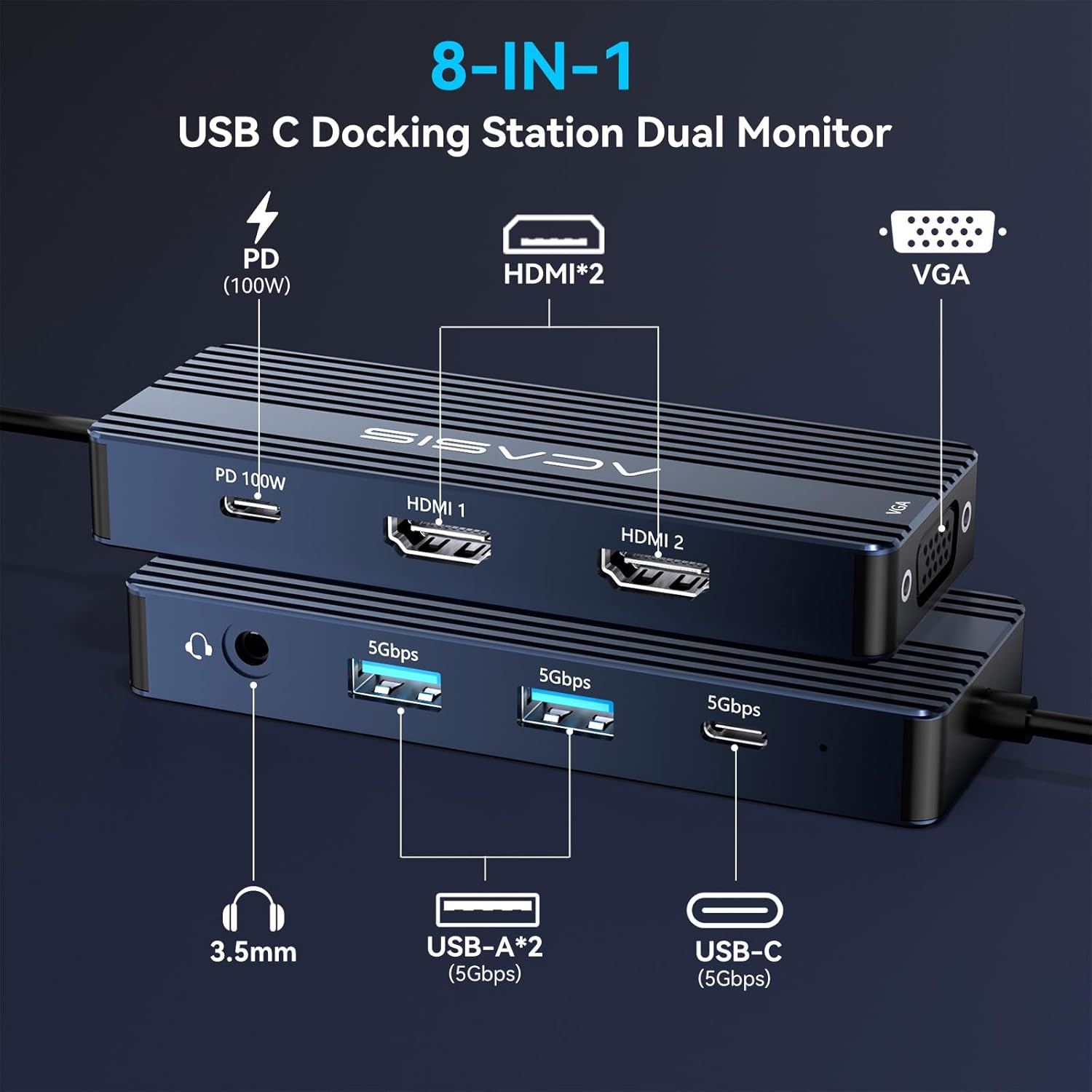
Immaġni: Fuqview of the ACASIS DS-0801GY 8-in-1 USB-C Docking Station with all ports clearly labeled, including PD 100W, HDMI 1, HDMI 2, VGA, 3.5mm Audio, two 5Gbps USB-A, and one 5Gbps USB-C port.
2. Kontenut tal-Pakkett
Malli tiftaħ il-pakkett, għandek issib l-oġġetti li ġejjin:
- ACASIS DS-0801GY USB-C 8-in-1 Docking Station
- Manwal għall-Utent
3. Istruzzjonijiet ta' Setup
3.1. Display Setup (Windows)
To connect and configure multiple monitors with your Windows laptop:
- Connect the docking station's integrated USB-C cable to your laptop's USB-C port.
- Connect your monitors to the docking station using HDMI and/or VGA cables.
- Ensure your monitors are powered on and set to the correct input source (HDMI or VGA).
- On your Windows desktop, right-click and select "Display settings".
- In the Display settings, you can arrange your displays, set their resolution, and choose between "Duplicate these displays" (Mirror Mode) or "Extend these displays" (Extended Mode). Windows OS supports Multi-Stream Transport (MST) for up to three independent displays.

Image: A laptop connected to three external monitors, demonstrating the multi-display capability of the docking station for enhanced workspace.
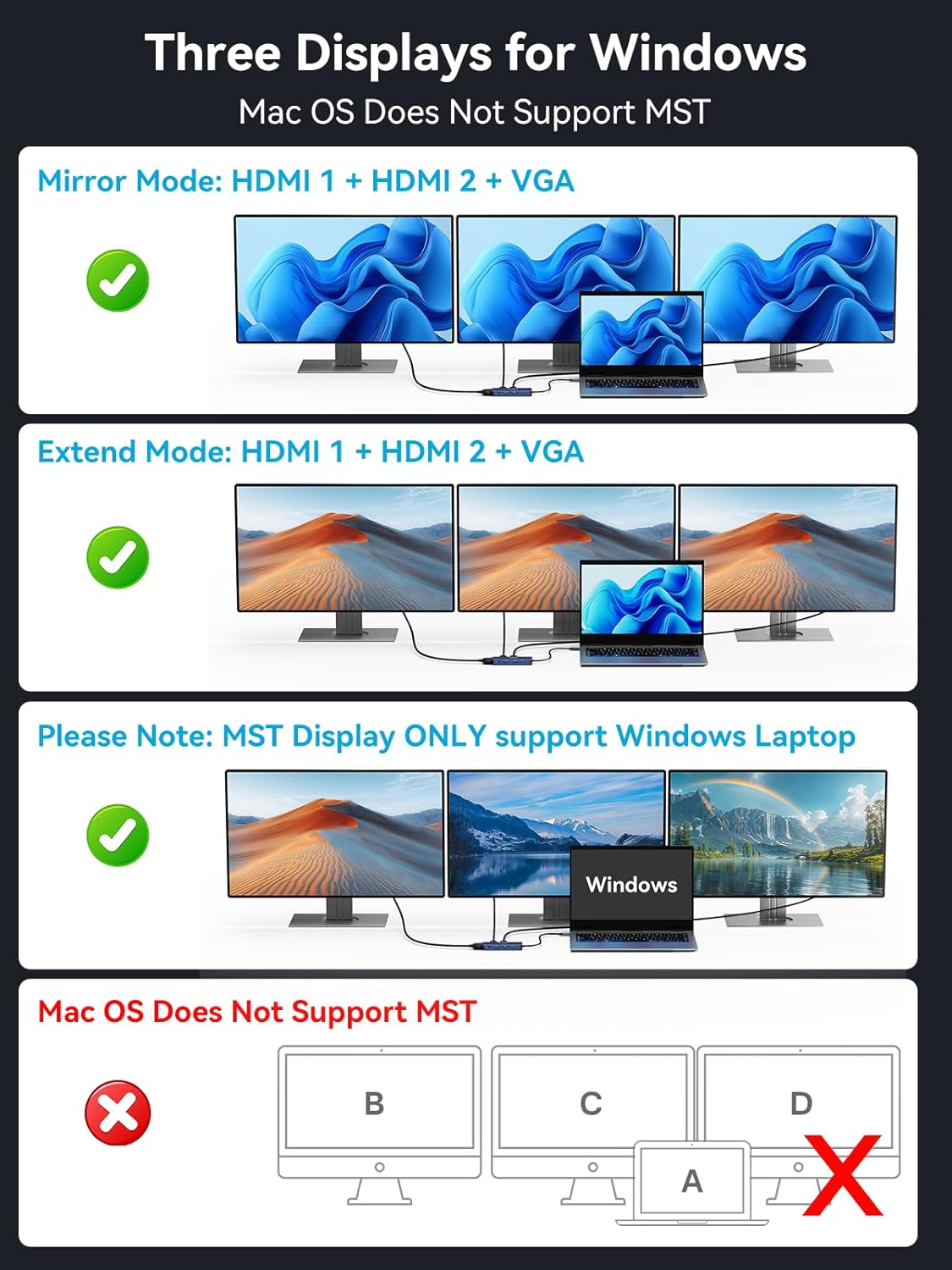
Image: A visual guide illustrating how Windows laptops can utilize the docking station for both Mirror Mode (displaying the same content on all screens) and Extend Mode (extending the desktop across multiple screens).
Video: An official ACASIS video demonstrating the setup and functionality of the USB-C docking station with three monitors, showcasing its multi-display capabilities.
3.2. Display Setup (macOS)
For macOS users, the docking station supports Mirror Mode for external displays. Extended Mode (MST) is not supported on macOS.
- Connect the docking station's integrated USB-C cable to your MacBook's USB-C port.
- Connect your monitors to the docking station using HDMI and/or VGA cables.
- Kun żgur li l-moniters tiegħek huma mixgħula u ssettjati għas-sors tad-dħul korrett.
- Go to "System Settings" > "Displays" to configure your external monitors. You can arrange displays and set them to Mirror Mode.
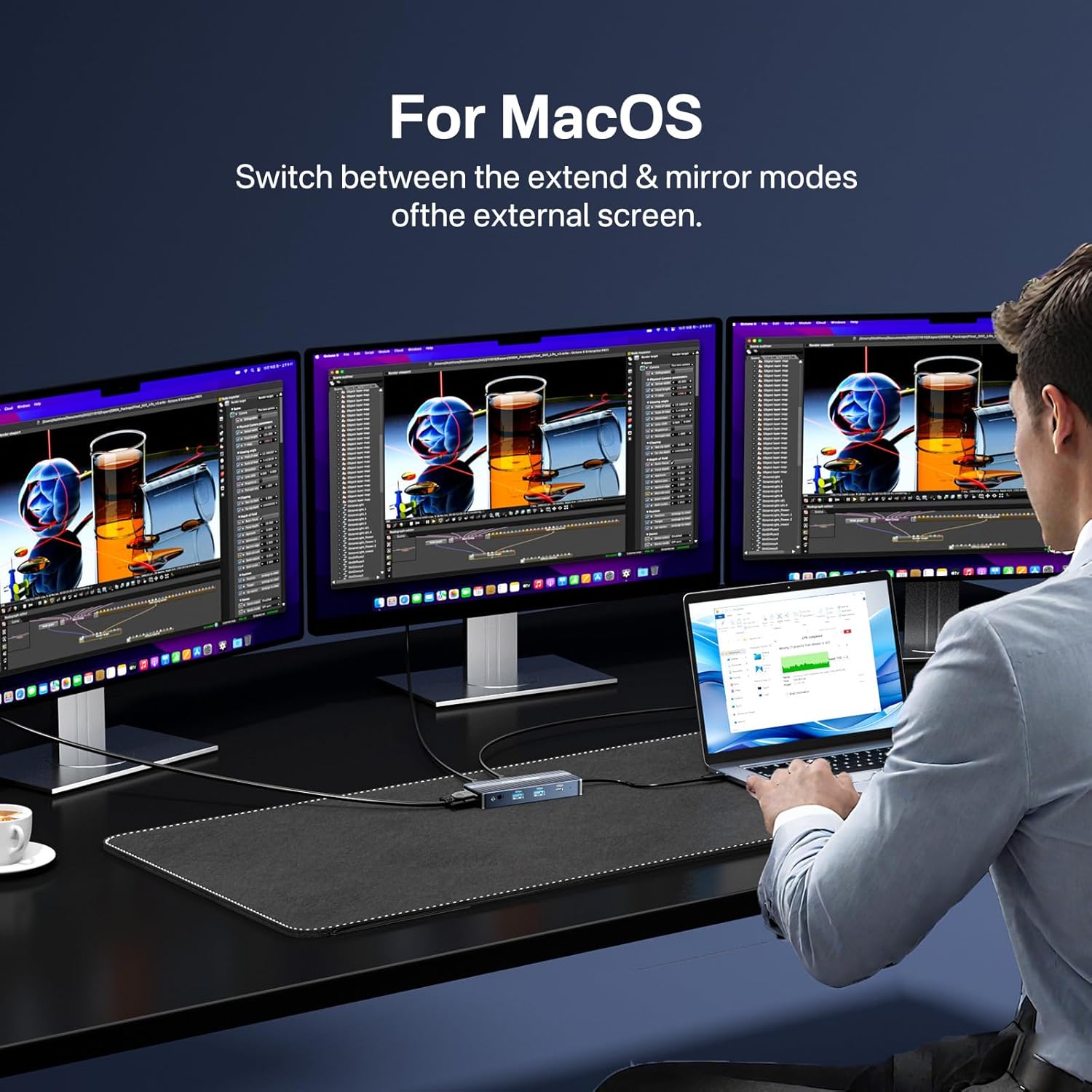
Image: A visual representation of how macOS handles external displays with the docking station, primarily supporting Mirror Mode where all screens show identical content.
3.3. Kunsinna tal-Enerġija
To power your laptop through the docking station:
- Connect a compatible USB-C Power Delivery (PD) charger (not included) to the "PD 100W" port on the docking station.
- The docking station will then deliver up to 85W of power to your connected laptop.
- Ensure your laptop's USB-C port supports Power Delivery for this function to work.
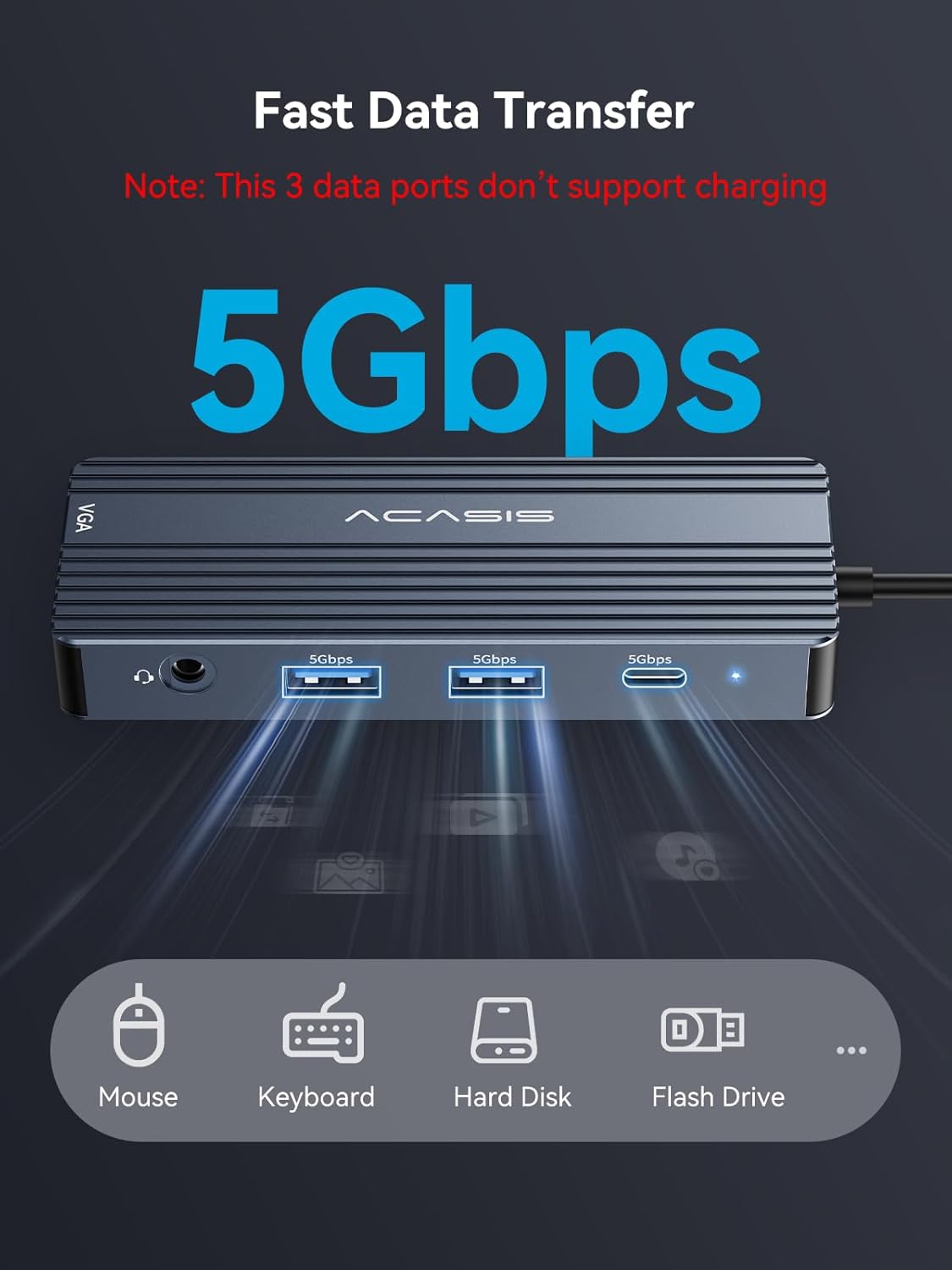
Image: A diagram explaining the power delivery function, showing 100W input to the docking station and 85W output to the connected laptop for efficient charging.
3.4. Konnessjoni Periferali
Connect your USB devices and audio peripherals:
- Plug your USB-A devices (e.g., mouse, keyboard, flash drive) into the two 5Gbps USB-A ports.
- Connect USB-C devices (e.g., external hard drive) to the 5Gbps USB-C port.
- For audio, plug your headphones or microphone into the 3.5mm audio/mic jack.
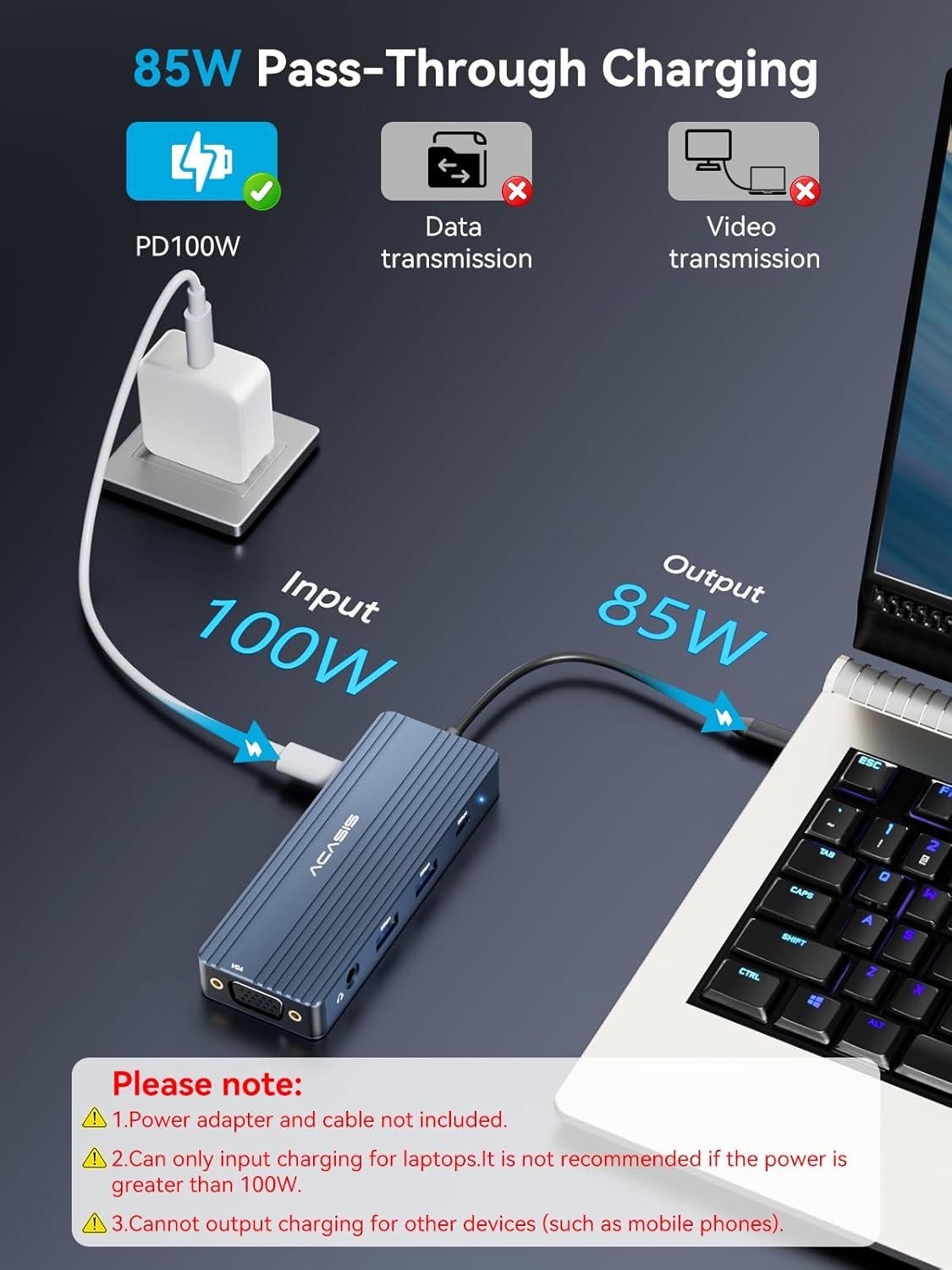
Image: The docking station with multiple USB devices connected, highlighting its capability for fast data transfer with various peripherals.
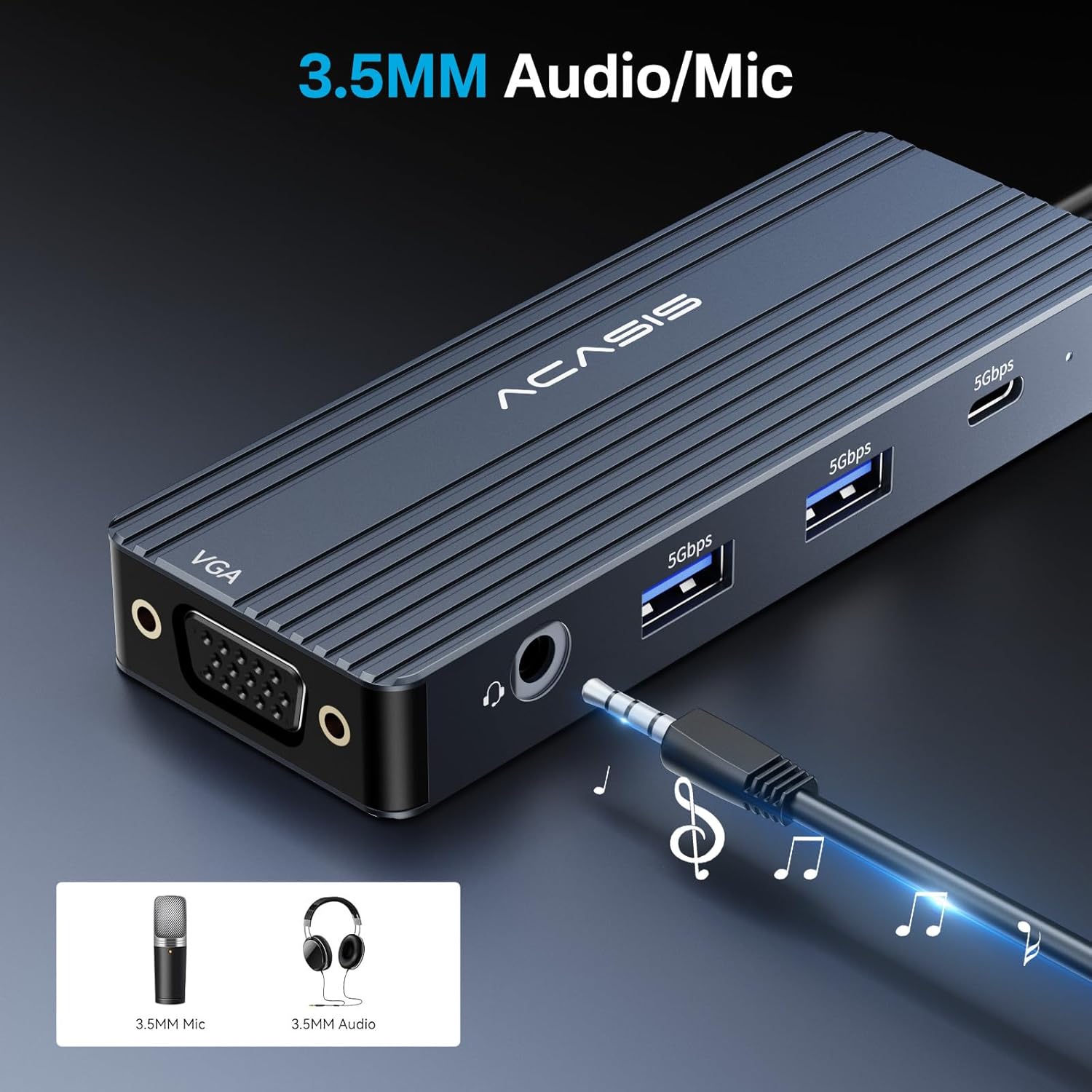
Immaġni: Close-up view of the 3.5mm audio/mic port on the docking station, showing a headphone jack plugged in, indicating audio connectivity.
4. Kompatibilità
The ACASIS DS-0801GY docking station is designed for wide compatibility with USB-C enabled laptops. However, specific functionalities depend on your laptop's USB-C port capabilities.
Noti Importanti dwar il-Kompatibilità:
- Ensure your laptop's USB-C port supports Power Delivery, DisplayPort Alt Mode, and Data Transfer for full functionality.
- For macOS, external displays will only support Mirror Mode (all displays show the same content). Multi-Stream Transport (MST) for extended displays is not supported.
- If using the VGA port, the maximum resolution for all connected monitors will be 1080P.

Image: A visual guide to checking your laptop's USB-C port for compatibility with Power Delivery, DisplayPort, and Data Transfer functions, crucial for optimal docking station performance.

Image: A compatibility chart listing various Windows and ChromeOS laptop models that are compatible with the docking station, along with notes on USB-C port functions.
5 Issolvi l-problemi
5.1. HDMI Interface Flickering
If you experience flickering on your HDMI-connected display, consider the following common reasons and solutions:
- Raġunijiet Komuni:
- Poor quality or damaged HDMI cable.
- Loose HDMI interface connection or dust accumulation.
- Resolution or refresh rate mismatch between the display and the source.
- Kwistjonijiet ta' kompatibilità tal-apparat.
- Soluzzjonijiet:
- Replace the HDMI cable with a standard, high-quality cable.
- Try connecting other display devices to isolate the issue.
- Check and adjust the resolution and refresh rate settings of your display.
- Update device drivers or firmware for your laptop and graphics card.
- Confirm the display signal source is correctly selected on your monitor.
- If your computer is in sleep mode, restart the docking station or re-plug its power port.
If the above steps do not resolve the issue, please contact ACASIS customer support for further assistance.

Image: A detailed troubleshooting chart outlining common reasons for HDMI flickering and corresponding solutions to resolve display issues.
5.2. General Notes Before Purchase/Use
- Ensure your device has a USB-C port that supports Power Delivery, DisplayPort Alt Mode, and Data Transfer. If screen extension issues occur, verify your laptop's USB-C port functions.
- All Mac devices only support Mirror Mode (AA, AAA, AAAA) and Extended Mode (AB, ABB, ABBB). It does not support A+B+C or A+B+C+D (Windows laptops only).
- Optimal screen resolution requires a DP1.4 source and a 4K display (external screen and laptop at the same time) using HDMI2.0 or higher specification cables.
- The PD (charging port) only supports power supply and does not support screen expansion or data transmission.
- Charger and data cable are not included.
- The hub itself consumes 5-10W of power. For optimal performance, it is recommended to use a PD power supply to prevent power drain from the laptop.
- For fast charging, a PD 65W or above power supply is recommended. Lower wattage power chargers may result in a system warning. Output power varies: 100W supply yields 85W output, 65W supply yields 55W output, 45W supply yields 37W output.

Image: A comprehensive list of important notes and considerations regarding USB-C port functionality, display modes, power requirements, and charging specifics for the docking station.
6. Speċifikazzjonijiet
| Attribut | Dettall |
|---|---|
| Dimensjonijiet tal-Prodott | 4.33 x 1.77 x 0.61 pulzieri |
| Piż tal-oġġett | 2.57 uqija |
| Numru tal-Mudell tal-Oġġett | DS-0801GY |
| Brand | AKAŻI |
| Kulur | Griż |
| Interface tal-Ħardwer | hdmi, vga |
| Karatteristika Speċjali | 2HDMI+VGA |
| Apparati Kompatibbli | Laptops |
7. Garanzija u Appoġġ
ACASIS is committed to providing high-quality products and excellent customer service. If you encounter any issues or have questions regarding your DS-0801GY docking station, please refer to the following support options:
- Appoġġ bl-Email: For technical assistance or inquiries, please contact us at support@acasis.com.
- Servizz onlajn: We offer 7x24 hours online service to ensure timely support.
- Quality Service: Our team is dedicated to providing high-quality and considerate service to all our customers.

Image: A graphic detailing ACASIS's after-sales service, including email contact for support and a commitment to 7x24 hour online and high-quality service.