
Phomemo M108
Phomemo M108 Bluetooth Label Maker User Manual
Your Guide to Efficient and Versatile Labeling
1. Introduzzjoni
Welcome to the user manual for your new Phomemo M108 Bluetooth Label Maker. This compact and portable thermal printer is designed to simplify your labeling needs for home, office, and small business use. With its inkless technology and versatile app, you can create professional and personalized labels with ease. Please read this manual carefully to ensure proper use and maintenance of your device.
2. Prodott Aktarview
2.1 Kontenut tal-Pakkett
Upon opening your Phomemo M108 package, please verify that all the following items are included:
- 1X Phomemo M108 2 Inch Label Maker Machine
- Kejbil 1X tat-Tip Ċ
- 1X Gwida Quick Start
- 40*30MM Thermal Labels (100PCS)
2.2 Karatteristiċi ewlenin
The Phomemo M108 Label Maker offers a range of features designed for convenience and efficiency:
- App-Enabled Bluetooth Connectivity: Seamlessly connect to the 'Print Master' app via Bluetooth for label creation.
- Kompatibilità Wiesgħa tat-Tikketti: Supports label sizes ranging from 0.78'' to 2'' (20 - 50mm) for diverse applications.
- Stampar Termali mingħajr Linka: Advanced thermal technology eliminates the need for ink cartridges, ensuring clean and clear prints.
- Applikazzjonijiet versatili: Ideal for small businesses, home organization, office tasks, and creating personalized labels.
- Disinn kompatt u portabbli: Lightweight and easy to carry, allowing for on-the-go labeling.
2.3 Dijagramma tal-Prodott
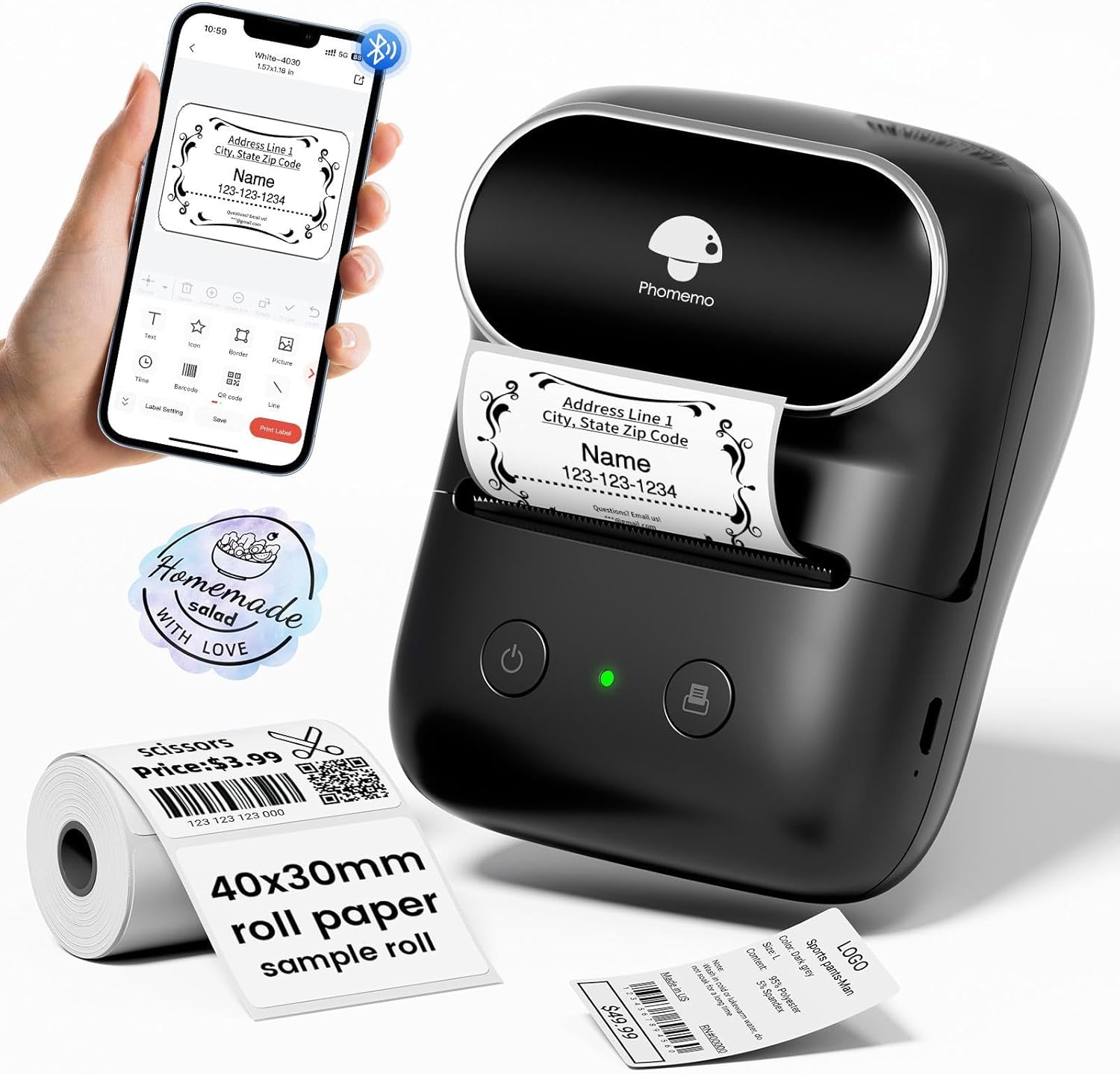
Figure 1: Phomemo M108 Label Maker and its components.
3. Gwida ta' Setup
3.1 Iċċarġjar tal-Apparat
Before first use, ensure your Phomemo M108 is fully charged. Connect the included Type-C cable to the charging port on the device and a compatible USB power adapter (not included). The indicator light will show charging status.

Figure 2: Charging the Phomemo M108 via Type-C cable.
3.2 It-Tagħbija tat-Tikketti
Follow these steps to properly load the thermal label roll into your printer:
- Open Top Cover: Gently slide the top cover release button to open the label compartment.
- Attach Paper Roll to Holder: Place the label roll onto the provided holder, ensuring the labels feed from the bottom.
- Daħħal ir-Romblu: Insert the label roll and holder into the compartment, making sure the labels are aligned with the print head.
- Agħlaq il-Qoxra: Close the top cover firmly until it clicks into place. Ensure a small portion of the label protrudes from the output slot.

Figure 3: Step-by-step guide for loading labels.
3.3 Installazzjoni u Konnessjoni tal-App
The Phomemo M108 operates via the 'Print Master' mobile application. Follow these steps to get started:
- Installa l-App: Download 'Print Master' from the Google Play Store (għal Android) jew il- Apple App Store (għall-iOS).
- Idħol: Open the app and sign in or create an account.
- Ippermetti Bluetooth: Kun żgur li l-Bluetooth huwa attivat fuq l-ismartphone jew it-tablet tiegħek.
- Qabbad l-istampatur: In the 'Print Master' app, search for and select your Phomemo M108 device to establish a Bluetooth connection. The app will guide you through the pairing process.

Figure 4: Connecting your Phomemo M108 to the 'Print Master' app.
Tip: For optimal performance, ensure your device's operating system and the 'Print Master' app are updated to their latest versions.
4. Istruzzjonijiet Operattivi
4.1 Stampar Bażiku
Ladarba tkun konness, tista' tibda toħloq u tipprintja tikketti:
- Select Template or Create New: Choose from over 300 templates or start a new design within the 'Print Master' app.
- Customize Your Label: Use the app's tools to add text, icons (over 1000 available), borders, images, barcodes, and QR codes.
- Preview: Review your label design on the app screen to ensure it meets your requirements.
- Stampa: Tap the 'Print Label' button in the app. The printer will automatically feed and print your label.

Figure 5: Customizing labels using the 'Print Master' app.
4.2 Using the 'Print Master' App
The 'Print Master' app is your central hub for all labeling functions. It provides a user-friendly interface with extensive customization options. You can adjust font styles, sizes, alignment, and even import your own images. The app also supports various label types, including regular, circular, clear, and patterned labels.
For a visual demonstration of the label maker in action, please refer to the following official product video:
Video 1: Official Phomemo M108 Bluetooth Label Maker demonstration, showcasinil-karatteristiċi u l-faċilità tal-użu tiegħu.
Vidjo 2: Ħarsa fil-qosorview of the Phomemo M108 thermal label maker, highlighting its thermal printing capabilities.
5. Manutenzjoni
5.1 Tindif tar-Ras tal-Istampar
To ensure consistent print quality, regularly clean the print head. Use a soft, lint-free cloth lightly dampened with rubbing alcohol. Gently wipe the print head surface. Allow it to dry completely before closing the cover or using the printer.
5.2 Storing Labels
Store thermal labels in a cool, dry place away from direct sunlight and excessive heat. This will help preserve their adhesive properties and print quality over time.
6 Issolvi l-problemi
If you encounter any issues with your Phomemo M108, please refer to the table below for common problems and their solutions:
| Ħruġ | Soluzzjoni |
|---|---|
| Il-printer mhux qed jikkonnettja permezz tal-Bluetooth | Ensure Bluetooth is enabled on your mobile device. Restart both the printer and the 'Print Master' app. Try forgetting the device in your phone's Bluetooth settings and re-pairing. |
| Kwalità tal-istampar fqira (sfumata, mhux ċara) | Check if the label roll is inserted correctly. Clean the print head (refer to Maintenance section). Ensure you are using genuine Phomemo thermal labels. |
| It-tikketti ma jidħlux jew jimblukkaw | Open the cover and check for any obstructions or misaligned labels. Reload the label roll, ensuring it's properly seated. |
| Il-printer mhux qed jixgħel | Kun żgur li l-istampatur huwa ċċarġjat kompletament. Jekk il-problema tippersisti, ikkuntattja l-appoġġ għall-klijenti. |
7. Speċifikazzjonijiet tal-Prodott
| Speċifikazzjoni | Dettall |
|---|---|
| Isem tal-Mudell | M108 |
| Brand | Phomemo |
| Teknoloġija tal-Konnettività | USB tat-Tip Ċ, Bluetooth |
| Teknoloġija tal-Istampar | Termali |
| Riżoluzzjoni Massima tal-Istampar | 203 dpi |
| Wisa' Massima tat-Tikketta | 2 pulzieri (50mm) |
| Kapaċità tal-batterija | 1 batterija tal-polimer tal-litju (inkluża) |
| Dimensjonijiet tal-Prodott | 4.48 x 2.44 x 3.43 pulzieri |
| Piż tal-oġġett | 0.804 uqija (22.8 Grammi) |
| Apparati Kompatibbli | Windows 7 and above, Chrome OS, iOS, Mac OS 10 and above, Android |
8. Garanzija u Appoġġ
8.1 Informazzjoni dwar Garanzija
Your Phomemo M108 Label Maker comes with a standard manufacturer's warranty. Please refer to the warranty card included in your package for specific terms and conditions, including coverage period and limitations. Keep your purchase receipt as proof of purchase for warranty claims.
8.2 Appoġġ għall-Klijent
For technical assistance, troubleshooting beyond this manual, or warranty inquiries, please contact Phomemo customer support. You can typically find contact information on the official Phomemo website or through the 'Print Master' app's help section.
We are committed to providing you with the best possible experience with your Phomemo M108 Label Maker.
Ask a question about this manual
Ask about setup, troubleshooting, compatibility, parts, safety, or missing instructions. Manuals+ will review the question and use this page’s manual context to help answer it.