
Introduzzjoni
This manual provides comprehensive instructions for the Akko MG75 ABNT2 Mechanical Keyboard. Designed for efficiency and customization, this 75% layout keyboard features Akko Silver V3 Pro mechanical switches, full RGB backlighting, and hot-swappable switch sockets. Please read this manual carefully to ensure proper use and maintenance of your device.
1. Setup
1.1 Kontenut tal-Pakkett
- Akko MG75 ABNT2 Mechanical Keyboard
- USB-C Cable (Removable)
- Keycap Puller
- Iswiċċ Puller
- Swiċċijiet żejda
- Manwal għall-Utent (dan id-dokument)
1.2 Konnessjoni tat-Tastiera
- Sib il-port USB-C fuq wara tat-tastiera.
- Connect the provided USB-C cable to the keyboard.
- Qabbad it-tarf l-ieħor tal-kejbil USB-C ma' port USB disponibbli fuq il-kompjuter tiegħek.
- It-tastiera tiġi rikonoxxuta awtomatikament mis-sistema operattiva tiegħek. Normalment ma jkun hemm bżonn ta' l-ebda sewwieq addizzjonali għall-funzjonalità bażika.

Image: USB-C port for connecting the keyboard.
1.3 Aġġustament tal-Għoli tat-Tastiera
The Akko MG75 keyboard features three levels of adjustable height. Flip out the feet located on the underside of the keyboard to select your preferred typing angle.
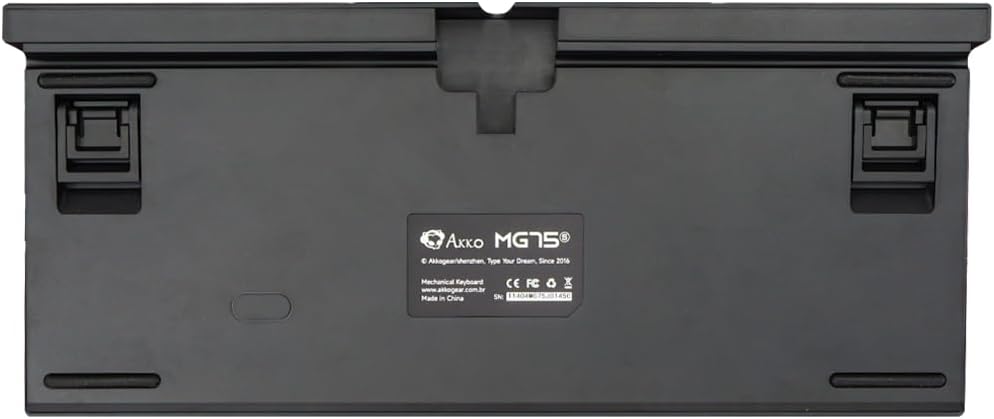
Image: Underside of the keyboard with adjustable feet.
2. Istruzzjonijiet Operattivi
2.1 Kontroll tad-Dawl RGB
The Akko MG75 keyboard features full RGB backlighting with multiple effects and customization options. Refer to the included quick guide or the official Akko software for detailed instructions on changing lighting modes, colors, and brightness. Typically, lighting effects can be cycled using specific key combinations (e.g., Fn + certain keys).
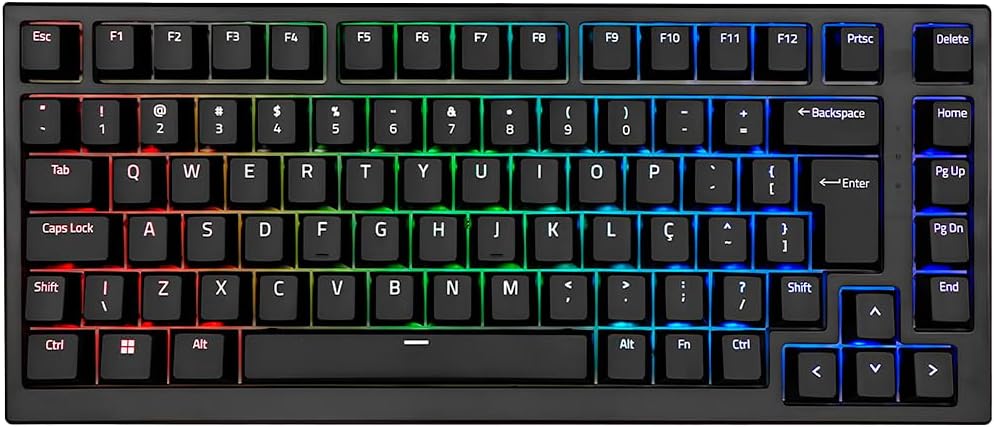
Image: Akko MG75 keyboard displaying RGB lighting.
2.2 Swiċċijiet li jistgħu jinbidlu bis-sħana
The Akko MG75 supports hot-swappable mechanical switches, compatible with both 3-pin and 5-pin switches. This allows for easy customization of your typing experience without soldering.
Changing Switches:
- Use the provided switch puller to carefully remove the desired switch from the keyboard. Grip the switch firmly and pull straight up.
- Allinja l-labar tas-swiċċ il-ġdid mat-toqob fuq il-PCB. Kun żgur li l-labar huma dritti.
- Gently press the new switch into place until it clicks securely. Do not force the switch if it does not go in easily; check pin alignment.

Image: Akko mechanical switches, illustrating their design for hot-swapping.
2.3 ABNT2 Layout
This keyboard features the ABNT2 layout, which includes specific keys for Portuguese language characters and punctuation, such as 'Ç' and dedicated keys for accents. This layout is standard for Brazilian Portuguese users.

Immaġni: Minn fuq għal isfel view of the Akko MG75 keyboard, highlighting the ABNT2 layout.
3. Manutenzjoni
3.1 Tindif tat-Tastiera
- Skonnettja t-tastiera mill-kompjuter tiegħek qabel ma tnaddafha.
- Uża pinzell artab jew arja kkompressata biex tneħħi t-trab u l-fdalijiet minn bejn il-keycaps.
- Għal ħmieġ iebes, imsaħ bil-mod il-keycaps u l-wiċċ tat-tastiera b'xi ftit damp drapp (ilma biss). Evita umdità eċċessiva.
- Tużax kimiċi ħarxa jew tindif li joborxu.
3.2 Sostituzzjoni tal-Għatu taċ-Ċwievet
To replace keycaps, use the provided keycap puller. Gently hook the puller onto the keycap and pull straight up. To install a new keycap, align it with the switch stem and press down firmly until it is seated.
4 Issolvi l-problemi
4.1 It-Tastiera Ma Tirrispondix
- Kun żgur li l-kejbil USB-C huwa konness sew kemm mat-tastiera kif ukoll mal-kompjuter tiegħek.
- Try disconnecting and reconnecting the USB-C cable multiple times. Some users have reported this resolves initial connection issues.
- Test the keyboard on a different USB port on your computer.
- If possible, test the keyboard on another computer to rule out system-specific issues.
- Check if the cable itself is damaged by trying a different USB-C cable if available.
4.2 RGB Lighting Not Working Correctly
- Kun żgur li t-tastiera hija konnessa sew u qed tirċievi l-enerġija.
- Refer to the quick guide for key combinations to cycle through lighting modes and adjust brightness.
- If using Akko software, ensure it is up-to-date and correctly configured.
5. Speċifikazzjonijiet
| Karatteristika | Dettall |
|---|---|
| Brand | Akko |
| Mudell | MG75 |
| Tqassim | 75% ABNT2 |
| Swiċċijiet | Akko Silver V3 Pro Mechanical |
| Skambju sħun | Iva (kompatibbli ma' 3-pin u 5-pin) |
| Konnettività | USB-C (Removable Cable) |
| Backlighting | RGB |
| Kontra l-Ghosting | N-keys Rollover |
| Tappijiet ewlenin | ABS Laser |
| Għoli aġġustabbli | Iva, 3 livelli |
| Apparati Kompatibbli | PC |
| Kulur | Iswed |
| Numru ta' Ċwievet | 84 |
| Piż Gross | 1582 g |
| Piż Nett | 1451 g |
| Package Dimensions (L x H x D) | 350mm x 250mm x 50mm |
6. Garanzija u Appoġġ
6.1 Garanzija tal-Prodott
The Akko MG75 Mechanical Keyboard comes with a 12-il xahar garanzija against manufacturing defects from the date of purchase. Please retain your proof of purchase for warranty claims. This warranty does not cover damage caused by misuse, accidents, unauthorized modifications, or normal wear and tear.
6.2 Appoġġ għall-Klijent
For technical assistance, warranty claims, or further inquiries, please visit the official Akko website or contact your local retailer. You may find additional resources, FAQs, and software downloads on the manufacturer's support page.
Akko Uffiċjali Websit: www.akkogear.com