
1. Introduzzjoni
The NUROUM V403-A35 is an all-in-one video conferencing system designed for small to medium conference rooms. It integrates a PTZ (Pan-Tilt-Zoom) webcam (V403) with 5X optical zoom and a Bluetooth conference speakerphone (A35) featuring 4 noise-cancelling microphones. This system provides high-quality video and crystal-clear audio for effective remote collaboration.

Image: The NUROUM V403-A35 system integrated into a modern conference room setting.
2. Prodott Aktarview
2.1 Kontenut tal-Pakkett
- 1x V403 PTZ Webcam Set
- 1x A35 Speakerphone Set
2.2 Karatteristiċi ewlenin
- All-in-one System: Combines a PTZ webcam (V403) and a Bluetooth conference speakerphone (A35) for integrated video and audio.
- PTZ Camera with 5X Optical Zoom: 2MP CMOS sensor with 5x optical zoom for high-quality, undistorted images. Features true autofocus and 4 preset positions for easy camera control.
- Awdjo Avvanzat: A35 speakerphone utilizes deep learning-based algorithms for echo suppression, reverberation reduction, and ambient noise filtering.
- Omnidirectional Microphones: Built-in 4 professional-level microphones capture voices at a 360-degree angle with a 32kHz sampling rate for clear audio.
- Għażliet ta' Konnettività Multipli: Plug-and-play via USB. Speakerphone also supports Bluetooth or dongle connectivity. Camera features RJ45 port with POE and LAN/NDI support for professional streaming.
- Kompatibilità Universali: Works with major conferencing platforms like Zoom, Teams, Google Meet, WebEx, Skype, OBS, YouTube, and operating systems including Windows, macOS, Linux, and ChromeOS.

Immaġni: Dettaljata view of the V403 camera's internal components and the A35 speakerphone's multiple interfaces including Type-C, Power Supply, and LAN/NDI support.
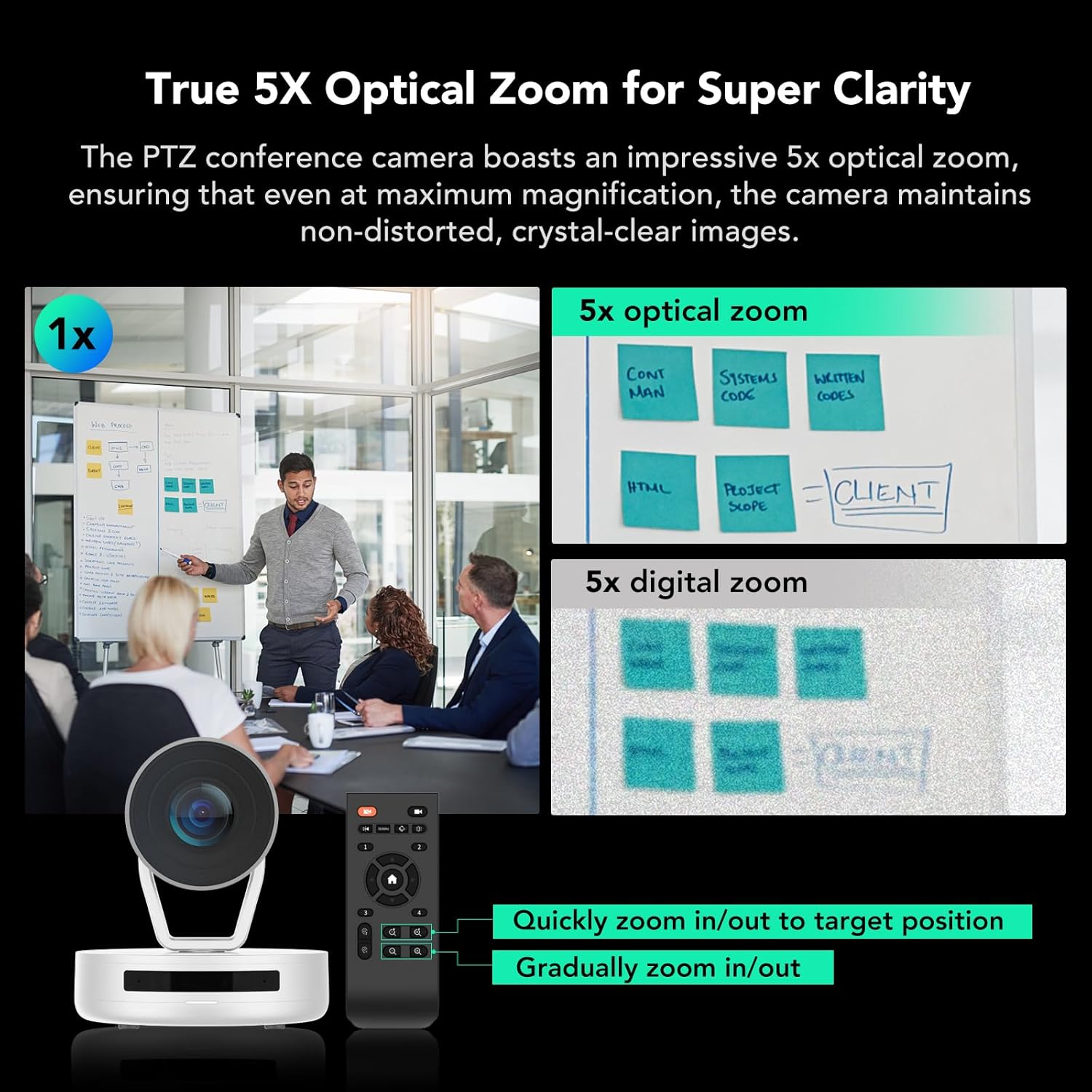
Image: Comparison showing the clarity of 5X optical zoom compared to 5X digital zoom, highlighting the V403's superior image quality at magnification.

Image: Visual representation of the A35 speakerphone's 4-MEMS microphone array and AI noise cancellation technology for enhanced audio pickup.
3. Istruzzjonijiet ta' Setup
Follow these steps to set up your NUROUM V403-A35 conference system.
3.1 Konnessjoni tas-Sistema
- Konnessjoni tal-Enerġija: Connect the V403 PTZ webcam to a power source using the provided power cable.
- USB Connection (Recommended): Connect the V403 webcam to your computer (PC/laptop) via a USB cable.
- Speakerphone Connection:
- USB: Connect the A35 speakerphone directly to your computer via USB.
- Bluetooth: Pair the A35 speakerphone with your computer via Bluetooth.
- Dongle: Use the provided dongle to connect the A35 speakerphone wirelessly to your computer.
- Konnessjoni tad-Displej (Mhux obbligatorja): If desired, connect your computer to a smart TV or monitor using an HDMI cable for a larger display.
- Network Connection (V403 Camera, Advanced): For professional live streaming or NDI support, connect the V403 camera to your network via the RJ45 port (supports POE).

Image: A clear diagram illustrating the various ways to connect the V403 camera and A35 speakerphone to a computer and external display.
3.2 Tqegħid
The V403 camera features a standard 1/4" thread base, allowing for flexible placement:
- Fuq mejda
- Mounted to a tripod (not included)
- Secured to a wall (mounting accessories not included)

Immaġni: Eżempju viżwaliamples demonstrating versatile placement options for the V403 camera within a conference room.
4. Istruzzjonijiet Operattivi
4.1 Using the V403 PTZ Webcam
- Pan, Tilt, Zoom: Use the included remote control to adjust the camera's pan, tilt, and 5X optical zoom.
- Pożizzjonijiet issettjati minn qabel: The V403 supports 4 preset positions. You can save specific pan, tilt, and zoom settings for quick recall during meetings. Refer to the remote control for setting and recalling presets.
- Awtomatiku: The camera features true autofocus to maintain sharp images automatically.
4.2 Using the A35 Speakerphone
- Power On/Off: Press and hold the power button to turn the speakerphone on or off.
- Kontroll tal-Volum: Uża l-buttuni biex tgħolli l-volum (+) u tnaqqas il-volum (-) biex taġġusta l-livell tal-awdjo.
- Ixekkel/Ixekkel: Press the microphone button to mute or unmute the microphones.
- Kontroll tas-Sejħiet: Use the call answer/end button to manage calls when connected via Bluetooth or USB.
- Kanċellazzjoni tal-Istorbju: The A35 automatically applies AI-based noise cancellation to filter out ambient sounds and echoes.
4.3 Software and Settings
For advanced settings and firmware updates, download the NearSync software from the official NUROUM website. This software allows you to customize image settings such as brightness, contrast, and white balance.

Image: A screenshot of the NearSync software, showing options for video settings like saturation, brightness, contrast, hue, and white balance.
5. Manutenzjoni
To ensure optimal performance and longevity of your NUROUM conference system, follow these maintenance guidelines:
- Tindif: Uża drapp artab u niexef biex tnaddaf il-lenti tal-kamera u l-uċuħ tal-ispikerphone. Evita prodotti tat-tindif jew solventi li joborxu.
- Ħażna: Meta ma tkunx qed tużah għal perjodi twal, aħżen l-apparat f'post frisk u niexef 'il bogħod mix-xemx diretta u minn temperaturi estremi.
- Aġġornamenti tal-Firmware: Regularly check the NUROUM official website for firmware updates and install them using the NearSync software to ensure the system has the latest features and bug fixes.
6 Issolvi l-problemi
If you encounter issues with your NUROUM V403-A35 system, refer to the following common problems and solutions:
| Problema | Soluzzjoni Possibbli |
|---|---|
| No video output from camera | Ensure the camera is powered on and the USB cable is securely connected to both the camera and the computer. Check if the camera is selected as the video source in your conferencing software. |
| No audio from speakerphone | Verify the speakerphone is powered on and connected (USB, Bluetooth, or dongle). Check the volume levels on the speakerphone and your computer. Ensure the A35 is selected as the audio output device in your conferencing software. |
| Microphones not picking up sound | Ensure the speakerphone is not muted. Confirm the A35 is selected as the audio input device in your conferencing software. Check microphone permissions in your operating system settings. |
| Camera zoom/PTZ not responding | Check the remote control batteries. Ensure there are no obstructions between the remote and the camera. Restart the camera and computer. |
| Compatibility issues with software | Ensure your conferencing software is updated to the latest version. Verify your operating system meets the minimum requirements. Download and install the latest drivers or firmware using NearSync. |
For further assistance, please contact NUROUM customer service.
7. Speċifikazzjonijiet
| Karatteristika | Dettall |
|---|---|
| Brand | NUROUM |
| Numru tal-Mudell | AW-VAS403-35 |
| Teknoloġija tal-Konnettività | USB, Bluetooth |
| Riżoluzzjoni tal-Qbid tal-Vidjo | 1080p |
| Zoom ottiku | 5X |
| Teknoloġija tas-Sensor Ottiku | CMOS |
| ViewIng Angolu | 122 Grad |
| Mikrofoni | 4 Noise Cancellation Microphones (32kHz samprata tal-linarda) |
| Frame Rata | 30 FPS, 60 FPS, 120 FPS |
| Apparati Kompatibbli | Laptops, Personal Computers |
| Sistemi Operattivi | Windows, macOS, Linux, ChromeOS |
| Daqs tal-Kamra Rakkomandat | Up to 30㎡ (323ft²) |
8. Garanzija u Appoġġ
8.1 Garanzija tal-Manifattur
The NUROUM V403-A35 Conference Room Camera System comes with a Garanzija ta' 1 snin mill-manifattur mid-data tax-xiri. Din il-garanzija tkopri difetti fil-materjali u l-abbilità taħt użu normali.
8.2 Appoġġ għall-Klijent
NUROUM provides lifetime customer service support for this video conferencing system. If you have any questions, require technical assistance, or need to report an issue, please contact NUROUM customer service through their official webis-sit jew l-informazzjoni ta' kuntatt ipprovduta mal-imballaġġ tal-prodott tiegħek.
For firmware updates and advanced image customization, please download the NearSync software from the official NUROUM websit.