
1. Introduzzjoni
Welcome to the Dghrti TAB30 Tablet user manual. This guide provides essential information to help you set up, operate, maintain, and troubleshoot your new tablet. Please read this manual thoroughly before using your device to ensure proper functionality and to maximize your user experience.

Immaġni 1.1: Minn quddiem u minn wara view of the Dghrti TAB30 Tablet, highlighting its metallic casing and camera module.
2. X'hemm fil-Kaxxa
Upon unboxing your Dghrti TAB30 Tablet, please verify that all the following items are included:
- Dghrti TAB30 Tablet
- Ġurdien
- Tastiera Bluetooth
- Kawża Protettiva
- OTG Converter
- Film protettur tal-iskrin
- SD Card Pin Ejector Tool
- Ċarġer tal

Image 2.1: The Dghrti TAB30 Tablet shown with its complete set of accessories, including the keyboard, mouse, and protective case.
3. Prodott Aktarview
3.1 Karatteristiċi ewlenin
- Wiri: 10.1-inch Full HD IPS screen (1920x1200 resolution) for vivid colors and sharp images.
- Prestazzjoni: Unisoc T606 Octa-Core CPU (2.0GHz A75 high-performance core, A55 high-efficiency core) for smooth multitasking.
- Memorja: 22GB RAM (6GB fiżika + 16GB virtwali) u 128GB ROM, espansibbli sa 1TB permezz ta' microSD card.
- Batterija: 8000mAh long-lasting battery for extended usage.
- Sistema Operattiva: Latest Android 14 with enhanced privacy protection and smart notification management.
- Kameras: 8MP rear camera and 5MP front camera for video calls and capturing moments.
- Konnettività: Dual-band 5G WiFi and Bluetooth 5.0 for stable and fast connections.
- Sigurtà: Face ID for quick and secure access.
- Awdjo: Dual stereo speakers for an immersive sound experience.
- Streaming: Widevine L1 support for high-definition streaming on platforms like Netflix, Amazon Prime Video, and YouTube.
3.2 Komponenti u Portijiet
Iffamiljarizza ruħek mal-komponenti fiżiċi tat-tablet tiegħek:
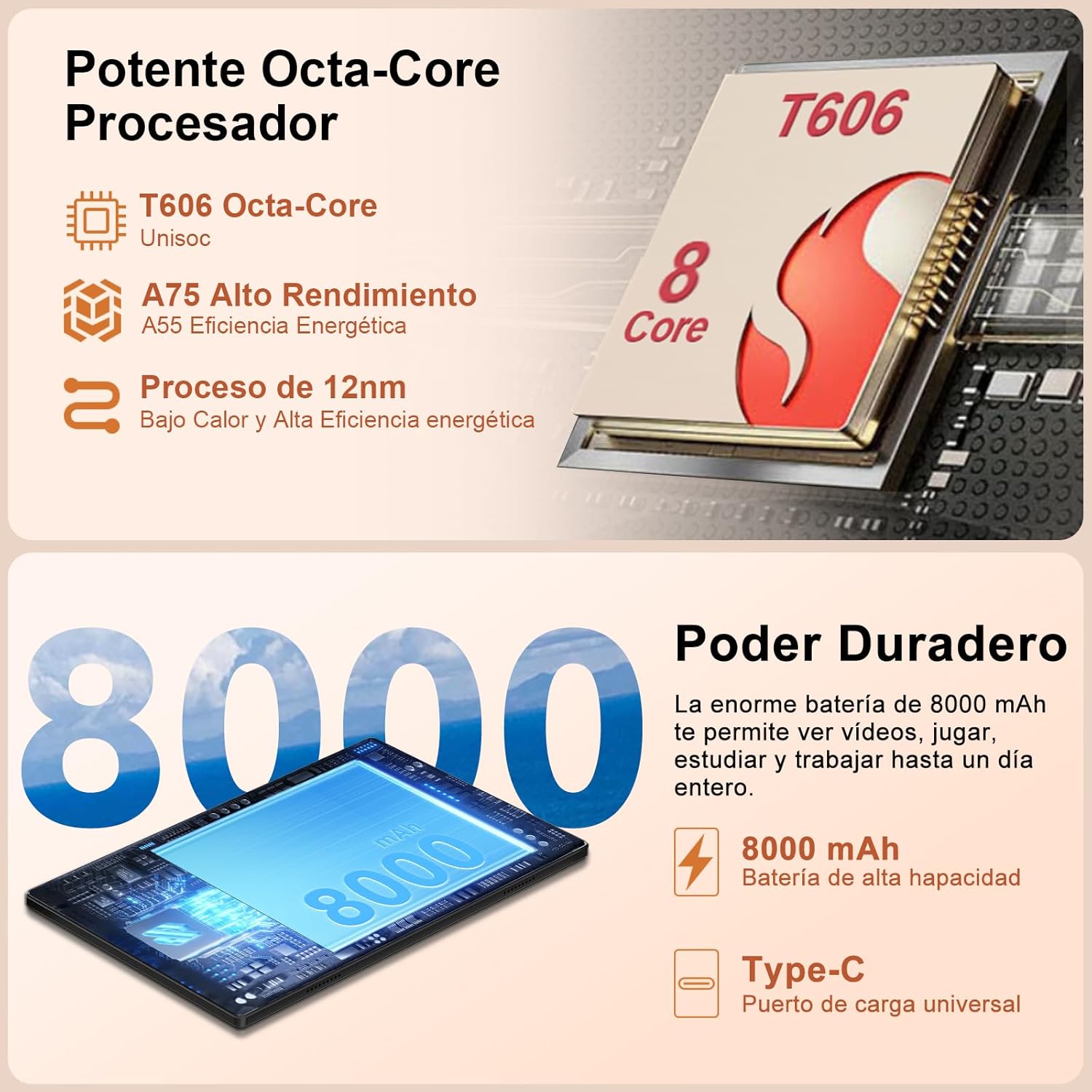
Image 3.1: Illustration of the tablet's internal components, highlighting the T606 Octa-Core processor and the 8000mAh battery capacity.

Image 3.2: Visual representation of key features including Widevine L1 support, 5G WiFi, Bluetooth 5.0, and the tablet's metallic construction.

Image 3.3: Details on the tablet's 8MP rear camera and 5MP front camera, suitable for video calls and photography.
4. Setup
4.1 Iċċarġjar inizjali
Before first use, fully charge your tablet using the provided charger and USB-C cable. The charging port is typically located on the side or bottom edge of the tablet.
4.2 Power On/Off
- Biex Tixgħel: Press and hold the power button until the Dghrti logo appears.
- Biex Tifi: Agħfas u żomm il-buttuna tal-qawwa, imbagħad agħżel 'Itfi' mill-għażliet fuq l-iskrin.
4.3 Wizard tas-Setup Inizjali
Segwi l-istruzzjonijiet fuq l-iskrin biex tlesti s-setup inizjali, li jinkludi:
- L-għażla tal-lingwa tiegħek.
- Konnessjoni ma 'netwerk Wi-Fi.
- Issettjar tal-kont Google tiegħek.
- Configuring screen lock (PIN, pattern, password, or Face ID).
4.4 Daħħal Karta MicroSD
To expand storage, locate the SIM/MicroSD card tray on the side of the tablet. Use the provided ejector tool to open the tray, insert the MicroSD card (up to 1TB), and close the tray securely.
4.5 Aċċessorji tal-Konnessjoni
- Tastiera/Maws Bluetooth: Turn on the keyboard/mouse and enable Bluetooth on your tablet (Settings > Connected devices > Bluetooth). Pair the devices by selecting them from the list of available devices.
- OTG Converter: Use the OTG converter to connect USB devices like flash drives or external hard drives to your tablet's USB-C port.
5. Istruzzjonijiet Operattivi
5.1 Karatteristiċi ta' Android 14
Your tablet runs on Android 14, offering enhanced privacy controls, smarter notifications, and more customization options.
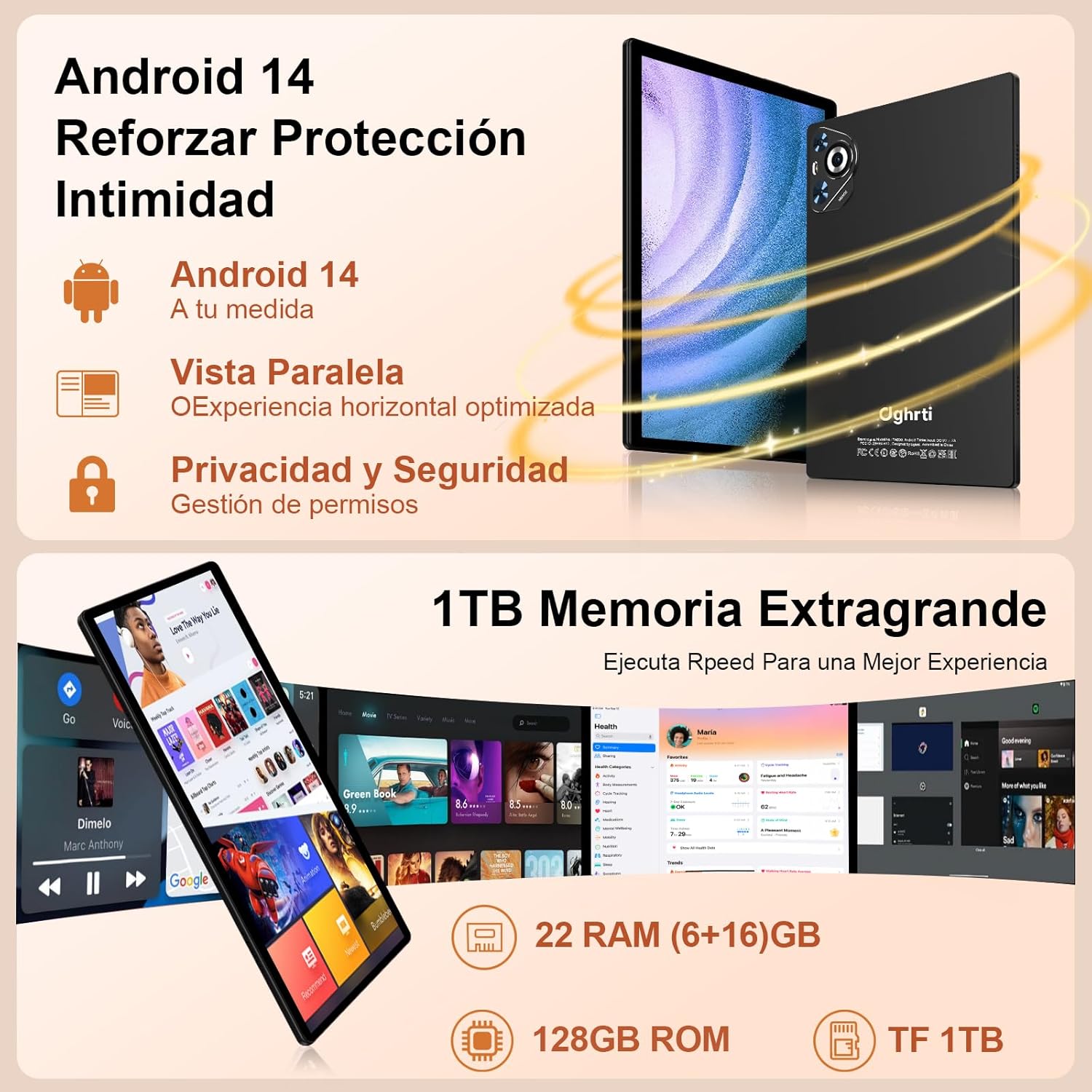
Immaġni 5.1: Fuqview of Android 14's privacy and security enhancements, including permission management and optimized horizontal view.

Image 5.2: Visual representation of Android 14's new features, including productivity tools, new UI, and system security.
5.2 Navigazzjoni
- Skrin tad-dar: Skrolla 'l fuq minn isfel biex taċċessa l-kexxun tal-app.
- Notifiki: Swipe 'l isfel minn fuq tal-iskrin għal view notifiki u settings veloċi.
- Multitasking: Swipe up and hold from the bottom to see recent apps.
5.3 Face ID
To set up Face ID, go to Settings > Security > Face Unlock and follow the on-screen instructions. Ensure good lighting for optimal performance.
5.4 Multi-Window and Split-Screen
The tablet supports multi-window and split-screen functions for enhanced productivity. To activate, open a recent app, tap its icon at the top of the preview, and select 'Split screen' or 'Freeform'.

Immaġni 5.3: Eż.amples of the tablet's versatile use, including learning, entertainment, facial unlock, and multi-screen functionality.
5.5 Wi-Fi Screencasting
You can cast your tablet's screen to compatible devices (e.g., smart TVs) using Wi-Fi screencasting. Access this feature from Quick Settings or Settings > Connected devices > Cast.

Image 5.4: The 10-inch IPS display for video viewing and the WiFi screencasting function for transmitting the screen to other devices.
6. Manutenzjoni
6.1 Tindif tat-Tablet Tiegħek
Use a soft, lint-free cloth to clean the screen and body of the tablet. Avoid using harsh chemicals or abrasive materials that could damage the surface. For stubborn smudges, slightly dampLaħlaħ id-drapp bl-ilma jew b'soluzzjoni għat-tindif tal-iskrin.
6.2 Aġġornamenti tas-Software
Regularly check for and install software updates to ensure your tablet has the latest features, security patches, and performance improvements. Go to Settings > System > System update to check for updates.
6.3 Kura tal-Batterija
- Evita temperaturi estremi, għax jistgħu jnaqqsu l-ħajja tal-batterija.
- Do not leave the tablet charging for excessively long periods after it's fully charged.
- Uża biss il-ċarġer oriġinali jew ċarġer kompatibbli ċċertifikat.
6.4 Ġestjoni tal-Ħażna
Neħħi perjodikament bla bżonn files, apps, and cache to maintain optimal performance. You can manage storage in Settings > Storage.
7 Issolvi l-problemi
If you encounter issues with your Dghrti TAB30 Tablet, refer to the following common solutions:
| Problema | Soluzzjoni Possibbli |
|---|---|
| It-tablet ma jixgħelx | Kun żgur li l-batterija hija ċċarġjata. Qabbad il-ċarġer u stenna ftit minuti qabel ma tipprova terġa' tixgħelha. Jekk ma tirrispondix, wettaq restart sfurzat billi żżomm il-buttuna tal-qawwa għal 10-15-il sekonda. |
| L-apps qed jiġġarraf jew jiffriżaw | Clear the app's cache (Settings > Apps > [App Name] > Storage > Clear cache). If the problem persists, uninstall and reinstall the app. Ensure sufficient free storage space. |
| Kwistjonijiet ta 'konnessjoni Wi-Fi | Restart your Wi-Fi router and the tablet. Forget the Wi-Fi network (Settings > Network & internet > Internet > [Network Name] > Forget) and reconnect. Ensure you are within range of the Wi-Fi signal. |
| Prestazzjoni bil-mod | Agħlaq l-apps mhux użati li jkunu qed jaħdmu fl-isfond. Neħħi l-cache u l-applikazzjonijiet temporanji files. Uninstall unnecessary apps. Consider a factory reset as a last resort (back up your data first). |
| Face ID not working | Ensure your face is well-lit and not obstructed. Clean the front camera lens. Re-register your face in Settings > Security > Face Unlock. |
8. Speċifikazzjonijiet
Detailed technical specifications for the Dghrti TAB30 Tablet:
- Isem tal-Mudell: TAB30
- Sistema Operattiva: Android 14
- Proċessur: Unisoc T606 Octa-Core (2 GHz CPU Speed)
- RAM: 22 GB (6GB installed + 16GB virtual)
- Ħażna Interna: 128 GB
- Ħażna espansibbli: Sa 1 TB permezz ta' kard MicroSD
- Wiri: 10.1-inch LED IPS, 1920x1200 maximum resolution, 1280x800 native resolution, 16:10 aspect ratio
- Batterija: 8000 mAh Polimer tal-litju
- Kamera ta' wara: 8 MP
- Kamera ta' quddiem: 5 MP
- Konnettività: Dual-band Wi-Fi (802.11a/b/g/n/ac), Bluetooth 5.0, USB-C, 3.5mm Audio
- Karatteristiċi Speċjali: Face Recognition, Multi-Window, Split-Screen, GPS
- Dimensjonijiet: 24.21 x 16.1 x 0.79 ċm
- Piż: 480 g

Immaġni 8.1: Dettaljata view of the Unisoc T606 Octa-Core processor, highlighting its A75 and A55 cores and 2.0GHz frequency.

Image 8.2: Information on the tablet's 22GB RAM, 128GB ROM, and support for up to 1TB Micro SD expansion.

Image 8.3: Visual representation of the 8000mAh battery capacity and estimated usage times for various activities.

Image 8.4: The 10.1-inch display, designed for comfortable viewing u tnaqqis fl-għeja tal-għajnejn.
9. Informazzjoni dwar Garanzija
The Dghrti TAB30 Tablet comes with a limited warranty. Please refer to the warranty card included in your product packaging for specific terms, conditions, and duration. Keep your proof of purchase for warranty claims.
10. Informazzjoni ta' Appoġġ
For further assistance, technical support, or service inquiries, please contact Dghrti customer support through the following channels:
- Appoġġ onlajn: Visit the official Dghrti websit għal FAQs u riżorsi ta' appoġġ.
- Appoġġ bl-Email: Irreferi għall-karta tal-garanzija tiegħek jew għall-imballaġġ tal-prodott għall-indirizz elettroniku tas-servizz tal-konsumatur.
When contacting support, please have your tablet's model number (TAB30) and purchase information ready.

