
1. Introduzzjoni
Thank you for choosing the TITAN ARMY P2510HS 24.5 Inch 300Hz Gaming Monitor. This manual provides essential information for setting up, operating, and maintaining your new monitor. The P2510HS is designed for high-performance gaming, featuring a 24.5-inch Fast IPS panel with a 1920x1080p FHD resolution, a rapid 300Hz refresh rate, and a 1ms GTG response time. It supports HDR400, Adaptive Sync technology, and includes Low Blue Light features for comfortable viewing.

Immaġni: Quddiem view of the TITAN ARMY P2510HS 24.5 Inch 300Hz Gaming Monitor, showcasinil-bezels irqaq u l-istand tiegħu.
2. Kontenut tal-Pakkett
Jekk jogħġbok ivverifika li l-oġġetti kollha huma preżenti fil-pakkett tiegħek:
- 1 x 24.5 Inch Gaming Monitor
- 1 x Stand
- 1 x Kejbil tal-Enerġija
- 1 x DP Cable
3. Setup
3.1. Assemblea tal-Monitor
- Oħroġ il-monitor u l-komponenti tal-istand mill-imballaġġ bir-reqqa.
- Waħħal il-bażi tal-istand mal-għonq tal-istand, billi twaħħalha bil-vit provdut.
- Align the assembled stand with the mounting points on the back of the monitor. Gently push until it clicks into place or secure with screws if applicable.
- Poġġi l-monitor fuq wiċċ stabbli u ċatt.
Immuntar VESA: The monitor supports VESA 100x100mm mounting standards, allowing for alternative wall or desk arm mounting solutions. Ensure the VESA mount is compatible and can support the monitor's weight (approximately 8.58 pounds).

Image: Illustration of the monitor's adjustable tilt stand and VESA mounting compatibility.
3.2. Tqabbad il-Monitor
Qabbad il-monitor mal-kompjuter tiegħek jew apparat ieħor billi tuża l-kejbils xierqa.
- Konnessjoni tal-Enerġija: Qabbad il-kejbil tal-enerġija mad-dħul tal-enerġija tal-monitor u mbagħad ma' sokit tal-enerġija.
- DisplayPort (DP): For optimal performance, including 300Hz refresh rate and Adaptive Sync, use the provided DisplayPort 1.4 cable to connect the monitor to your graphics card.
- HDMI: The monitor includes two HDMI 2.0 ports for connecting other devices.
- Out tal-Awdjo: Qabbad kelliema jew headphones esterni mal-jack tal-output tal-awdjo ta' 3.5mm.
4. It-tħaddim tal-Monitor
4.1. Power On/Off
Press the power button, usually located on the back or bottom of the monitor, to turn the monitor on or off. The power indicator LED will illuminate when the monitor is active.
4.2. Navigazzjoni tal-Menù tal-OSD
The On-Screen Display (OSD) menu allows you to adjust various monitor settings. Navigate the menu using the joystick or buttons typically located on the back or bottom right of the monitor.
- Agħfas il-joystick/buttuna biex tiftaħ il-menù tal-OSD.
- Move the joystick up/down or use the corresponding buttons to navigate through menu options.
- Move the joystick left/right or use the corresponding buttons to adjust values or enter sub-menus.
- Press the joystick/button again to confirm selections or exit menus.
4.3. Settings tal-Istampa
Aġġusta l-karatteristiċi tal-wiri għall-aħjar viewing.
- Luminożità u Kuntrast: Aġġusta l-luminanza ġenerali u d-differenza bejn iż-żoni mdawla u dawk mudlama.
- Titjib tal-Kulur: Fine-tune image colors with up to 10 levels of enhancement for more vibrant and saturated colors.
- HDR400: Supports High Dynamic Range content, enhancing contrast and realism. Select from HDR Auto, HDR Gaming, and HDR Landscape modes.
- Dawl Blu Baxx: Inaqqas l-emissjonijiet ta' dawl blu ta' ħsara biex jimminimizza l-istress fuq l-għajnejn waqt użu estiż.
- Super Riżoluzzjoni: Enhances image clarity, with adjustable levels.
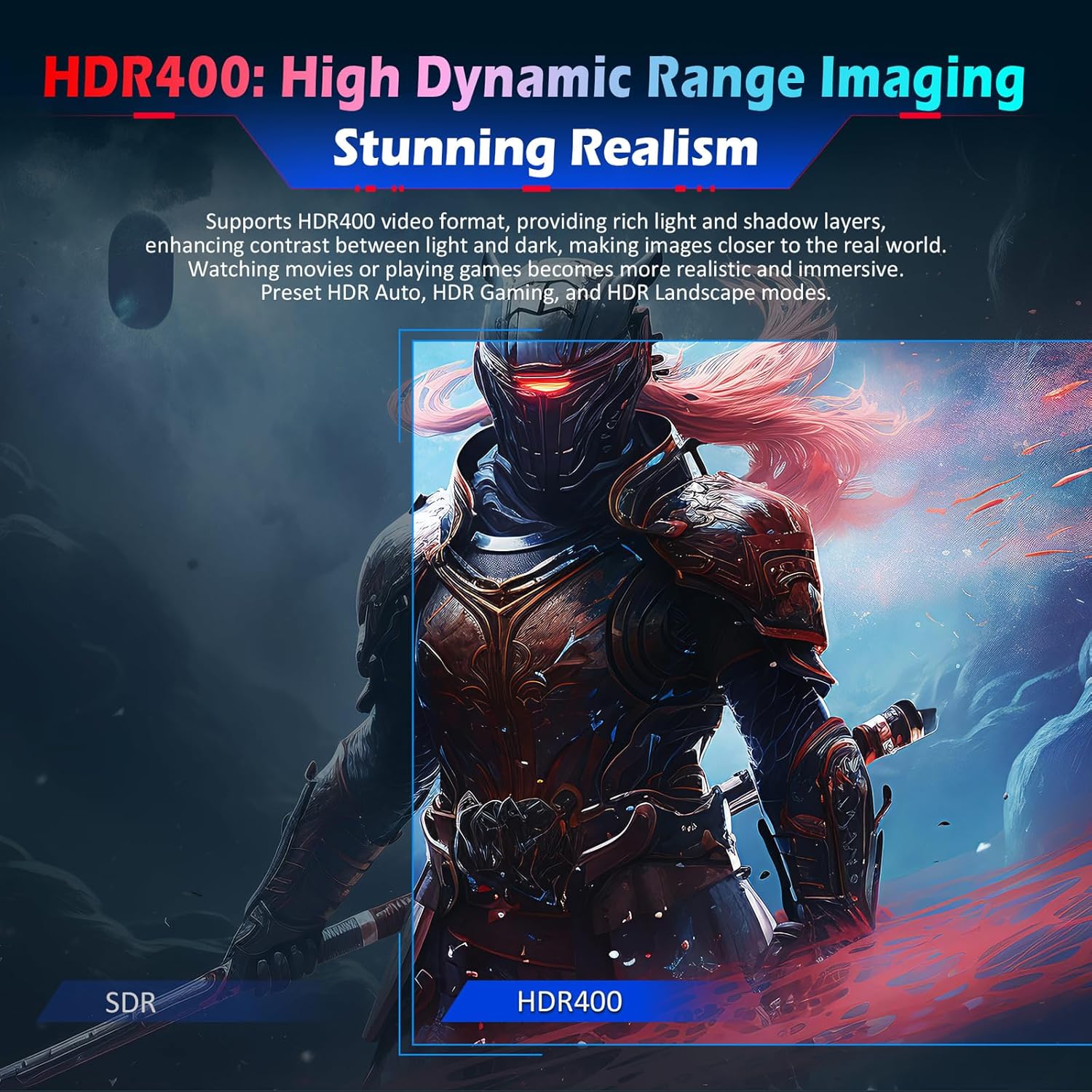
Image: Visual comparison demonstrating the enhanced contrast and realism provided by HDR400.

Image: Depiction of color and contrast enhancement options available in the monitor's settings.

Image: Illustration of the Super Resolution feature improving image sharpness.
4.4. Karatteristiċi tal-Logħob
The P2510HS offers several features to enhance your gaming experience:
- 300Hz Refresh Rate & 1ms GTG: Provides ultra-smooth motion and minimizes input lag.
- Sinkronizzazzjoni Adattiva: Jissinkronizza r-rata ta' aġġornament tal-monitor mar-rata tal-frejms tal-karta grafika tiegħek biex jelimina t-tiċrit u t-tfixkil tal-iskrin.
- Ultra-Fast Game Mode: Reduces signal delay for quicker response times in games.
- Dynamic OD (Overdrive): Dynamically adjusts acceleration levels based on refresh rate to reduce ghosting and trailing.
- Game Dark Boost: Enhances dark details in dark-themed games by adjusting monitor dark field brightness (0-100). Night Vision mode detects screen brightness in real-time to prevent overexposure while clarifying dark areas.
- Gaming Assist: Includes features like Game Crosshair (multiple styles, AI crosshair), Refresh Rate display, Stopwatch, Game Timer, Stitching Assist, and Eagle Eye Zoom.

Image: Visual demonstration of Adaptive Sync technology reducing screen tearing and stuttering.

Image: Comparison showing the effect of Game Dark Boost and Night Vision mode on dark game scenes.

Image: Visuals illustrating the benefits of Ultra-Fast Game Mode and Dynamic Overdrive for smoother gameplay.
4.5. Scenario Modes
The monitor offers 10 preset scenario modes optimized for various uses, including Standard, RTS/RPG Battle, FPS Competitive, MOBA Competitive, Reading, Night, Movie, Photo View, E-Book, and Eye Protection. These modes allow for flexible adjustment and independent saving of parameters.

Image: Display of various scenario modes, each optimized for specific applications like gaming, reading, or movie watching.
4.6. Dual Host Display (PIP/PBP)
The monitor supports Picture-in-Picture (PIP) and Picture-by-Picture (PBP) split-screen modes, allowing you to display two video signals simultaneously for enhanced multitasking.

Image: Illustration of the monitor displaying two separate video inputs simultaneously using PIP and PBP modes.
5. Manutenzjoni
Biex tiżgura l-lonġevità u l-prestazzjoni ottimali tal-monitor tiegħek, segwi dawn il-linji gwida ta' manutenzjoni:
- Tindif tal-Iskrin: Imsaħ l-iskrin bil-mod b'ċarruta ratba u mingħajr suf. Għal marki persistenti, nixxef bil-modampLaħlaħ id-drapp bl-ilma jew b'prodott speċjalizzat għat-tindif tal-iskrin. Evita li tuża kimiċi ħarxa jew materjali li joborxu.
- Tindif tas-Casing: Uża drapp artab u niexef biex tnaddaf il-parti ta' fuq tal-monitor.asing.
- Ventilazzjoni: Kun żgur li l-fetħiet tal-ventilazzjoni tal-monitor huma ċari u mhux imfixkla biex tevita li jisħon iżżejjed.
- Itfi: Dejjem itfi l-monitor u aqlagħh mill-plagg tal-elettriku qabel ma tnaddfu jew jekk se ma jintużax għal perjodu twil ta' żmien.
6 Issolvi l-problemi
Jekk tiltaqa' ma' problemi bil-monitor tiegħek, irreferi għall-problemi u s-soluzzjonijiet komuni li ġejjin:
| Problema | Kawża Possibbli | Soluzzjoni |
|---|---|---|
| L-ebda immaġni fuq l-iskrin | Power cable disconnected; Video cable disconnected or loose; Incorrect input source selected; Monitor is off. | Ensure power cable is securely connected. Check video cable (DP/HDMI) connections. Select the correct input source via the OSD menu. Press the power button to turn on the monitor. |
| L-immaġni qed teptip jew mhix stabbli | Video cable loose or damaged; Graphics card driver issue; Refresh rate mismatch; Adaptive Sync not enabled. | Check video cable connections. Update graphics card drivers. Ensure refresh rate is set correctly in display settings. Enable Adaptive Sync in the OSD menu and graphics card control panel. |
| Il-kuluri jidhru mhux korretti | Color settings incorrect; HDR mode conflict. | Adjust color settings (brightness, contrast, color temperature) in the OSD menu. Ensure HDR settings are appropriate for the content being displayed. |
| Il-monitor ma jixgħelx | Kejbil tal-enerġija skonnettjat; Is-sokket tal-enerġija mhux qed jaħdem. | Verify power cable is securely connected to both the monitor and a working power outlet. Test the outlet with another device. |
| Ghosting jew ċċajpar tal-moviment | Overdrive setting too high or too low. | Adjust the Dynamic OD setting in the OSD menu to find the optimal balance for your content. |
Jekk il-problema tippersisti wara li tipprova dawn is-soluzzjonijiet, jekk jogħġbok ikkuntattja l-appoġġ għall-klijenti.
7. Speċifikazzjonijiet
Detailed technical specifications for the TITAN ARMY P2510HS monitor:

Image: Diagram illustrating the physical dimensions and key specifications of the P2510HS monitor.
| Karatteristika | Dettall |
|---|---|
| Mudell | P2510HS |
| Daqs tal-Iskrin | 24.5 Pulzier |
| Tip ta' Panel | IPS veloċi |
| Proporzjon ta' l-aspett | 16:9 |
| Riżoluzzjoni Massima | 1920 x 1080 (FHD) |
| Riffriskar Rata | 300Hz |
| Ħin ta' Rispons | 1ms GTG |
| Appoġġ HDR | HDR400 |
| Gamut tal-Kulur | 121% sRGB |
| Proporzjon ta' Kuntrast (Statiku) | 1000:1 |
| Luminożità (Tipika) | 350nit |
| ViewIng Angolu | 89°(H), 89°(V) |
| Wiri Kuluri | 16.7 Miljun |
| Inputs tal-Vidjo | 2 x HDMI 2.0, 2 x DisplayPort 1.4 |
| Output Awdjo | 1 x Awdjo Out |
| Kompatibilità tal-Immonta VESA | 100 x 100 mm |
| Dimensjonijiet tal-Prodott (W x H x D) | 557.7 x 422.6 x 218.5 mm (bl-istand) |
| Piż tal-oġġett | 8.58 liri |
8. Garanzija u Appoġġ
For warranty information and technical support, please refer to the warranty card included with your product or visit the official TITAN ARMY websit. Żomm l-irċevuta tax-xiri tiegħek bħala prova tax-xiri għal talbiet ta' garanzija.