
1. Introduzzjoni
The ASUS DC300 Docking Station is a compact device designed to streamline laptop connectivity and enhance productivity. It allows users to connect multiple peripherals, external displays, and power their laptop through a single USB-C cable. This manual provides detailed instructions for setting up, operating, and maintaining your docking station.
2. Prodott Aktarview
The ASUS DC300 Docking Station offers extensive connectivity options in a sleek, durable design. Its metal construction ensures longevity and a sophisticated appearance that blends seamlessly into any workspace. Key features include support for multiple displays, high-speed data transfer ports, and pass-through charging capabilities.
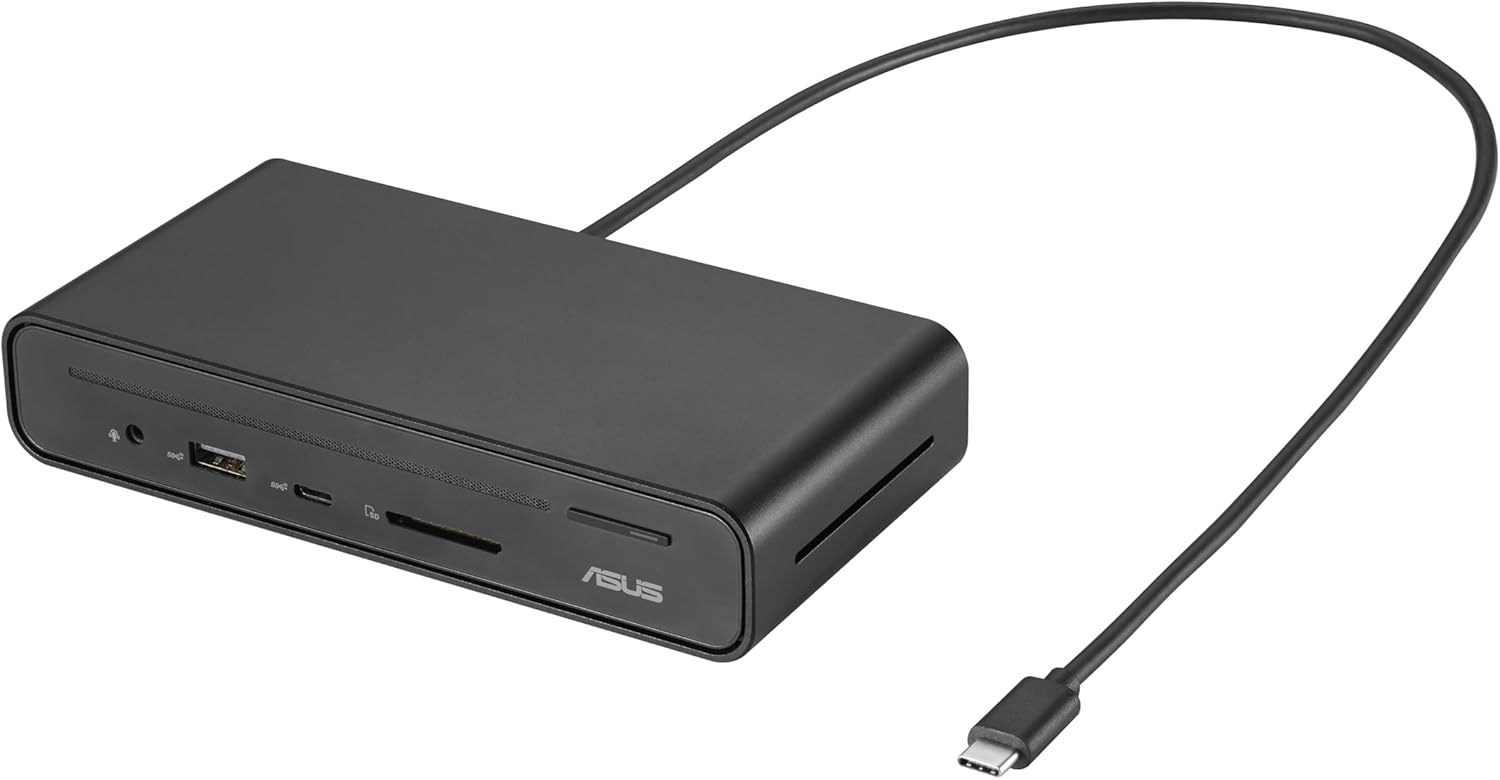
Figure 2.1: ASUS DC300 Docking Station with attached USB-C cable.
3. Kontenut tal-Pakkett
Kun żgur li l-oġġetti kollha huma preżenti fil-pakkett:
- ASUS DC300 Docking Station
- USB Type-C Cable (braided)
- Magnetic Base with Adhesive
- Manwal għall-Utent (dan id-dokument)
4. Physical Components and Port Layout
The docking station features a variety of ports for comprehensive connectivity. Familiarize yourself with the port layout for optimal use.
4.1 Front Panel Ports
- 1x USB Type-C Port (10 Gbps): Għat-trasferiment tad-dejta b'veloċità għolja.
- 1x USB Type-A Port (10 Gbps): Għat-trasferiment tad-dejta b'veloċità għolja.
- SD Card Reader: Għall-qari ta' karti tal-memorja SD standard.
- Qarrej tal-Kards MicroSD: For reading MicroSD memory cards.
- Jack Awdjo 3.5mm: Għall-konnessjoni ta' headphones jew apparati awdjo esterni.
- Buttuna tal-Qawwa: To power on/off the docking station.

Figura 4.1: Quddiem view of the docking station with accessible high-speed data and media card ports.
4.2 Portijiet tal-Panel ta' Wara
- 2x HDMI Ports (4K@60Hz): Għall-konnessjoni ta' displays esterni.
- 2x DisplayPort (4K@60Hz): Għall-konnessjoni ta' displays esterni.
- 1x USB Type-C PD Port (100W): For power delivery to your laptop and pass-through charging.
- 1x USB Type-A Port (10 Gbps): Għat-trasferiment tad-dejta b'veloċità għolja.
- 1x USB Type-A Port (480 Mbps): For connecting peripherals like keyboard/mouse dongles.
- 1x Gigabit Ethernet Port: Għal konnessjoni stabbli tan-netwerk bil-fili.

Figura 4.2: Wara view of the docking station with various display, power, and network ports.
5. Gwida ta' Setup
Follow these steps to set up your ASUS DC300 Docking Station:
- Pożizzjona l-Baċir: Place the docking station on a flat, stable surface. You may use the included magnetic base to secure it to your desk. Ensure the adhesive is applied to a suitable surface if you intend to use it permanently.
- Qabbad mal-Laptop: Connect the braided USB Type-C cable from the docking station's "To Laptop" port (rear panel) to your laptop's USB Type-C port.
- Qabbad il-Qawwa (Mhux obbligatorju iżda Rakkomandat): For optimal performance, especially with multiple displays and charging, connect your laptop's USB Type-C power adapter to the docking station's "USB Type-C PD" port (rear panel). This enables pass-through charging for your laptop.
- Qabbad id-Displays: Use HDMI or DisplayPort cables to connect your external monitors to the corresponding ports on the rear panel of the docking station.
- Ikkonnettja l-Periferali: Plug in your mouse, keyboard, external drives, or other USB devices to the available USB Type-A or USB Type-C ports on the front or rear panels.
- Qabbad man-Netwerk (Mhux obbligatorju): For a stable wired internet connection, connect an Ethernet cable to the Gigabit Ethernet port on the rear panel.
- Qawwa Mixgħul: Press the power button on the front panel to turn on the docking station. The digital LED display will illuminate, showing the status of connected ports.
6. Istruzzjonijiet Operattivi
6.1 Modi tal-Wiri
L-istazzjon tad-docking jappoġġja diversi konfigurazzjonijiet tad-displej:
- Sistemi tal-Windows: Supports single, dual, and triple external displays in extended or mirrored modes. Resolutions up to 4K@60Hz are supported for single/dual displays, and 4K@30Hz for triple displays.
- Sistemi Mac OS: Supports single and dual external displays. Triple display is not supported in extended mode; displays will be mirrored.

Figura 6.1: Eżample of a triple monitor setup with the ASUS DC300 Docking Station.
6.2 Trasferiment tad-Data
Utilize the high-speed USB ports for quick data transfer:
- USB 3.2 Gen 2 Ports (10 Gbps): Ideal for transferring large files to/from external SSDs or other high-speed devices.
- Qarrejja tal-Kards SD/MicroSD: For fast transfer of photos and videos from memory cards.
6.3 One-Click Screen Lock
The power button on the top of the docking station also functions as a screen lock button:
- Windows: Press the button once to instantly lock your displays.
- MacOS: Press the button twice to lock your displays.
7. Manutenzjoni u Kura
- Żomm l-istazzjon tad-docking f'ambjent nadif u niexef.
- Evita li tesponi l-apparat għal temperaturi estremi jew dawl tax-xemx dirett.
- Clean the surface with a soft, dry cloth. Do not use liquid cleaners.
- Ensure cables are properly connected and not under strain to prevent damage.
8 Issolvi l-problemi
Jekk tiltaqa' ma' problemi, irreferi għas-soluzzjonijiet komuni li ġejjin:
- Unstable LAN Connection: If the LAN connection is unstable or disconnects, especially after sleep mode, try disabling and re-enabling the network driver in your operating system settings.
- Power Button Not Functioning: Ensure the docking station is properly connected to your laptop and, if applicable, to a power source.
- Teptip tal-iskrin: Check all display cable connections. Ensure your display drivers are up to date. Verify that your monitor and cable support the selected resolution and refresh rate.
- L-ebda Output tal-Wiri: Confirm that your laptop's USB-C port supports video output (DisplayPort Alt Mode). Ensure all display cables are securely connected. Check your display settings in your operating system.
- Kwistjonijiet ta' Iċċarġjar: Ensure your laptop's power adapter is connected to the docking station's USB Type-C PD port. Verify that your laptop supports USB-C power delivery.
9. Speċifikazzjonijiet
| Karatteristika | Dettall |
|---|---|
| Numru tal-Mudell | 90XB08CN-BDS000 |
| Dimensjonijiet tal-Prodott | 3.66 x 3.27 x 0.98 pulzieri |
| Piż tal-oġġett | 1.1 liri |
| Teknoloġija tal-Konnettività | Bil-fili |
| Kapaċità tal-Iċċarġjar | Yes (up to 100W via USB-C PD) |
| Wiri Appoġġ | 3 Displays Supported (4K resolution) |
| Portijiet HDMI | 2 (4K@60Hz) |
| DisplayPort | 2 (4K@60Hz) |
| Portijiet USB totali | 4 (2x USB 3.2 Gen 2 Type-A, 1x USB 3.2 Gen 2 Type-C, 1x USB 2.0 Type-A) |
| Ethernet | Gigabit Ethernet |
| Qarrej tal-Kard tal-Memorja | SD, MikroSD |
| Apparati Kompatibbli | Expertbook (and other USB-C compatible laptops) |
10. Garanzija u Appoġġ
For warranty information and customer support, please refer to the official ASUS website or contact their customer service directly. The product typically comes with a manufacturer's warranty. Please retain your proof of purchase for warranty claims.
Appoġġ tal-ASUS: https://www.asus.com/support/