
SCULPFUN S30 Pro+TS1
SCULPFUN S30 Pro Laser Engraver and TS1 Touch Screen User Manual
Model: S30 Pro+TS1
1. Prodott Aktarview
The SCULPFUN S30 Pro is a high-performance 10W diode laser engraver designed for precision engraving and cutting of various materials. It features an automatic air assist system for enhanced cutting performance and comes bundled with the SCULPFUN TS1 Touch Screen for offline control and Wi-Fi connectivity. This machine is suitable for engraving and cutting wood, MDF, bamboo, cardboard, plastic, leather, PCB board, aluminum oxide, 304 stainless steel, ceramic, and dark stone.
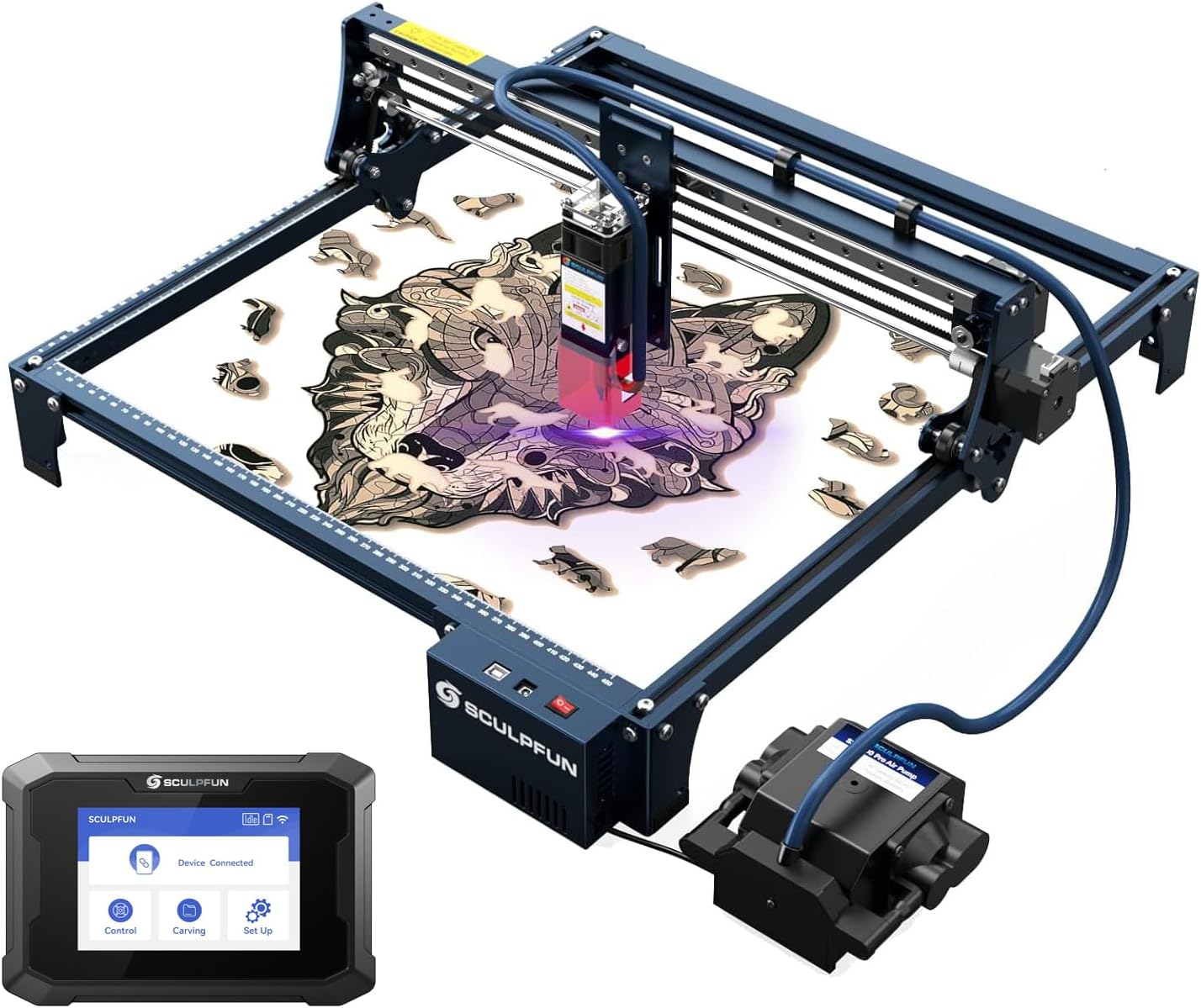
Figure 1: SCULPFUN S30 Pro Laser Engraver with TS1 Touch Screen. This image shows the complete laser engraving system, including the main engraver unit, the external air pump, and the TS1 touch screen.
Karatteristiċi ewlenin:
- 10W Diode Laser Output: Capable of cutting 10mm wood or 5mm acrylic in a single pass with a 0.06x0.08mm ultra-fine compression spot for detailed engraving.
- Automatic Air Assist: Mainboard-controlled air pump (12V, 30L/min) with an advanced high-pressure metal nozzle, intelligently controlled via LightBurn software (M8 command) to significantly improve cutting speed and performance.
- SCULPFUN TS1 Touch Screen: 3.5-inch capacitive touch screen (480x320 resolution) for offline engraving, Wi-Fi connectivity, and real-time slicing via the SCULPFUN mobile app.
- Expandable Working Area: Standard 410x400mm engraving area, expandable up to 935x905mm with optional extension kits.
- Kostruzzjoni robusta: Features an industrial-grade linear rail for high precision and durability.
- Protezzjoni tal-għajnejn: Equipped with a detachable laser protection cover.
2. Informazzjoni dwar is-Sigurtà
Operating a laser engraver involves potential hazards. Always adhere to the following safety guidelines to prevent injury or damage.
- Protezzjoni tal-għajnejn: Always wear the provided laser safety goggles when the laser is operating. Never look directly at the laser beam.
- Ventilazzjoni: Operate the machine in a well-ventilated area to dissipate fumes and smoke produced during engraving/cutting. Consider an exhaust system.
- Periklu tan-Nar: Laser engraving/cutting can ignite flammable materials. Do not leave the machine unattended during operation. Keep a fire extinguisher nearby.
- Kompatibbiltà tal-Materjal: Only engrave or cut materials specified in the product description. Avoid materials that produce toxic fumes or can easily catch fire (e.g., PVC, vinyl).
- Tfal u Pets: Żomm it-tfal u l-annimali domestiċi 'l bogħod miż-żona tal-operat.
- Sigurtà Elettrika: Kun żgur li l-provvista tal-enerġija hija konnessa u ertjata sew. Tħaddimx b'idejn imxarrbin jew f'temperatura għolja.amp kundizzjonijiet.
- Waqfien ta' Emerġenza: Iffamiljarizza ruħek mal-post tas-swiċċ tal-enerġija għal għeluq immedjat f'każ ta' emerġenza.
3. Setup u Assemblea
Before operating the SCULPFUN S30 Pro, careful assembly is required. Refer to the included "Step 1-6 Installation package" and the physical manual for detailed visual instructions. The following outlines the general steps.
3.1 Spakkjar u Spezzjoni
Iftaħ il-komponenti kollha bir-reqqa mill-pakkett u vverifika mal-lista tal-ippakkjar:
- 1 x S30 Pro laser
- 1 x Laser repair kit
- 1 x 12V Automatic air pump
- 3 x A4 size 3mm wood board
- 2 x Limit switches
- 1 x 12V 5A Power adapter
- 1 x Korda tal-qawwa
- 1 x USB cable
- 1 x Pajp tal-arja
- 1 x Installation toolkit
- 1 x Laser goggles
- 1 x A4 Metal backing plate
- Step 1-6 Installation package
- 1 x Manwal
- 1 x assemblaġġ tal-assi X
- 2 x X Profiles
- 2 x Y Profiles
- 1 x Control box assembly
- 3 x saqajn ta 'appoġġ
- 1 x Touch screen (SCULPFUN TS1)
- 1 x Power cord (for TS1)
- 1 x SD card (for TS1)
- 1 x Card reader (for TS1)
- 1 x Manual (for TS1)
3.2 Assemblea Mekkanika
Follow the step-by-step instructions in the provided installation package to assemble the frame, X-axis, Y-axis, and control box. Ensure all screws are tightened securely.

Figura 2: Aktarview of SCULPFUN S30 Series components and innovative technologies. This diagram highlights the industrial-grade linear rail, S30 Pro 10W dual-laser, air assist, automatic air assist pump, X&Y axis expansion kit compatibility, replaceable lens, and 32-bit air assist mainboard.
3.3 Installazzjoni tal-Modulu tal-Laser
Install the S30 Pro laser module onto the X-axis assembly. Ensure it is securely fastened and the laser protection cover is in place.
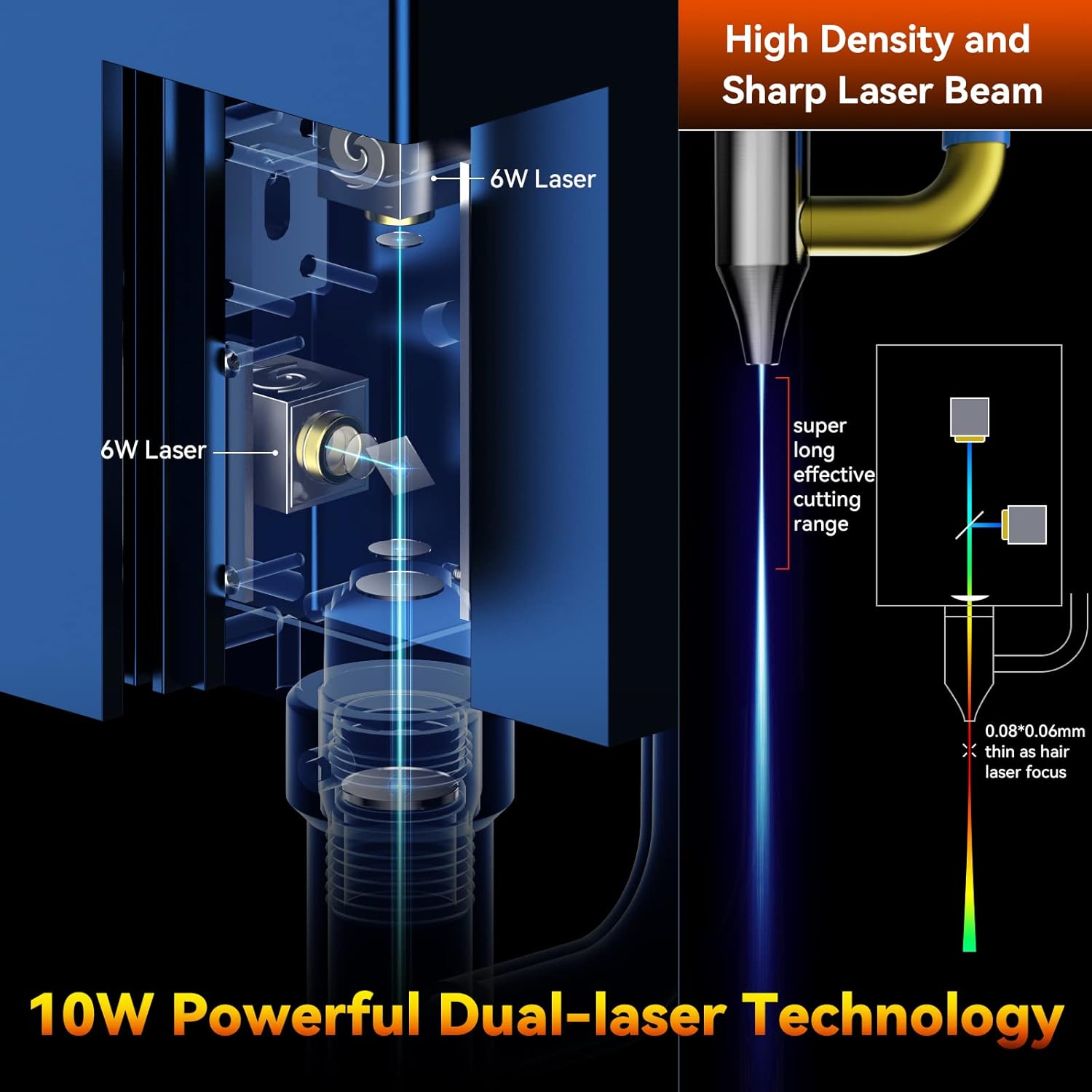
Figure 3: Illustration of the 10W Powerful Dual-laser Technology. This image demonstrates how two 6W lasers are combined to achieve a 10W output with a super long effective cutting range and a fine 0.06x0.08mm laser focus.
3.4 Air Assist System Connection
Connect the air pipe from the 12V automatic air pump to the air assist nozzle on the laser module. Ensure the air pump is connected to the mainboard's designated port.

Figure 4: Close-up of the Built-in High Pressure Air Assist Nozzle. This image illustrates the advanced fluid mechanics design of the S30 Pro nozzle, which enhances airflow for improved cutting performance.
3.5 SCULPFUN TS1 Touch Screen Connection
Connect the SCULPFUN TS1 touch screen to the laser engraver using the provided USB cable. Power on the TS1 using its dedicated power cord.

Figure 5: SCULPFUN TS1 Touch Screen for Laser Engravers. This image highlights the TS1's WiFi function, 3.5-inch capacitive screen, and wide compatibility with S30 series machines.

Figure 6: SCULPFUN TS1 WiFi Functionality. This image shows the TS1 connected to the engraver and interacting with the SCULPFUN mobile phone app for wireless control and file ħolqien.
3.6 Installazzjoni tas-Softwer
The S30 Pro supports various operating software:
- LightBurn (recommended, with air assist function M8)
- LaserGRBL
- Benbox
- GrblController
- LiteFire
These software packages support Windows and MAC systems. Supported file formats include NC, BMP, JPG, PNG, DXF, and other image formats. Install your preferred software and configure it for the S30 Pro.
4. Istruzzjonijiet Operattivi
4.1 Preparing for Engraving/Cutting
- Tqegħid tal-Materjal: Place the material to be engraved or cut on the metal backing plate. Ensure it is flat and securely positioned within the working area.
- Aġġustament tal-Focus: Adjust the laser focus using the fixed focus column and sliding device to achieve the optimal focal point for your material.
- Setup tas-Software: Open your chosen engraving software (e.g., LightBurn). Import or create your design.
- Settings tal-parametri: Set the appropriate laser power, speed, and passes based on the material type and desired outcome. Refer to material test guides for optimal settings.
- Air Assist Control: For cutting operations, ensure the automatic air assist is enabled in your software (e.g., M8 command in LightBurn). For engraving, air assist may be turned off for finer details or specific material requirements.

Figure 7: Automatic Controlled Air Assist in LightBurn. This image demonstrates how the air assist can be intelligently controlled (ON/OFF) via the LightBurn software's M8 button, showing its effect on cutting and engraving.
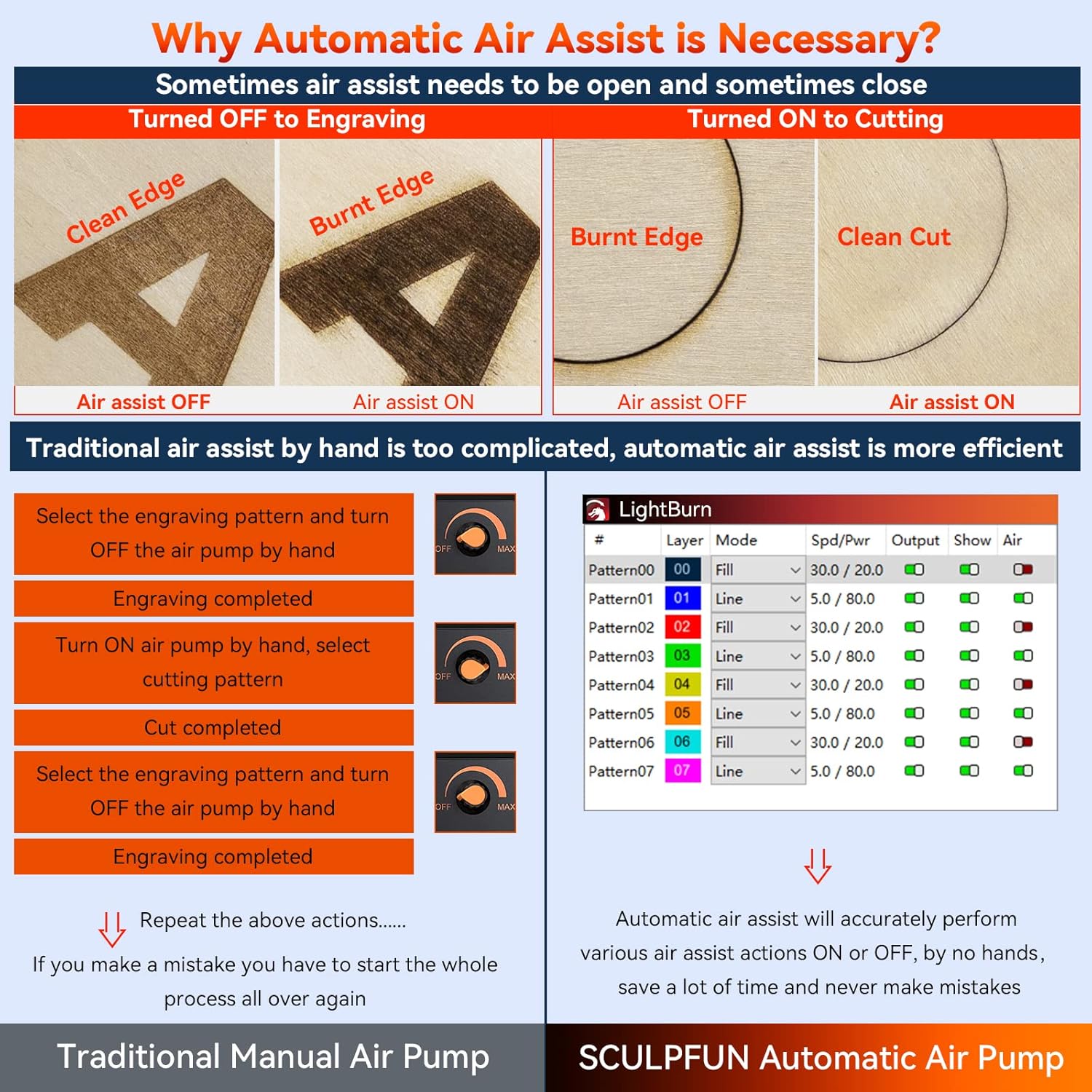
Figure 8: Comparison of Manual vs. Automatic Air Assist. This image illustrates the difference in results (clean edge vs. burnt edge) when air assist is ON or OFF for cutting and engraving, emphasizing the efficiency of automatic control.
4.2 Starting an Operation (PC/Mac Connected)
- Ensure the engraver is connected to your computer via USB.
- In your software, click the "Start" or "Run" button to begin the laser operation.
- Monitor the process closely.
4.3 Offline Operation (SCULPFUN TS1 Touch Screen)
The TS1 touch screen enables engraving without a direct computer connection.
- Ipprepara File: Save your engraving file (e.g., G-code) to the SD card provided with the TS1.
- Daħħal SD Card: Insert the SD card into the TS1 touch screen.
- Agħżel File: On the TS1 interface, navigate to the "Carving" or "Files" section and select your desired file.
- Ibda l-Inċiżjoni: Follow the on-screen prompts to initiate the engraving process.
4.4 Wi-Fi Connectivity (SCULPFUN TS1 and Mobile App)
For advanced control and real-time slicing, connect the TS1 to Wi-Fi and use the SCULPFUN mobile app.
- Connect TS1 to Wi-Fi: On the TS1, go to "Set Up" and configure Wi-Fi settings to connect to your local network.
- Niżżel l-App: Download the SCULPFUN mobile app on your smartphone.
- Apparat Par: Open the app and follow instructions to pair with your TS1.
- Control and Slice: Use the app for wireless control, file management, and real-time slicing functions.
5. Manutenzjoni
Regular maintenance ensures optimal performance and extends the lifespan of your SCULPFUN S30 Pro.
- Lenti tal-Laser Nadifa: Periodically clean the laser lens using a soft, lint-free cloth and lens cleaning solution. A dirty lens can reduce laser power and engraving quality.
- Clean Air Assist Nozzle: Ensure the air assist nozzle is free from debris and residue to maintain optimal airflow.
- Lubrikja l-Binarji Lineari: Apply a small amount of lubricant to the industrial-grade linear rails occasionally to ensure smooth movement of the laser module.
- Clean Machine Frame: Wipe down the machine frame to remove dust and debris.
- Iċċekkja l-Konnessjonijiet: Periodically inspect all electrical and air pipe connections for looseness or damage.
- Laser Repair Kit: Utilize the provided laser repair kit for minor maintenance or replacement of specific laser components as instructed in the detailed manual.
6 Issolvi l-problemi
Din it-taqsima tindirizza kwistjonijiet komuni li tista’ tiltaqa’ magħhom.
| Problema | Kawża Possibbli | Soluzzjoni |
|---|---|---|
| Il-lejżer mhux qed jispara jew il-ħruġ tiegħu huwa dgħajjef | Dirty laser lens; Incorrect focus; Low power setting; Loose connection. | Clean the laser lens; Adjust focus; Increase laser power in software; Check all cable connections. |
| Engraving/Cutting quality is poor | Incorrect speed/power settings; Material not flat; Air assist not optimized; Dirty lens. | Adjust speed and power settings; Ensure material is flat; Verify air assist is ON for cutting and OFF for engraving if needed; Clean lens. |
| Machine not responding to software | USB cable disconnected; Driver issue; Incorrect COM port selected. | Check USB connection; Reinstall drivers; Select correct COM port in software. |
| Air assist not working | Air pump not connected; Air pipe kinked/blocked; M8 command not sent. | Check air pump connection to mainboard; Inspect air pipe for blockages; Ensure M8 command is enabled in LightBurn. |
| TS1 Touch Screen not connecting to engraver | USB cable loose; TS1 not powered on. | Ensure USB cable is firmly connected between TS1 and engraver; Verify TS1 is powered on. |
7. Speċifikazzjonijiet
7.1 SCULPFUN S30 Pro Laser Engraving Machine
- Mudell tal-Prodott: SCULPFUN S30 Pro
- Diode Laser Output Power: 10W (light energy)
- Fokus tal-Laser: 0.06x0.08mm
- Tul ta' Mewġ tal-Laser: 455 ± 5nm
- Metodu ta' Fokus: Fixed focus column + sliding device
- Laser Protection Cover: Jinqala ', aġġustabbli
- Input ta' Enerġija: 100-240V AC, 50/60Hz
- Output tal-Enerġija: 12V 7A
- Preċiżjoni tal-inċiżjoni: 0.005mm
- Engraving Area Size: Standard 410x400mm (expandable to 935x400mm or 935x905mm)
- Machine Electric Power: Madwar 60W
- Air Pump Type: Mainboard-controlled, 12V, flow 30L/min
- Air Hose Inner Diameter: 7.5mm
- motherboard: 32-bit air-assisted, reserved for Bluetooth and SD card offline control (upgrade package sold separately)
- Softwer operattiv: LightBurn (M8 air assist), LaserGRBL, LightBurn, Benbox, GrblController, LiteFire
- OS appoġġjat: Twieqi, MAC
- Appoġġjati File Formati: NC, BMP, JPG, PNG, DXF, eċċ.
- Trażmissjoni tad-Data: USB connection or Bluetooth wireless connection
- Dimensjonijiet tal-Prodott: 18.11 x 18.11 x 6.69 pulzieri
- Piż tal-Pakkett: 6.85kg
- Ċertifikazzjonijiet: CE, FCC, RoHS, FDA, ICE
7.2 SCULPFUN TS1 Touch Screen
- Materjal tal-Prodott: ABS + PC
- Daqs tal-iskrin: 3.5 pulzieri
- Materjal tal-iskrin: Touch Screen Capacitive
- Riżoluzzjoni tal-iskrin: 480x320
- Daqs tal-Prodott: 126x89x25mm
- Piż tal-Prodott: 130g
8. Garanzija u Appoġġ
For warranty information, technical support, or service inquiries, please refer to the official SCULPFUN webis-sit jew ikkuntattja lis-servizz tal-konsumatur tagħhom direttament. Żomm l-irċevuta tax-xiri tiegħek bħala prova tax-xiri.
Manifattur: SCULPFUN
Data L-Ewwel Disponibbli: 3 ta’ Settembru, 2024
Għal aktar għajnuna, żur il- SCULPFUN Store on Amazon.
Ask a question about this manual
Ask about setup, troubleshooting, compatibility, parts, safety, or missing instructions. Manuals+ will review the question and use this page’s manual context to help answer it.