
1. Introduzzjoni
Grazzi tax-xiriasing the OTTOCAST OttoAibox i3. This device transforms your BMW's wired CarPlay system into a full Android 13 entertainment hub, allowing you to enjoy various streaming services and applications directly on your car's iDrive display. This manual provides detailed instructions for setup, operation, and troubleshooting to ensure optimal use of your new AI Box.
2. Prodott Aktarview u Karatteristiċi
The OttoAibox i3 is designed specifically for BMW vehicles equipped with wireless CarPlay. It integrates seamlessly with your car's existing display and controls, offering an enhanced in-car experience.
Karatteristiċi ewlenin:
- Sistema Operattiva Android 13: Access a wide range of Android applications directly on your car's screen.
- Streaming tal-Vidjo: Enjoy popular services like Netflix, YouTube, Amazon Prime Video, TVER, ABEMA, and Disney+ on your iDrive display.
- Slott tal-Karta MicroSD: Expand storage up to 256GB for offline video and music playback.
- Nano SIM Card Support: Utilize cellular data for internet connectivity without relying on phone tethering.
- Funzjoni tad-Dawl Ambjentali: The Ottocast logo on the device features dynamic ambient lighting with various modes (breathing, gradient, music rhythm).
- Screen Split Function: Display two applications simultaneously with adjustable ratios (5:5, 3:7, 7:3).
- Prestazzjoni Għolja: Equipped with 4GB RAM and 64GB storage for smooth operation.
- Konnettività: Supports Bluetooth and Wi-Fi for versatile connections.
- USB Tip Ċ: Modern and reversible USB connection for power and data.
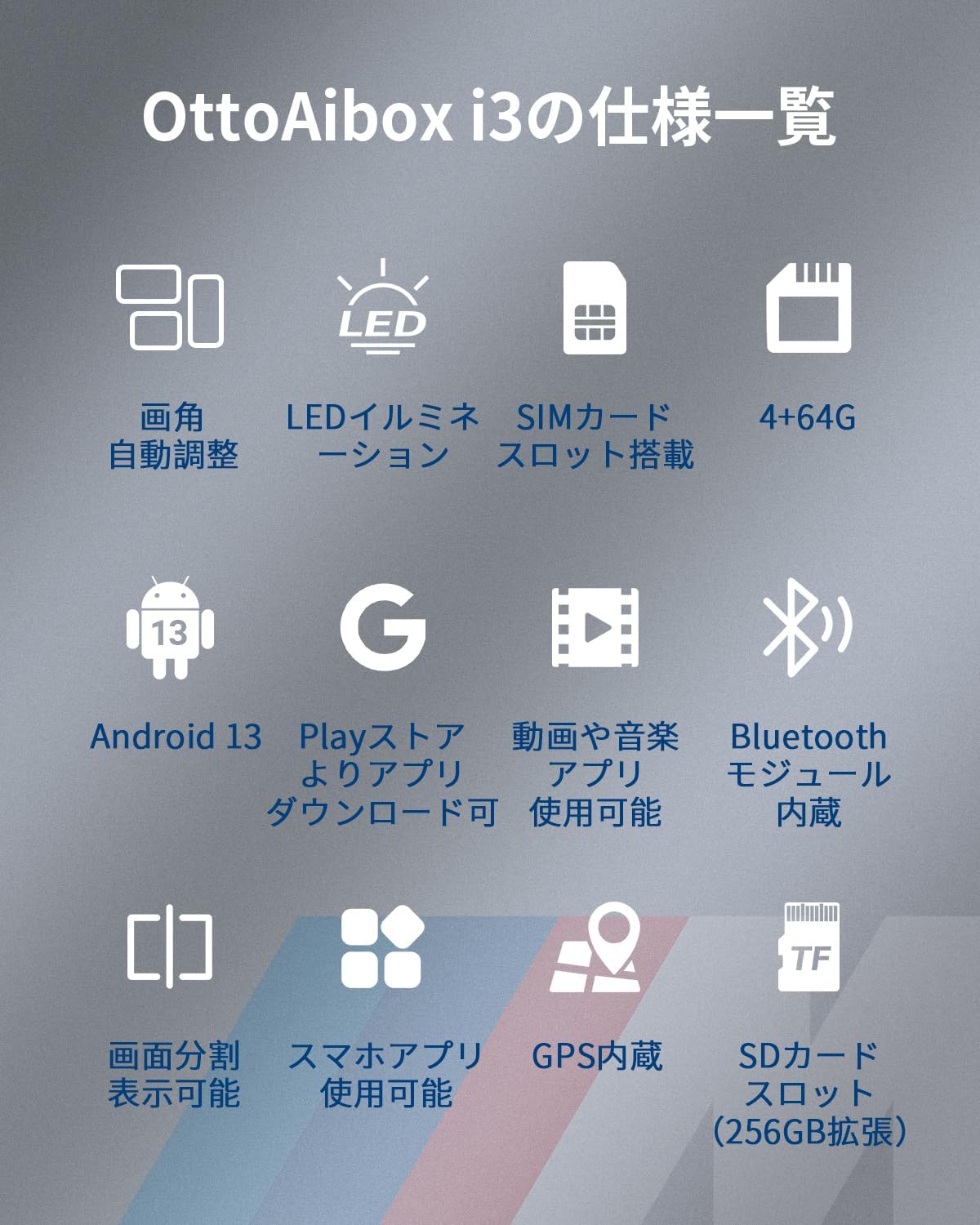
Immaġni: Fuqview of OttoAibox i3 specifications, including Android 13, 4+64GB memory, SIM card slot, LED illumination, and screen split function.

Image: Visual representation of OttoAibox i3 key features: Android 13, 4GB RAM, 64GB ROM, QCM6125 processor, 4G/3G/2G support, and compatibility with iDrive ID6, 7, 8, 9.
3. Istruzzjonijiet ta' Setup
Follow these steps to connect and set up your OttoAibox i3:
- Connect to Vehicle USB Port: Plug the OttoAibox i3 into your car's USB port using the provided USB Type-C to A cable.
- Tqabbil Bluetooth: On your car's display, navigate to the Bluetooth list and select "OttoAIBox--XXXX" to initiate pairing.
- Ikkonferma l-Imqabbad: A confirmation screen will appear. Click "Agree and Confirm" to complete the connection.

Image: Diagram illustrating the three main setup steps: connecting the device to the car's USB port, Bluetooth pairing, and internet connection options (Wi-Fi, tethering, or Nano SIM).
Konnessjoni tal-Internet:
To use online services like YouTube or Netflix, the OttoAibox i3 requires an internet connection. You have three options:
- Vehicle Wi-Fi: Connect to your car's built-in Wi-Fi network.
- Irbit Use your smartphone or a pocket Wi-Fi device for tethering.
- Nano SIM Card: Insert a Nano SIM card into the device for cellular data network access.
To configure Wi-Fi: Go to the device's menu screen, select Settings > Netwerk u Internet > Internet > Wi-Fi, then turn Wi-Fi ON and connect to your desired network.

Immaġni: Close-up view of the OttoAibox i3 showing the Nano SIM card slot and MicroSD card slot, indicating support for 4G (LTE) / 3G communication and up to 256GB storage expansion.
4. Istruzzjonijiet Operattivi
Aċċess għall-Applikazzjonijiet:
Once connected, the OttoAibox i3 will display an Android interface on your BMW's screen. You can navigate through applications using the car's iDrive controller or the touch panel (if supported by your car's display).
- Niżżel l-Applikazzjonijiet: Use the pre-installed Play Store to download and install your favorite video streaming, navigation, and other Android applications.
- Apps installati minn qabel: Commonly used apps like YouTube, Spotify, and a web browser are readily available.
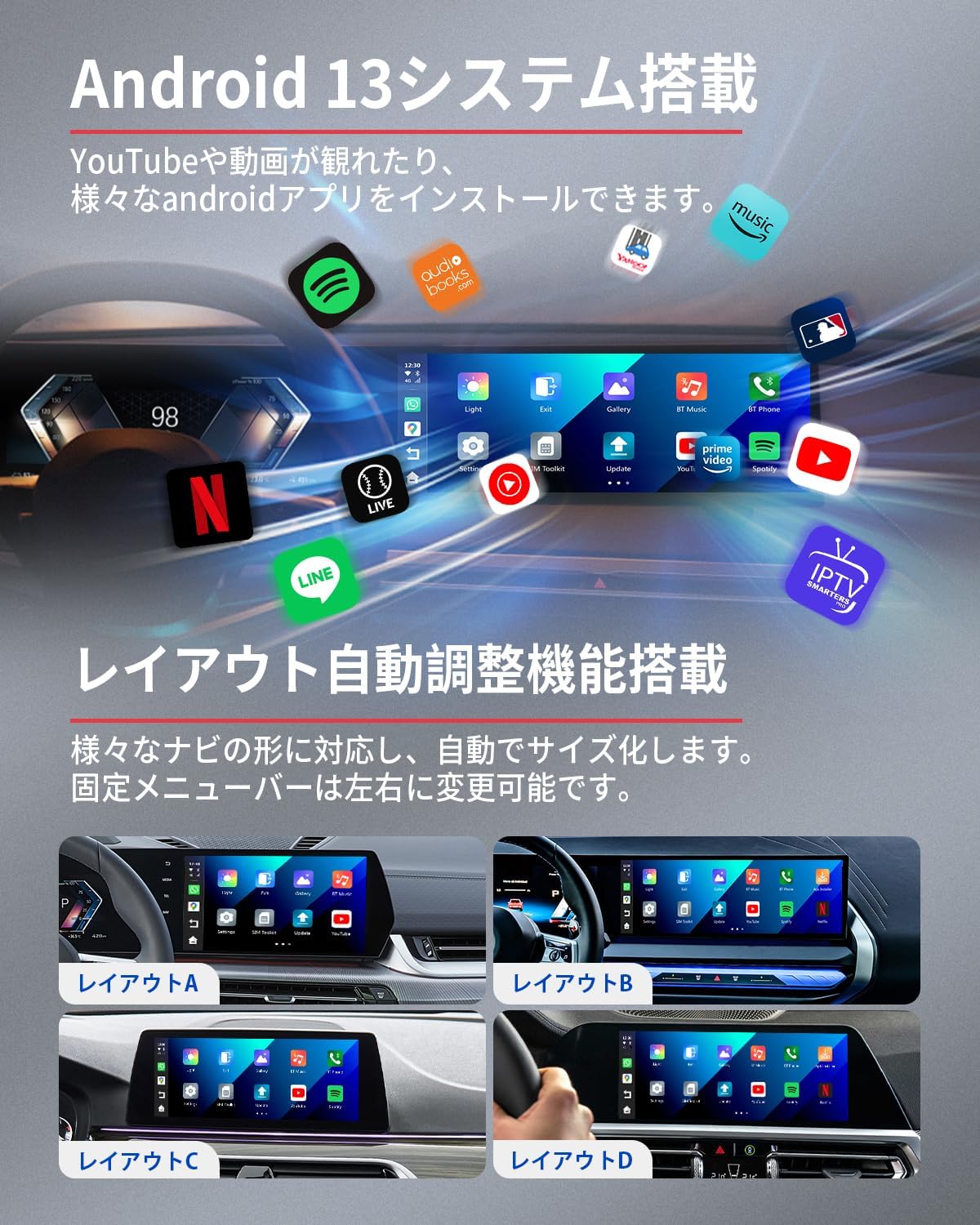
Image: Screenshot of the Android 13 interface on a car display, showing various app icons like Play Store, Maps, YouTube, Spotify, and settings. Different layout options (A, B, C, D) are also shown, adapting to various car navigation screen shapes.
Screen Split Function:
The screen split feature allows you to run two applications side-by-side. This is useful for simultaneous navigation and entertainment.
- Proporzjonijiet: Choose from 5:5, 3:7, or 7:3 screen division ratios to suit your preference.
- Attivazzjoni: Refer to the on-screen interface for options to activate and adjust the screen split mode.

Image: A car display showing the screen split function in action, with a navigation map on one side and a YouTube video on the other. Options for 3:7, 5:5, and 7:3 ratios are indicated.
Dawl ambjentali:
The Ottocast logo on the device itself features customizable ambient lighting. This adds a stylish touch to your car's interior.
- Modi: The light color changes infinitely and includes modes such as breathing light, gradient light, and music rhythm light.
- Settings: Adjust ambient light settings through the device's interface.
5. Speċifikazzjonijiet
| Brand | OTTOKASTA |
| Numru tal-Mudell | PCS46 |
| Teknoloġija tal-Konnettività | Bluetooth, WiFi |
| Tip ta' Kontrollur | Pannell tat-Touch, Kontroll mill-Bogħod |
| Apparati Kompatibbli | BMW vehicles with factory Wireless CarPlay |
| Tip ta' Konnettur | USB Tip Ċ |
| Dimensjonijiet tal-Prodott (P x W x H) | 8 x 8 x 2 ċm |
| Servizzi tal-Internet Appoġġjati | YouTube, Netflix, TVER, ABEMA, Disney+, Yahoo! Car Navi, etc. |
| Oġġetti Inklużi | OttoAibox i3 unit x1, USB Cable (Type-C to A) x1, Instruction Manual (Japanese) x1 |
6 Issolvi l-problemi
If you encounter issues with your OttoAibox i3, please refer to the following common solutions:
- Apparat Mhux Qed Jikkonnettja:
- Ensure the device is securely plugged into the car's USB port.
- Verify Bluetooth pairing is successful. Try unpairing and re-pairing if necessary.
- Restart your car's infotainment system and the OttoAibox i3.
- Ebda Konnessjoni tal-Internet:
- Check your Wi-Fi connection or tethering settings. Ensure your phone's hotspot is active if using tethering.
- If using a Nano SIM, ensure it is correctly inserted and has an active data plan.
- Verify that the device's Wi-Fi is enabled in Settings > Netwerk u Internet > Internet > Wi-Fi.
- Audio/Video Lag or Stuttering:
- A strong and stable internet connection is crucial for smooth streaming. Check your signal strength.
- Close any unnecessary background applications on the OttoAibox i3 to free up resources.
- If playing media from a MicroSD card, ensure the card is not corrupted and meets speed requirements.
- Bluetooth Phone Call Issues:
- Some users report conflicts when the phone is simultaneously connected to the car's native Bluetooth and the OttoAibox i3. Try disconnecting your phone from the car's native Bluetooth when using the AI Box for calls, or vice-versa.
- Ensure the OttoAibox i3's Bluetooth settings are correctly configured for calls.
7. Garanzija u Appoġġ
OTTOCAST is committed to providing high-quality products and excellent customer service.
- Garanzija: Il-prodott jiġi ma 'a garanzija ta' sena mill-manifattur.
- Difetti: In case of initial defects or malfunctions, we offer free exchange.
- Appoġġ għall-Klijent: Our technical team possesses extensive knowledge and is ready to assist you. For any inquiries regarding usage or issues, please contact us through your order history. Our staff will respond promptly and reliably.
8. Midja tal-Prodott
Stampi tal-Prodott:

Image: The OTTOCAST OttoAibox i3 device placed in a BMW interior, with the car's display showing the Android interface with various streaming app icons like Netflix, YouTube, and Disney+.

Image: A blue BMW car with the iDrive display showing video streaming content, illustrating how the OttoAibox i3 enhances the driving experience with entertainment services.

Image: The OttoAibox i3 package contents including the device, USB cable, and user manual. Also shown are the device dimensions (80mm x 80mm x 20.5mm) and port locations (Type-C, microSD, nanoSIM).
Vidjo Uffiċjali tal-Prodott:
Video: A demonstration of the OTTOCAST OttoAibox i3 in a BMW, showcasing its installation, Android interface, and screen split functionality with navigation and video playback. The video highlights the device's seamless integration and enhanced in-car entertainment capabilities.