
1. Introduzzjoni
The MageGee Moon104 is a versatile 104-key wireless mechanical keyboard designed for office and general use. It features triple-mode connectivity (2.4GHz wireless, Bluetooth, and USB-C wired), RGB backlighting, and an ergonomic design for comfortable typing. This manual provides detailed instructions for setup, operation, maintenance, and troubleshooting to ensure optimal performance of your keyboard.

Image: The MageGee Moon104 keyboard in a grey and black color scheme, featuring RGB backlighting, positioned on a desk with a laptop and other office accessories.
2. Kontenut tal-Pakkett
Jekk jogħġbok iċċekkja l-pakkett għall-oġġetti li ġejjin:
- MageGee Moon104 Wireless Mechanical Keyboard
- USB-C Cable
- 2.4GHz USB Receiver (Dongle)
- Manwal għall-Utent (dan id-dokument)
3. Prodott Aktarview
The Moon104 keyboard features a full-size 104-key layout with low-profile mechanical brown switches, designed for a responsive and quiet typing experience. It includes dedicated function keys, a numeric keypad, and adjustable tilt feet for ergonomic comfort.

Image: A full-size view of the MageGee Moon104 keyboard, highlighting its 104-key layout including the numeric pad and function row.
Karatteristiċi ewlenin:
- Konnettività bi Tliet Modi: Switch between USB-C wired, 2.4GHz wireless, and Bluetooth 3.0/5.0.
- Dawl ta' wara RGB: Customizable seven-color breathing backlight system.
- Disinn Ergonomiku: Pro baxxfile keys, adjustable tilt feet, and a comfortable layout to reduce wrist strain.
- Kostruzzjoni Durabbli: High-quality materials and brown mechanical switches for extended lifespan.
- Qlib N-Key: Ensures all key presses are registered accurately, even during rapid typing.

Image: A visual representation of the N-key rollover feature, showing multiple keys being pressed simultaneously and registered.
4. Setup u Konnettività
The Moon104 keyboard supports three connection modes: USB-C wired, 2.4GHz wireless, and Bluetooth. You can switch between these modes using the function keys.
4.1. Konnessjoni bil-Wajer USB-C
- Locate the USB-C port on the keyboard, typically on the top edge.
- Qabbad tarf wieħed tal-kejbil USB-C provdut mat-tastiera.
- Qabbad it-tarf l-ieħor tal-kejbil USB-C ma' port USB disponibbli fuq il-kompjuter tiegħek.
- It-tastiera tiġi rikonoxxuta awtomatikament u tkun lesta għall-użu.

Immaġni: Close-up view of the keyboard's side, illustrating the detachable USB-C cable connected to the port.
4.2. Konnessjoni bla fili ta' 2.4GHz
- Sib ir-riċevitur USB ta' 2.4GHz (dongle) fil-pakkett.
- Ipplaggja r-riċevitur USB 2.4GHz f'port USB disponibbli fuq il-kompjuter tiegħek.
- Fuq it-tastiera, agħfas Fn+Q to switch to 2.4GHz wireless mode. The indicator light will confirm the mode.
- The keyboard should automatically connect. If not, ensure the receiver is properly inserted and the keyboard is in 2.4GHz mode.
4.3. Konnessjoni Bluetooth
It-tastiera tappoġġja żewġ kanali Bluetooth (BT1 u BT2).
- Fuq it-tastiera, agħfas Fn + W for Bluetooth channel 1 or Fn+E for Bluetooth channel 2. The corresponding indicator light will flash rapidly, indicating pairing mode.
- On your device (computer, laptop, tablet, etc.), enable Bluetooth and search for new devices.
- Select "MageGee Moon104" (or similar name) from the list of available devices to pair.
- Ladarba jkun imqabbad, id-dawl indikatur fuq it-tastiera jieqaf iteptep u jibqa' solidu.
- To connect another device, repeat steps 1-3 using the other Bluetooth channel (Fn + W or Fn+E).
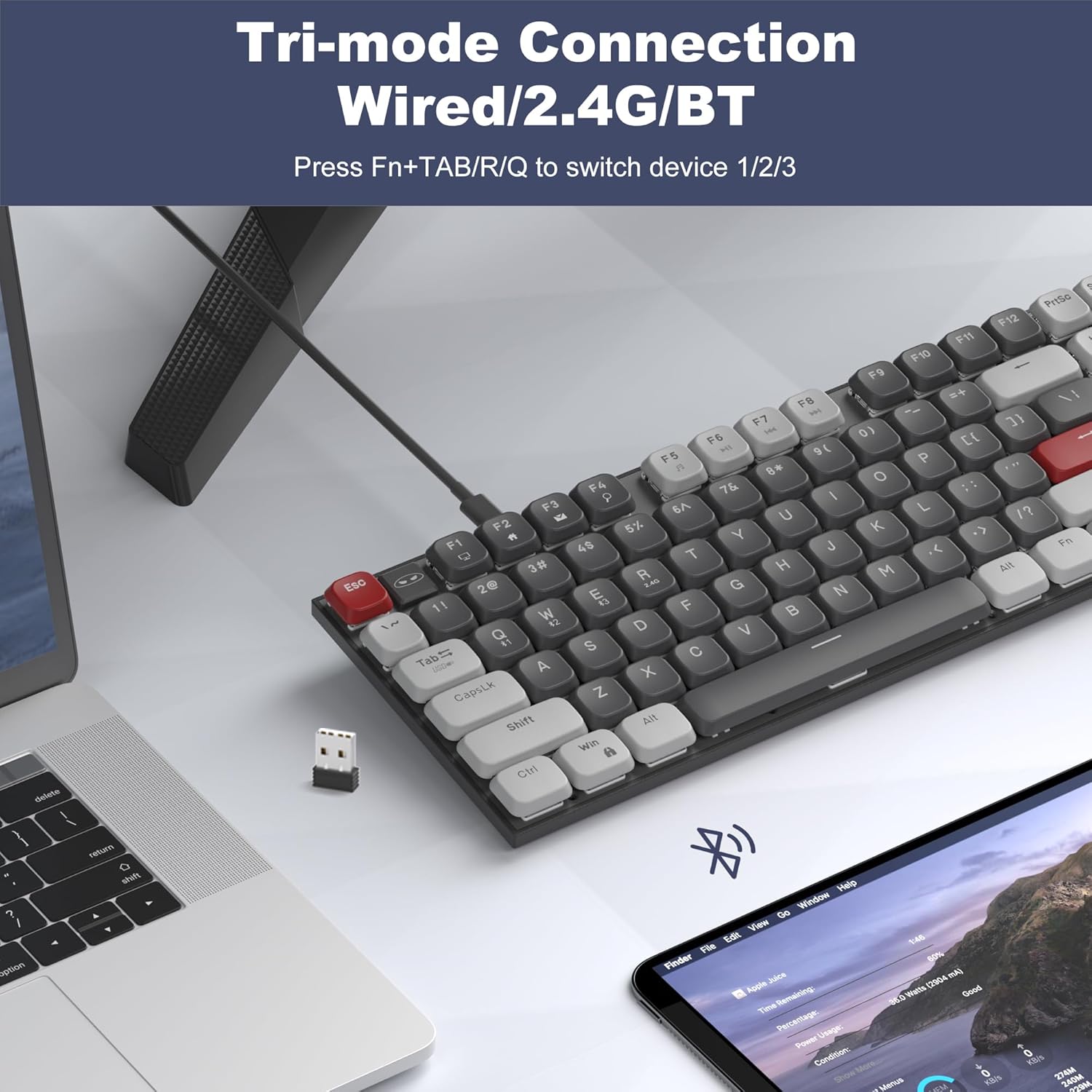
Image: The MageGee Moon104 keyboard shown with a 2.4GHz USB receiver plugged into a laptop, illustrating its wireless connectivity options.
5. Modi u Funzjonijiet Operattivi
5.1. Tibdil bejn il-Modalitajiet
To switch between the connected devices or modes:
- Agħfas Fn + TAB for USB-C Wired Mode.
- Agħfas Fn+Q for 2.4GHz Wireless Mode.
- Agħfas Fn + W for Bluetooth Channel 1.
- Agħfas Fn+E for Bluetooth Channel 2.
5.2. Kontroll tad-Dawl ta' Wara RGB
The Moon104 keyboard features a seven-color breathing RGB backlight system. Use the following key combinations to control the lighting:
- Agħfas Fn + Ins to cycle through different backlight modes.
- Agħfas Fn + Del to change backlight colors within certain modes.
- Agħfas Fn + ↑ (Up Arrow) to increase backlight brightness.
- Agħfas Fn + ↓ (Down Arrow) to decrease backlight brightness.
- Agħfas Fn + ← (Left Arrow) to decrease backlight speed.
- Agħfas Fn + → (Right Arrow) to increase backlight speed.
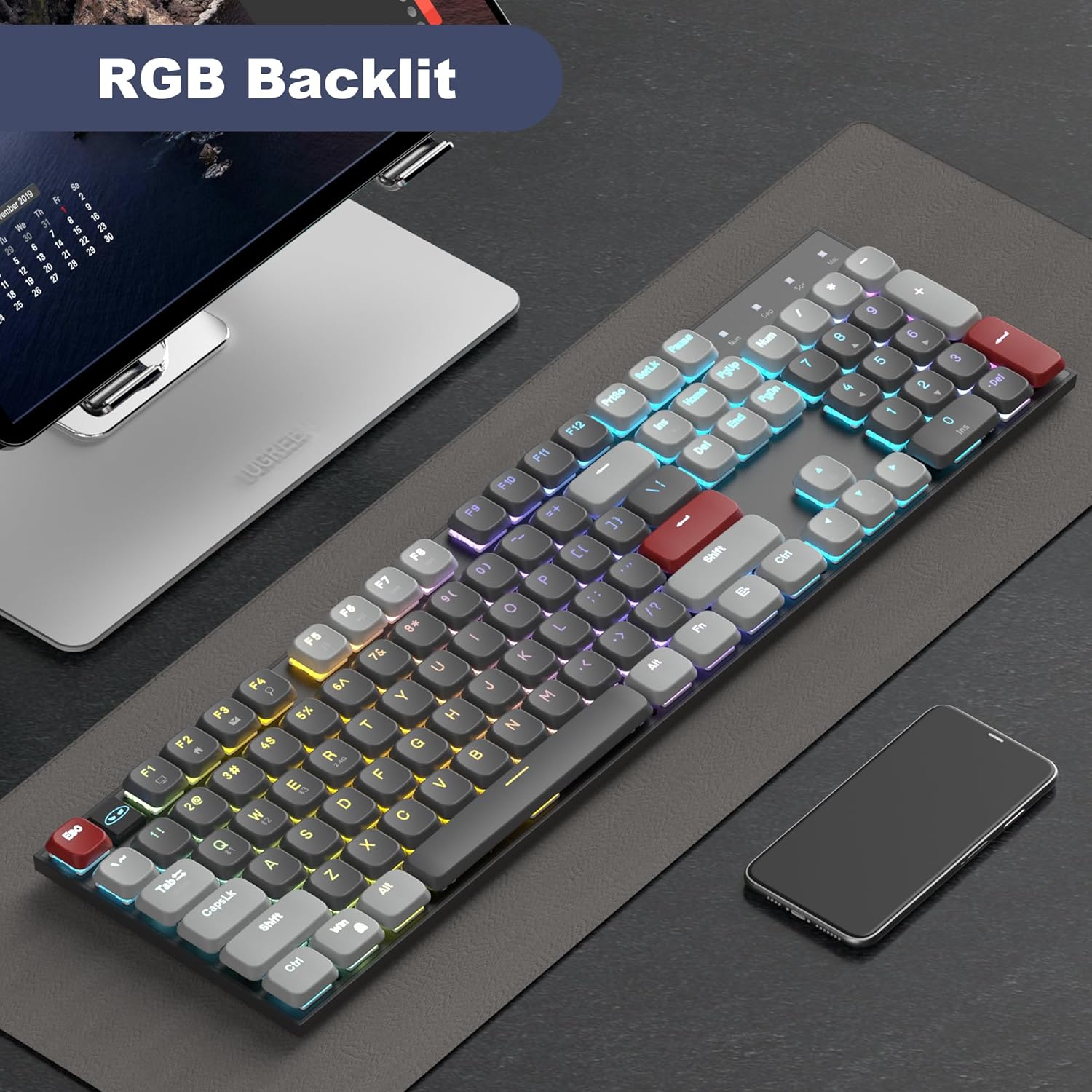
Image: The MageGee Moon104 keyboard displaying its RGB backlighting in a colorful pattern, enhancing visibility in low-light conditions.
5.3. Multimedia and Function Keys
The keyboard includes dedicated function keys (F1-F12) that can be combined with the Fn key for multimedia controls and other shortcuts. Refer to the keycap legends for specific functions.
- Fn + F1-F12: Various multimedia and system functions (e.g., volume control, media playback, web browser).
- Indikatur Caps Lock: An indicator light shows when Caps Lock is active.
- Indikatur tal-batterija: An indicator light provides information on battery status.
6. Kompatibilità
The MageGee Moon104 keyboard is compatible with a wide range of operating systems and devices:
- Sistemi Operattivi: Windows 10/8/7, macOS.
- Apparati: Computers, desktops, PCs, laptops, Surface devices, Smart TVs, gaming consoles.
A dedicated switch on the side of the keyboard allows you to toggle between Windows and Mac compatibility modes for optimal key mapping.
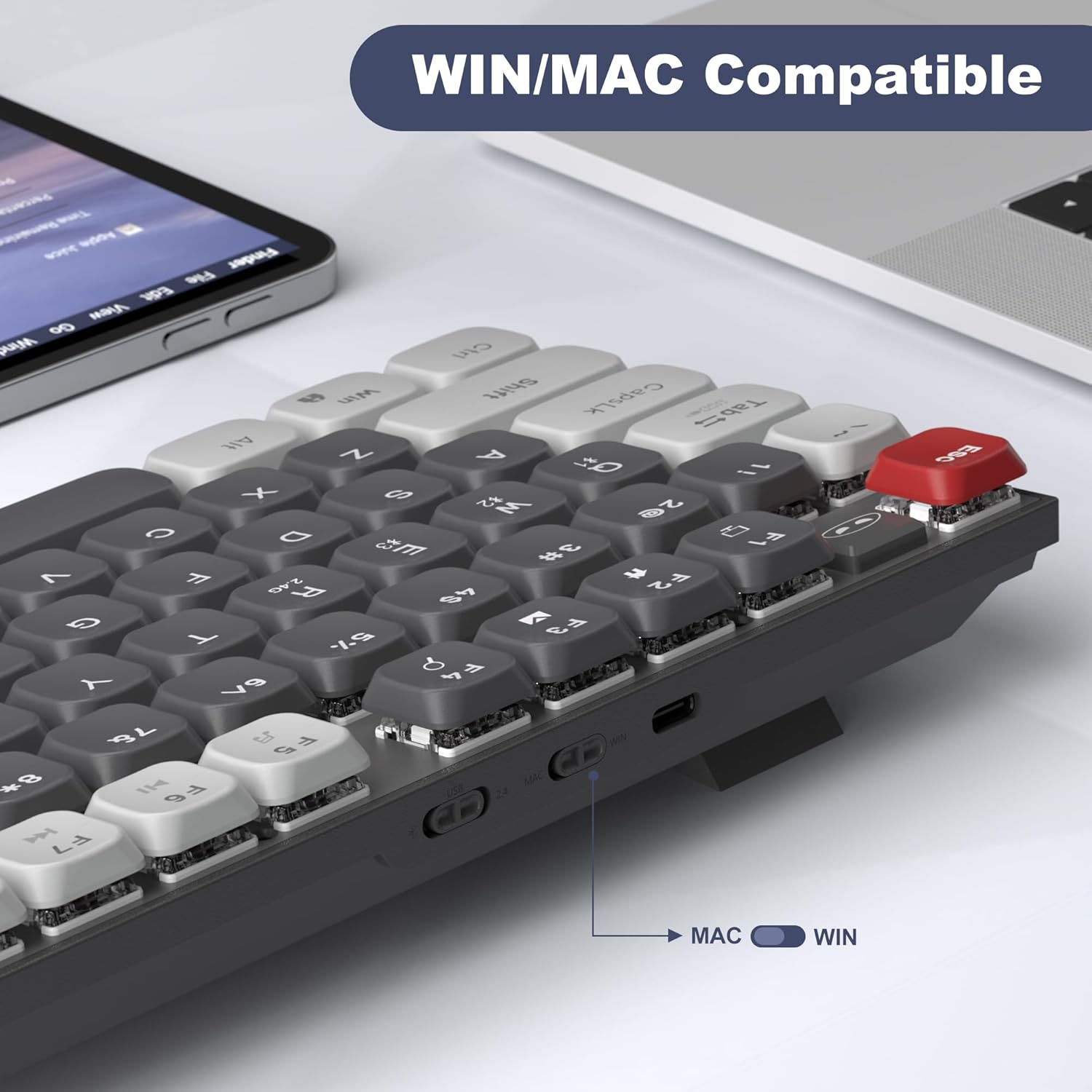
Immaġni: Dettaljata view of the keyboard's side, showing the physical switch to select between WIN (Windows) and MAC operating system modes.
7. Manutenzjoni
Manutenzjoni xierqa tiżgura l-lonġevità u l-prestazzjoni tat-tastiera tiegħek:
- Tindif: Use a soft, dry cloth to wipe the keyboard surface. For deeper cleaning, use compressed air to remove dust and debris from between the keycaps. Avoid using harsh chemicals or abrasive materials.
- Ħażna: Aħżen it-tastiera f'post frisk u niexef 'il bogħod mix-xemx diretta u minn temperaturi estremi.
- Kura tal-batterija: For wireless modes, ensure the keyboard is charged regularly using the provided USB-C cable. Avoid completely draining the battery frequently to prolong its lifespan.
- Espożizzjoni għal Likwidu: Avoid spilling liquids on the keyboard. If accidental spills occur, immediately disconnect the keyboard, power it off, and allow it to dry completely before attempting to use it again.
8 Issolvi l-problemi
If you encounter issues with your MageGee Moon104 keyboard, please refer to the following troubleshooting steps:
8.1. Keyboard Not Responding (Wired Mode)
- Kun żgur li l-kejbil USB-C huwa konness sew kemm mat-tastiera kif ukoll mal-kompjuter tiegħek.
- Ipprova qabbad it-tastiera ma' port USB differenti fuq il-kompjuter tiegħek.
- Test the cable with another device or use a different USB-C cable if available.
- Ensure the keyboard is set to wired mode (Fn + TAB).
8.2. Keyboard Not Responding (2.4GHz Wireless Mode)
- Ensure the 2.4GHz USB receiver is securely plugged into a USB port on your computer.
- Ensure the keyboard is set to 2.4GHz mode (Fn+Q).
- Iċċekkja l-livell tal-batterija tat-tastiera u ċċarġjaha jekk meħtieġ.
- Try plugging the receiver into a different USB port, preferably directly into the computer rather than a USB hub.
- Move the keyboard closer to the receiver to rule out interference.
8.3. Keyboard Not Responding (Bluetooth Mode)
- Kun żgur li l-Bluetooth huwa attivat fuq it-tagħmir tiegħek.
- Ensure the keyboard is set to the correct Bluetooth channel (Fn + W or Fn+E) and is in pairing mode (flashing indicator).
- If previously paired, try unpairing the keyboard from your device's Bluetooth settings and then re-pairing it.
- Iċċekkja l-livell tal-batterija tat-tastiera u ċċarġjaha jekk meħtieġ.
- Restart your device's Bluetooth function or restart the device itself.
8.4. Function Keys (e.g., Volume Control) Not Working
- Kun żgur li qed tagħfas il-buttuna Fn key in combination with the desired function key (e.g., Fn + F1 for media functions).
- Verify the keyboard's operating system switch (WIN/MAC) is set correctly for your system.
- Check your computer's operating system settings for any conflicting hotkey assignments or driver issues.
8.5. Backlight Not Working or Incorrect
- Ensure the backlight is not turned off or set to minimum brightness (Fn + ↑).
- Iċċikla bejn il-modi ta' backlight billi tuża Fn + Ins.
- Check battery level; low battery might affect backlight performance.
8.6. Keyboard Enters Sleep Mode Too Quickly
- The keyboard is designed to enter sleep mode to conserve battery. Press any key to wake it up.
- There is no user-adjustable setting to change the sleep timer.
9. Speċifikazzjonijiet
| Karatteristika | Dettall |
|---|---|
| Mudell | Moon104 |
| Brand | MageGee |
| Konnettività | USB-C Wired, 2.4GHz Wireless, Bluetooth 3.0/5.0 |
| Numru ta' Ċwievet | 104 |
| Layout tat-Tastiera | QWERTY |
| Tip ta' Swiċċ | Brown Mechanical Switches (Tactile) |
| Backlighting | RGB (7-color breathing backlight system) |
| Sistemi Operattivi Kompatibbli | Windows, macOS |
| Materjal | Plastik |
| Sors tal-Enerġija | Qawwa USB |
10. Garanzija u Appoġġ
The MageGee Moon104 keyboard comes with a garanzija ta 'sena mid-data tax-xiri.
If you encounter any issues or have questions regarding your product, please contact MageGee customer support. We aim to reply to all inquiries within 24 hours and provide a satisfactory solution.
Ikkuntattja l-Appoġġ: Please reach out to us via Amazon email for assistance.
Note: This warranty covers manufacturing defects. Damage caused by misuse, accidents, unauthorized modifications, or normal wear and tear is not covered.