
1. Introduzzjoni
This manual provides detailed instructions for the installation, operation, and maintenance of your ASRock DeskMini B760 Series Ultra-Compact Mini-PC Barebone System. The DeskMini B760 is designed to offer a powerful computing solution in a compact form factor, supporting 14th, 13th, and 12th Gen Intel Core processors. Please read this manual thoroughly before proceeding with any installation or operation to ensure proper setup and to maximize the performance and longevity of your system.

Figure 1: ASRock DeskMini B760 Series Mini-PC (Angled Front View)
2. X'hemm fil-Kaxxa
Your ASRock DeskMini B760 package should contain the following items:
- ASRock DeskMini B760 Barebone System (Chassis and Motherboard)
- 1 x Audio Header
- 1 x Internal Speaker Header
- 2 x 4-Pin fan connectors
- 1 x Intestatura tal-Panel ta' Quddiem
- 1 x USB 2.0 Header
- Gwida għall-Installazzjoni Rapida (dan id-dokument)
- Accessory pack (screws, cables, etc. - contents may vary)
Nota: This is a barebone system. You will need to provide your own CPU, CPU cooler, DDR4 SO-DIMM memory, storage devices (M.2 SSDs, 2.5" SATA drives), and operating system.
3. Istruzzjonijiet ta' Setup
Follow these steps to assemble and prepare your DeskMini B760 for first use. Ensure the system is unplugged from any power source before beginning.
3.1. Installazzjoni tas-CPU
- Carefully open the CPU socket retention arm.
- Align the notches on your 12th, 13th, or 14th Gen Intel LGA1700 CPU with the socket.
- Poġġi s-CPU bil-mod fis-sokit mingħajr ma tisforzah.
- Agħlaq id-driegħ taż-żamma biex twaħħal is-CPU.
3.2. Installing the CPU Cooler
Install a compatible CPU cooler (up to 65W TDP) according to its manufacturer's instructions. Ensure proper thermal paste application for optimal cooling.
3.3. Installing DDR4 SO-DIMM Memory
- Locate the two DDR4 SO-DIMM slots on the motherboard.
- Allinja l-islott fuq il-modulu tal-memorja maċ-ċavetta fl-islott.
- Insert the module firmly at an angle, then push down until the side clips snap into place.
- Repeat for the second module if installing dual channel memory.
3.4. Installing M.2 SSDs
The DeskMini B760 supports one Blazing M.2 PCIe Gen5 x4 slot and one Hyper M.2 PCIe Gen4 x4 slot.
- Sib is-slots tal-M.2 fuq il-motherboard.
- Remove the retaining screw/standoff.
- Daħħal l-M.2 SSD fl-islott f'angolu.
- Gently push down the SSD and secure it with the retaining screw.
3.5. Installing 2.5" SATA Drives
The system includes two 2.5" drive bays.
- Mount your 2.5" SATA SSD/HDD into the designated drive bays using the provided screws.
- Qabbad il-kejbils tad-dejta u tal-enerġija SATA mad-drajv u mal-motherboard.
3.6. Konnessjoni tal-Periferali u l-Enerġija
- Connect your monitor(s) to the DisplayPort, HDMI, or VGA outputs.
- Qabbad it-tastiera, il-maws, u apparati USB oħra tiegħek mal-portijiet USB disponibbli.
- Connect an Ethernet cable for wired network access, or install a compatible M.2 Key-E WiFi/Bluetooth module for wireless connectivity.
- Connect the external power adapter to the system and then to a power outlet.
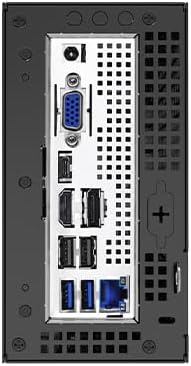
Figure 2: Rear I/O Ports of ASRock DeskMini B760
4. Istruzzjonijiet Operattivi
4.1. Tixgħil / Mitfi
- Qawwa Mixgħul: Agħfas il-buttuna tal-qawwa li tinsab fuq il-pannell ta 'quddiem.
- Itfi:
- Standard Shutdown: Use the operating system's shutdown function.
- Tfigħ Sfurzat: Press and hold the power button for 5-7 seconds until the system powers off. Use this only when the system is unresponsive.
4.2. L-Inizjali Boot u l-Installazzjoni tas-Sistema Operattiva
Upon first power-on, the system will typically enter the BIOS/UEFI setup utility or attempt to boot from an installed operating system.
- To enter BIOS/UEFI, press Del or F2 waqt l-istartjar.
- Install your preferred operating system (e.g., Windows 10, Windows 11) from a bootable USB drive or other media. Refer to your operating system's installation guide for detailed steps.
- Install all necessary drivers, which can be found on the ASRock support websit għall-mudell speċifiku tiegħek.
4.3. Konfigurazzjoni ta' Wiri Multiplu
The DeskMini B760 supports triple display output via DisplayPort, HDMI, and VGA.
- Connect up to three monitors to the available ports.
- Configure display settings within your operating system to extend or duplicate your desktop.
5. Manutenzjoni
5.1. Tindif
- Naddaf il-parti ta' barra tas-sistema regolarment b'ċarruta ratba u niexfa.
- Use compressed air to clear dust from ventilation openings and internal components (when powered off and unplugged) to maintain optimal airflow and cooling.
- Avoid using liquid cleaners directly on the system.
5.2. Aġġornamenti tas-Software
- Keep your operating system, drivers, and BIOS/UEFI firmware updated to ensure system stability, security, and performance.
- Żur l-ASRock uffiċjali website for the latest BIOS/UEFI updates and drivers for your DeskMini B760.
5.3. Konsiderazzjonijiet Ambjentali
- Operate the system in a well-ventilated area.
- Evita li tesponi s-sistema għal temperaturi estremi, dawl tax-xemx dirett, jew umdità għolja.
6 Issolvi l-problemi
If you encounter issues with your DeskMini B760, refer to the following common troubleshooting steps:
- Ebda Qawwa:
- Ensure the power adapter is securely connected to both the system and a working power outlet.
- Verify the power button is functioning correctly.
- Ebda Display:
- Check all monitor cable connections (DisplayPort, HDMI, VGA).
- Kun żgur li l-monitor ikun mixgħul u ssettjat għas-sors tad-dħul korrett.
- Verify that the CPU and RAM are correctly installed.
- Is-Sistema Operattiva Mhux Tibbutja:
- Check if your storage drive (M.2 SSD, 2.5" SATA) is properly installed and connected.
- Enter BIOS/UEFI setup to confirm the boot order is correct and the drive is detected.
- If recently installed, ensure the operating system installation was successful.
- Instabbiltà/Ħsarat tas-Sistema:
- Ensure all components (CPU, RAM, SSDs) are seated correctly.
- Check CPU cooler installation and thermal paste application to prevent overheating.
- Update drivers and BIOS/UEFI firmware.
Għal kwistjonijiet persistenti, irreferi għall-appoġġ tal-ASRock websit jew ikkuntattja l-appoġġ tekniku.
7. Speċifikazzjonijiet
Key technical specifications for the ASRock DeskMini B760 Series:
| Karatteristika | Dettall |
|---|---|
| Brand | ASRock |
| Isem tal-Mudell | DESKMINI B760W |
| Socket tas-CPU | LGA 1700 |
| Proċessuri Appoġġjati | 14th, 13th, 12th Gen Intel Core Processors (up to 65W TDP) |
| Tip ta' Memorja | DDR4 SODIMM |
| Slots tal-Memorja | 2 (Kanal Doppju) |
| Kapaċità Massima tal-Memorja | 64 GB |
| Veloċità tal-Memorja | DDR4-3200MHz |
| M.2 Storage Slots | 1 x Blazing M.2 (PCIe Gen5 x4), 1 x Hyper M.2 (PCIe Gen4 x4) |
| Kompartimenti tad-Drajv ta' 2.5" | 2 (with RAID 0/1 support) |
| Grafika | Integrated Intel UHD Graphics (CPU dependent) |
| Outputs tal-Vidjo | DisplayPort, HDMI, D-Sub (VGA) |
| Portijiet USB | USB 3.2 Gen2x2 Type-C (20Gb/s), USB 3.2 Gen2 Type-C (10Gb/s with Alt Mode), USB 3.2 Gen2 Type-A, USB 2.0 |
| Netwerk | Ethernet, M.2 Key-E slot for WiFi/Bluetooth module |
| Appoġġ tas-Sistema Operattiva | Windows 10, Windows 11 |
| Dimensjonijiet (Approx.) | Ultra-compact Mini PC form factor |
| Piż (Approx.) | 3.93 Liri |
8. Informazzjoni dwar Garanzija
The ASRock DeskMini B760 Series Barebone System comes with a Garanzija ta '90 jum from the date of purchase. This warranty covers defects in materials and workmanship under normal use. For full warranty terms and conditions, please refer to the documentation included with your product or visit the official ASRock websit.
9. Appoġġ
For technical assistance, driver downloads, BIOS updates, or further inquiries regarding your ASRock DeskMini B760, please utilize the following resources:
- Uffiċjali tal-ASRock Websit: Żur www.asrock.com for product support pages, FAQs, and downloads.
- Appoġġ tal-Amazon: For product questions or assistance related to your purchase, you may contact ASRock directly through Amazon.
- Online Forums/Communities: Engage with other users and ASRock representatives in online communities for shared knowledge and solutions.