
Introduzzjoni
This manual provides essential information for setting up, operating, maintaining, and troubleshooting your Lenovo ThinkPad T490 laptop. The ThinkPad T490 is a 14-inch laptop designed for productivity, featuring an Intel Core i7-8665U processor, 16GB DDR4 RAM, and a 1TB NVMe SSD. It comes pre-installed with Windows 11 Pro and includes a 1080p Full HD touchscreen display, USB-C Thunderbolt 3, HDMI, and an integrated webcam.
Please read this manual thoroughly to ensure proper use and to maximize the performance and longevity of your device.
X'hemm fil-Kaxxa
Upon unboxing your Lenovo ThinkPad T490, verify that the following items are included:
- Laptop Lenovo ThinkPad T490
- Adapter tal-Qawwa AC
Setup
1. Konnessjoni tal-Adapter tal-Enerġija
- Connect the AC power adapter to the USB-C power port on your laptop.
- Ipplaggja l-korda tad-dawl ġo żbokk tal-ħajt.
- Allow the battery to charge sufficiently before first use, or use it while connected to power.
2. Initial Power On and Windows 11 Setup
- Iftaħ l-għatu tal-laptop.
- Agħfas il-buttuna tal-qawwa, li tipikament tinsab fin-naħa ta' fuq tal-lemin tat-tastiera.
- Segwi l-istruzzjonijiet fuq l-iskrin biex tlesti s-setup inizjali tal-Windows 11 Pro, inkluż l-għażla tal-lingwa, il-konnessjoni tan-netwerk, u l-ħolqien tal-kont tal-utent.
3. Port Identification
Familiarize yourself with the various ports and connectors on your ThinkPad T490:
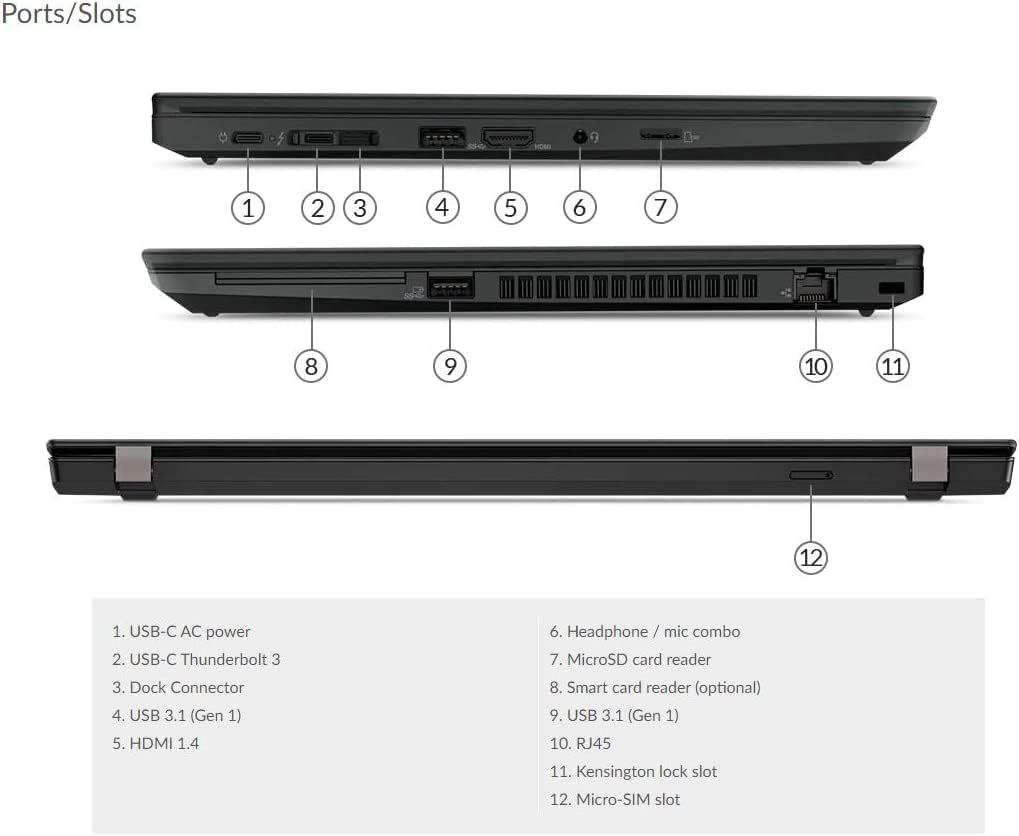
Detailed diagram illustrating the location and type of each port and slot on the ThinkPad T490, including USB-C, HDMI, USB 3.1, RJ45, and more.
- 1. USB-C AC power: Għall-konnessjoni tal-adapter tal-enerġija.
- 2. USB-C Thunderbolt 3: High-speed data transfer, video output, and power delivery.
- 3. Dock Connector: For connecting to a compatible docking station.
- 4. USB 3.1 (Gen 1): Port USB standard għall-periferali.
- 5. HDMI 1.4: Għall-konnessjoni ma' displays esterni.
- 6. Kombinazzjoni ta' headphones / mikrofonu: Għad-dħul/ħruġ tal-awdjo.
- 7. MicroSD card reader: Għall-qari ta' kards tal-memorja microSD.
- 8. Smart card reader (optional): For smart card authentication.
- 9. USB 3.1 (Gen 1): Port USB standard ieħor.
- 10. RJ45: Port Ethernet għal konnessjoni man-netwerk bil-fili.
- 11. Kensington lock slot: For securing the laptop with a compatible lock.
- 12. Micro-SIM slot: For mobile broadband connectivity (if equipped).
Tħaddim tal-Laptop
1. Ġestjoni tal-Enerġija
- Qawwa Mixgħul: Agħfas il-buttuna tal-qawwa.
- Modalità Sleep: Agħlaq l-għatu jew agħfas il-buttuna tal-qawwa fil-qosor.
- Itfi: Click the Windows Start button, then Power > Shut down.
- Ibda mill-ġdid: Click the Windows Start button, then Power > Restart.
2. Tastiera u Apparati ta' Input
- Tastiera: Use the integrated keyboard for typing. Function keys (Fn) combined with F1-F12 provide additional controls (e.g., volume, brightness).
- TrackPoint: The red pointing stick in the center of the keyboard allows for precise cursor control. Use the three buttons below the spacebar for left-click, right-click, and scroll functions.
- Touchpad: The multi-touch touchpad below the keyboard supports gestures for navigation and control.
- Touchscreen: Interact directly with the display using touch gestures for navigation and input.
3. Konnessjoni ta 'Tagħmir Estern
- Apparat USB: Connect USB drives, mice, or keyboards to the USB 3.1 ports.
- Display Estern: Use the HDMI port or a USB-C Thunderbolt 3 adapter to connect an external monitor or projector.
- Apparat Awdjo: Ipplaggja l-headphones jew l-ispikers esterni fil-jack combo tal-headphones/mic.
- Netwerk: Connect an Ethernet cable to the RJ45 port for a wired internet connection.
- Bluetooth: Enable Bluetooth in Windows settings to pair with wireless devices like headphones or mice.
4. Webcam u Mikrofonu
L-integrat webcam and microphone are located at the top of the display. They are ready for use with video conferencing applications and voice recording. Ensure the camera shutter (if present) is open for video calls.
Manutenzjoni
1. Tindif tal-Laptop
- Skrin: Uża ċarruta ratba u mingħajr ħelu dampLaħlaħ bl-ilma jew b'tindif tal-iskrin. Tisprejjax likwidu direttament fuq l-iskrin.
- Tastiera u Ċasing: Uża drapp artab u niexef. Għal ħmieġ iebes, neħħi ftit drapp.amp Jista' jintuża drapp b'soluzzjoni ta' sapun ħafif, biex tiżgura li l-ebda likwidu ma jidħol fil-fetħiet.
- Portijiet: Uża arja kkompressata biex tneħħi t-trab bil-mod mill-portijiet.
2. Kura tal-batterija
- Evita li tiċċarġja l-batterija kompletament ta' spiss.
- Aħżen il-laptop f'post frisk u niexef jekk ma tużahx għal perjodi twal.
- Għal saħħa ottimali tal-batterija, evita espożizzjoni fit-tul għal temperaturi estremi.
3. Aġġornamenti tas-Software
Regularly check for and install Windows updates to ensure system stability, security, and performance. Go to Settings > Aġġornament tal-Windows biex timmaniġġja l-aġġornamenti.
4. Ġestjoni tal-Ħażna
Perjodikament mill-ġdidview u ħassar bla bżonn files to maintain optimal performance of your 1TB NVMe SSD. Utilize Windows Disk Cleanup or Storage Sense features.
Issolvi l-problemi
Din it-taqsima tindirizza kwistjonijiet komuni li tista' tiltaqa' magħhom bit-ThinkPad T490 tiegħek.
1. Laptop Not Powering On
- Kun żgur li l-adapter tal-AC huwa konness sew kemm mal-laptop kif ukoll ma' sokit tal-enerġija li jaħdem.
- Ivverifika li s-sokit tal-enerġija jaħdem billi tqabbad apparat ieħor.
- Jekk il-batterija tkun ixxotta kompletament, ħalliha tiċċarġja għal mill-inqas 30 minuta qabel ma tipprova tixgħelha.
2. Screen Issues (No Display, Flickering)
- Aġġusta l-luminożità tal-iskrin billi tuża ċ-ċwievet tal-funzjoni (Fn + F5/F6).
- Connect an external monitor to the HDMI port to check if the issue is with the laptop's internal display or the graphics output.
- Ibda mill-ġdid il-laptop.
3. Problemi ta' Konnettività Wi-Fi jew Bluetooth
- Ensure Wi-Fi or Bluetooth is enabled in Windows settings.
- Erġa' ibda r-router/modem tiegħek għal problemi bil-Wi-Fi.
- Aġġorna s-sewwieqa tal-adapter tan-netwerk permezz tal-Maniġer tal-Apparat.
- Forget and reconnect to the Wi-Fi network or re-pair the Bluetooth device.
4. Prestazzjoni bil-mod
- Agħlaq l-applikazzjonijiet bla bżonn li jkunu qed jaħdmu fl-isfond.
- Iċċekkja t-Task Manager għal proċessi li jikkunsmaw ħafna CPU jew RAM.
- Kun żgur li l-Windows u s-sewwieqa huma aġġornati.
- Run a disk cleanup and defragmentation (for HDD, though NVMe SSDs don't require defragging).
Speċifikazzjonijiet
Key technical specifications for the Lenovo ThinkPad T490:
| Karatteristika | Speċifikazzjoni |
|---|---|
| Isem tal-Mudell | T490 |
| Daqs tal-Iskrin | 14 Pulzier |
| Riżoluzzjoni tal-Iskrin | 1920 x 1080 pixels (Full HD) |
| Proċessur | Intel Core i7-8665U |
| RAM | 16 GB DDR4 |
| Ħażna | SSD NVMe ta' 1 TB |
| Karta Grafika | Grafika Intel integrata |
| Sistema Operattiva | Windows 11 Pro |
| Konnettività bla fili | 802.11ac, 802.11n, Bluetooth |
| Dimensjonijiet tal-Prodott (LxWxH) | 0.7 x 8.94 x 12.95 pulzieri |
| Kulur | Iswed |
Garanzija u Appoġġ
This Lenovo ThinkPad T490 is a renewed product. Renewed products are fully functional and come with generic or original accessories and packaging. For specific warranty details and support, please refer to the seller's policy or contact the seller directly. Typically, renewed products come with a limited warranty or return period, such as the 90-day return policy mentioned for this product.
For technical assistance or service inquiries, please reach out to the vendor from whom you purchased this renewed laptop. They will be able to provide specific support related to your purchase.