
BENFEI 000395
BENFEI 7-in-1 USB C Hub Instruction Manual
Model: 000395grey
Marka: BENFEI
Introduzzjoni
The BENFEI 7-in-1 USB Type-C Hub is designed to expand the connectivity of your USB-C enabled devices. It provides a comprehensive solution by adding essential ports, including HDMI 4K@60Hz, two USB 3.0 ports, one USB-C data port, a 100W Power Delivery charging port, and an SD/TF card reader. This manual provides detailed instructions for setup, operation, maintenance, and troubleshooting to ensure optimal performance of your hub.
Karatteristiċi tal-Prodott
- Konnettività 7 f'1: Includes 1x HDMI (4K@60Hz), 1x USB-C Power Delivery (100W), 2x USB 3.0, 1x USB-C Data, and SD/TF card reader slots.
- High-Resolution Video Output: Supports HDMI output up to 3840 x 2160 @ 60Hz, including 2K@144Hz, 1080p, and 720p.
- Fast Power Delivery: USB-C PD port supports up to 100W charging (90W to host device, 10W reserved for hub operation). This port does not support data transfer or video output.
- Trasferiment tad-Dejta b'Veloċità Għolja: Two USB 3.0 ports and one USB-C data port offer data transfer speeds up to 5Gbps.
- Simultaneous Card Reading: Integrated SD and TF card reader supports UHS-I speeds up to 160MB/s and can read both cards simultaneously.
- Disinn Durabbli: Features a super soft, tangle-free 20cm silicone braided cable for enhanced durability and portability.
- Kompatibilità Wiesgħa: Compatible with a broad range of USB-C devices including MacBook Pro/Air, iPad Pro, iMac, iPhone 15 Series, Surface Book 2, Dell XPS, Chromebook, and more. Supports macOS, iOS, iPadOS, Windows, and Linux operating systems.
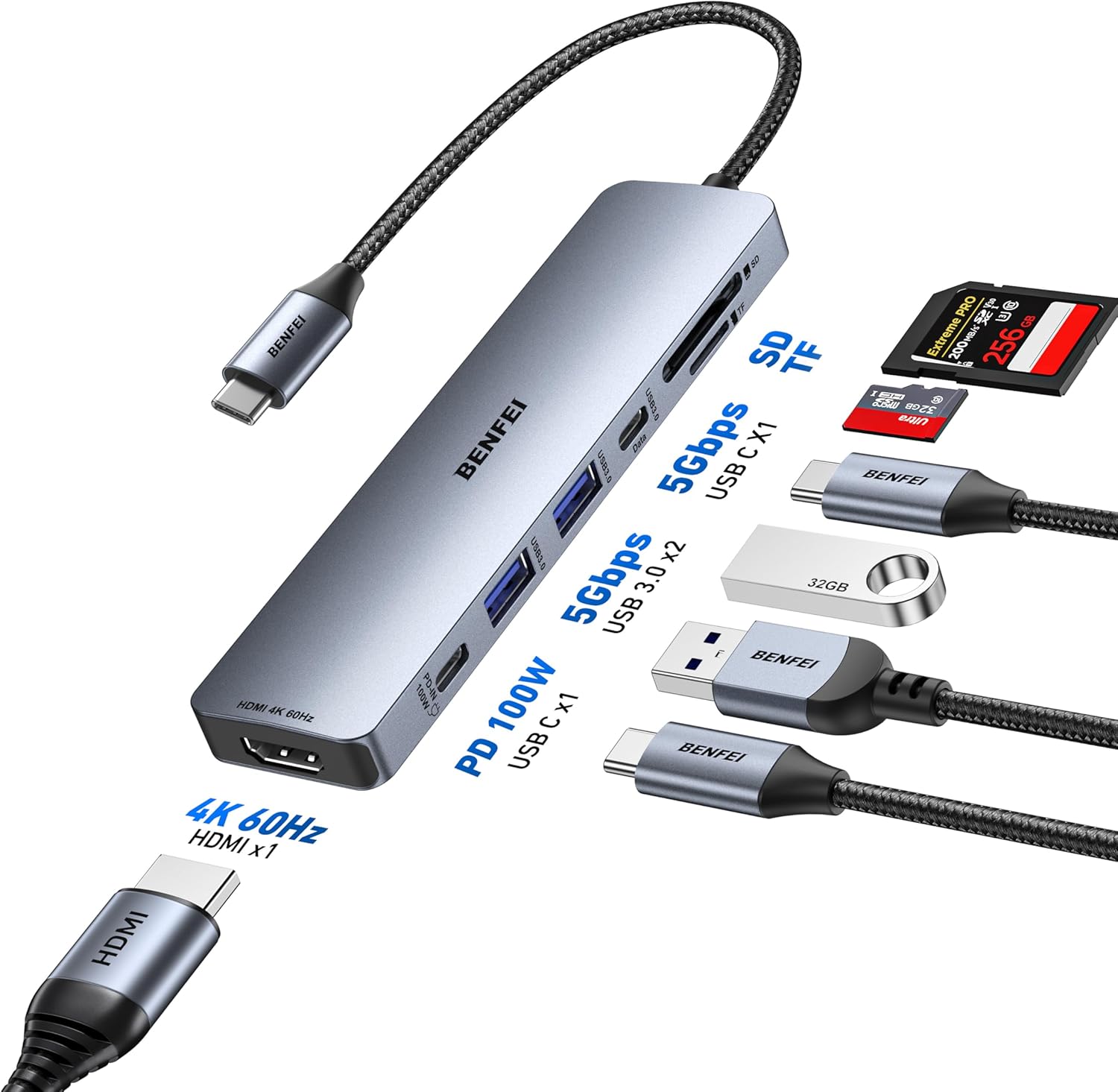
Immaġni: Fuqview of the BENFEI 7-in-1 USB C Hub, highlighting its various ports and their functions, including HDMI, Power Delivery, USB 3.0, USB-C data, and SD/TF card slots.
Setup Istruzzjonijiet
- Qabbad mat-Tagħmir Ospitanti: Plug the USB-C connector of the BENFEI Hub into an available USB-C port on your laptop, tablet, or smartphone. Ensure the USB-C port on your device supports data transfer and video output (DisplayPort Alternate Mode) for full functionality.
- Qabbad il-Qawwa (Mhux obbligatorju): If your host device requires charging or if you are using power-intensive peripherals, connect your USB-C power adapter to the PD 100W port on the hub. The hub will pass through up to 90W of power to your host device.
- Qabbad HDMI Display: Use an HDMI cable to connect your monitor or projector to the HDMI port on the hub. Ensure your display is set to the correct input source.
- Qabbad il-Periferali tal-USB: Plug your USB-A devices (e.g., mouse, keyboard, flash drive) into the two USB 3.0 ports. For USB-C data devices, use the dedicated USB-C data port.
- Daħħal Karti SD/TF: Insert your SD or TF (Micro SD) memory cards into the corresponding slots on the hub. Both can be read simultaneously.

Image: Illustration of the hub's broad compatibility with different host devices and operating systems, emphasizing its plug-and-play nature.
Istruzzjonijiet Operattivi
Ħruġ tal-Vidjo HDMI
Connect an HDMI cable from the hub's HDMI port to your external display. Your host device should automatically detect the external display. You may need to adjust display settings (e.g., mirror, extend, resolution) in your operating system's display preferences. The hub supports resolutions up to 4K (3840x2160) at 60Hz.

Image: Demonstrates the hub providing a 4K@60Hz video output to an external display from a laptop.
Trasferiment tad-Data USB
The two USB 3.0 ports and one USB-C data port allow you to connect various USB devices such as external hard drives, flash drives, keyboards, and mice. These ports support data transfer speeds up to 5Gbps. Simply plug your device into the appropriate port.

Image: Illustrates the high-speed data transfer capabilities of the USB 3.0 ports on the hub.
Iċċarġjar tal-Kunsinna tal-Enerġija
Connect your original USB-C power adapter to the PD 100W port on the hub. This allows you to charge your host device while using the hub's other functions. The hub reserves 10W for its own operation, delivering up to 90W to your connected laptop or tablet.

Image: Shows the hub facilitating pass-through charging for a laptop, with power input and output details.
Qarrej tal-Kard SD/TF
Insert your SD or TF (Micro SD) card into the corresponding slot. The hub supports UHS-I speeds for quick access to photos and other media, with transfer rates up to 160MB/s. Both card slots can be used simultaneously.

Image: Depicts the hub's ability to read and write to SD and TF cards simultaneously, useful for photographers and content creators.
Manutenzjoni
- Żomm il-hub nadif u ħieles mit-trab. Uża drapp artab u niexef għat-tindif.
- Evita li tesponi l-hub għal temperaturi estremi, umdità, jew dawl tax-xemx dirett.
- Do not attempt to disassemble or repair the hub yourself. This will void the warranty.
- Store the hub in a safe place when not in use to prevent damage to the cable or ports.
Issolvi l-problemi
- L-ebda Wiri fuq Monitor Estern:
- Ensure your host device's USB-C port supports DisplayPort Alternate Mode (video output).
- Check the HDMI cable connection between the hub and the monitor.
- Verify the external monitor is set to the correct HDMI input source.
- Ipprova erġa' ibda t-tagħmir ospitanti tiegħek.
- Apparati USB Mhux Skoperti:
- Kun żgur li l-hub huwa konness sew mat-tagħmir ospitanti tiegħek.
- Ipprova qabbad l-apparat USB direttament mal-apparat ospitanti tiegħek biex tikkonferma li jaħdem.
- If using a high-power USB device (e.g., external HDD), connect a power adapter to the hub's PD port.
- Veloċità baxxa tat-Trasferiment tad-Data:
- Ensure your USB devices and cables are USB 3.0 compatible for optimal speeds.
- For devices with USB 3.1 Gen 1 (like some Samsung Galaxy S9/S8), synchronization may take longer.
- Charging Not Working or Slow:
- Verify your USB-C power adapter is connected to the hub's PD 100W port.
- Kun żgur li l-adapter tal-enerġija tiegħek jipprovdi biżżejjed wattage for your host device and the hub.
- SD/TF Card Not Recognized:
- Kun żgur li l-kard hija mdaħħla kompletament fl-islott korrett.
- Check if the card is damaged or corrupted. Try another card if possible.
- Hub Iħoss Sħun:
- It is normal for the hub to become slightly warm during extended use, especially when multiple ports are active or when charging. If it becomes excessively hot, disconnect it and contact support.
Speċifikazzjonijiet
| Numru tal-Mudell | 000395griż |
| Brand | BENFEI |
| Kulur | Griż |
| Materjal | Silicone (cable) |
| Portijiet |
|
| Riżoluzzjoni HDMI | Sa 3840 x 2160 @ 60Hz |
| Kunsinna tal-Enerġija | 100W input (90W to host, 10W for hub) |
| Rata ta' Trasferiment tad-Data | 5Gbps (USB 3.0 / USB-C Data) |
| Card Reader Speed | UHS-I, sa 160MB/s |
| OS kompatibbli | macOS, iOS, iPadOS, Windows, Linux |
| Apparati Kompatibbli | Laptops, Tablets, Smartphones with USB-C (DisplayPort Alt Mode support required for video) |
Garanzija u Appoġġ
The BENFEI 7-in-1 USB C Hub comes with an 18-il xahar garanzija from the date of purchase. If you encounter any issues or have questions regarding the product, please contact BENFEI customer support. We aim to provide a response within 24 hours to ensure your satisfaction.
For support, please refer to the contact information provided with your product packaging or visit the official BENFEI websit.
Ask a question about this manual
Ask about setup, troubleshooting, compatibility, parts, safety, or missing instructions. Manuals+ will review the question and use this page’s manual context to help answer it.