
1. Introduzzjoni
The MERCUSYS MA530 is a compact Bluetooth 5.3 Nano Adapter designed to provide wireless connectivity for your PC or laptop. This adapter enables communication with various Bluetooth-enabled devices such as headphones, speakers, keyboards, mice, and more. Featuring Bluetooth 5.3 technology, it offers improved speed, coverage, security, and reliability compared to previous Bluetooth versions. Its ultra-small size ensures convenient portability and discreet integration into your device.

Image 1.1: The MERCUSYS MA530 Bluetooth 5.3 Nano Adapter. This image shows the compact design of the adapter, highlighting its small form factor suitable for discreet use with laptops or desktop computers.
2. Istruzzjonijiet ta' Setup
Follow these steps to set up your MERCUSYS MA530 Bluetooth Nano Adapter:
- Daħħal l-Adapter: Plug the MA530 adapter into an available USB port on your PC or laptop.
- Driver Installation (Windows 11/10/8.1): For most Windows 11, Windows 10, and Windows 8.1 systems, the adapter is plug-and-play. The operating system should automatically detect the device and install the necessary drivers. Wait for a notification indicating that the device is ready for use.
- Driver Installation (Windows 7): For Windows 7, manual driver installation may be required.
- If the adapter is not automatically recognized, visit the official MERCUSYS support websit.
- Navigate to the support page for the MA530 model.
- Download the appropriate driver package for Windows 7 (e.g., "Win_7_Win8.1- Modifications and Bug Fixes").
- Oħroġ il-ZIP imniżżel file and run the setup application.
- Segwi l-istruzzjonijiet fuq l-iskrin biex tlesti l-installazzjoni tas-sewwieq.
- Erġa' ibda l-kompjuter tiegħek wara l-installazzjoni jekk tintalab.
- Ivverifika l-Installazzjoni: After installation, check your computer's Device Manager to ensure the Bluetooth adapter is listed and functioning correctly.

Image 2.1: The MERCUSYS MA530 adapter shown next to a laptop, illustrating its nano-size and how it discreetly fits into a USB port. This image emphasizes the adapter's portability and minimal protrusion when connected.
3. Istruzzjonijiet Operattivi
Once the MA530 adapter is installed, you can connect your Bluetooth devices:
- Ippermetti Bluetooth: Ensure Bluetooth is enabled on your computer. You can usually find this option in your operating system's settings (e.g., Windows Settings > Devices > Bluetooth & other devices).
- Poġġi l-Apparat fil-Modalità ta' Tqabbil: Place your Bluetooth device (headphones, speaker, mouse, etc.) into pairing mode. Refer to your device's manual for specific instructions on how to do this.
- Żid Apparat Bluetooth: On your computer, go to Bluetooth settings and click "Add Bluetooth or other device." Select "Bluetooth" from the options.
- Agħżel u Qabbad: Your computer will scan for nearby Bluetooth devices. Select your device from the list and follow any on-screen prompts to complete the pairing process. You may need to enter a PIN if required by your device.
- Using Connected Devices: Once paired, your Bluetooth device should connect automatically when in range and Bluetooth is enabled on both ends.
The MA530 supports stable connections for multiple devices simultaneously, offering a reliable wireless experience with extended range.
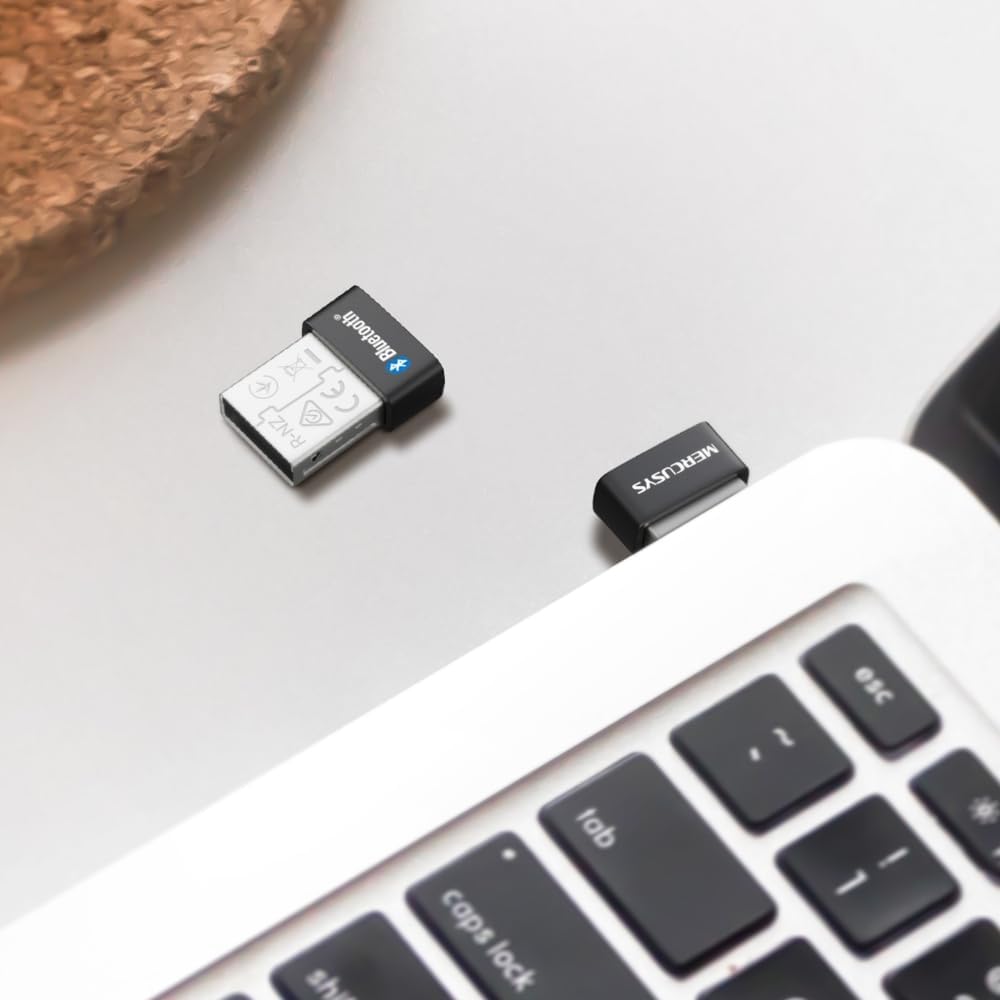
Image 3.1: The MERCUSYS MA530 adapter plugged into a laptop, with a visual representation of a Bluetooth signal emanating from it. This illustrates the active wireless connectivity provided by the adapter.
4. Manutenzjoni
The MERCUSYS MA530 adapter requires minimal maintenance. To ensure optimal performance and longevity:
- Żomm l-adapter nadif u ħieles mit-trab. Uża drapp artab u niexef biex timsaħ jekk meħtieġ.
- Evita li tesponi l-adapter għal temperaturi estremi, umdità, jew dawl tax-xemx dirett.
- Tippruvax tiżżarma jew issewwi l-adapter int stess, għax dan jannulla l-garanzija.
- When not in use for extended periods, you may remove the adapter from the USB port, though its nano-size allows it to remain plugged in discreetly.
5 Issolvi l-problemi
If you encounter issues with your MERCUSYS MA530 adapter, consider the following troubleshooting steps:
- Adapter Mhux Rilevat:
- Ipprova daħħal l-adapter f'port USB ieħor.
- Ensure the USB port is functional.
- Ibda mill-ġdid il-kompjuter tiegħek.
- Check Device Manager for any unknown devices or errors related to USB controllers.
- Bluetooth Not Functioning (Windows 11/10/8.1):
- Verify that Bluetooth is enabled in your Windows settings.
- Go to Device Manager, locate the Bluetooth adapter, right-click, and select "Update driver." If issues persist, try "Uninstall device" and then restart your computer to allow Windows to reinstall the driver.
- Bluetooth Not Functioning (Windows 7):
- Ensure you have installed the correct Windows 7 driver from the MERCUSYS support website as described in the Setup section.
- If the driver was installed, try reinstalling it.
- Cannot Pair/Connect Devices:
- Kun żgur li l-apparat Bluetooth tiegħek jinsab fil-modalità ta' tqabbil.
- Make sure the device is within range of the adapter.
- Remove any previously paired instances of the device from your computer's Bluetooth settings and attempt to pair again.
- Try pairing the device with another Bluetooth-enabled computer or phone to confirm the device itself is working.
- Poor Connection/Range:
- Ensure there are no physical obstructions (e.g., metal objects, thick walls) between the adapter and your Bluetooth device.
- Move the adapter to a different USB port, preferably one with a clear line of sight to your device.
- Minimize interference from other wireless devices (Wi-Fi routers, cordless phones, microwaves).
If these steps do not resolve the issue, please contact MERCUSYS Technical Support for further assistance.
6. Speċifikazzjonijiet
| Karatteristika | Dettall |
|---|---|
| Mudell | MA530 |
| Verżjoni Bluetooth | Bluetooth 5.3 (BLE Technology) |
| Interface tal-Ħardwer | USB 2.0 |
| Protokoll tal-Kollegament tad-Data | Bluetooth, USB |
| Rata ta' Trasferiment tad-Data | 2480 MHz |
| Sistemi Operattivi Kompatibbli | Windows 11, Windows 10, Windows 8.1, Windows 7 |
| Apparati Kompatibbli | Desktop, Laptop |
| Dimensjonijiet (L x W x H) | 1.49 x 1.92 x 0.72 ċm (0.59 x 0.76 x 0.28 pulzieri) |
| Piż | 2 gramma |
| Manifattur | TP-Link |
7. Informazzjoni dwar Garanzija
MERCUSYS products are typically covered by a limited warranty. The specific terms and duration of the warranty for your MA530 adapter may vary by region and retailer. Please retain your proof of purchase for warranty claims.
For detailed warranty information, including coverage, limitations, and the process for making a claim, please refer to the official MERCUSYS webis-sit jew ikkuntattja direttament lis-servizz tal-klijenti tagħhom.
8. Appoġġ Tekniku
If you require further assistance or have questions not covered in this manual, please contact MERCUSYS Technical Support:
- Websit: Visit the official MERCUSYS websit għal FAQs, downloads ta' sewwieqa, u riżorsi ta' appoġġ.
- Kuntatt: Look for contact information (phone, email, live chat) on the MERCUSYS support page specific to your region.
When contacting support, please have your product model (MA530) and a description of your issue ready.